

main branch, and the updated architecture using PowerSync on the powersync-existing-api branch.
The Starting Point: An Online-Only REST App
The app calls the backend API for everything. A dispatch script writes to SQL Server directly, as a back-office or ERP system would. There are two tables, both with server-generatedNEWSEQUENTIALID() GUIDs:
stops: driver, route date, sequence, recipient, address, and a status ofassigned,delivered,failed, orcanceled.deliveries: one row per attempt, with the outcome, a note, andrecorded_at.
/.well-known/jwks.json, the way Entra ID or any other identity provider does.
To record an outcome, the app calls POST /api/stops/{id}/deliveries. This endpoint enforces the app’s one business rule: it returns 409 if dispatch canceled the stop or the stop is already delivered. The endpoint locks the stop row first, so a cancel that arrives at the same moment can’t slip in.
The full code is on the repo’s main branch.
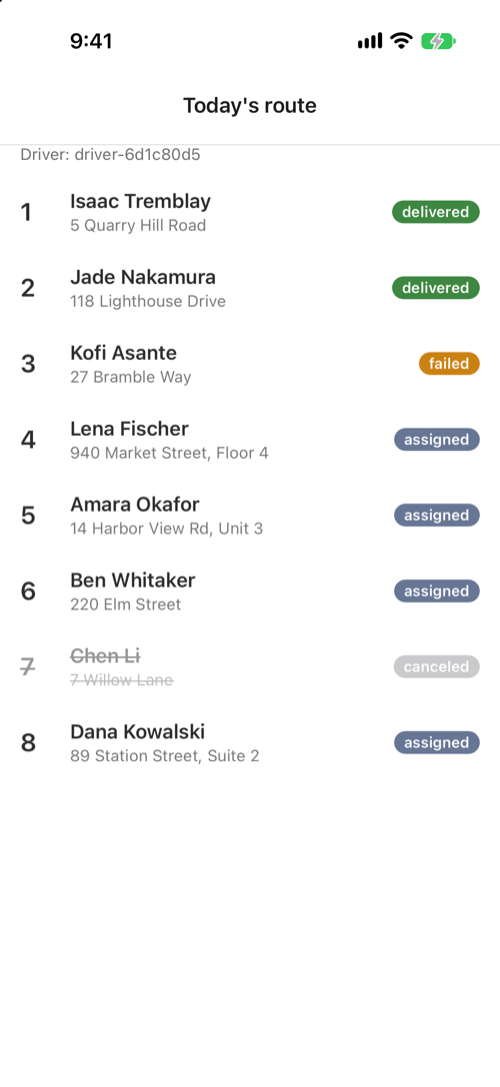
The day's route, part done.
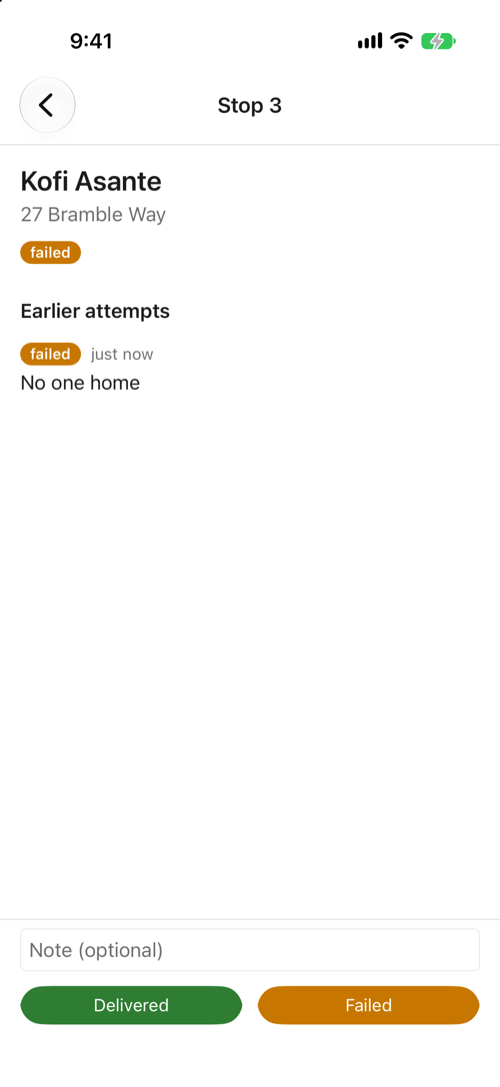
A stop with a failed attempt, ready to try again.
Failure Modes
The REST-based app fails in three ways:- If the driver records an outcome while offline, they get an error banner and have to try again later.
- If the driver opens the app while offline, the screen is empty, so they can’t see where to go.
- If dispatch cancels a stop, it still shows as assigned until the driver refreshes. A delivery attempt on it then fails with a 409.
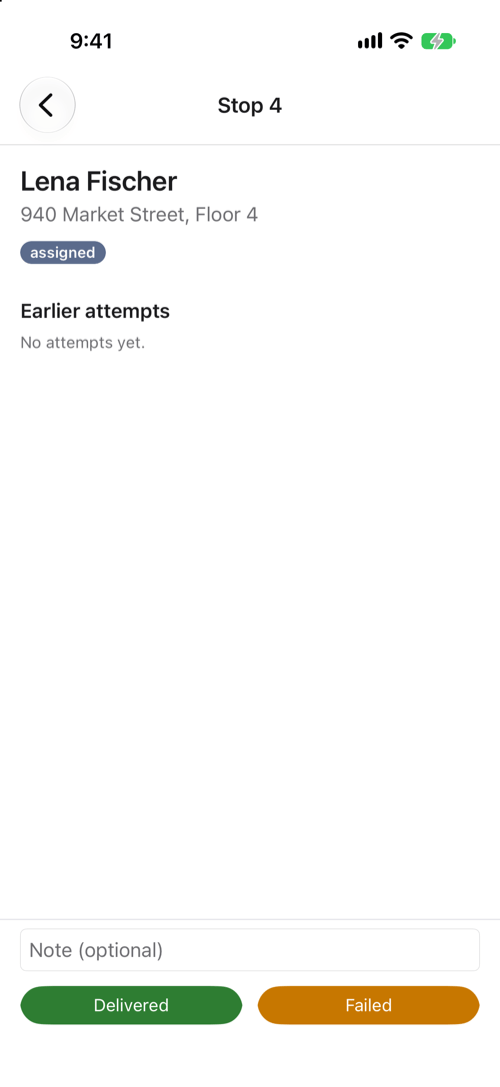
Stop 4, canceled by dispatch, still shows as assigned.
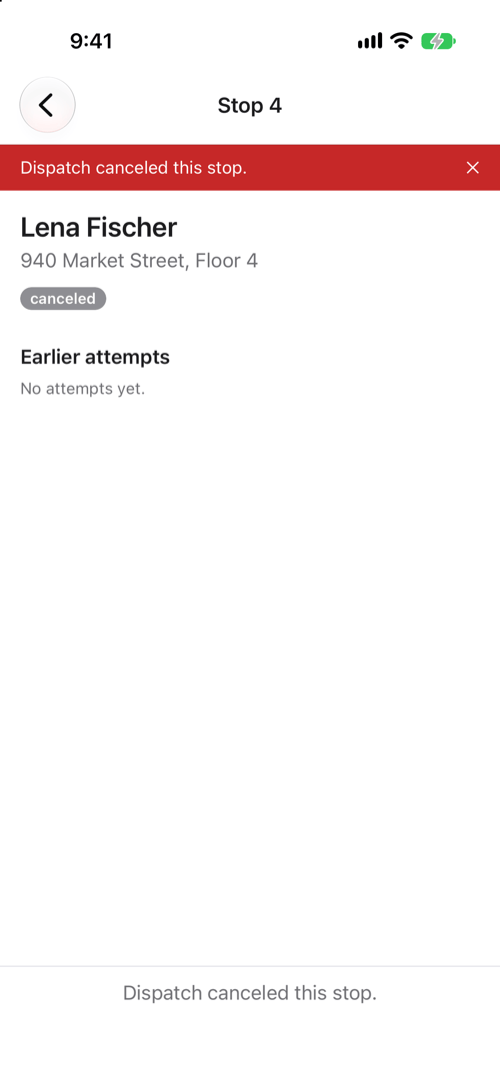
Tapping Delivered gets a 409.
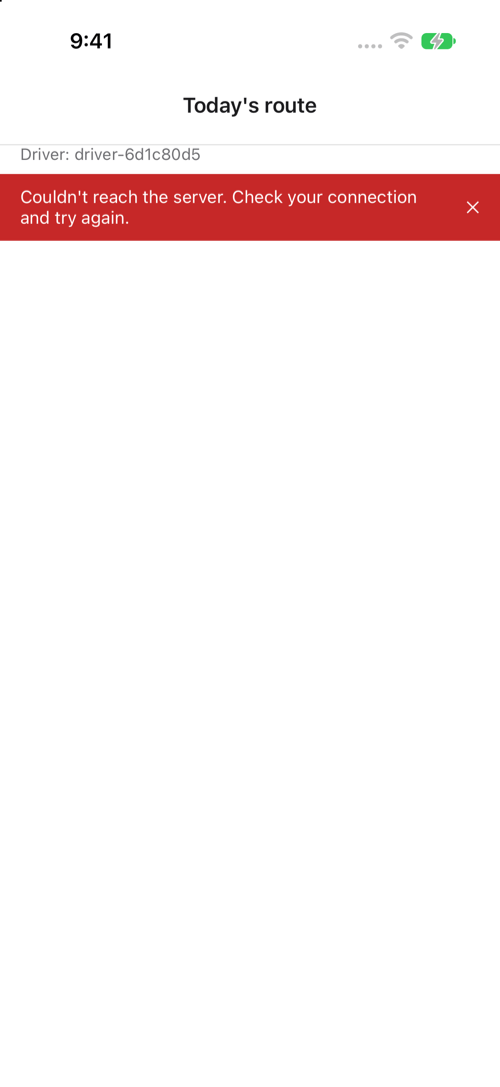
No network: opening the app shows an empty route.
Baseline Code
The route list loads when the page appears and on pull-to-refresh. With no network, the list is empty:Migrating to Local-First
In the new architecture, the app reads and writes its local SQLite database. The PowerSync Service streams changes from SQL Server to the device, and the client SDK uploads local writes through the existing backend API. To see a full diff of the migration, including the backend API change, see the pull request in the companion repo.What Changes and What Stays
Prompt for Your Coding Agent
To have a coding agent do this migration, copy this prompt. The agent reads this guide and the companion repo, maps them onto your app, and asks you about anything it can’t find before it writes code.Step 1: Prepare SQL Server for CDC
The PowerSync Service reads changes from SQL Server through Change Data Capture (CDC). Your tables are unchanged: CDC adds change tables next to them. A SQL Server Agent job fills those tables from the transaction log. The PowerSync Service polls the change tables and turns each change into sync data. This step usually needs a DBA. Check the requirements below, then run the setup script.SQL Server Compatibility Checklist
- Edition: Use SQL Server 2019 or later (Standard, Enterprise, Developer, or Evaluation), Azure SQL Database, or Azure SQL Managed Instance. Azure SQL Database needs a vCore tier, or S3 and up on DTU. Express and Web editions don’t have CDC, so the PowerSync Service can’t replicate from them.
- Permissions: Enabling CDC on the database needs
sysadmin(db_owneron Azure SQL). You do this once. The PowerSync Service then connects as a read-only user. - SQL Server Agent must be running: If the Agent is stopped, enabling CDC still succeeds, but the change tables stay empty and the PowerSync Service never sees an update. In the official Docker image, the Agent is off by default, so set
MSSQL_AGENT_ENABLED=true. This item doesn’t apply to Azure SQL Database, which manages the CDC jobs itself. - Transaction log: CDC reads the log, so SQL Server can’t free log space until the capture job has processed it. Monitor log growth and the retention of the CDC cleanup job.
- Delayed durability must be off: SQL Server refuses to enable CDC on a database with delayed durability set. It also refuses to turn delayed durability on (
FORCEDorALLOWED) while CDC is enabled. RunSELECT delayed_durability_desc FROM sys.databasesand make sure that it returnsDISABLED. - Sync tables, not views: CDC captures only tables. If you name a view in your Sync Streams, the PowerSync Service stops replicating and logs the PowerSync error
PSYNC_S1602. The solution is to sync the underlying tables and do the join on the client. - Don’t sync computed columns: The initial copy reads the real value, but CDC records computed columns (persisted or not) as
NULL, so every later insert or update syncsNULL. Leave them out of your Sync Stream queries and compute the value on the client, or write it to a normal column. - Prefer a single-column primary key: The PowerSync Service copies tables keyed on one column in resumable batches. It copies other tables (composite keys or no key) in one pass, and starts again from zero if it restarts mid-copy.
The Setup Script
The companion repo does all of this in one idempotent script,db/powersync.sql, which runs as a one-shot container after the app’s own init.sql. The steps below show a trimmed version. Replace DeliveryApp and the table names with your own.
Fail Early If SQL Server Agent Is Off
Enable CDC on the Database, Then on Each Table to Sync
Create a Read-Only Login for the PowerSync Service
sqlcmd script: pass the password with -v POWERSYNC_DB_PASSWORD="...". The ALTER LOGIN branch makes sure that running the script again picks up a changed password.Add the Checkpoints Table
Make the Capture Job Scan Every Second
Step 2: Run the PowerSync Service
This guide self-hosts the PowerSync Service with Docker Compose (see the repo’sdocker-compose.yml).
You can also use PowerSync Cloud.
Configure the PowerSync Service
PS_DATA_SOURCE_URI has the form mssql://powersync_user:<password>@sqlserver:1433/DeliveryApp.
client_auth.jwks_uri at it and set the audience that your tokens carry. See Custom Authentication for other token setups.
Step 3: Define the Data That Each Device Gets
Use Sync Streams to define which rows go to which device. In this example, each driver gets their own stops and delivery attempts:auth.user_id()is thesubclaim from the token in Step 2. The filter runs in the PowerSync Service, so a device receives only its own driver’s rows.auto_subscribe: truemeans that the app doesn’t have to subscribe to this stream. It syncs as soon as the app connects.
Step 4: Swap the App’s Reads to Local SQLite
Add version 1.0.1 of thePowerSync.Common NuGet package. It includes the native libraries for iOS and Android, so you don’t need the PowerSync.Maui package.
Define the Schema
The client-side schema is one C# class for every local table. The[Column] attributes declare the local columns. Each class also implements IFromRow<T>, so it can serve as a query result type, and the classes replace the backend API’s DTOs:
On Startup: Open the Database and Connect
Open the database and callConnect() during app init. The pages read local data, so they don’t wait for the connection:
FetchCredentials() gets a token from the backend API’s existing token endpoint. The PowerSync Service checks the token against the same JWKS as the backend API:
Replace the REST-Based Loads with Watch Queries
The route list now watches a local query instead of calling the backend API. A stop that dispatch adds or cancels appears without a refresh, and the list works offline:Code You No Longer Need
- The
GETcalls in the backend API client. - The backend API’s DTOs. The schema classes replace them.
- The load and reload methods, and their error paths.
- Both pull-to-refresh views.
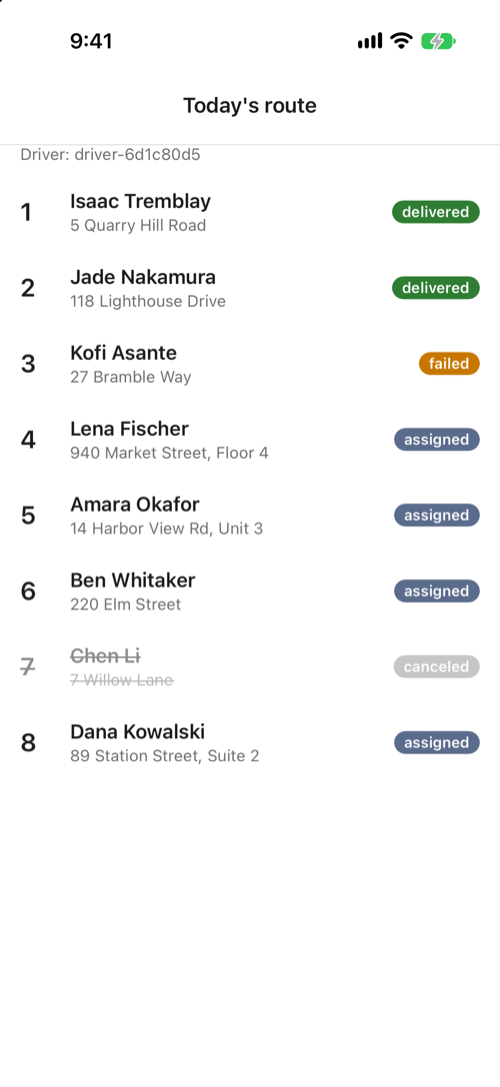
The route list, read from the local database.
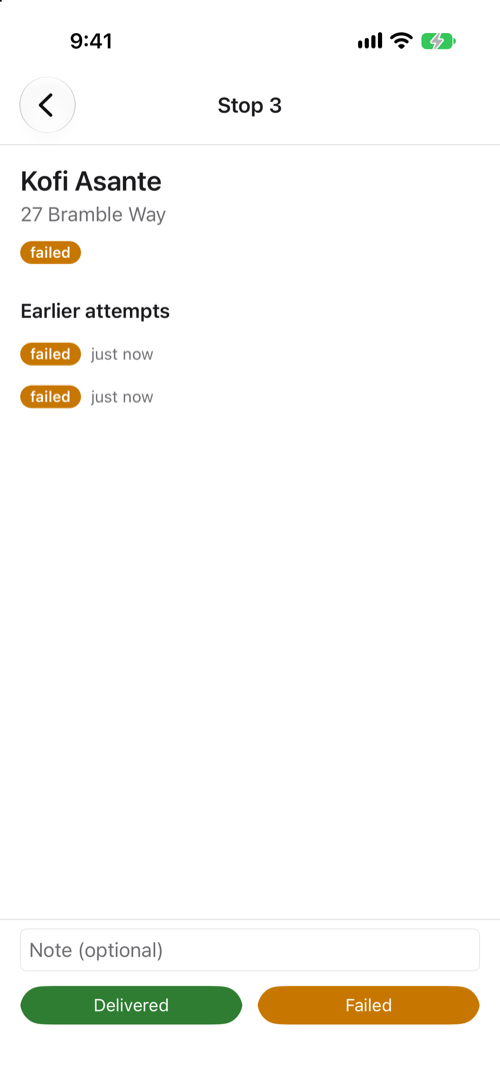
The stop page, read from the local database.
Step 5: Move Writes to the Upload Queue
Record an Outcome Locally
Recording an outcome becomes one local transaction: insert the delivery, then update the stop’s status. There is no network call, so there is no network error path. The page updates through its watched queries:Guid.NewGuid(), in upper case. Because the ID exists before the upload, a retry or an offline create targets the same row. See Client ID.
Upload Through the Existing API
The PowerSync client SDK automatically places writes into its upload queue, and calls the connector’sUploadData(), which posts the delivery to the existing API endpoint.
UploadData() handles each response as the existing API guide describes:
- 2xx: applied.
- 400, 404, and 409: dropped and shown to the driver.
- 401: refresh the token and retry.
- Everything else: retried.
Change One Endpoint in the Backend API
The delivery endpoint now accepts the device’s ID and the time of the tap. A retry can repeat a delivery that the backend API already recorded, so the endpoint returns 200 for a repeat before it applies the business rule. Otherwise, a retried “delivered” would get a 409 because the stop is already delivered:The Business Rule Stays in the Backend API
The business rule is unchanged. If a driver records a delivery offline on a stop that dispatch then cancels, the upload gets a 409, and a banner tells the driver. At the next sync, the local delivery disappears and the stop shows as canceled. This needs no extra code.Before: rejected while online.
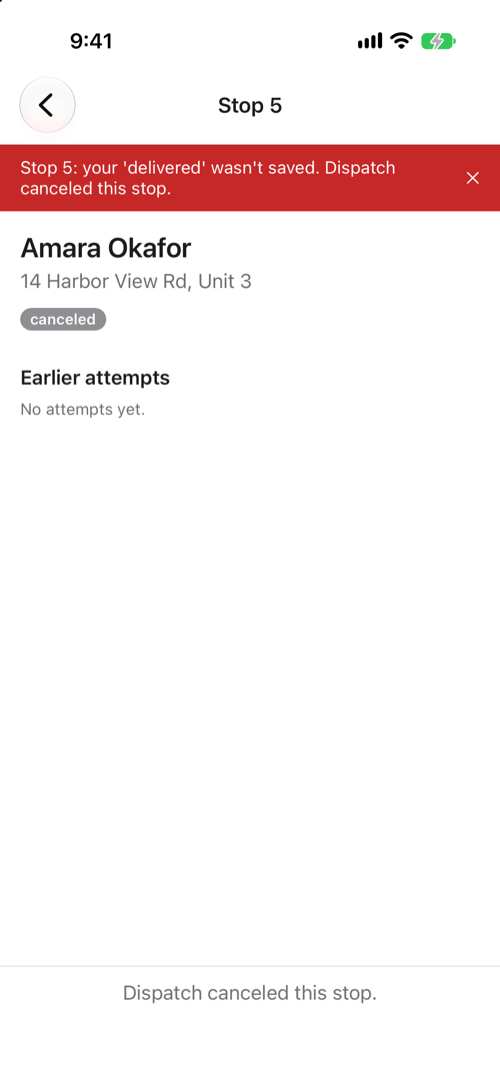
After: recorded offline, then rejected on upload.
Step 6: Dispatch Changes Show Without a Refresh
Dispatch still writes straight to SQL Server. CDC picks up the change, and the PowerSync Service streams it to the device. Nothing in the app polls or refreshes. The driver gets these updates without any app code:- A stop that dispatch cancels or adds shows up while the driver is looking at the list.
- An attempt recorded on another device appears in seconds.
- Writes from any system reach the device, not only writes through your backend API.
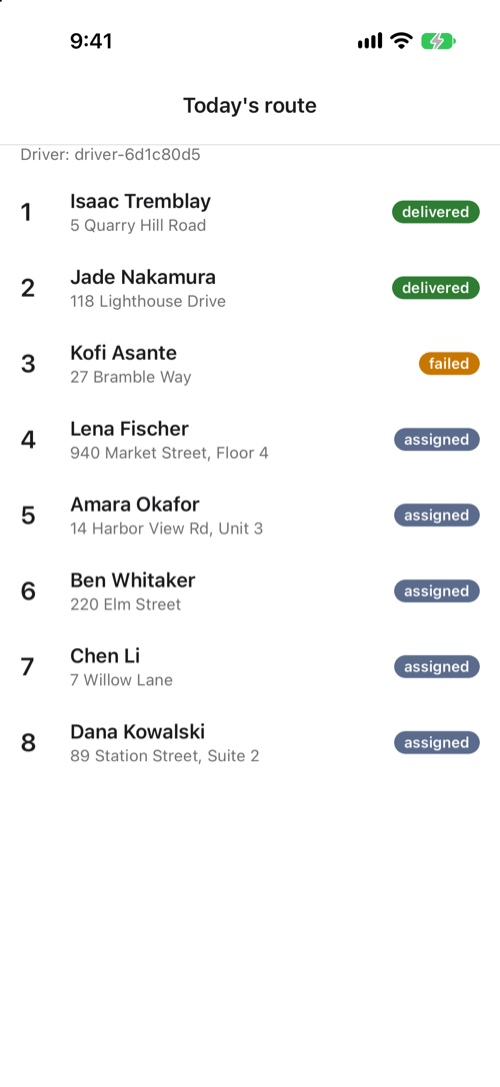
Stop 6 is assigned.
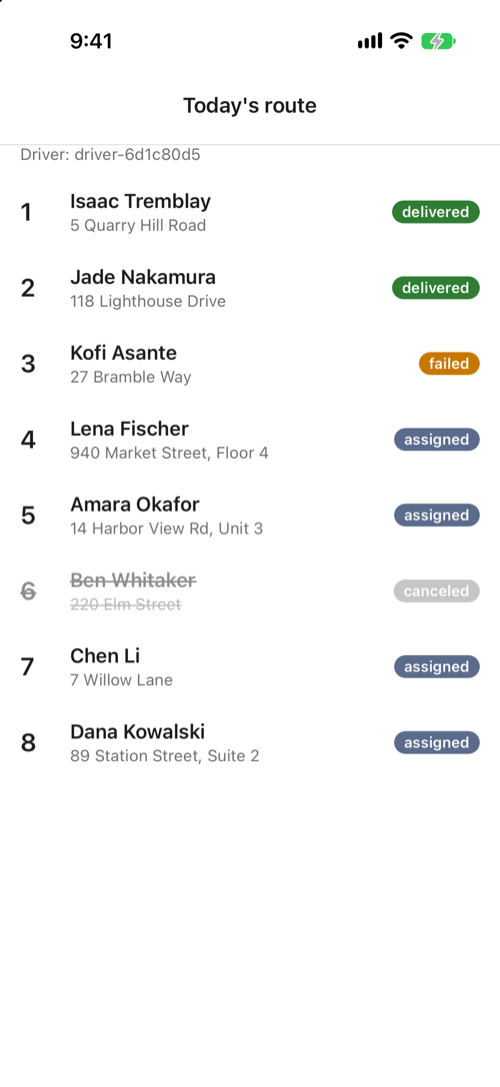
Seconds after dispatch cancels it, with no refresh.
Step 7: Test Offline Behavior
To test offline behavior, cut the simulator’s network, for example with the 100% Loss profile in Network Link Conditioner.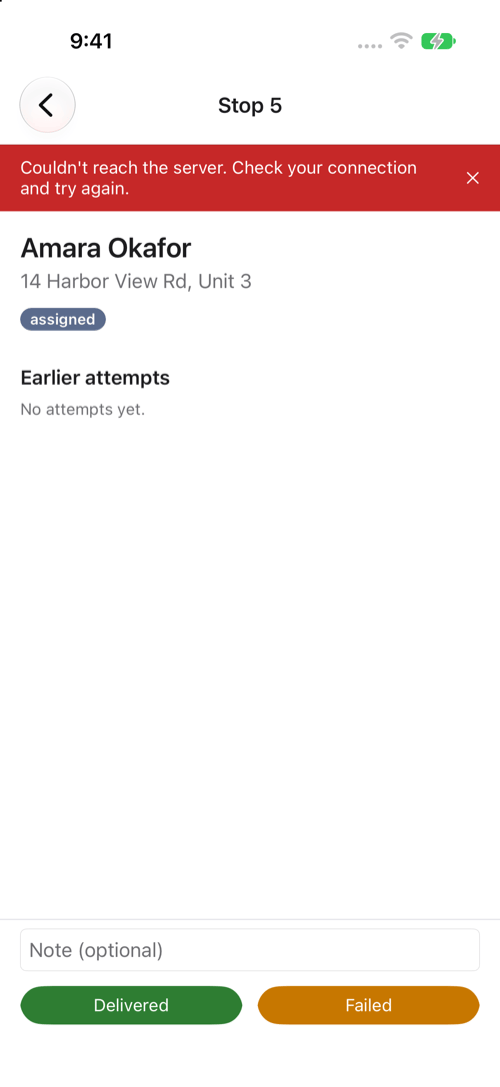
Before: recording an outcome with no network shows an error.
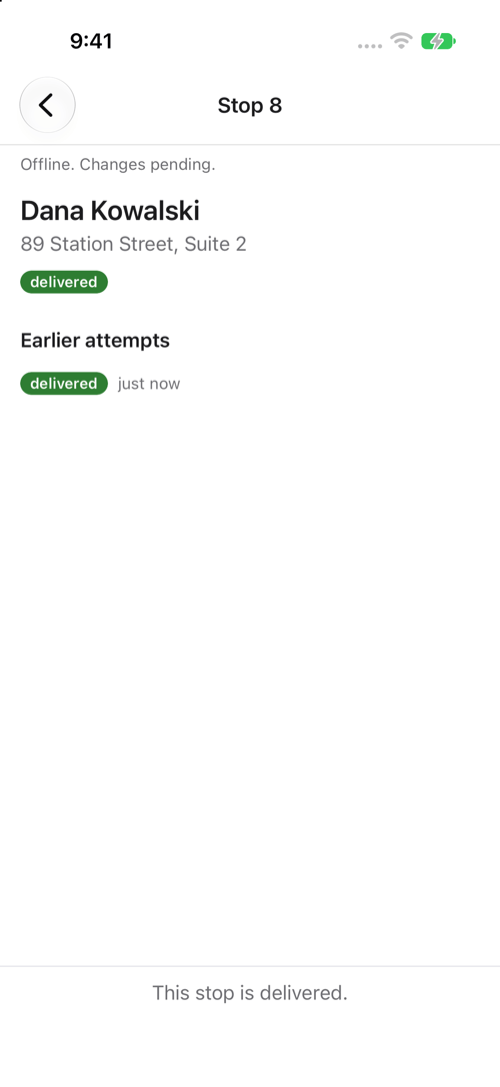
After: the delivery is saved and queued for upload.
Before: opening the app with no network shows an empty route.
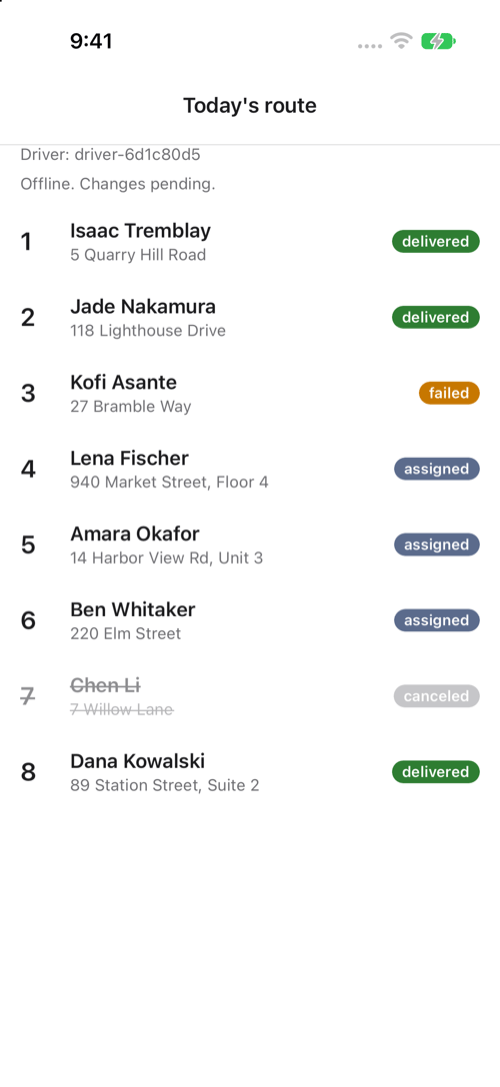
After: the full route comes from the local database.
Schema Changes
SQL Server schema changes need a few manual steps. For example, to add asigned_by column to deliveries in the companion repo:
- Run
ALTER TABLE. Replication continues without the new column, and the PowerSync Service logsSchema drift detected … Deploy a new sync config. - Create a new capture instance with a new name. A table can have at most 2 capture instances.
- Redeploy the Sync Config. A restart alone does nothing, but a comment-only change counts as a redeploy. The redeploy starts a new replication stream with a full new snapshot. Clients keep syncing from the old stream until the new one is ready.
- Disable the old capture instance.
- On the client, add a property to the schema class. The client schema has no migrations.
How This Compares with Datasync and Dotmim.Sync
CommunityToolkit Datasync and Dotmim.Sync are the other common options for MAUI and SQL Server.Next Steps
Companion Repo
main branch is the REST app, and powersync-existing-api adds PowerSync.