

A quick way to get started during development before implementing custom auth is to use Development Tokens
fetchCredentials() function in your backend connector to retrieve a JWT from your backend application API, making use of your existing app-to-backend authentication:
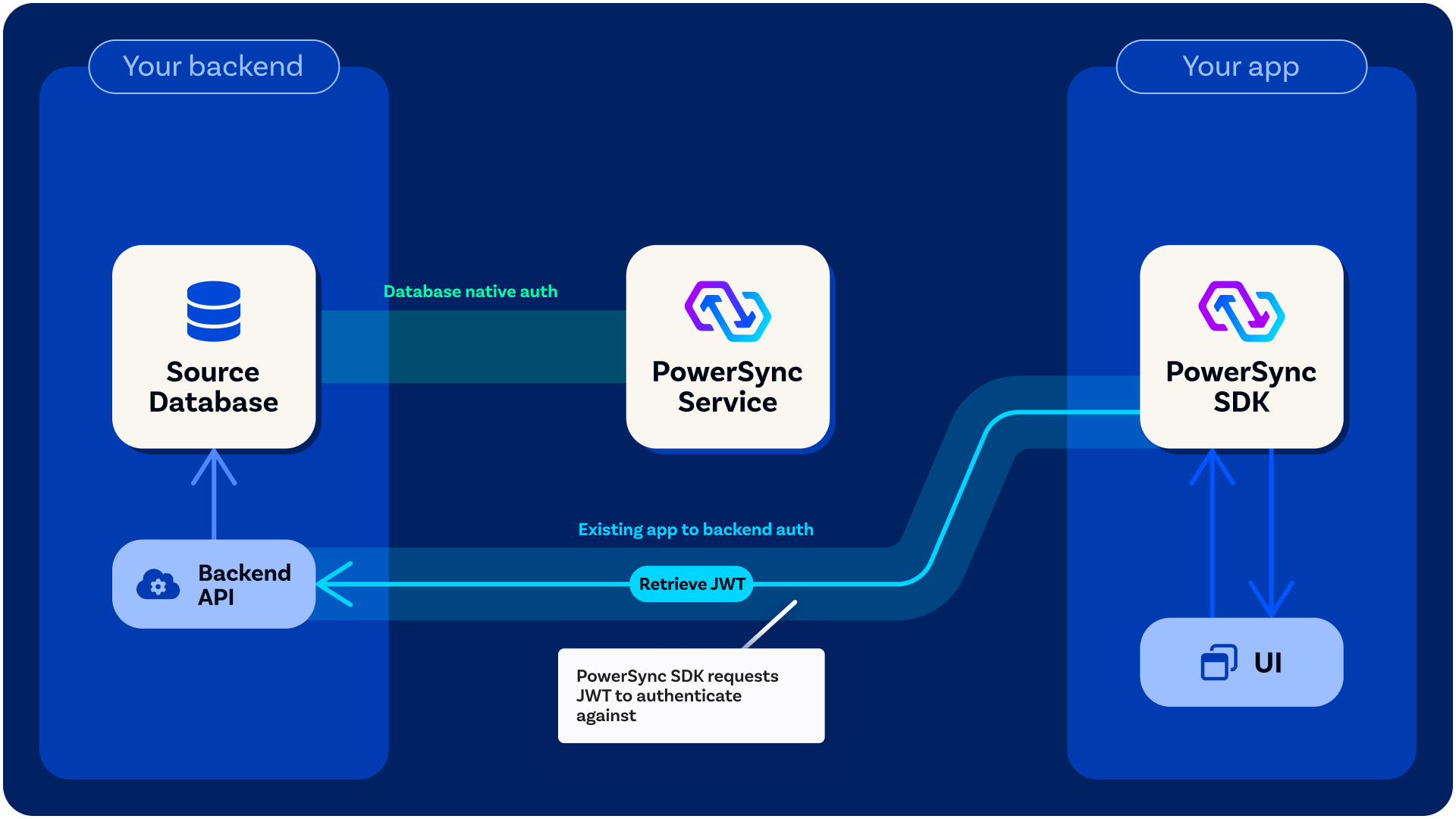
Custom Authentication Flow
The process is as follows:- Your client app authenticates the user using the app’s authentication provider (either a third-party authentication provider or a custom one) and typically gets a session token.
- The client makes a call to your backend API (authenticated using the above session token), which generates and signs a JWT for PowerSync. (You define the
fetchCredentials()function in your backend connector so that it makes the API call, and the PowerSync Client SDK automatically invokesfetchCredentials()as needed).- For example implementations of this backend API endpoint, see Custom Backend Examples
- The client connects to the PowerSync Service using the above JWT (this is automatically managed by the PowerSync Client SDK).
- The PowerSync Service verifies the JWT.
JWT Requirements
Requirements for the signed JWT:- The JWT must be signed using a key in the JWKS (Option 1) or the HS256 key (Option 2)
- JWT must have a
kidmatching that of the key. - The
audof the JWT must match the PowerSync instance URL (for Cloud) or one of the audiences configured inclient_auth.audience(for self-hosted).- To get the instance URL when using PowerSync Cloud: In the PowerSync Dashboard, click Connect in the top bar and copy the instance URL from the dialog.
- Alternatively, specify a custom audience in the instance settings (Cloud) or in your config file (self-hosted).
- The JWT must expire in 24 hours or less, and 60 minutes or less is recommended. Specifically, both
iatandexpfields must be present, with a difference of 86,400 or less between them. - The user ID must be used as the
subof the JWT. - Additional fields can be added which can be referenced in Sync Streams (as
auth.parameters()) or Sync Rules parameter queries.
Option 1: Asymmetric JWTs — Using JWKS (Recommended)
A key pair (private + public key) is required to sign and verify JWTs. The private key is used to sign the JWT, and the public key is used to verify it. PowerSync requires the public key(s) to be specified in JSON Web Key Set (JWKS) format. The JWKS can be configured in one of two ways:- Expose the JWKS on a public URL. PowerSync fetches the keys from this endpoint. We have an example endpoint available here — ensure that your response looks similar. This option is useful if you’re using an external authentication service with an existing JWKS endpoint and you want to automate key rotation without manual deploys.
- Configure the JWKS directly. Provide the keys directly in your PowerSync instance configuration. This option is useful if you generate tokens yourself and want simpler setup.
- Supported signature schemes: RSA, EdDSA and ECDSA.
- Key type (
kty):RSA,OKP(EdDSA) orEC(ECDSA). - (
alg):RS256,RS384orRS512for RSAEdDSAfor EdDSAES256,ES384orES512for ECDSA
- Curve (
crv) - only relevant for EdDSA and ECDSA:Ed25519orEd448for EdDSAP-256,P-384orP-512for ECDSA
- A
kidmust be specified and must match thekidin the JWT.
Rotating Keys
If a private key is compromised, rotate the key in the JWKS. The rotation process differs depending on your JWKS configuration method:JWKS on a Public URL
When using a JWKS exposed on a public URL, PowerSync refreshes the keys from the endpoint every few minutes and will detect new keys immediately. There is a possibility of false authentication errors until PowerSync refreshes the keys. These errors are typically retried by the client and will have little impact. However, to periodically rotate keys without any authentication failures, follow this process:- Add a new key to the JWKS at your endpoint.
- Wait 5 minutes to ensure PowerSync has fetched the new key.
- Start signing new JWT tokens using the new key.
- Wait until all existing tokens have expired.
- Remove the old key from your JWKS endpoint.
Direct JWKS Configuration
When the JWKS is configured directly in PowerSync (not via a public URL), you must deploy configuration changes for PowerSync to use the new key:- Add the new key to your JWKS configuration.
- Deploy the configuration changes (via the Save and Deploy button in the PowerSync Dashboard, or restart the PowerSync Service for self-hosted).
- Start signing new JWT tokens using the new key.
- Wait until all existing tokens have expired.
- Remove the old key from the JWKS configuration and deploy again.
PowerSync Cloud Configuration
- In the PowerSync Dashboard, select your project and instance and go to the Client Auth view.
- Configure your JWKS and audience settings. You can either configure the JWKS directly in JSON format (use the JWKS section), or configure a JWKS URI.
- Click Save and Deploy to apply the changes.
Self-Hosted Configuration
You can configure authentication using either:- A JWKS URI endpoint
- Static public keys in the configuration file
service.yaml:
service.yaml
Option 2: Symmetric JWTs — Using HS256
PowerSync supports HS256 symmetric JWTs for development and testing purposes.Generating a Shared Secret
You can generate a shared secret in the terminal using the following command:Base64 URL Encode the Shared Secret
Once you’ve generated the shared secret, you will need to Base64 URL encode it before setting it in the PowerSync instance Client Auth configuration. You can use the following command to Base64 URL encode the shared secret:Set the Shared Secret in the PowerSync Instance
- PowerSync Cloud
- Self-Hosted PowerSync
- Go to the PowerSync Cloud Dashboard and select your project and instance.
- Go to the Client Auth view.
- Find the section labeled HS256 Authentication Tokens (ADVANCED) and click + button to add a new token.
- Set the KID to a unique identifier for the token (you’ll use the same KID to sign the token). Set the Shared Secret to the Base64 URL encoded shared secret.
- Click Save and Deploy.
Generate New JWTs Using the KID and Shared Secret
Using your newly-created shared secret, you can generate JWT tokens in your backend using the same KID you set in the PowerSync Service configuration. Here’s a example TypeScript function using thejose library:
fetchCredentials() function, you will need to retrieve the token from your backend API.