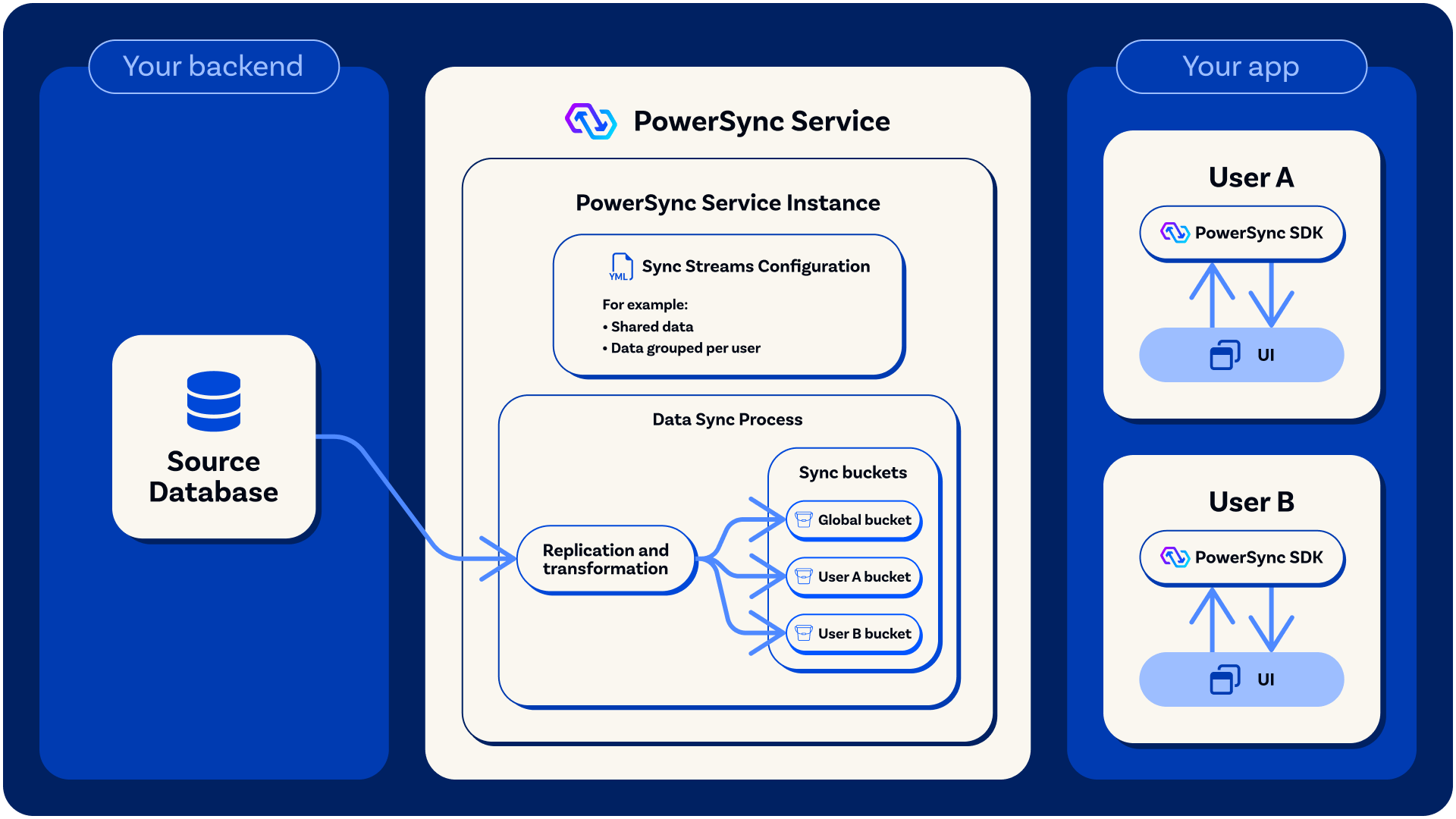
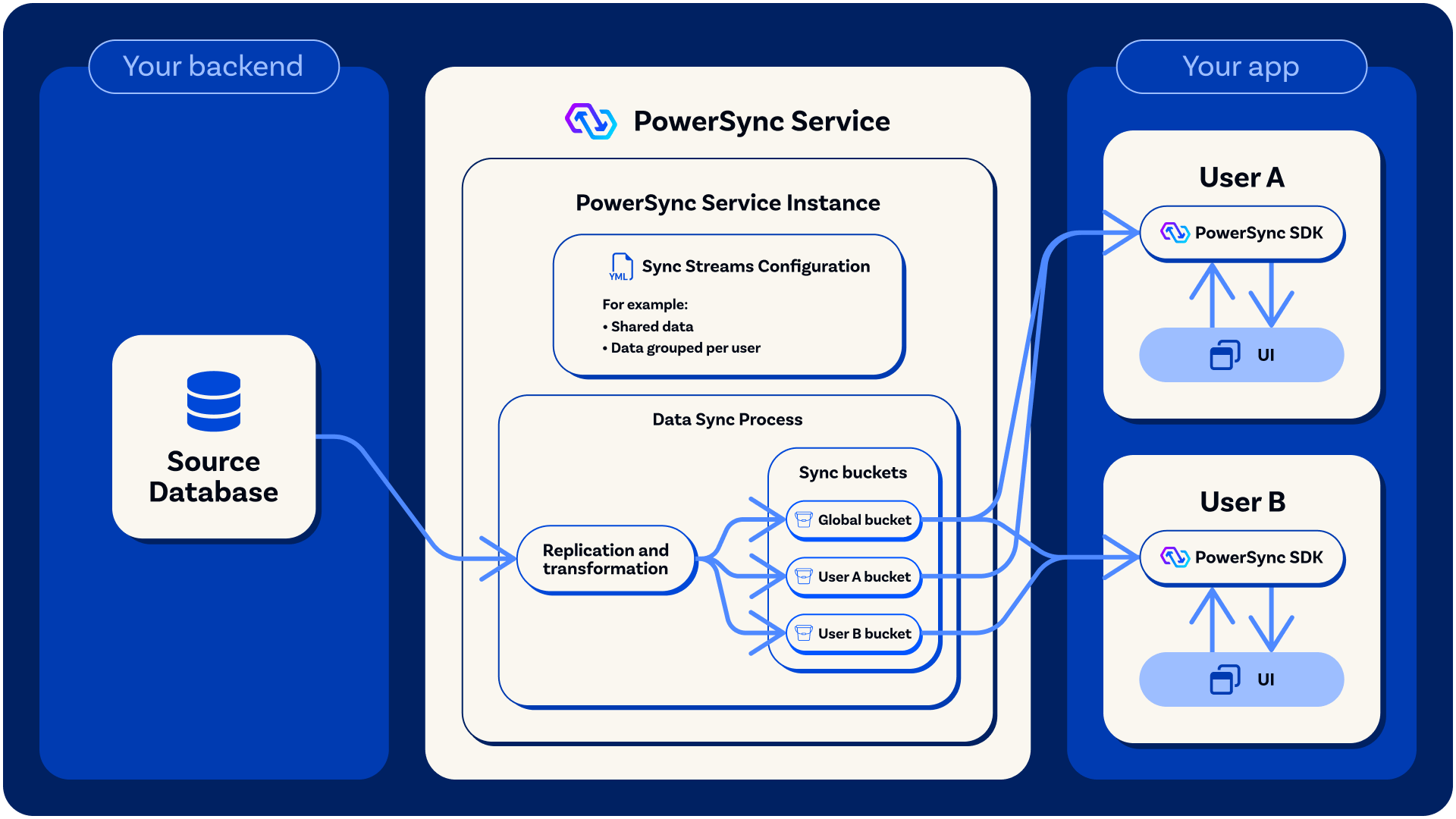
Instead of syncing entire tables, you tell PowerSync exactly which data each user/client can sync. You write simple SQL-like queries to define streams of data, and your client app subscribes to the streams it needs. PowerSync handles the rest, keeping data in sync in real-time and making it available offline. For example, you might create a stream that syncs only the current user’s to-do items, another for shared projects they have access to, and another for reference data that everyone needs. Your app subscribes to these streams on demand, and only that data syncs to the client-side SQLite database. Offline-first apps that need all relevant data available upfront can use auto_subscribe: true so streams sync automatically when clients connect.
Are you still using Sync Rules? Sync Streams support everything Sync Rules do, plus more expressive queries (including JOIN support), on-demand syncing, and a simpler developer experience (e.g. React hooks that manage subscriptions automatically).You can migrate in a few clicks. Click Migrate to Sync Streams in the PowerSync Dashboard, or run powersync migrate sync-rules in the CLI to generate a draft from your current config. See the migration guide for details.

Defining Streams

Streams are defined in a configuration file. Each stream has a name and a query that specifies which rows to sync using SQL-like syntax. The query can reference parameters like the authenticated user’s ID to personalize what each user receives.
In the PowerSync Dashboard:
  1. Select your project and instance
  2. Go to Sync Streams
  3. Edit the YAML directly in the dashboard
  4. Click Deploy to validate and deploy
Available stream options:
OptionDefaultDescription
querySQL-like query defining which data to sync. Use either query or queries, not both. See Writing Queries.
queriesArray of queries defining which data to sync. More efficient than defining separate streams: the client manages one subscription and PowerSync merges the data from all queries (see Multiple Queries per Stream).
withCTEs available to this stream’s queries. Define the with block inside each stream.
auto_subscribefalseWhen true, clients automatically subscribe on connect.
prioritySync priority (lower value = higher priority). See Prioritized Sync.
accept_potentially_dangerous_queriesfalseSilences security warnings when queries use client-controlled parameters (i.e. connection parameters and subscription parameters), as opposed to authentication parameters that are signed as part of the JWT. Set to true only if you’ve verified the query is safe. See Using Parameters.

Basic Examples

There are two independent concepts to understand:
  • What data the stream returns. For example:
    • Global data: No parameters. Same data for all users (e.g. reference tables like categories).
    • Filtered data: Filters the data by a parameter value. This can make use of auth parameters from the JWT token (such as the user ID or other JWT claims), subscription parameters (specified by the client when it subscribes to a stream at any time), or connection parameters (specified at connection). Different users will get different sets of data based on the parameters. See Using Parameters for the full reference.
  • When the client syncs the data
    • Auto-subscribe: Client automatically subscribes on connect (auto_subscribe: true)
    • On-demand: Client explicitly subscribes when needed (default behavior)

Global Data

Data without parameters is “global” data, meaning the same data goes to all users/clients. This is useful for reference tables:
Global data streams still require clients to subscribe explicitly unless you set auto_subscribe: true

Filtering Data by User

Use auth.user_id() or other JWT claims to return different data per user:

Filtering Data Based on Subscription Parameters

Use subscription.parameter() for data that clients subscribe to explicitly:

Using Auto-Subscribe

Set auto_subscribe: true to sync data automatically when clients connect. This is useful for:
  • Reference data that all users need, or that are needed in many screens in the app.
  • User data that should always be available offline
  • Maintaining Sync Rules default behavior (“sync everything upfront”) when migrating to Sync Streams

Client-Side Usage

Subscribe to streams from your client app:
React hooks:
The useQuery hook can wait for Sync Streams before running queries:

TTL (Time-To-Live)

Each subscription has a ttl that keeps data cached after unsubscribing. This enables warm cache behavior — when users return to a screen and you re-subscribe to relevant streams, data is already available on the client. Default TTL is 24 hours. See Client-Side Usage for details.

Developer Notes

  • SQL Syntax: Stream queries use a SQL-like syntax with SELECT statements. You can use subqueries, INNER JOIN, and CTEs for filtering. GROUP BY, ORDER BY, and LIMIT are not supported. See Writing Queries for details on joins, multiple queries per stream, and other features.
  • Type Conversion: Data types from your source database (Postgres, MongoDB, MySQL, SQL Server or Convex) are converted when synced to the client’s SQLite database. SQLite has a limited type system, so most types become text and you may need to parse or cast values in your app code. See Type Mapping for details on how each type is handled.
  • Primary Key: PowerSync requires every synced table to have a primary key column named id of type text. If your backend uses a different column name or type, you’ll need to map it. For MongoDB, collections use _id as the ID field; you must alias it in your stream queries (e.g. SELECT *, _id as id FROM your_collection).
  • Case Sensitivity: To avoid issues across different databases and platforms, use lowercase identifiers for all table and column names in your Sync Streams. If your backend uses mixed case, see Case Sensitivity for how to handle it.
  • Bucket Limits: PowerSync uses internal partitions called buckets to efficiently sync data. There’s a default limit of 1,000 buckets per user/client. Each stream creates one bucket per unique value of its filter expression, whether from a subquery, JOIN, auth parameter, or subscription parameter. You can use multiple queries per stream and other strategies to reduce bucket count. See Too Many Buckets in the troubleshooting guide for how to diagnose and resolve high bucket count (PSYNC_S2305 errors).
  • Troubleshooting: If data isn’t syncing as expected, the Sync Diagnostics Client helps you inspect what’s happening for a specific user — you can see which buckets the user has and what data is being synced.

Examples & Demos

See Examples & Demos for working demo apps and complete application patterns.

Migrating from Legacy Sync Rules

If you have an existing project using legacy Sync Rules, see the Migration Guide for step-by-step instructions, syntax changes, and examples.