

Sync Test
If you’re on PowerSync Cloud, use the Sync Test view in the PowerSync Dashboard. It connects a client in your browser as a user and shows PowerSync DevTools for that client. With DevTools you can see:- The synced tables and rows. You can also run SQL queries against the client-side SQLite database.
- The buckets on the client, with the operations and size of each.
- The user’s Sync Stream subscriptions.
- The connection status, download progress, and any download errors.
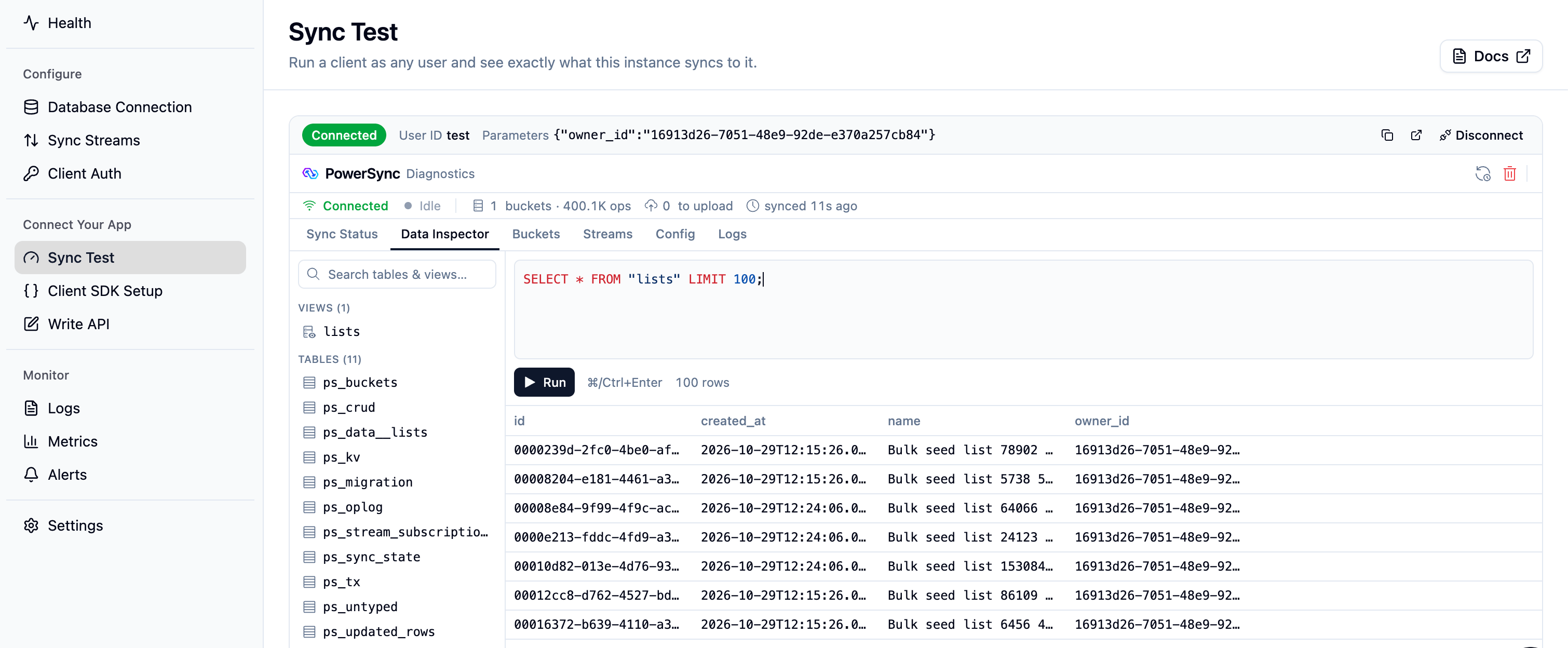
Sync Test connected as a user, with PowerSync DevTools for the client
Requirements
- You have the Development Tokens permission. The Owner and Developer roles include it. See Roles and Permissions.
- Development tokens are enabled in the Client Auth view.
- A Sync Config is deployed.
Connect as a User
- In the PowerSync Dashboard, select your project and instance, and go to the Sync Test view.
- Enter the user ID. Your Sync Streams read this value as
auth.user_id(). - If your app passes connection parameters to
connect(), add them. - Click Connect.
Good to Know
- The client keeps the synced data in your browser until you sign out of the dashboard. If you connect again as the same user, it downloads only the changes since the last connection. If you connect as a different user or to a different instance, it starts from an empty database and downloads all of the user’s data, like a new installation does. Each download counts toward your data synced usage.
- The client signs in with a development token, which contains only the user ID. If your Sync Streams read other claims from the token, the client can sync different data than the user’s own devices. To test with those claims, use the Sync Diagnostics Client with a token from your auth provider.
Sync Diagnostics Client
If you self-host, use the Sync Diagnostics Client. It is a web app, built on the PowerSync Web SDK, that connects as a user with a JWT. It shows:- Summary stats for the user’s database, such as the bucket count, total rows, operations, and data size.
- The synced tables, with the row count and size of each.
- The buckets, with the download progress and operation count of each.
- The user’s Sync Stream subscriptions.
- Generate a development token for the user.
- Open the Sync Diagnostics Client.
- Enter the token at PowerSync Token.
- Enter your PowerSync Service endpoint at PowerSync Endpoint unless it is already filled in, for example
http://localhost:8080if you run the Service locally with Docker. - Click Proceed.