

Introduction
While PowerSync excels at syncing structured data, storing large files (images, videos, PDFs) directly in SQLite is not recommended. Embedding files as base64-encoded data or binary blobs in database rows can lead to many issues. Instead, PowerSync uses a metadata + storage provider pattern: sync small metadata records through PowerSync while storing actual files in purpose-built storage systems (S3, Supabase Storage, Cloudflare R2, etc.). This approach provides:- Optimal performance - Database stays small and fast
- Automatic queue management - Background uploads/downloads with retry logic
- Works offline - Local files available immediately, sync happens in background
- Cache management - Automatic cleanup of unused files
- Platform flexibility - Works across web, mobile, and desktop
SDK & Demo Reference
We provide attachment helpers for multiple platforms:Most demo applications use Supabase Storage as the storage provider, but the patterns are adaptable to any storage system.
How It Works
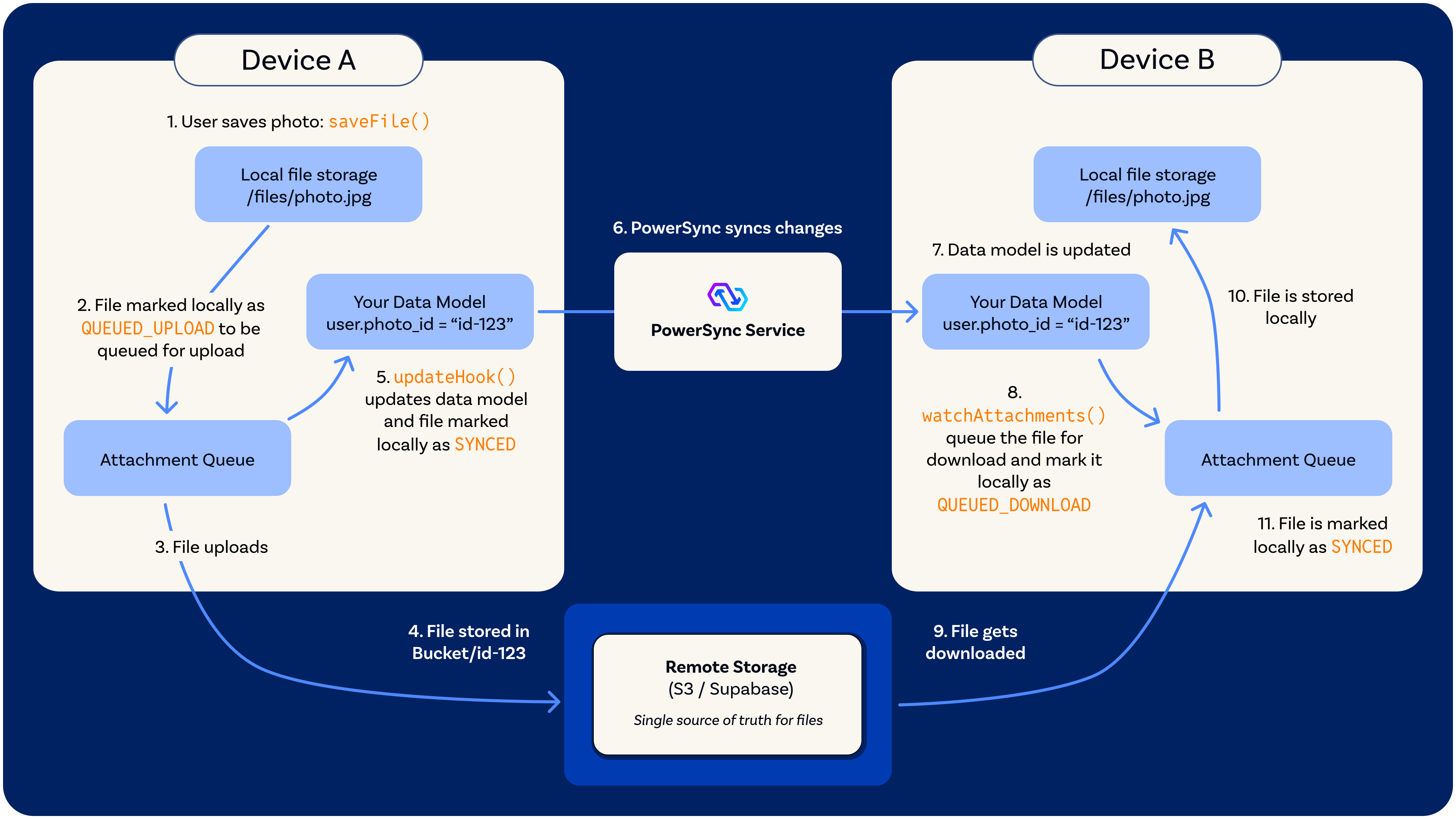
PowerSync attachments flow & architecture
Workflow
- Save file - Your app calls
saveFile()with file data and anupdateHookto handle linking the attachment to your data model - Queue for upload - File is saved locally and a record is created in the attachments table with state
QUEUED_UPLOAD - Background upload - The attachment queue automatically uploads file to remote storage (S3/Supabase/etc.)
- Remote storage - File is stored in remote storage with the attachment ID
- State update - The
updateHookruns, updating your data model with the attachment ID and marking the file locally asSYNCED - Cross-device sync - PowerSync syncs the data model changes to other clients
- Data model updated - Other clients receive the updated data model with the new attachment reference (e.g.,
user.photo_id = "id-123") - Watch detects attachment - Other clients’
watchAttachments()callback detects the new attachment reference and creates a record in the attachments table with stateQUEUED_DOWNLOAD - File download - The attachment queue automatically downloads the file from remote storage
- Local storage - File is saved to local storage on the other client
- State update - File is marked locally as
SYNCEDand ready for use
Attachment States
Core Components
Attachment Table
The Attachment Table is a local-only table that stores metadata about each file. It’s not synced through PowerSync’s Sync Streams - Instead, it’s managed entirely by the attachment queue on each device. Metadata stored:id- Unique attachment identifier (UUID)filename- File name with extension (e.g.,photo-123.jpg)localUri- Reference to the file in local storage. The format is platform-specific: a file path on native platforms and Node.js, or an internalindexeddb://reference on websize- File size in bytesmediaType- MIME type (e.g.,image/jpeg)state- Current sync state (see states above)hasSynced- Boolean indicating if file has ever been uploadedtimestamp- Last update timemetaData- Optional JSON string for custom data
- Local-only - Each device maintains its own attachment table
- Automatic management - Queue handles all inserts/updates
- Cross-client coordination - Your data model (e.g.,
users.photo_id) tells each client which files it needs
Remote Storage Adapter
The Remote Storage Adapter is an interface you implement to connect PowerSync with your cloud storage provider. It’s completely platform-agnostic - implementations can use S3, Supabase Storage, Cloudflare R2, Azure Blob, or even IPFS. Interface methods:uploadFile(fileData, attachment)- Upload file to cloud storagedownloadFile(attachment)- Download file from cloud storagedeleteFile(attachment)- Delete file from cloud storage
- Request a signed upload/download URL from your backend
- Your backend validates permissions and generates a temporary URL
- Client uploads/downloads directly to storage using the signed URL
- Never expose storage credentials to clients
Local Storage Adapter
The Local Storage Adapter handles file persistence on the device. PowerSync provides implementations for common platforms and allows you to create custom adapters. Interface methods:initialize()- Set up storage (create directories, etc.)saveFile(path, data)- Write file to storagereadFile(path)- Read file from storagedeleteFile(path)- Remove file from storagefileExists(path)- Check if file existsgetLocalUri(filename)- Get full path for a filename
- IndexedDB - For web browsers (
IndexDBFileSystemStorageAdapter) - Node.js Filesystem - For Node/Electron (
NodeFileSystemAdapter) - React Native - For React Native with Expo or bare React Native we have a dedicated package (
@powersync/attachments-storage-react-native) - Native mobile storage - For Flutter, Kotlin, Swift
Attachment Queue
The Attachment Queue is the orchestrator that manages the entire attachment lifecycle. It:- Watches your data model - You pass a
watchAttachmentsfunction as a parameter that monitors which files your app references - Manages state transitions - Automatically moves files through states (upload/download → synced → archive → delete)
- Handles retries - Failed operations are retried on the next sync interval
- Performs cleanup - Removes archived files that are no longer needed
- Verifies integrity - Checks local files exist and repairs inconsistencies
watchAttachments function you provide monitors your data model and returns a list of attachment IDs that your app references. The queue compares this list with its internal attachment table to determine:
- New attachments - Download them
- Missing attachments - Upload them
- Removed attachments - Archive them
watchAttachments queries are reactive and execute whenever the watched tables change, keeping the attachment queue in sync with your data model.
There are a few scenarios you might encounter:
- Single attachment type - Watch one table. For example, if users have profile photos:
SELECT photo_id FROM users WHERE photo_id IS NOT NULL - Multiple attachment types, single queue - Combine queries with SQL
UNION ALLto watch attachments across different tables (e.g.,users.photo_id,documents.document_id) in one queue - Multiple attachment types, multiple queues - Create a separate queue per attachment type. Each queue watches its own table(s) with a simpler query, allowing independent configuration, at the cost of some extra memory
Implementation Guide
Installation
Setup: Add Attachment Table to Schema
Configure Storage Adapters
Initialize Attachment Queue
The
watchAttachments callback is crucial - it tells the queue which files your app needs based on your data model. The queue uses this to automatically download, upload, or archive files.Watching Multiple Attachment Types
When watching multiple attachment types, you need to provide thefileExtension for each attachment. You can store this in your data model tables or derive it from other fields.
Single Queue with UNION ALL
Combining queries with UNION ALL lets one queue watch attachments across different tables. Use UNION ALL rather than UNION: attachment IDs should already be unique, so deduplication is unnecessary. The combined query executes whenever any of the watched tables change, which may have higher database overhead than watching a single table.
Upload an Attachment
The
updateHook parameter is the recommended way to link attachments to your data model. It runs in the same database transaction, ensuring data consistency.Download/Access an Attachment
Delete an Attachment
Advanced Topics
Error Handling
Implement custom error handling to control retry behavior:Transferring Large Files Without Buffering
This section applies to React Native, Expo and Node.js platforms only, and requires
@powersync/react-native v2.1.0 or @powersync/node v0.21.0 or later. React Native also requires @powersync/attachments-storage-react-native v0.1.0 or later.In the Dart and Kotlin SDKs, the remote storage interface is already stream-based (Stream/Flow), so transfers can avoid buffering. The Swift SDK currently receives files as Data and has no streaming equivalent yet.ArrayBuffer before it is handed to the remote storage adapter, and the reverse for downloads. This works well for small files but limits the practical attachment size, particularly in React Native, where a large video can exhaust the JS heap on lower-end devices.
To stream instead, configure the queue with a transport adapter in place of the remote storage adapter (you provide one or the other, not both; TypeScript enforces this). A transport owns all remote operations through the three methods of the AttachmentTransportAdapter interface:
upload(attachment)- Transfer the file atattachment.localUrito remote storagedownload(attachment)- Fetch the remote file intoattachment.localUri(the queue assigns the destination path before the call)delete(attachment)- Remove the file from remote storage
createTransportAdapter method:
ExpoFileSystemStorageAdapter(@powersync/attachments-storage-react-native) - The transport streams with Expo’s nativeFile.upload/File.downloadFileAsync. Using the transport requires Expo 56 or later; using only the storage adapter requires Expo 54ReactNativeFileSystemStorageAdapter(@powersync/attachments-storage-react-native) - The transport streams withuploadFiles/downloadFilefrom@dr.pogodin/react-native-fs, uploading as a raw binaryPUTby defaultNodeFileSystemAdapter(@powersync/node) - The transport streams withfetchand Node.js filesystem streams
resolveUpload and resolveDownload map an attachment to the HTTP request that transfers its bytes, typically a signed URL from your backend. deleteFile performs the remote delete, which is a plain remote call rather than a byte transfer.
Saving Files Already on Disk
This section applies to React Native, Expo and Node.js platforms only.
saveFileFromUri queues the upload without reading the file into memory. saveFile would read the file into an ArrayBuffer just to write it back to disk; saveFileFromUri moves it into managed storage instead. This requires a streaming-capable local storage adapter: those adapters implement the StreamingLocalStorageAdapter subinterface, which adds moveFile(sourceUri, targetUri). Combined with a transport adapter, the file is saved and uploaded without ever passing through JS memory:
Custom Transport Adapters
The transport API requires
@powersync/web v2.2.0, @powersync/react-native v2.1.0, or @powersync/node v0.21.0 or later. React Native also requires @powersync/attachments-storage-react-native v0.1.0 or later.- Buffer-free transfers - Let a native package transfer directly between the file system and the network, bypassing JS entirely, as the built-in transports do
- Resumable transfers - The queue retries a failed operation by calling the transport again on the next sync interval. A transport built on a resumable protocol such as tus or S3 multipart upload can continue from the last confirmed offset instead of restarting from zero. Downloads can resume a partial file with HTTP
Rangerequests - Encryption - Encrypt files before upload and decrypt them after download for end-to-end encrypted attachments, without holding the whole file in memory
AttachmentTransportAdapter interface. It has three methods: upload(attachment), download(attachment), and delete(attachment). For a working reference, see the built-in NodeFileSystemTransportAdapter, which streams with fetch and Node.js filesystem streams.
The queue retries failed operations on the next sync interval, subject to your error handler.
Custom Storage Adapters
The following is an example of how to implement a custom storage adapter for IPFS:Verification and Recovery
verifyAttachments() is always called internally during startSync().
This method does the following:
- Verifies local files exist at expected paths
- Repairs broken
localUrireferences - Archives attachments with missing files
- Requeues downloads for synced files with missing local copies
In the Flutter and Kotlin SDKs, this method is not yet exposed publicly. It still runs automatically during
startSync().Cache Management
Control archived file retention:Offline Behavior
The attachment queue keeps working in poor or no network conditions:- Local saves - Files are saved locally immediately, synced later
- Automatic retry - Failed uploads/downloads retry when connection returns
- Queue persistence - Queue state survives app restarts
- Conflict-free - Files are immutable, identified by UUID
- Bandwidth efficient - Only syncs when needed, respects network conditions
Migrating From Deprecated Packages
If you are migrating from the now deprecated attachment helpers for Dart or JavaScript, follow the notes below:- powersync_attachments_helper (Dart)
- @powersync/attachments (JS)
A fairly simple migration from
powersync_attachments_helper to the new utilities would be to adopt the new library with a different Attachment Queue table name and drop the legacy package. This means existing attachments are lost, but will be re-downloaded automatically.Related Resources
- An Implementation Walkthrough Using The Flutter/Dart Attachment Helpers - Blog post on building offline-first uploads