

@powersync/diagnostics package adds a PowerSync panel to React Native DevTools. The panel is a plugin for Rozenite, a plugin framework for React Native DevTools, so you also install Rozenite and enable it in Metro. The plugin works with Expo and bare React Native apps.
Requirements
- React Native 0.76 or later.
- Rozenite 2.5.0 or later.
@powersync/diagnostics0.1.0 or later.
Set Up DevTools
1
Install the packages
package.json. Rozenite looks for plugins only in the packages listed there. In a monorepo, it does not find @powersync/diagnostics if only a shared package lists it.2
Enable Rozenite in Metro
In With
metro.config.js, wrap your Metro configuration with withRozenite():- Expo
- Bare React Native
enabled set from the WITH_ROZENITE environment variable, Rozenite runs only when you start Metro with WITH_ROZENITE=true.3
Add the hook to your app
Call If your app creates the database later, pass
usePowerSyncDevTools() once, in a component that stays mounted while you debug, such as your root layout:null until the database exists. DevTools attaches when the hook receives the database.DevTools shows only the database that you pass to the hook. If the component unmounts, DevTools loses the connection to the database until the component mounts again.You can keep the hook in your app when you build for production. In a production build, the hook does nothing, and the DevTools code is left out of your app bundle.4
Optional: Enable diagnostics when you connect
To show the total number of operations for each bucket in the Buckets tab, set The totals require
diagnostics when you connect:@powersync/react-native 2.4.1 or later.5
Start the app with Rozenite
- Expo
- Bare React Native
run:android for Android, or npx expo start if your app is already installed.localhost is the emulator, not your computer. If the app connects to a PowerSync Service or backend on localhost, forward each port to your computer, for example adb reverse tcp:8080 tcp:8080.6
Open PowerSync DevTools
Open React Native DevTools: press
j in the Metro terminal, or select Open DevTools in the dev menu of your app. Then select the Rozenite tab, and select PowerSync in its sidebar.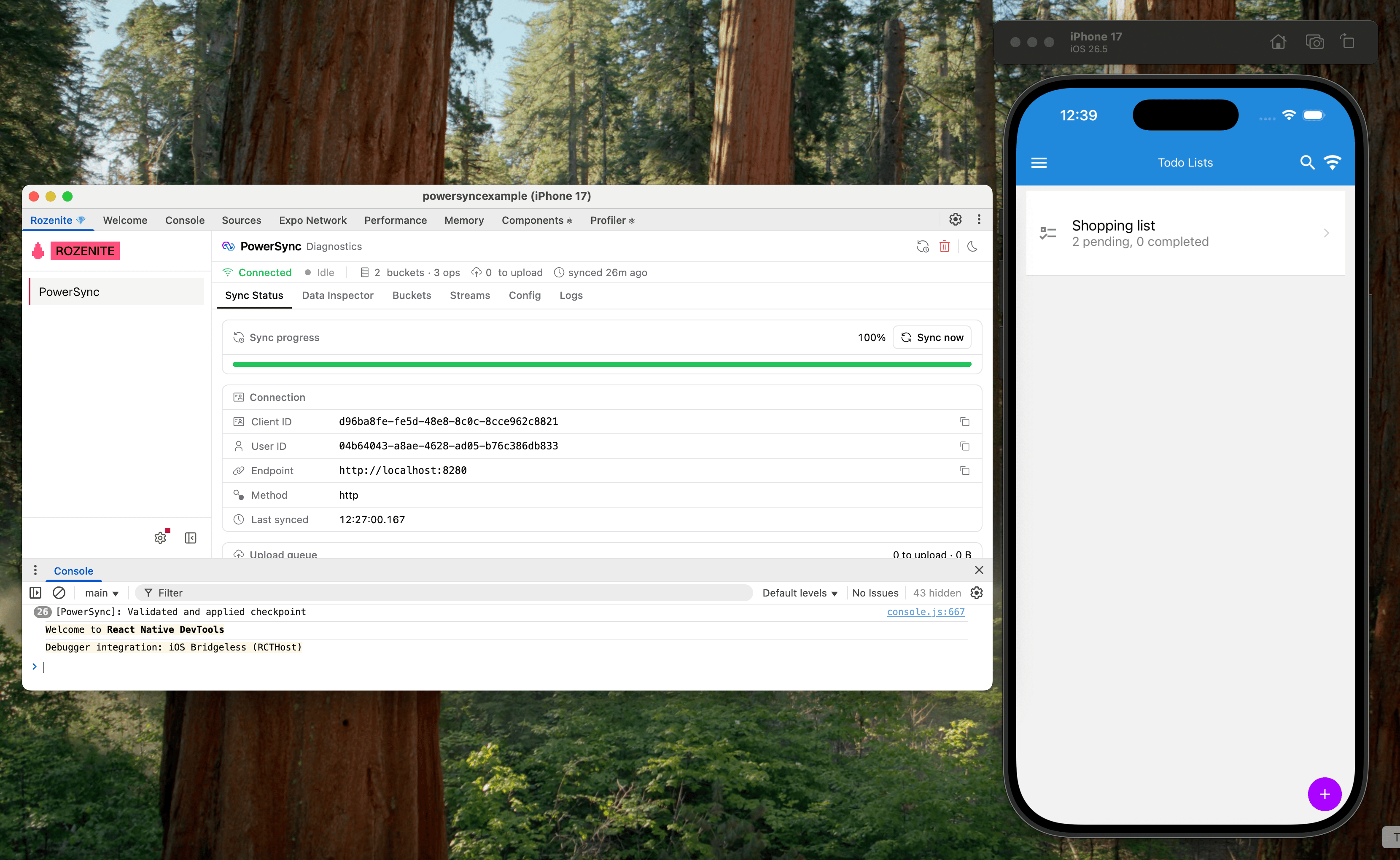
The PowerSync panel in React Native DevTools, next to the app on the iOS simulator.
Agent Tools
Coding agents can query the local database of your app, read its sync status, and run sync actions through the Rozenite agent CLI. To give an agent access, read Agent Tools.Troubleshooting
React Native DevTools has no Rozenite tab. Check these causes:- Metro started without
WITH_ROZENITE=true. - Your Expo app uses
app.config.tsorapp.config.js, andprojectType: 'expo'is not set. Ifcurl http://localhost:8081/json/listreturns adevtoolsFrontendUrlthat starts with/debugger-frontend/instead of/rozenite/, Rozenite is not active.
metro.config.js or new plugins do not appear. Rozenite loads plugins when Metro starts. Restart Metro. Then close React Native DevTools and open it again, because an open DevTools window keeps the earlier version.
The PowerSync panel shows no data. The component that calls usePowerSyncDevTools() must be mounted. The panel attaches automatically when the component mounts.