

We are currently making JourneyApps Platform CloudCode available for free to all our customers who use PowerSync with MongoDB. It does require a bit of “white glove” onboarding from our team. Contact us if you want to use this functionality.
Using CloudCode for MongoDB Backend Functionality
There is a MongoDB template available in CloudCode that provides the backend functionality needed for a PowerSync MongoDB implementation. Here is how to use it:Create a New JourneyApps Platform Project
To create a new JourneyApps Platform project in order to use CloudCode:1
Navigate to the JourneyApps Admin Portal. The JourneyApps Platform (of which CloudCode is a component) shares an accounts backend with PowerSync, so you can log in using the same username and password that you use for PowerSync. You should see a list of your projects if you’ve created any.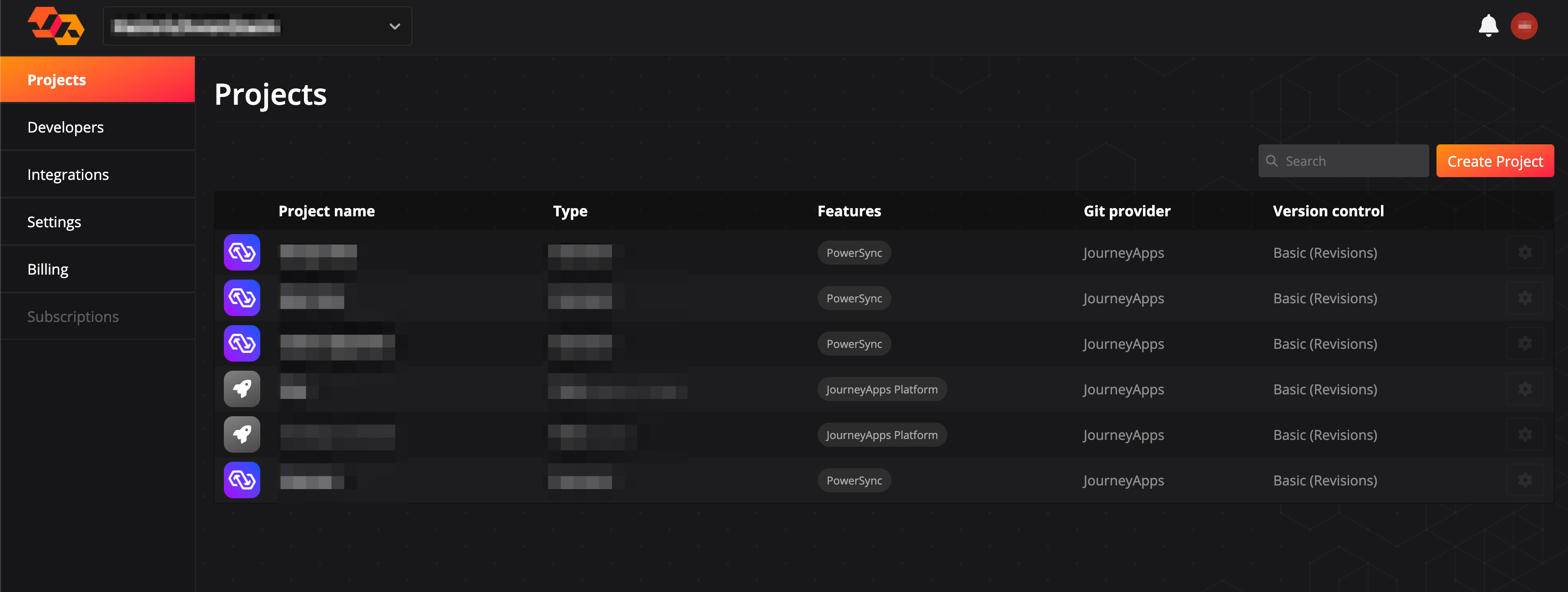
2
Select Create Project at the top right of the screen.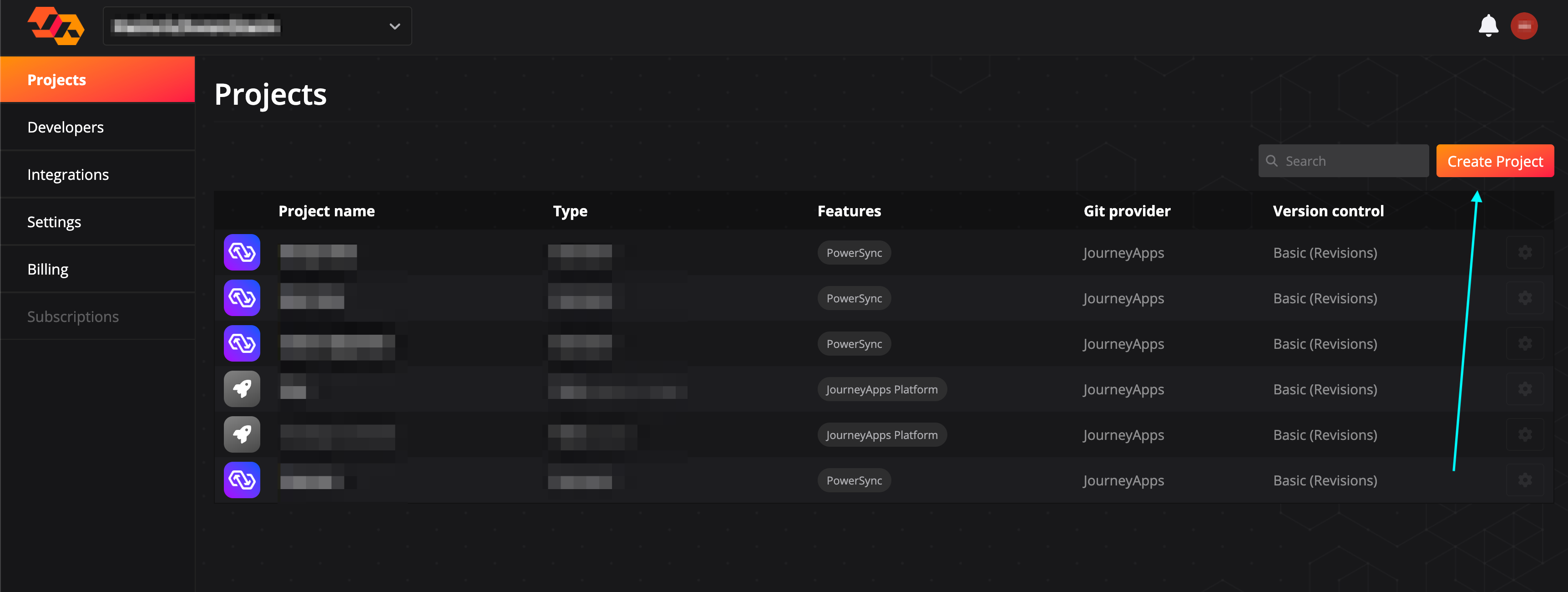
3
Select JourneyApps Platform Project and click Next.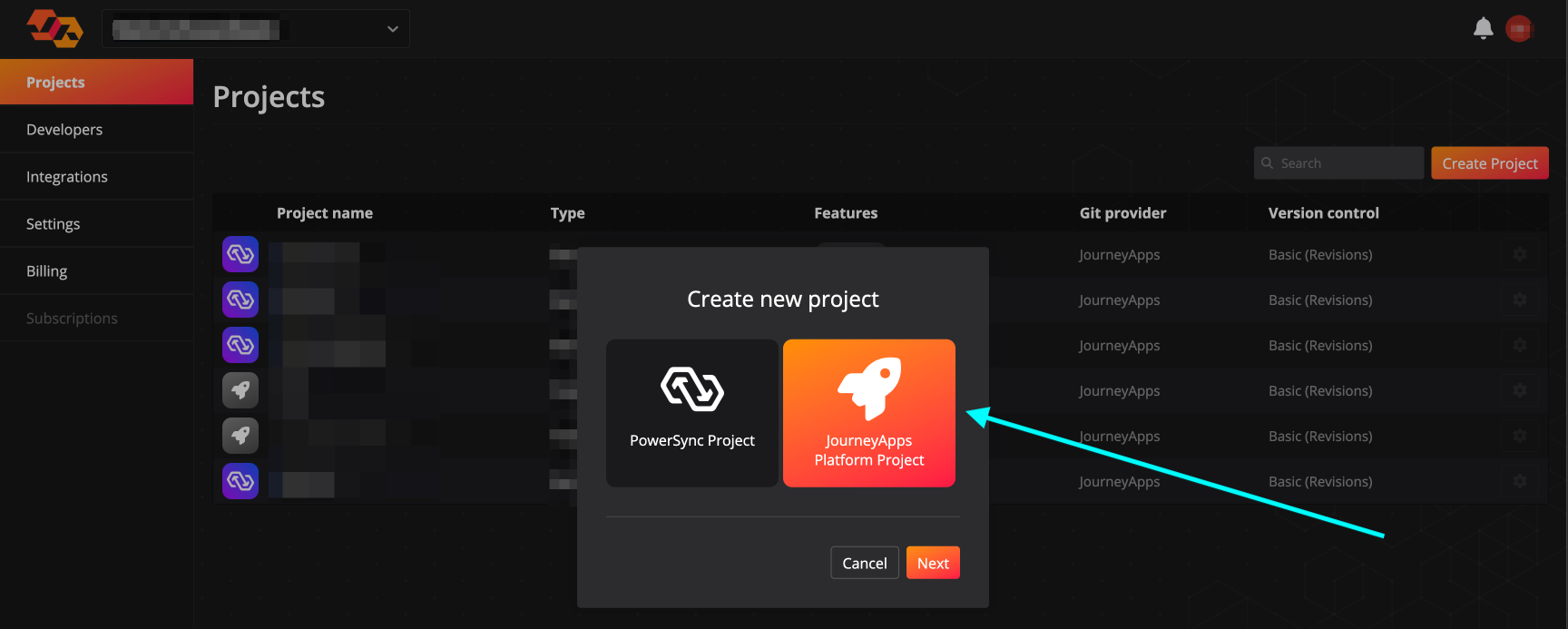
4
Enter a project name and click Next.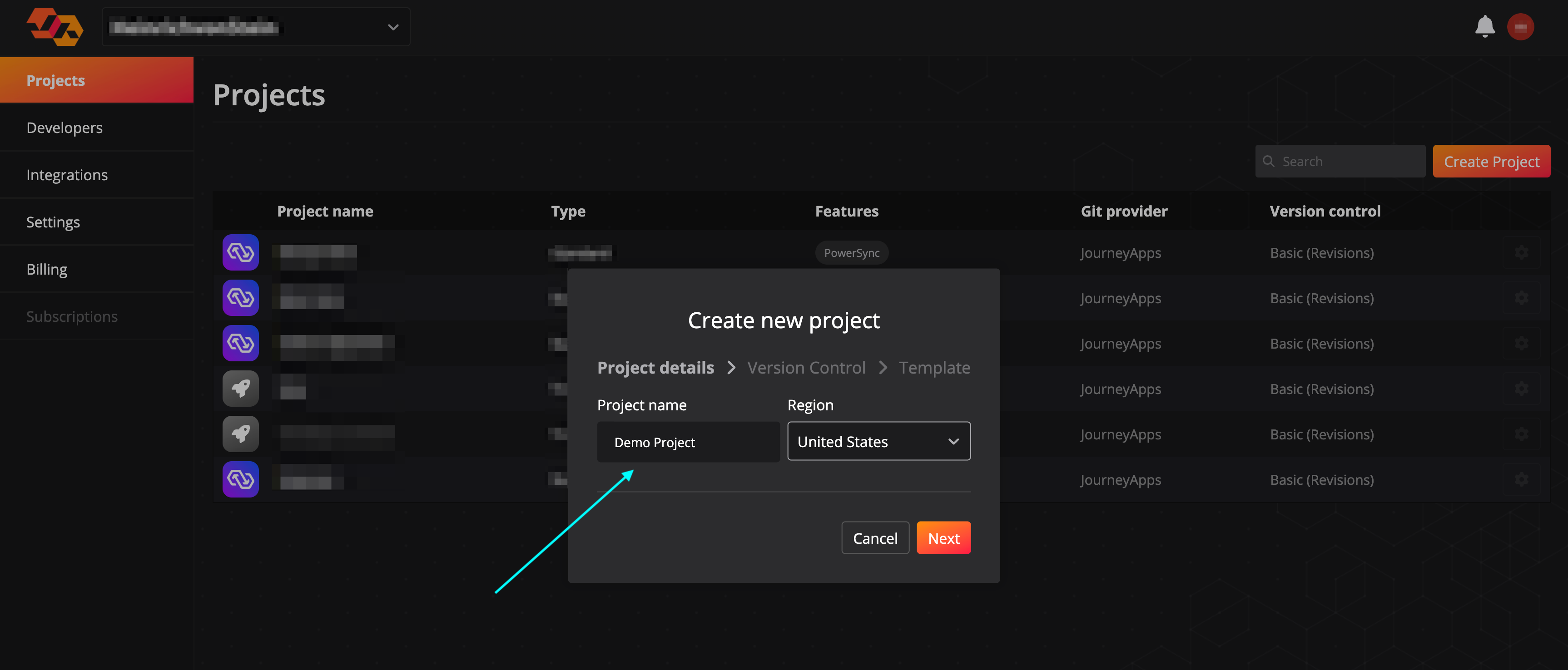
5
There are options available for managing version control for the project. For simplicity we recommend selecting Basic (Revisions) and JourneyApps as the Git provider.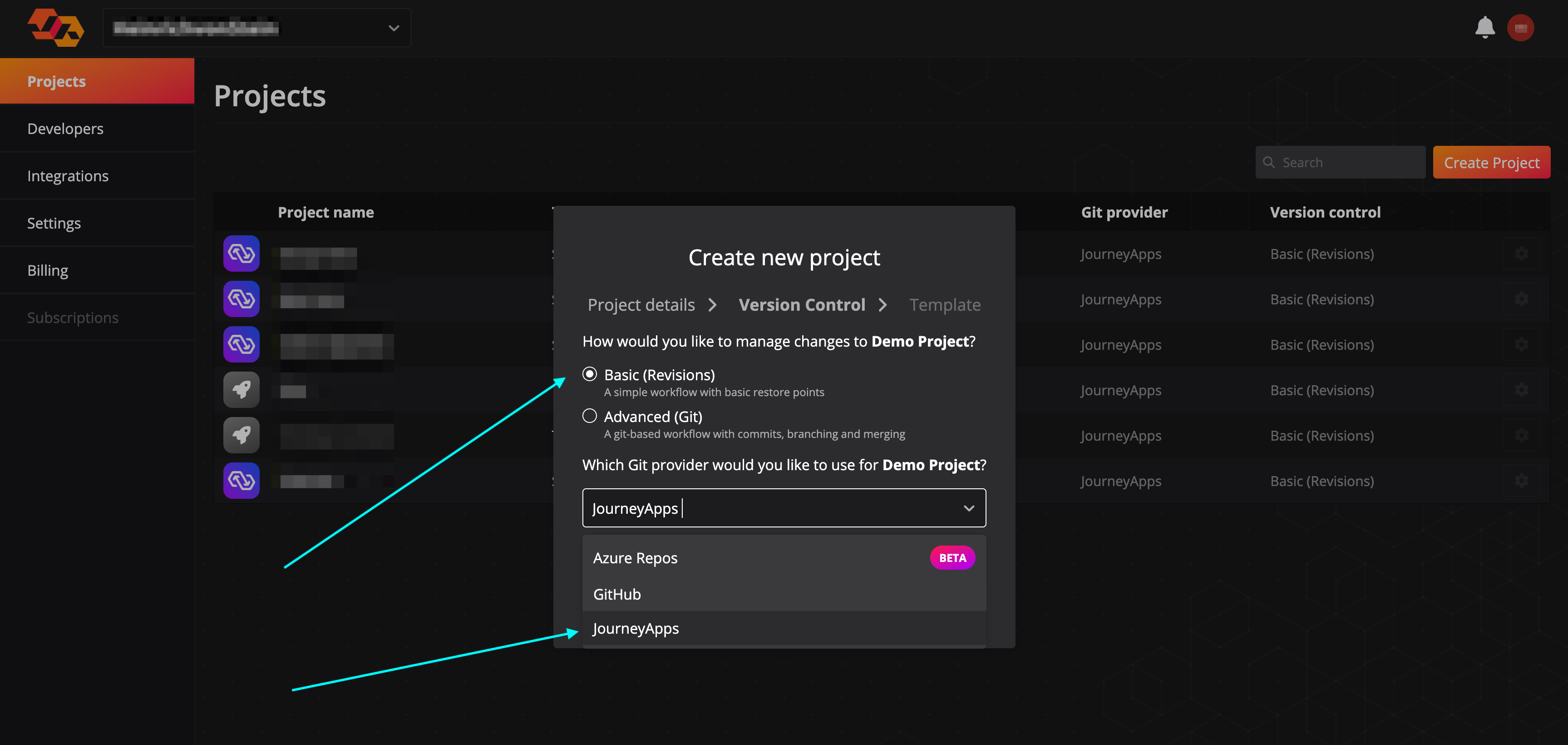
6
Select TypeScript as your template language, and MongoDB CRUD & Auth Backend as your template. Then click Create App.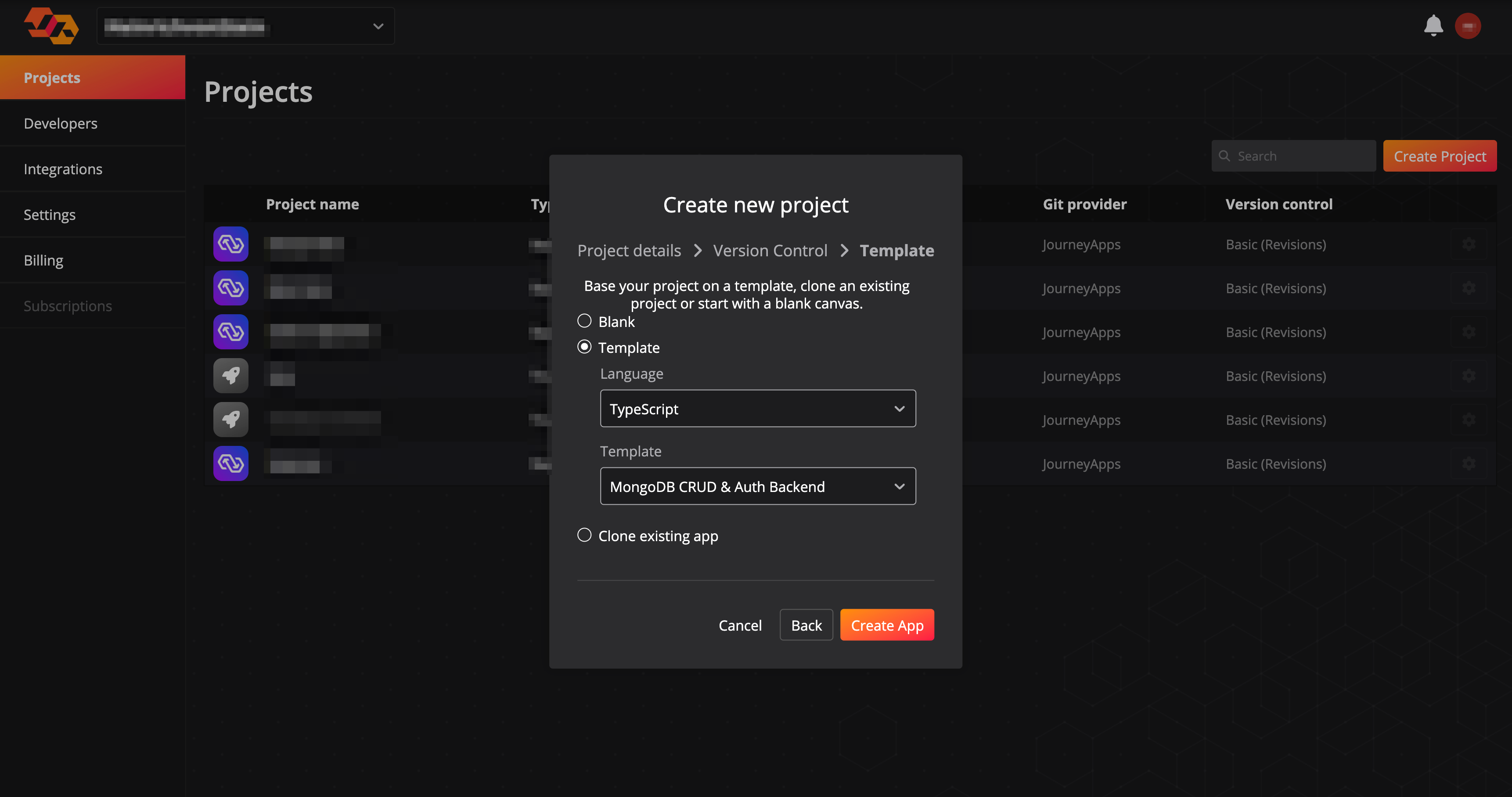
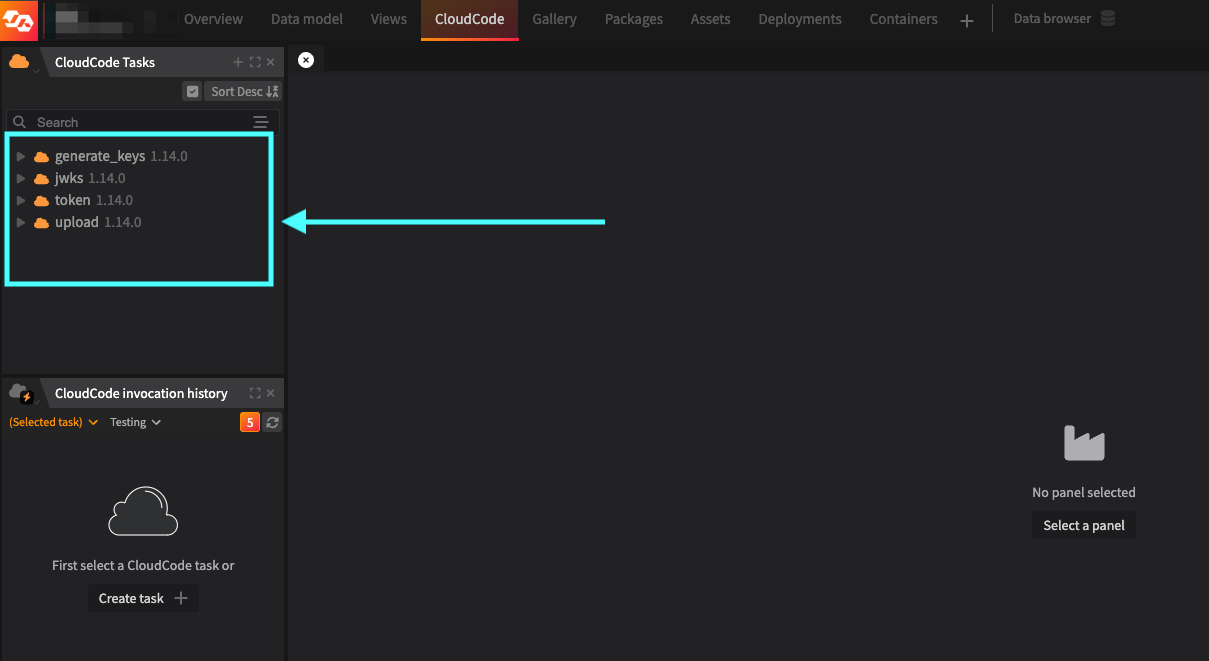
Overview of the CloudCode Tasks Created From the Template
To view the CloudCode tasks that were created in the new project using this template, select CloudCode at the top of the IDE: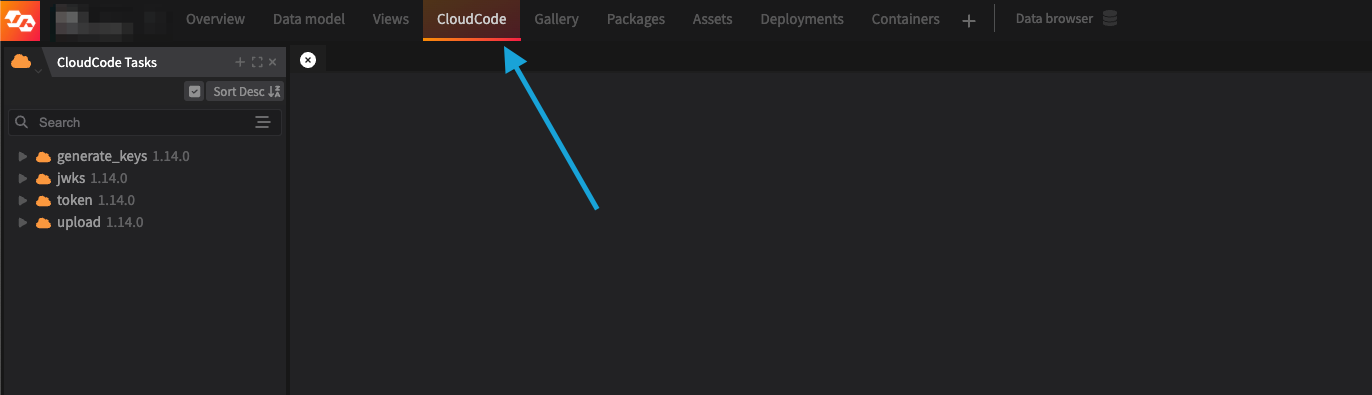
Setup: Deployment Configuration
Before using the tasks, we need to configure a “deployment”.- At the top of the IDE, select Deployments.
- Create a new deployment by using the + button at the top right, or use the default
Testingdeployment. You can configure different deployments for different environments (e.g. staging, production) - Now select the Deployment settings button for the deployment.
- In the Deployment settings - General tab, capture a Domain value in the text field. This domain name determines where the HTTP endpoints exposed by these CloudCode tasks can be accessed. The application will validate the domain name to make sure it’s available.
- Select Save.
- Deploy the deployment: you can do so by selecting the Deploy app button, which can be found on the far right for each of the deployments you have configured. After the deployment is completed, it will take a few minutes for the domain to be available.
- Your new domain will be available at
<domain_name>.poweredbyjourney.com. Open the browser and navigate to the new domain. You should be presented withCannot GET /, because there is no index route.
Setup: Authentication Integration (Optional)
1. Generate Key Pair
First, you need to generate a public/private key pair. Do the following to generate the key pair:- Open the
generate_keysCloudCode task. - Select the Test CloudCode Task button at the top right. This will print the public and private key in the task logs window.
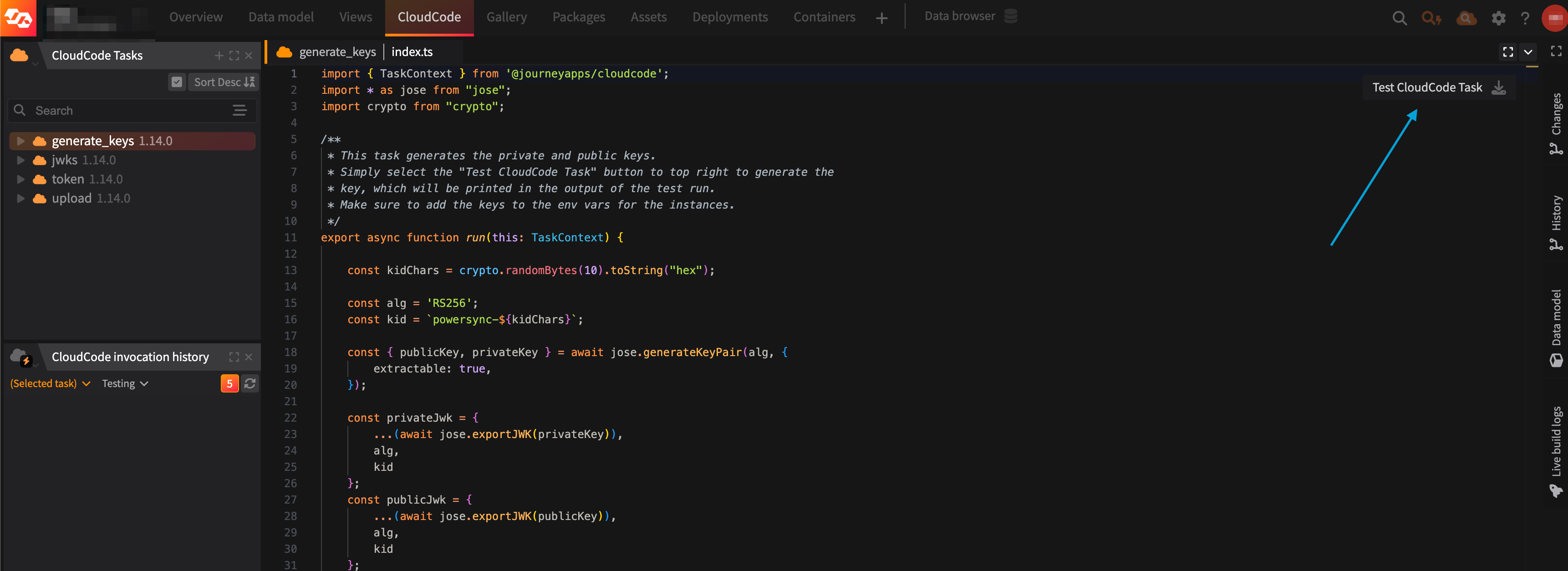
- Copy and paste the
POWERSYNC_PUBLIC_KEYandPOWERSYNC_PRIVATE_KEYto a file — we’ll need this in the next step.
This step is only meant for testing and development because the keys are printed in the log files. For production, generate a key pair locally and move onto step 2 and 3.
2. Configure Environment Variables
The following variables need to be set on the deployment for authentication integration purposes:POWERSYNC_PUBLIC_KEY- This is thePOWERSYNC_PUBLIC_KEYfrom the values generated in step 1.POWERSYNC_PRIVATE_KEY- This is thePOWERSYNC_PRIVATE_KEYfrom the values generated in step 1.POWERSYNC_URL- This is your PowerSync instance URL that can be found in the PowerSync Dashboard.
3. Test
Open your browser and navigate to<domain_name>.poweredbyjourney.com/jwks (using the domain name you picked in Setup: Deployment Configuration)
If the setup was successful, the jwks task will render the keys in JSON format. Make sure the format of your JWKS keys matches the format in this example JWKS endpoint.
Setup: Handling Client Mutations
The following variables need to be set on the deployment for the purpose of handling uploaded client mutations:POWERSYNC_URL- This is your PowerSync instance URL that can be found in the PowerSync Dashboard.MONGO_URI- This is the URI of your MongoDB source database e.g.mongodb+srv://<username>:<password>@<database_domain>/<database>
How to Set Environment Variables
To set environment variables, do the following:- At the top of the IDE, select Deployments.
- Click on Deployment settings for the relevant deployment.
- Select the Environment Variables tab.
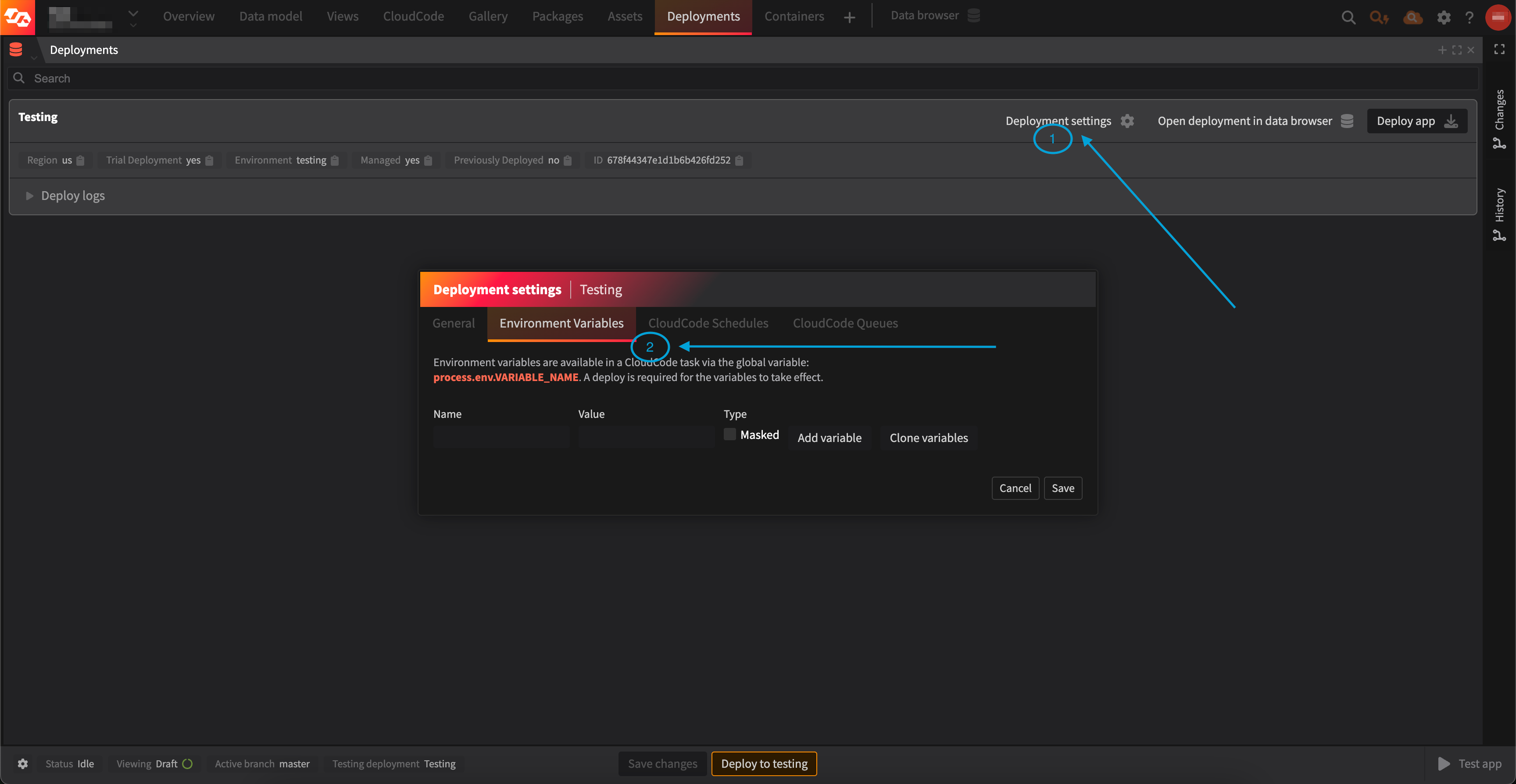
- Capture the variable name in the Name text field.
- Capture the variable value in the Value text field.
- (Suggested) Check the Masked checkbox to obfuscate the variable value for security purposes.
- Repeat until all the variables are added.
- Select the Save button. This is important, otherwise the variables will not save.
- Deploy the deployment: you can do so by selecting the Deploy app button.
Usage: Authentication Integration (Optional)
Make sure you’ve configured a deployment and set up environment variables as described in the Setup steps above before using the HTTP API endpoints exposed by the CloudCode tasks
Token
You would call thetoken HTTP API endpoint when you implement the fetchCredentials() function in your client application.
Send an HTTP GET request to <domain_name>.poweredbyjourney.com/token?user_id=<user_id> to fetch a JWT for a user. You must provide a user_id in the query string of the request, as this is included in the JWT that is generated.
The response of the request will be structured like this:
JWKS
Thejwks HTTP API endpoint is used by PowerSync to validate the token returned from the <domain_name>.poweredbyjourney.com/token endpoint. This URL must be set in the configuration of your PowerSync instance.
Send an HTTP GET request to <domain_name>.poweredbyjourney.com/jwks.
An example of the response format can be found using this link.
Usage: Handling Client Mutations
Upload
You would call theupload HTTP API endpoint when you implement the uploadData() function in your client application.
Send an HTTP POST request to <domain_name>.poweredbyjourney.com/upload
The body of the request payload should look like this:
batchshould be an array of mutations from the PowerSync Client SDK.oprefers to the type of each mutation recorded by the PowerSync Client SDK (PUT,PATCHorDELETE). Refer to Writing Data and Writing Client Changes for details.tablerefers to the table in SQLite where the mutation originates from, and should match the name of a collection in MongoDB.
200 if the write was successful.
Customization: Handling Client Mutations
You can make changes to the way theupload task writes data to the source MongoDB database.
Here is how:
- Go to CloudCode at the top of the IDE in your JourneyApps Platform project
- Select and expand the
uploadtask in the panel on the left. - The
index.tscontains the entry point function that accepts the HTTP request and has aMongoDBStorageclass which interacts with the MongoDB database to perform inserts, updates and deletes. To adjust how mutations are performed, take a look at theupdateBatchfunction.