

Build with AI
Source Code
Refer to the
powersync-swift repo on GitHubAPI Reference
Full API reference for the SDK
Example Projects
Gallery of example projects/demo apps built with PowerSync and Swift
Changelog
Changelog for the SDK
Up to v1.13, the Swift SDK wrapped a PowerSync Kotlin XCFramework behind Swift protocols.From v1.14, the SDK has no Kotlin dependency. It is implemented natively in Swift and uses our Rust core for the sync protocol and SQLite extension.
SDK Features
- Real-time streaming of database changes: Changes made by one user are instantly streamed to all other users with access to that data. This keeps clients automatically in sync without manual polling or refresh logic.
- Direct access to a local SQLite database: Data is stored locally, so apps can read and write instantly without network calls. This enables offline support and faster user interactions.
- Asynchronous background execution: The SDK performs database operations in the background to avoid blocking the application’s main thread. This means that apps stay responsive, even during heavy data activity.
- Query subscriptions for live updates: The SDK supports query subscriptions that automatically push real-time updates to client applications as data changes, keeping your UI reactive and up to date.
- Automatic schema management: PowerSync syncs schemaless data and applies a client-defined schema using SQLite views. This architecture means that PowerSync SDKs handle schema changes without explicit migrations on the client side.
Installation
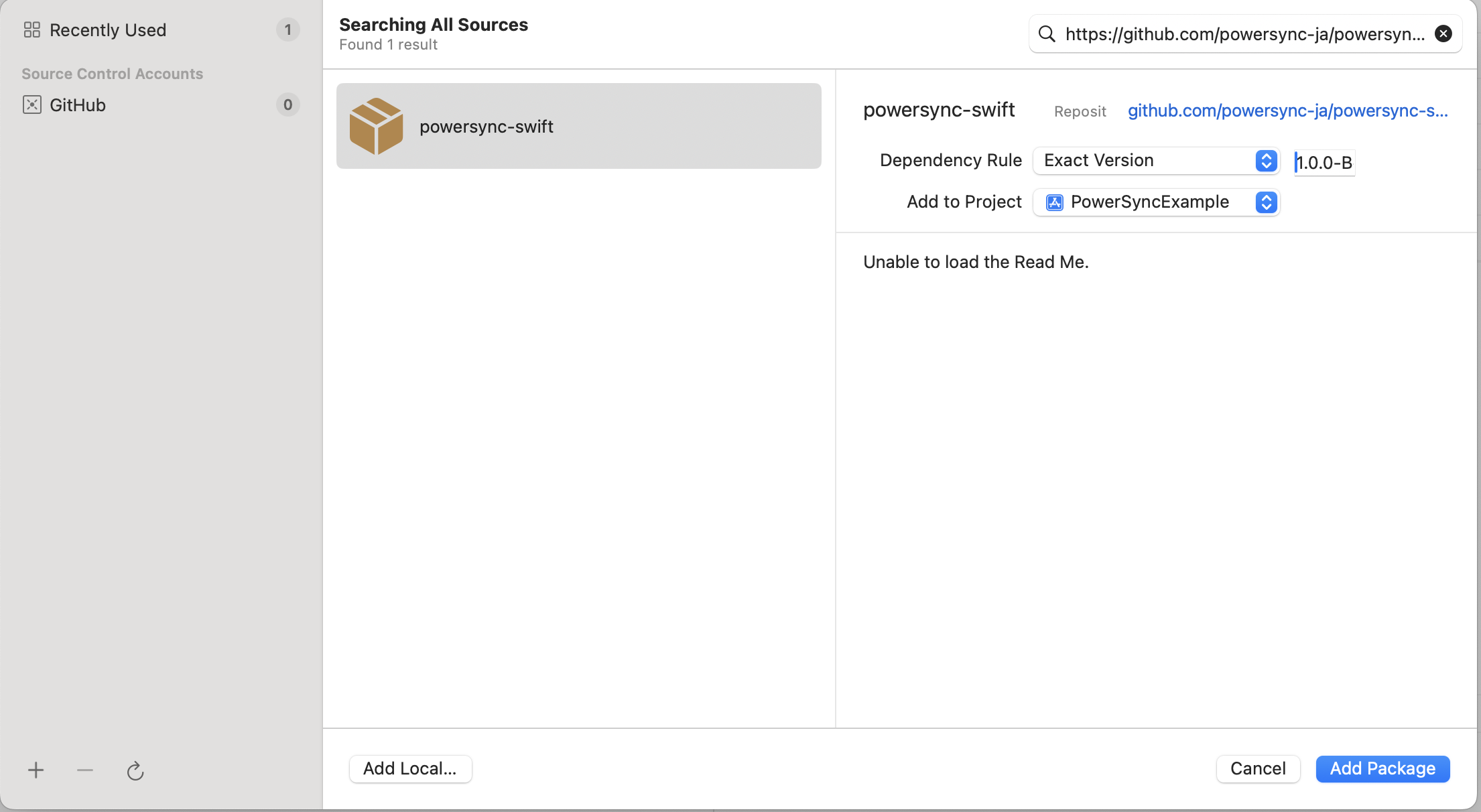
You can add the PowerSync Swift package to your project using eitherPackage.swift or Xcode:
- Package.swift
- Xcode
Getting Started
Prerequisites: Before you start, connect your source database to the PowerSync Service and deploy Sync Streams. These are steps 1-4 in the Setup Guide.1. Define the Client-Side Schema
The client-side schema defines the tables and columns of the SQLite database that the PowerSync client SDK manages and that your app reads from and writes to. It is usually derived from your backend database schema and your Sync Streams, and it can also include local-only tables. You apply the schema when you instantiate the database in the next step. Schema migrations are not required. The SDK syncs schemaless data and applies the schema to that data with SQLite views. The exception is raw tables, which you create and migrate yourself. The available column types aretext, integer, and real. These should match the values produced by your Sync Streams. If a value does not match, it is cast automatically. For details on how source database types map to SQLite types, see Types.
Example:
You do not need to declare an
id column. PowerSync creates it automatically.2. Instantiate the PowerSync Database
Next, instantiate the PowerSync database. PowerSync streams changes from your backend source database into the client-side SQLite database, based on your Sync Streams. Your app reads from and writes to this local database whether the user is online or offline. Example:3. Integrate with Your Backend
The backend connector connects the PowerSync client SDK to your application backend. The SDK uses it to:- Get an auth token to connect to the PowerSync instance.
- Upload client-side writes to your backend API. The SDK places every write to the SQLite database in an upload queue and uploads the queue to your backend when the user is connected. Your backend then applies the changes to the source database.
PowerSyncBackendConnectorProtocol.fetchCredentials- The SDK calls this method to get authentication credentials. It caches the credentials and calls the method again only when needed, for example on the first connection or when the token is near expiry. See WhenfetchCredentials()is Called for details and Authentication Setup for how to generate credentials.PowerSyncBackendConnectorProtocol.uploadData- The SDK calls this method whenever it has client-side writes to upload to your backend API. Implement how those writes are processed and uploaded. See WhenuploadData()is Called for triggers, throttling, and retry behavior, and Writing Client Changes for the app backend implementation.
4. Subscribe to Sync Streams
Streams defined withauto_subscribe: true start syncing as soon as the client connects. For all other streams, your app must subscribe before their data downloads. The basic pattern is: subscribe to a stream, wait for its data to sync, then unsubscribe when the data is no longer needed.
Using PowerSync: CRUD Functions
Once the PowerSync database is connected and your streams have synced, the data is in the local SQLite database. The most commonly used CRUD functions to interact with your SQLite data are:- PowerSyncDatabase.get - get (
SELECT) a single row from a table. - PowerSyncDatabase.getOptional - get (
SELECT) a single row from a table and returnnilif not found. - PowerSyncDatabase.getAll - get (
SELECT) a set of rows from a table. - PowerSyncDatabase.watch - execute a read query every time a dependent table changes.
- PowerSyncDatabase.execute - execute a write (
INSERT/UPDATE/DELETE) query.
Fetching a Single Item (PowerSync.get / PowerSync.getOptional)
Theget method executes a read-only (SELECT) query and returns a single result. It throws an exception if no result is found. Use getOptional to return a single optional result (returns nil if no result is found).
Querying Items (PowerSync.getAll)
ThegetAll method executes a read-only (SELECT) query and returns a set of rows.
Watching Queries (PowerSync.watch)
Thewatch method executes a read query whenever a change to a dependent table is made.
Mutations (PowerSync.execute)
Theexecute method executes a write query (INSERT, UPDATE, DELETE) and returns the results (if any).
Configure Logging
You can supply your own logger. It must conform to the LoggerProtocol:DefaultLogger supports the following severity levels: .debug, .info, .warn, .error.
App Groups and App Extensions
By default, the Swift SDK stores databases inapplicationSupportDirectory. If you want to share local databases between multiple apps in an app group, provide an absolute path (starting with /) as dbFilename when calling PowerSyncDatabase. The path should point towards a file in the app group’s shared container.
With app groups and extensions, multiple processes might access the database at the same time. SQLite uses shared memory and file locking to make this safe, but there are still concerns that aren’t relevant when the database is only accessed from a single context:
- Concurrent writes to the database are not allowed. Within a process, the PowerSync SDK uses Swift actors to schedule writes. Outside of SQLite using file locks, there is no additional coordination for multi-process access.
- Consider using
PRAGMA busy_timeoutto make SQLite wait longer. - Be ready to handle
SQLITE_BUSYerrors if multiple processes attempt to write to the database.
- Consider using
- Do not call
connect()in more than one process: If two processes attempt to connect to the PowerSync Service for the same database, this wastes resources and can also lead to concurrency issues. If you share databases with extensions or app groups, ensure there is only one context responsible for connecting. - Avoid multiple versions of the Swift SDK: While the SQLite file format is stable and databases can safely be accessed from multiple processes using their own SQLite version, the PowerSync SDK is not designed with this in mind. In particular, opening the same database file from multiple processes can cause PowerSync-internal migrations to get reverted. This is not a concern for app extensions released as part of the same bundle, but something to be aware of for app groups.
Custom HTTP Clients and Headers
PowerSync uses a streaming HTTP response to connect to the PowerSync Service. By default, the Swift SDK usesURLSession.shared to run HTTP requests.
You can provide a custom URLSession as a sync option. This can be used to add custom HTTP headers, for example:
URLSessionConfiguration.
Additional Usage Examples
For more usage examples including accessing connection status, monitoring sync progress, and waiting for initial sync, see the Usage Examples page.ORM Support
PowerSync officially supports the GRDB library for Swift. Additionally, Asier G. Morato contributed a Swift Data integration for PowerSync, allowing Swift Data models to be persisted and synced through a PowerSync database. The integration is community-owned and not officially supported by PowerSync.Troubleshooting
See Troubleshooting for pointers to debug common issues.Supported Platforms
See Supported Platforms -> Swift SDK.Upgrading the SDK
Update the version number inPackage.swift or via Xcode Package Dependencies as documented in the installation instructions: Installation.