Build Supabase apps with PowerSync that use client-side SQLite for real-time updates across users and devices, instant interactions and continued functionality when offline.
This guide shows you how to set up PowerSync with Supabase and run a to-do list demo app. The app reads and writes a local SQLite database, so it responds instantly and keeps working without a network connection.
Try our new guided Supabase setup in the PowerSync Dashboard. It configures your Supabase project and PowerSync Cloud instance for you.Look for the Set Up with Supabase button in your instance’s Health or Database Connection view, then follow the on-screen steps.
The Set Up with Supabase button in the PowerSync Dashboard
To set up Supabase manually instead, follow the steps below.
If you use guided setup, still follow this guide to create the demo schema, configure Sync Streams, and run the demo app. Tips mark the steps that guided setup replaces.
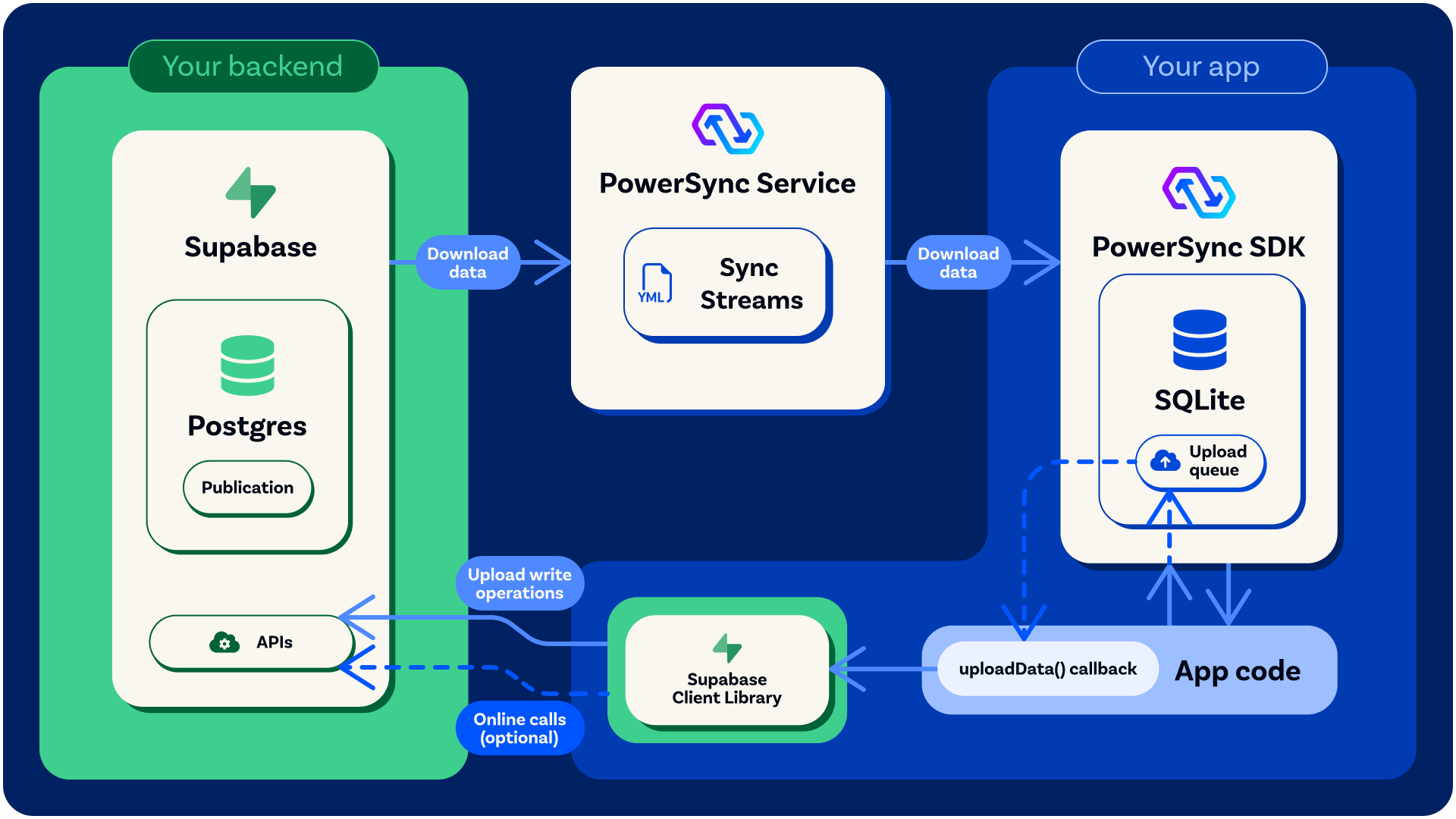
The PowerSync Service replicates data from Supabase Postgres and syncs it to each client’s SQLite database, based on your Sync Streams. When the app writes to SQLite, the PowerSync SDK also adds the change to an upload queue. While the device is online, the SDK calls the app’s uploadData() function, which sends queued changes to Supabase through the Supabase client library. For more on how PowerSync works, see the Architecture Overview.
Log in to the Supabase CLI, then create a project. supabase orgs list shows your organization IDs. The output of supabase projects create includes the project ref, which the following commands use as <project-ref>.
The demo app uses two tables, lists and todos. Run the following SQL to create them:
create table public.lists ( id uuid not null default gen_random_uuid (), created_at timestamp with time zone not null default now(), name text not null, owner_id uuid not null, constraint lists_pkey primary key (id), constraint lists_owner_id_fkey foreign key (owner_id) references auth.users (id) on delete cascade ) tablespace pg_default;create table public.todos ( id uuid not null default gen_random_uuid (), created_at timestamp with time zone not null default now(), completed_at timestamp with time zone null, description text not null, completed boolean not null default false, created_by uuid null, completed_by uuid null, list_id uuid not null, constraint todos_pkey primary key (id), constraint todos_created_by_fkey foreign key (created_by) references auth.users (id) on delete set null, constraint todos_completed_by_fkey foreign key (completed_by) references auth.users (id) on delete set null, constraint todos_list_id_fkey foreign key (list_id) references lists (id) on delete cascade ) tablespace pg_default;-- Grant Data API access so supabase-js can read and write these tables.grant select, insert, update, delete on public.lists to authenticated;grant select, insert, update, delete on public.todos to authenticated;grant select, insert, update, delete on public.lists to service_role;grant select, insert, update, delete on public.todos to service_role;-- Enable Row Level Security and add policies so each user can only access their own data.alter table public.lists enable row level security;alter table public.todos enable row level security;create policy "owned lists" on public.lists for all to authenticated using (auth.uid() = owner_id);create policy "todos in owned lists" on public.todos for all to authenticated using ( auth.uid() in ( select lists.owner_id from public.lists where lists.id = todos.list_id ) );
Sync Streams, which you configure later, control which rows sync to each client. They usually mirror your RLS policies. See RLS and Sync Streams.
Using guided Supabase setup in the Dashboard? Skip this step and the next one. Guided setup creates the database user and publication for you. Continue at Create a PowerSync Cloud Instance.
PowerSync uses Postgres logical replication to read changes from your database. Run the following SQL to create a Postgres role with replication privileges:
-- Create a role/user with replication privileges for PowerSyncCREATE ROLE powersync_role WITH REPLICATION BYPASSRLS LOGIN PASSWORD 'myhighlyrandompassword';-- Set up permissions for the newly created role-- Read-only (SELECT) access is requiredGRANT SELECT ON ALL TABLES IN SCHEMA public TO powersync_role; -- Optionally, grant SELECT on all future tables (to cater for schema additions)ALTER DEFAULT PRIVILEGES IN SCHEMA public GRANT SELECT ON TABLES TO powersync_role;
To restrict read access to specific tables, explicitly list allowed tables for both the SELECT privilege, and for the publication mentioned in the next step (as well as for any other publications that may exist).
Run the following SQL to create a Postgres publication:
-- Create a publication to replicate tables. The publication must be named "powersync"CREATE PUBLICATION powersync FOR ALL TABLES;
Note that the PowerSync Service has to read all updates present in the publication, regardless of whether the table is referenced in your Sync Streams. This can cause large spikes in memory usage or introduce replication delays, so if you’re dealing with large data volumes, you’ll want to specify a comma-separated subset of tables to replicate instead of FOR ALL TABLES.
The snippet above replicates all tables and is the simplest way to get started in a dev environment.
When creating a project in the PowerSync Dashboard, Development and Production instances of the PowerSync Service will be created by default. Select the instance you want to configure.If you need to create a new instance, follow the steps below.
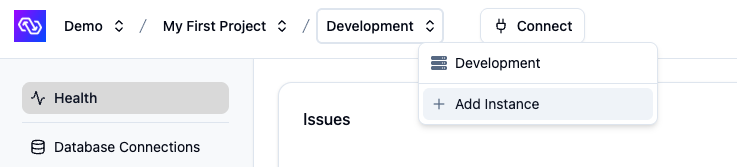
In the dashboard, select your project and open the instance selection dropdown. Click Add Instance.
Give your instance a name, such as “Production”.
[Optional] You can change the default cloud region. You can’t change the region after you create the instance. See Regions for details.
Click Create Instance.
Run these commands in the directory of the demo app or your own app.Install the PowerSync CLI (requires Node.js/npm), then log in and scaffold the config directory:
This creates a powersync/ directory with service.yaml (instance name, region, connection, auth) and sync-config.yaml (Sync Config). Edit powersync/service.yaml to set your instance name and region.Then create the instance and link the directory to it:
powersync link cloud --create --project-id=<project-id>
Find your project ID in the PowerSync Dashboard URL, or run powersync fetch instances after logging in.
Using guided Supabase setup in the Dashboard? Run it now instead of the steps below. Click Set Up with Supabase in your instance’s Health or Database Connection view and follow the on-screen steps. Then continue at Configure Sync Streams.
Web UI
CLI
In your Supabase Dashboard, click Connect in the top navigation bar, or open this link.
Select Direct, keep Direct connection as the connection method, and copy the connection string, including the [YOUR-PASSWORD] placeholder.
In the PowerSync Dashboard, select your project and instance and go to the Database Connection view.
Select the Postgres tab.
Paste the connection string into the URI field. PowerSync fills in the other connection fields from the URI.
Change Username and Password to the powersync_role and password you created when you set up Supabase for PowerSync. See Source Database Setup.
Keep SSL Mode set to verify-full. PowerSync trusts Supabase’s certificate by default, so you don’t need to add a server certificate.
Click Test Connection and fix any errors.
Click Save Connection.
PowerSync now creates an isolated cloud environment for your instance. This typically takes a minute or two.
Add the connection to powersync/service.yaml. Use the direct host, db.<project-ref>.supabase.co, with powersync_role as the user:
In the PowerSync Dashboard, go to the Client Auth view.
Select Use Supabase Auth.
If your Supabase project uses legacy JWT secrets, copy the JWT secret from your project’s JWT Keys settings into Supabase JWT Secret (optional). If your project uses JWT signing keys, leave this field empty. PowerSync configures your project’s signing keys automatically.
Click Save and Deploy.
Add a client_auth section to powersync/service.yaml:
client_auth:
  supabase: true
If your Supabase project uses legacy JWT secrets, also set supabase_jwt_secret:
Sync Streams define which data syncs to which users’ devices. In the demo app, each user syncs their own lists and to-dos. Use the following Sync Config:
config: edition: 3streams: user_data: auto_subscribe: true queries: - SELECT * FROM lists WHERE owner_id = auth.user_id() - SELECT todos.* FROM todos INNER JOIN lists ON todos.list_id = lists.id WHERE lists.owner_id = auth.user_id()
Web UI
CLI
In the PowerSync Dashboard, select your project and instance and go to the Sync Streams view.
Replace the contents of the editor with the Sync Config above.
Click Validate and fix any errors.
Click Deploy.
Replace the contents of powersync/sync-config.yaml with the Sync Config above. Then deploy the full configuration, which includes the database connection, client auth, and Sync Config:
Create or open the config file for your framework:
cp lib/app_config_template.dart lib/app_config.dart# Edit `lib/app_config.dart` and insert the necessary credentials as detailed below.
cp .env .env.local# Edit `.env.local` and insert the necessary credentials as detailed below.
cp .env.local.template .env.local# Edit `.env.local` and insert the necessary credentials as detailed below.
# Make a `local.properties` file in the root and fill in the relevant variables (see points below for further details):# local.propertiessdk.dir=/path/to/android/sdk# Enter your PowerSync instance URLPOWERSYNC_URL=https://your-instance-id.powersync.journeyapps.com# Enter your Supabase project URL and publishable keySUPABASE_URL=https://your-project-ref.supabase.coSUPABASE_ANON_KEY=sb_publishable_your-publishable-key
# Edit the `_Secrets` file and insert the necessary credentials as detailed below.
Set these values in the config file:
Supabase URL: Your project URL, https://<project-ref>.supabase.co. Find it in the Supabase Dashboard under Project URL.
Supabase key: Your project’s publishable key, or its legacy anon key. Find it under API Keys, or run supabase projects api-keys --project-ref <project-ref>.
PowerSync URL: Your instance URL. Click Connect in the top bar of the PowerSync Dashboard and copy it. If you use the CLI, the URL is https://<instance-id>.powersync.journeyapps.com, where <instance-id> is the instance_id value in powersync/cli.yaml.
# Ensure you have [melos](https://melos.invertase.dev/~melos-latest/getting-started) installed.melos bootstrapflutter run
# In `demos/react-native-supabase-todolist`:# Run on iOSpnpm ios# Run on Androidpnpm android
# In `demos/react-supabase-todolist`:pnpm dev
# Run the app on Android or iOS in Android Studio using the Run widget.
# Run the app using XCode.
To sign up without confirming your email address, turn off Confirm email in your Supabase project under Authentication > Sign In / Providers.
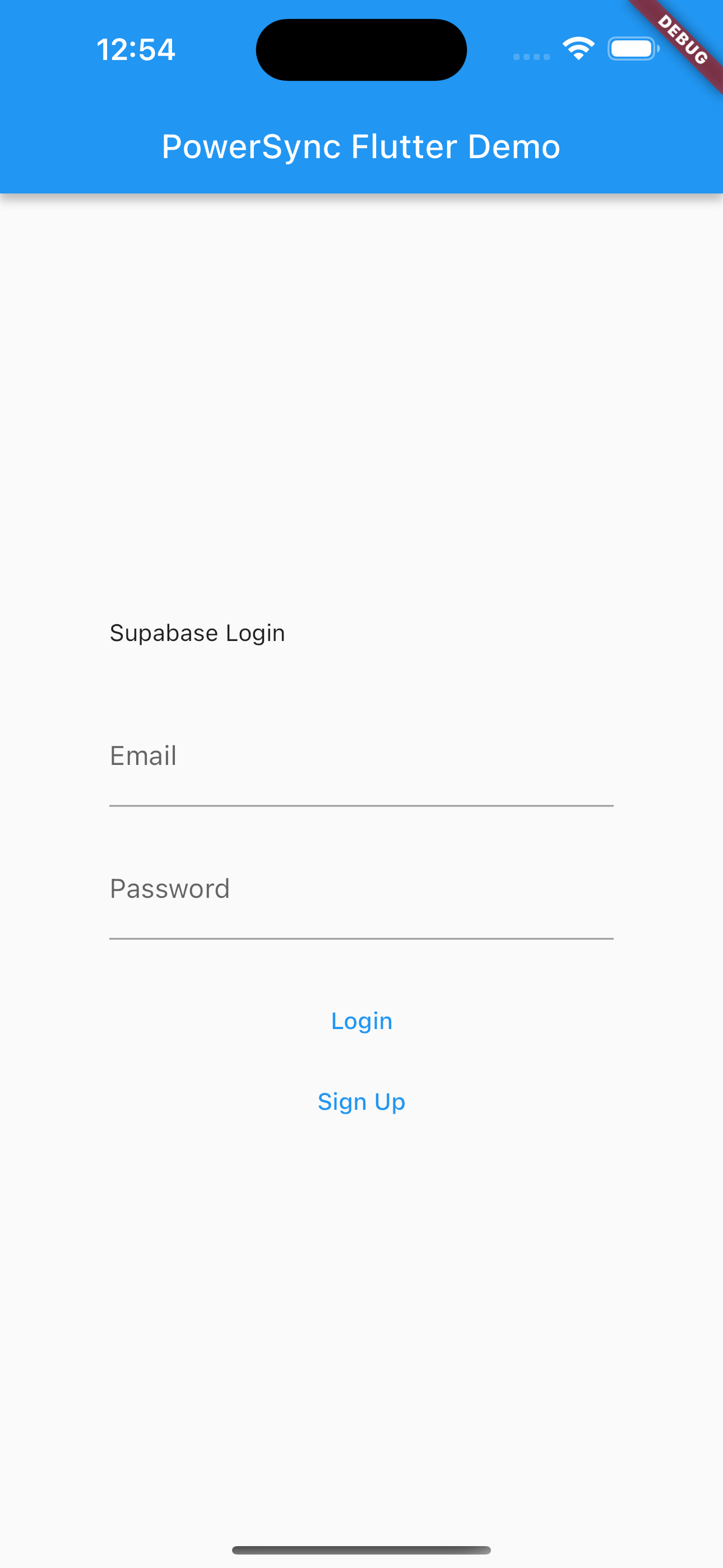
The sign-in screen of the Flutter demo app
Sign up and create a list. Then put your device in airplane mode and add a to-do. When the device is back online, the SDK uploads the queued changes, and they appear in the Supabase Dashboard’s Table Editor.If you run into problems, ask us on Discord.
If you share the demo app with other people, you can add sample data for each new user, so that they don’t start with an empty screen. The following trigger creates a list with two to-dos when a user signs up. Run it like the other SQL in this guide. See Supabase: Managing User Data.
create function public.handle_new_user_sample_data()returns trigger as $$declare new_list_id uuid;begin insert into public.lists (name, owner_id) values ('Shopping list', new.id) returning id into new_list_id; insert into public.todos(description, list_id, created_by) values ('Bread', new_list_id, new.id); insert into public.todos(description, list_id, created_by) values ('Apples', new_list_id, new.id); return new;end;$$ language plpgsql security definer;create trigger new_user_sample_data after insert on auth.users for each row execute procedure public.handle_new_user_sample_data();
If changes from the app don’t reach Supabase and your app logs error 42501, the Data API rejected the upload. Check the error message:
permission denied for table: The authenticated role has no grant on the table. Grant access to each table that your app writes to, for example grant select, insert, update, delete on public.lists to authenticated;.
new row violates row-level security policy: An RLS policy rejected the write. Check that the row belongs to the signed-in user, for example that owner_id matches the user’s ID.
The demo schema SQL shows both the grants and the RLS policies.
If your Supabase project’s WAL settings are large for its disk, Postgres can keep a growing amount of write-ahead log (WAL) while PowerSync is connected, even when the database is idle. This can fill the disk, especially on Free plan projects with a small disk.Check max_wal_size and max_slot_wal_keep_size with SHOW max_wal_size; and SHOW max_slot_wal_keep_size;. Lower any value that is more than half of your disk size. For example, on a 2 GB disk where both values are 4 GB, set both to 1 GB:
To change only one setting, pass only that key. The command restarts your database, so expect a brief interruption.A lower max_slot_wal_keep_size leaves less room for replication lag. If the lag exceeds it, Postgres invalidates PowerSync’s replication slot. See Recovering from an Invalidated Slot.
If you stop or deprovision your PowerSync instance, its replication slot stays in your Supabase database and keeps WAL. Drop slots that you no longer need. See Logical Replication Slots.
{"docsConfig":{"theme":"almond","$schema":"https://mintlify.com/docs.json","name":"PowerSync","description":"PowerSync keeps a client-side SQLite database in sync with your backend database. Changes appear across users and devices in real time, user interactions feel instant, and your app continues to work even when offline.","colors":{"primary":"#4e89ff","light":"#4e89ff","dark":"#4e89ff"},"logo":{"light":"https://mintcdn.com/powersync/GTJdSKFSfUc2Sxtc/logo/light.svg?fit=max\u0026auto=format\u0026n=GTJdSKFSfUc2Sxtc\u0026q=85\u0026s=031755afb1ccb9d103407a97dbba0f77","dark":"https://mintcdn.com/powersync/GTJdSKFSfUc2Sxtc/logo/dark.svg?fit=max\u0026auto=format\u0026n=GTJdSKFSfUc2Sxtc\u0026q=85\u0026s=badf66d7ec3d69f747082c7d1090c613","href":"https://www.powersync.com/"},"favicon":"https://mintcdn.com/powersync/lquPOu2QW4XM9BQW/favicon.png?fit=max\u0026auto=format\u0026n=lquPOu2QW4XM9BQW\u0026q=85\u0026s=5e9a946a297885a946b02d1e401c9053","appearance":{"default":"system"},"navbar":{"links":[{"href":"https://dashboard.powersync.com/","label":"Dashboard"}],"primary":{"type":"button","label":"Get Started","href":"https://accounts.powersync.com/portal/powersync-signup?s=docs"}},"footer":{"socials":{"github":"https://github.com/powersync-ja","discord":"https://discord.com/invite/powersync","bluesky":"https://bsky.app/profile/powersync.com","x":"https://x.com/powersync_","youtube":"https://www.youtube.com/@powersync_","linkedin":"https://www.linkedin.com/showcase/journeyapps-powersync"},"links":[{"header":"Resources","items":[{"label":"Release Notes","href":"https://releases.powersync.com"},{"label":"System Status","href":"https://status.powersync.com/"},{"label":"Roadmap","href":"https://roadmap.powersync.com"},{"label":"Blog","href":"https://www.powersync.com/blog"}]}]},"seo":{"metatags":{"canonical":"https://docs.powersync.com","og:locale":"en_US","twitter:site":"@powersync_"},"organization":{"id":"https://www.powersync.com/#organization","name":"PowerSync","url":"https://www.powersync.com","logo":"https://docs.powersync.com/images/logo.png","sameAs":["https://github.com/powersync-ja","https://x.com/powersync_","https://www.linkedin.com/showcase/journeyapps-powersync/","https://bsky.app/profile/powersync.com"]}},"contextual":{"options":["copy","view","chatgpt","claude","mcp","cursor","vscode"],"display":"header"},"interaction":{"drilldown":true},"styling":{"latex":false},"navigation":{"global":{"anchors":[{"anchor":"GitHub","icon":"github","href":"https://github.com/powersync-ja"},{"anchor":"Community Discord","icon":"discord","href":"https://discord.com/invite/powersync"},{"anchor":"PowerSync Website","icon":"browser","href":"https://www.powersync.com/"}]},"pages":[]}},"deployment":{"deploymentMetadataValue":{"subdomain":"powersync","hasAudioNarration":false,"actualSubdomain":"powersync","customDomains":["docs.powersync.com"],"gitSource":{"type":"github","owner":"powersync-ja","repo":"powersync-docs","deployBranch":"main","contentDirectory":"","isPrivate":false,"mountPath":"","label":""},"chroma":{"liveDeploymentHistoryId":"6adf7edc1e2843fbec4a46e4","collectionId":"b414e4eb-2aa2-482c-8f8a-f842ff7cfe35","schemaVersion":"v3","latestBuiltDeploymentHistoryId":"6adf7edc1e2843fbec4a46e4"},"feedback":{"thumbs":false,"issues":true,"edits":true},"entitlements":{"AI_CHAT":{"status":"ENABLED"},"WEB_MCP":{"status":"ENABLED"},"NARRATION":{"status":"ENABLED"}},"buildId":"6adf7edc1e2843fbec4a46e4","clientVersion":"0.0.3971","searchFilterCounts":[{"language":"default","tag":"Client SDKs","count":63},{"language":"default","tag":"Sync Streams","count":38},{"language":"default","tag":"Advanced","count":33},{"language":"default","tag":"Maintenance \u0026 Ops","count":24},{"language":"default","tag":"JavaScript","count":20},{"language":"default","tag":"Configuration Details","count":18},{"language":"default","tag":"Sync Rules (Legacy)","count":15},{"language":"default","tag":"Self-Hosting","count":14},{"language":"default","tag":"Resources","count":14},{"language":"default","tag":"Tools","count":13}]},"assistantConfig":{},"basePath":"","hasChatPermissions":false,"hasWebMcpPermissions":true,"toggles":[{"name":"kill-isr","enabled":true,"variant":{"name":"disabled","enabled":false,"feature_enabled":true},"impressionData":false},{"name":"agent-mintlify-slack","enabled":true,"variant":{"name":"disabled","enabled":false,"feature_enabled":true},"impressionData":false},{"name":"editor-v7-file-tree","enabled":true,"variant":{"name":"disabled","enabled":false,"feature_enabled":true},"impressionData":false},{"name":"agent-integrations-settings","enabled":true,"variant":{"name":"disabled","enabled":false,"feature_enabled":true},"impressionData":false},{"name":"automations-pr-grouping","enabled":true,"variant":{"name":"disabled","enabled":false,"feature_enabled":true},"impressionData":false},{"name":"custom-prefix","enabled":true,"variant":{"name":"disabled","enabled":false,"feature_enabled":true},"impressionData":false},{"name":"analytics-v7","enabled":true,"variant":{"name":"disabled","enabled":false,"feature_enabled":true},"impressionData":false},{"name":"user-flows-analytics","enabled":true,"variant":{"name":"disabled","enabled":false,"feature_enabled":true},"impressionData":false},{"name":"no-publish-flow","enabled":true,"variant":{"name":"disabled","enabled":false,"feature_enabled":true},"impressionData":false},{"name":"workos-onboarding","enabled":true,"variant":{"name":"disabled","enabled":false,"feature_enabled":true},"impressionData":false},{"name":"llms-txt-v2","enabled":true,"variant":{"name":"disabled","enabled":false,"feature_enabled":true},"impressionData":false},{"name":"pause-universal-search-reconcile","enabled":true,"variant":{"name":"disabled","enabled":false,"feature_enabled":true},"impressionData":false},{"name":"snapshot-serving-live","enabled":true,"variant":{"name":"disabled","enabled":false,"feature_enabled":true},"impressionData":false},{"name":"stripTemperatureMiddleware","enabled":true,"variant":{"name":"disabled","enabled":false,"feature_enabled":true},"impressionData":false},{"name":"per-site-search-delta","enabled":true,"variant":{"name":"disabled","enabled":false,"feature_enabled":true},"impressionData":false},{"name":"support-platform-pylon-zendesk","enabled":true,"variant":{"name":"disabled","enabled":false,"feature_enabled":true},"impressionData":false},{"name":"snapshot-serving","enabled":true,"variant":{"name":"disabled","enabled":false,"feature_enabled":true},"impressionData":false},{"name":"instant-rollback","enabled":true,"variant":{"name":"disabled","enabled":false,"feature_enabled":true},"impressionData":false},{"name":"granular-notifications-server","enabled":true,"variant":{"name":"disabled","enabled":false,"feature_enabled":true},"impressionData":false},{"name":"granular-notifications","enabled":true,"variant":{"name":"disabled","enabled":false,"feature_enabled":true},"impressionData":false},{"name":"editor-private-page-search","enabled":true,"variant":{"name":"disabled","enabled":false,"feature_enabled":true},"impressionData":false},{"name":"automations-fable","enabled":true,"variant":{"name":"disabled","enabled":false,"feature_enabled":true},"impressionData":false},{"name":"fixed-ai-action-pricing","enabled":true,"variant":{"name":"disabled","enabled":false,"feature_enabled":true},"impressionData":false},{"name":"automation-resolve-merge-conflict","enabled":true,"variant":{"name":"disabled","enabled":false,"feature_enabled":true},"impressionData":false},{"name":"scoped-publishing","enabled":true,"variant":{"name":"disabled","enabled":false,"feature_enabled":true},"impressionData":false},{"name":"mintql","enabled":true,"variant":{"name":"disabled","enabled":false,"feature_enabled":true},"impressionData":false},{"name":"page-level-analytics","enabled":true,"variant":{"name":"disabled","enabled":false,"feature_enabled":true},"impressionData":false},{"name":"editor-version-history-v2","enabled":true,"variant":{"name":"disabled","enabled":false,"feature_enabled":true},"impressionData":false},{"name":"editor-nav-generations","enabled":true,"variant":{"name":"disabled","enabled":false,"feature_enabled":true},"impressionData":false},{"name":"billing-page-v2","enabled":true,"variant":{"name":"disabled","enabled":false,"feature_enabled":true},"impressionData":false},{"name":"workspace-projects","enabled":true,"variant":{"name":"disabled","enabled":false,"feature_enabled":true},"impressionData":false},{"name":"assistant-v5","enabled":true,"variant":{"name":"disabled","enabled":false,"feature_enabled":true},"impressionData":false},{"name":"byok-sep-25","enabled":true,"variant":{"name":"disabled","enabled":false,"feature_enabled":true},"impressionData":false},{"name":"fork-pr-previews","enabled":true,"variant":{"name":"disabled","enabled":false,"feature_enabled":true},"impressionData":false},{"name":"revalidation-jwt","enabled":true,"variant":{"name":"disabled","enabled":false,"feature_enabled":true},"impressionData":false},{"name":"vite-origin","enabled":true,"variant":{"name":"disabled","enabled":false,"feature_enabled":true},"impressionData":false},{"name":"editor-agent-model-picker","enabled":true,"variant":{"name":"disabled","enabled":false,"feature_enabled":true},"impressionData":false},{"name":"billing-updated-9-15","enabled":true,"variant":{"name":"disabled","enabled":false,"feature_enabled":true},"impressionData":false},{"name":"workos-sso-scim","enabled":true,"variant":{"name":"disabled","enabled":false,"feature_enabled":true},"impressionData":false},{"name":"hobby-abuse-scan","enabled":true,"variant":{"name":"disabled","enabled":false,"feature_enabled":true},"impressionData":false},{"name":"dashboard-inbox","enabled":true,"variant":{"name":"disabled","enabled":false,"feature_enabled":true},"impressionData":false},{"name":"workos-signup","enabled":true,"variant":{"name":"disabled","enabled":false,"feature_enabled":true},"impressionData":false},{"name":"workos-enabled","enabled":true,"variant":{"name":"disabled","enabled":false,"feature_enabled":true},"impressionData":false}],"isAtlas":false,"googleFontsInlined":true},"customCss":[{"filePath":"styles.css","content":"@import url(https://fonts.googleapis.com/css2?Inter:ital,opsz,wght@0,14..32,100..900;1,14..32,100..900\u0026display=swap);body,h1,h2,h3,h4,h5,h6{font-family:'Inter',sans-serif}@media (min-width:1600px){.max-w-xl{max-width:50rem!important}}"}],"page":{"pagePath":"integrations/supabase/guide","slug":"/integrations/supabase/guide","pageMetadata":{"title":"Supabase + PowerSync","description":"Build Supabase apps with PowerSync that use client-side SQLite for real-time updates across users and devices, instant interactions and continued functionality when offline.","sidebarTitle":"Overview","href":"/integrations/supabase/guide"},"description":{"compiledSource":"\"use strict\";\nconst {jsx: _jsx} = arguments[0];\nconst {useMDXComponents: _provideComponents} = arguments[0];\nfunction _createMdxContent(props) {\n const _components = {\n p: \"p\",\n ..._provideComponents(),\n ...props.components\n };\n return _jsx(_components.p, {\n children: \"Build Supabase apps with PowerSync that use client-side SQLite for real-time updates across users and devices, instant interactions and continued functionality when offline.\"\n });\n}\nfunction MDXContent(props = {}) {\n const {wrapper: MDXLayout} = {\n ..._provideComponents(),\n ...props.components\n };\n return MDXLayout ? _jsx(MDXLayout, {\n ...props,\n children: _jsx(_createMdxContent, {\n ...props\n })\n }) : _createMdxContent(props);\n}\nreturn {\n default: MDXContent\n};\n","frontmatter":{},"scope":{}},"pageType":"default","mdx":{"mdxSource":{"compiledSource":"\"use strict\";const{Fragment:_Fragment,jsx:_jsx,jsxs:_jsxs}=arguments[0];const{useMDXComponents:_provideComponents}=arguments[0];function _createMdxContent(props){const _components={a:`a`,code:`code`,em:`em`,li:`li`,ol:`ol`,p:`p`,pre:`pre`,span:`span`,strong:`strong`,ul:`ul`,..._provideComponents(),...props.components},{CodeBlock,CodeGroup,Frame,Heading,OptimizedFrame,OptimizedImage,Step,Steps,Tab,Tabs,Tip,Warning}=_components;if(!CodeBlock)_missingMdxReference(`CodeBlock`,true);if(!CodeGroup)_missingMdxReference(`CodeGroup`,true);if(!Frame)_missingMdxReference(`Frame`,true);if(!Heading)_missingMdxReference(`Heading`,true);if(!OptimizedFrame)_missingMdxReference(`OptimizedFrame`,true);if(!OptimizedImage)_missingMdxReference(`OptimizedImage`,true);if(!Step)_missingMdxReference(`Step`,true);if(!Steps)_missingMdxReference(`Steps`,true);if(!Tab)_missingMdxReference(`Tab`,true);if(!Tabs)_missingMdxReference(`Tabs`,true);if(!Tip)_missingMdxReference(`Tip`,true);if(!Warning)_missingMdxReference(`Warning`,true);return _jsxs(_Fragment,{children:[_jsxs(_components.p,{children:[`This guide shows you how to set up PowerSync with `,_jsx(_components.a,{href:`https://supabase.com/`,children:`Supabase`}),` and run a to-do list demo app. The app reads and writes a local SQLite database, so it responds instantly and keeps working without a network connection.`]}),`\n`,_jsxs(Tip,{children:[_jsxs(_components.p,{children:[_jsx(_components.strong,{children:`Try our new guided Supabase setup in the PowerSync Dashboard.`}),` It configures your Supabase project and PowerSync Cloud instance for you.`]}),_jsxs(_components.p,{children:[`Look for the `,_jsx(_components.strong,{children:`Set Up with Supabase`}),` button in your instance’s `,_jsx(_components.strong,{children:`Health`}),` or `,_jsx(_components.strong,{children:`Database Connection`}),` view, then follow the on-screen steps.`]}),_jsx(Frame,{caption:`The Set Up with Supabase button in the PowerSync Dashboard`,children:_jsx(OptimizedImage,{src:`https://mintcdn.com/powersync/r0CyRr6Bcj2GaY2G/images/installation/dashboard-set-up-with-supabase.png?fit=max\u0026auto=format\u0026n=r0CyRr6Bcj2GaY2G\u0026q=85\u0026s=334c5726e3cac2f00d983c79a66ff6a6`,alt:`Using Supabase? banner with a Set Up with Supabase button.`,\"data-og-width\":`1814`,width:`1814`,\"data-og-height\":`238`,height:`238`,\"data-path\":`images/installation/dashboard-set-up-with-supabase.png`,\"data-optimize\":`true`,\"data-opv\":`3`,srcset:`https://mintcdn.com/powersync/r0CyRr6Bcj2GaY2G/images/installation/dashboard-set-up-with-supabase.png?w=280\u0026fit=max\u0026auto=format\u0026n=r0CyRr6Bcj2GaY2G\u0026q=85\u0026s=7e29c936fe39f489e78da2b6922f6f68 280w, https://mintcdn.com/powersync/r0CyRr6Bcj2GaY2G/images/installation/dashboard-set-up-with-supabase.png?w=560\u0026fit=max\u0026auto=format\u0026n=r0CyRr6Bcj2GaY2G\u0026q=85\u0026s=f620b44b1b1bd14352e04db1e81e449c 560w, https://mintcdn.com/powersync/r0CyRr6Bcj2GaY2G/images/installation/dashboard-set-up-with-supabase.png?w=840\u0026fit=max\u0026auto=format\u0026n=r0CyRr6Bcj2GaY2G\u0026q=85\u0026s=b52e858b858bc82fe31bf35a9d58774a 840w, https://mintcdn.com/powersync/r0CyRr6Bcj2GaY2G/images/installation/dashboard-set-up-with-supabase.png?w=1100\u0026fit=max\u0026auto=format\u0026n=r0CyRr6Bcj2GaY2G\u0026q=85\u0026s=acd0be66742ee5b13031a05ab9de040e 1100w, https://mintcdn.com/powersync/r0CyRr6Bcj2GaY2G/images/installation/dashboard-set-up-with-supabase.png?w=1650\u0026fit=max\u0026auto=format\u0026n=r0CyRr6Bcj2GaY2G\u0026q=85\u0026s=4e1481391f71c0a31247eb67502c7ce2 1650w, https://mintcdn.com/powersync/r0CyRr6Bcj2GaY2G/images/installation/dashboard-set-up-with-supabase.png?w=2500\u0026fit=max\u0026auto=format\u0026n=r0CyRr6Bcj2GaY2G\u0026q=85\u0026s=e0c0c4e73fa6837ed9c17ec35a1d00f5 2500w`})}),_jsx(_components.p,{children:`To set up Supabase manually instead, follow the steps below.`})]}),`\n`,_jsx(_components.p,{children:`If you use guided setup, still follow this guide to create the demo schema, configure Sync Streams, and run the demo app. Tips mark the steps that guided setup replaces.`}),`\n`,_jsx(Frame,{caption:`Video walkthrough of the integration guide.`,children:_jsx(OptimizedFrame,{className:`mint-w-full mint-aspect-video`,src:`https://www.youtube.com/embed/Xg5FTYGPn5U?si=4TjdYEACDR2g98yh`,title:`YouTube video player`,frameBorder:`0`,allow:`accelerometer; autoplay; clipboard-write; encrypted-media; gyroscope; picture-in-picture; web-share; fullscreen`,referrerPolicy:`strict-origin-when-cross-origin`,allowFullScreen:true})}),`\n`,_jsx(_components.p,{children:`Before you start, make sure you have:`}),`\n`,_jsxs(_components.ul,{children:[`\n`,_jsxs(_components.li,{children:[`A `,_jsx(_components.a,{href:`https://supabase.com/dashboard/sign-up`,children:`Supabase`}),` account`]}),`\n`,_jsxs(_components.li,{children:[`A `,_jsx(_components.a,{href:`https://accounts.powersync.com/portal/powersync-signup?s=docs`,children:`PowerSync Cloud`}),` account`]}),`\n`,_jsx(_components.li,{children:`For mobile and desktop apps: Flutter, React Native, Kotlin, or Xcode set up for your platform`}),`\n`,_jsxs(_components.li,{children:[`For web apps: `,_jsx(_components.a,{href:`https://pnpm.io/installation`,children:`pnpm`}),` installed`]}),`\n`]}),`\n`,_jsx(Heading,{level:`2`,id:`architecture`,children:`Architecture`}),`\n`,_jsx(Frame,{caption:`Supabase + PowerSync architecture`,children:_jsx(OptimizedImage,{src:`https://mintcdn.com/powersync/WHAzIyIUEG5c_Y5t/images/integration-guides/supabase/powersync-docs-diagram-supabase-integration.png?fit=max\u0026auto=format\u0026n=WHAzIyIUEG5c_Y5t\u0026q=85\u0026s=13b17029fa3ec4566aa14c6aab821a76`,alt:`Diagram of the PowerSync Service syncing data from Supabase Postgres to SQLite in the app, and the app uploading writes to Supabase through the Supabase client library`,\"data-og-width\":`1920`,width:`1920`,\"data-og-height\":`1080`,height:`1080`,\"data-path\":`images/integration-guides/supabase/powersync-docs-diagram-supabase-integration.png`,\"data-optimize\":`true`,\"data-opv\":`3`,srcset:`https://mintcdn.com/powersync/WHAzIyIUEG5c_Y5t/images/integration-guides/supabase/powersync-docs-diagram-supabase-integration.png?w=280\u0026fit=max\u0026auto=format\u0026n=WHAzIyIUEG5c_Y5t\u0026q=85\u0026s=4c8767f38f9f9db9e8703412be7ab0ed 280w, https://mintcdn.com/powersync/WHAzIyIUEG5c_Y5t/images/integration-guides/supabase/powersync-docs-diagram-supabase-integration.png?w=560\u0026fit=max\u0026auto=format\u0026n=WHAzIyIUEG5c_Y5t\u0026q=85\u0026s=0585618d5976f9e440459786167f8302 560w, https://mintcdn.com/powersync/WHAzIyIUEG5c_Y5t/images/integration-guides/supabase/powersync-docs-diagram-supabase-integration.png?w=840\u0026fit=max\u0026auto=format\u0026n=WHAzIyIUEG5c_Y5t\u0026q=85\u0026s=6945381428e89085a1b89bc96b6483f5 840w, https://mintcdn.com/powersync/WHAzIyIUEG5c_Y5t/images/integration-guides/supabase/powersync-docs-diagram-supabase-integration.png?w=1100\u0026fit=max\u0026auto=format\u0026n=WHAzIyIUEG5c_Y5t\u0026q=85\u0026s=33f99e84736f00b3f0fbf07ee09532bd 1100w, https://mintcdn.com/powersync/WHAzIyIUEG5c_Y5t/images/integration-guides/supabase/powersync-docs-diagram-supabase-integration.png?w=1650\u0026fit=max\u0026auto=format\u0026n=WHAzIyIUEG5c_Y5t\u0026q=85\u0026s=b3c34f74854c88c23e8f46a2e3c4c443 1650w, https://mintcdn.com/powersync/WHAzIyIUEG5c_Y5t/images/integration-guides/supabase/powersync-docs-diagram-supabase-integration.png?w=2500\u0026fit=max\u0026auto=format\u0026n=WHAzIyIUEG5c_Y5t\u0026q=85\u0026s=c4d6f405d8d98a480f16e3d5a86a240b 2500w`})}),`\n`,_jsxs(_components.p,{children:[`The PowerSync Service replicates data from Supabase Postgres and syncs it to each client’s SQLite database, based on your Sync Streams. When the app writes to SQLite, the PowerSync SDK also adds the change to an upload queue. While the device is online, the SDK calls the app’s `,_jsx(_components.code,{children:`uploadData()`}),` function, which sends queued changes to Supabase through the Supabase client library. For more on how PowerSync works, see the `,_jsx(_components.a,{href:`/architecture/architecture-overview`,children:`Architecture Overview`}),`.`]}),`\n`,_jsx(Heading,{level:`2`,id:`overview`,children:`Overview`}),`\n`,_jsxs(Steps,{children:[_jsx(Step,{title:`Configure Supabase`,children:_jsxs(_components.ul,{children:[`\n`,_jsx(_components.li,{children:`Create a Supabase project`}),`\n`,_jsx(_components.li,{children:`Create the demo database schema`}),`\n`,_jsx(_components.li,{children:`Create the PowerSync database user and publication`}),`\n`]})}),_jsx(Step,{title:`Configure PowerSync`,children:_jsxs(_components.ul,{children:[`\n`,_jsx(_components.li,{children:`Connect PowerSync to Supabase`}),`\n`,_jsx(_components.li,{children:`Configure Supabase Auth`}),`\n`,_jsx(_components.li,{children:`Configure Sync Streams`}),`\n`]})}),_jsx(Step,{title:`Run the Demo App`,children:_jsx(_components.p,{children:`Configure and run the to-do list demo app for your framework, then test sync.`})})]}),`\n`,_jsx(Heading,{level:`2`,id:`configure-supabase`,children:`Configure Supabase`}),`\n`,_jsx(Heading,{level:`3`,id:`create-a-supabase-project`,children:`Create a Supabase Project`}),`\n`,_jsx(_components.p,{children:`You can use a new or existing project with its default settings.`}),`\n`,_jsxs(Tabs,{children:[_jsx(Tab,{title:`Web UI`,id:`web-ui`,children:_jsxs(_components.p,{children:[`In the `,_jsx(_components.a,{href:`https://supabase.com/dashboard`,children:`Supabase Dashboard`}),`, create a project.`]})}),_jsxs(Tab,{title:`CLI`,id:`cli`,children:[_jsxs(_components.p,{children:[`Log in to the Supabase CLI, then create a project. `,_jsx(_components.code,{children:`supabase orgs list`}),` shows your organization IDs. The output of `,_jsx(_components.code,{children:`supabase projects create`}),` includes the project ref, which the following commands use as `,_jsx(_components.code,{children:`\u003cproject-ref>`}),`.`]}),_jsx(CodeBlock,{filename:``,numberOfLines:`2`,language:`shellscript`,children:_jsx(_components.pre,{className:`shiki shiki-themes github-light-default dark-plus`,style:{backgroundColor:`#ffffff`,\"--shiki-dark-bg\":`#0B0C0E`,color:`#1f2328`,\"--shiki-dark\":`#D4D4D4`},language:`shellscript`,children:_jsxs(_components.code,{language:`shellscript`,numberOfLines:`2`,children:[_jsxs(_components.span,{className:`line`,children:[_jsx(_components.span,{style:{color:`#953800`,\"--shiki-dark\":`#DCDCAA`},children:`supabase`}),_jsx(_components.span,{style:{color:`#0A3069`,\"--shiki-dark\":`#CE9178`},children:` login`})]}),`\n`,_jsxs(_components.span,{className:`line`,children:[_jsx(_components.span,{style:{color:`#953800`,\"--shiki-dark\":`#DCDCAA`},children:`supabase`}),_jsx(_components.span,{style:{color:`#0A3069`,\"--shiki-dark\":`#CE9178`},children:` projects`}),_jsx(_components.span,{style:{color:`#0A3069`,\"--shiki-dark\":`#CE9178`},children:` create`}),_jsx(_components.span,{style:{color:`#0A3069`,\"--shiki-dark\":`#CE9178`},children:` powersync-todolist`}),_jsx(_components.span,{style:{color:`#0550AE`,\"--shiki-dark\":`#569CD6`},children:` --org-id`}),_jsx(_components.span,{style:{color:`#CF222E`,\"--shiki-dark\":`#D4D4D4`},children:` \u003c`}),_jsx(_components.span,{style:{color:`#0A3069`,\"--shiki-dark\":`#CE9178`},children:`org-i`}),_jsx(_components.span,{style:{color:`#0A3069`,\"--shiki-dark\":`#CE9178`},children:`d`}),_jsx(_components.span,{style:{color:`#CF222E`,\"--shiki-dark\":`#D4D4D4`},children:`>`}),_jsx(_components.span,{style:{color:`#0550AE`,\"--shiki-dark\":`#569CD6`},children:` --db-password`}),_jsx(_components.span,{style:{color:`#CF222E`,\"--shiki-dark\":`#D4D4D4`},children:` \u003c`}),_jsx(_components.span,{style:{color:`#0A3069`,\"--shiki-dark\":`#CE9178`},children:`db-passwor`}),_jsx(_components.span,{style:{color:`#0A3069`,\"--shiki-dark\":`#CE9178`},children:`d`}),_jsx(_components.span,{style:{color:`#CF222E`,\"--shiki-dark\":`#D4D4D4`},children:`>`}),_jsx(_components.span,{style:{color:`#0550AE`,\"--shiki-dark\":`#569CD6`},children:` --region`}),_jsx(_components.span,{style:{color:`#0A3069`,\"--shiki-dark\":`#CE9178`},children:` us-east-1`})]}),`\n`]})})})]})]}),`\n`,_jsxs(_components.p,{children:[`Each of the following steps runs SQL. Run it in the Supabase `,_jsx(_components.strong,{children:`SQL Editor`}),`, or save it to a file and run it with the Supabase CLI:`]}),`\n`,_jsx(CodeBlock,{filename:``,numberOfLines:`1`,language:`shellscript`,children:_jsx(_components.pre,{className:`shiki shiki-themes github-light-default dark-plus`,style:{backgroundColor:`#ffffff`,\"--shiki-dark-bg\":`#0B0C0E`,color:`#1f2328`,\"--shiki-dark\":`#D4D4D4`},language:`shellscript`,children:_jsxs(_components.code,{language:`shellscript`,numberOfLines:`1`,children:[_jsxs(_components.span,{className:`line`,children:[_jsx(_components.span,{style:{color:`#953800`,\"--shiki-dark\":`#DCDCAA`},children:`supabase`}),_jsx(_components.span,{style:{color:`#0A3069`,\"--shiki-dark\":`#CE9178`},children:` db`}),_jsx(_components.span,{style:{color:`#0A3069`,\"--shiki-dark\":`#CE9178`},children:` query`}),_jsx(_components.span,{style:{color:`#0550AE`,\"--shiki-dark\":`#569CD6`},children:` --linked`}),_jsx(_components.span,{style:{color:`#0550AE`,\"--shiki-dark\":`#569CD6`},children:` --project-ref`}),_jsx(_components.span,{style:{color:`#CF222E`,\"--shiki-dark\":`#D4D4D4`},children:` \u003c`}),_jsx(_components.span,{style:{color:`#0A3069`,\"--shiki-dark\":`#CE9178`},children:`project-re`}),_jsx(_components.span,{style:{color:`#0A3069`,\"--shiki-dark\":`#CE9178`},children:`f`}),_jsx(_components.span,{style:{color:`#CF222E`,\"--shiki-dark\":`#D4D4D4`},children:`>`}),_jsx(_components.span,{style:{color:`#0550AE`,\"--shiki-dark\":`#569CD6`},children:` -f`}),_jsx(_components.span,{style:{color:`#CF222E`,\"--shiki-dark\":`#D4D4D4`},children:` \u003c`}),_jsx(_components.span,{style:{color:`#0A3069`,\"--shiki-dark\":`#CE9178`},children:`fil`}),_jsx(_components.span,{style:{color:`#0A3069`,\"--shiki-dark\":`#CE9178`},children:`e`}),_jsx(_components.span,{style:{color:`#CF222E`,\"--shiki-dark\":`#D4D4D4`},children:`>`}),_jsx(_components.span,{style:{color:`#0A3069`,\"--shiki-dark\":`#CE9178`},children:`.sql`})]}),`\n`]})})}),`\n`,_jsx(Heading,{level:`3`,id:`create-the-demo-database-schema`,children:`Create the Demo Database Schema`}),`\n`,_jsxs(_components.p,{children:[`The demo app uses two tables, `,_jsx(_components.code,{children:`lists`}),` and `,_jsx(_components.code,{children:`todos`}),`. Run the following SQL to create them:`]}),`\n`,_jsx(CodeBlock,{filename:``,numberOfLines:`47`,language:`sql`,children:_jsx(_components.pre,{className:`shiki shiki-themes github-light-default dark-plus`,style:{backgroundColor:`#ffffff`,\"--shiki-dark-bg\":`#0B0C0E`,color:`#1f2328`,\"--shiki-dark\":`#D4D4D4`},language:`sql`,children:_jsxs(_components.code,{language:`sql`,numberOfLines:`47`,children:[_jsxs(_components.span,{className:`line`,children:[_jsx(_components.span,{style:{color:`#CF222E`,\"--shiki-dark\":`#569CD6`},children:`create`}),_jsx(_components.span,{style:{color:`#CF222E`,\"--shiki-dark\":`#569CD6`},children:` table`})]}),`\n`,_jsxs(_components.span,{className:`line`,children:[_jsx(_components.span,{style:{color:`#0550AE`,\"--shiki-dark\":`#D4D4D4`},children:` public`}),_jsx(_components.span,{style:{color:`#1F2328`,\"--shiki-dark\":`#D4D4D4`},children:`.`}),_jsx(_components.span,{style:{color:`#0550AE`,\"--shiki-dark\":`#D4D4D4`},children:`lists`}),_jsx(_components.span,{style:{color:`#1F2328`,\"--shiki-dark\":`#D4D4D4`},children:` (`})]}),`\n`,_jsxs(_components.span,{className:`line`,children:[_jsx(_components.span,{style:{color:`#1F2328`,\"--shiki-dark\":`#D4D4D4`},children:` id uuid `}),_jsx(_components.span,{style:{color:`#CF222E`,\"--shiki-dark\":`#569CD6`},children:`not null`}),_jsx(_components.span,{style:{color:`#CF222E`,\"--shiki-dark\":`#569CD6`},children:` default`}),_jsx(_components.span,{style:{color:`#1F2328`,\"--shiki-dark\":`#D4D4D4`},children:` gen_random_uuid (),`})]}),`\n`,_jsxs(_components.span,{className:`line`,children:[_jsx(_components.span,{style:{color:`#1F2328`,\"--shiki-dark\":`#D4D4D4`},children:` created_at `}),_jsx(_components.span,{style:{color:`#CF222E`,\"--shiki-dark\":`#569CD6`},children:`timestamp with time zone`}),_jsx(_components.span,{style:{color:`#CF222E`,\"--shiki-dark\":`#569CD6`},children:` not null`}),_jsx(_components.span,{style:{color:`#CF222E`,\"--shiki-dark\":`#569CD6`},children:` default`}),_jsx(_components.span,{style:{color:`#CF222E`,\"--shiki-dark\":`#569CD6`},children:` now`}),_jsx(_components.span,{style:{color:`#1F2328`,\"--shiki-dark\":`#D4D4D4`},children:`(),`})]}),`\n`,_jsxs(_components.span,{className:`line`,children:[_jsx(_components.span,{style:{color:`#CF222E`,\"--shiki-dark\":`#569CD6`},children:` name`}),_jsx(_components.span,{style:{color:`#CF222E`,\"--shiki-dark\":`#569CD6`},children:` text`}),_jsx(_components.span,{style:{color:`#CF222E`,\"--shiki-dark\":`#569CD6`},children:` not null`}),_jsx(_components.span,{style:{color:`#1F2328`,\"--shiki-dark\":`#D4D4D4`},children:`,`})]}),`\n`,_jsxs(_components.span,{className:`line`,children:[_jsx(_components.span,{style:{color:`#1F2328`,\"--shiki-dark\":`#D4D4D4`},children:` owner_id uuid `}),_jsx(_components.span,{style:{color:`#CF222E`,\"--shiki-dark\":`#569CD6`},children:`not null`}),_jsx(_components.span,{style:{color:`#1F2328`,\"--shiki-dark\":`#D4D4D4`},children:`,`})]}),`\n`,_jsxs(_components.span,{className:`line`,children:[_jsx(_components.span,{style:{color:`#CF222E`,\"--shiki-dark\":`#569CD6`},children:` constraint`}),_jsx(_components.span,{style:{color:`#1F2328`,\"--shiki-dark\":`#D4D4D4`},children:` lists_pkey `}),_jsx(_components.span,{style:{color:`#CF222E`,\"--shiki-dark\":`#569CD6`},children:`primary key`}),_jsx(_components.span,{style:{color:`#1F2328`,\"--shiki-dark\":`#D4D4D4`},children:` (id),`})]}),`\n`,_jsxs(_components.span,{className:`line`,children:[_jsx(_components.span,{style:{color:`#CF222E`,\"--shiki-dark\":`#569CD6`},children:` constraint`}),_jsx(_components.span,{style:{color:`#1F2328`,\"--shiki-dark\":`#D4D4D4`},children:` lists_owner_id_fkey `}),_jsx(_components.span,{style:{color:`#CF222E`,\"--shiki-dark\":`#569CD6`},children:`foreign key`}),_jsx(_components.span,{style:{color:`#1F2328`,\"--shiki-dark\":`#D4D4D4`},children:` (owner_id) `}),_jsx(_components.span,{style:{color:`#CF222E`,\"--shiki-dark\":`#569CD6`},children:`references`}),_jsx(_components.span,{style:{color:`#0550AE`,\"--shiki-dark\":`#D4D4D4`},children:` auth`}),_jsx(_components.span,{style:{color:`#1F2328`,\"--shiki-dark\":`#D4D4D4`},children:`.`}),_jsx(_components.span,{style:{color:`#0550AE`,\"--shiki-dark\":`#D4D4D4`},children:`users`}),_jsx(_components.span,{style:{color:`#1F2328`,\"--shiki-dark\":`#D4D4D4`},children:` (id) `}),_jsx(_components.span,{style:{color:`#CF222E`,\"--shiki-dark\":`#569CD6`},children:`on delete cascade`})]}),`\n`,_jsx(_components.span,{className:`line`,children:_jsx(_components.span,{style:{color:`#1F2328`,\"--shiki-dark\":`#D4D4D4`},children:` ) tablespace pg_default;`})}),`\n`,_jsx(_components.span,{className:`line`}),`\n`,_jsxs(_components.span,{className:`line`,children:[_jsx(_components.span,{style:{color:`#CF222E`,\"--shiki-dark\":`#569CD6`},children:`create`}),_jsx(_components.span,{style:{color:`#CF222E`,\"--shiki-dark\":`#569CD6`},children:` table`})]}),`\n`,_jsxs(_components.span,{className:`line`,children:[_jsx(_components.span,{style:{color:`#0550AE`,\"--shiki-dark\":`#D4D4D4`},children:` public`}),_jsx(_components.span,{style:{color:`#1F2328`,\"--shiki-dark\":`#D4D4D4`},children:`.`}),_jsx(_components.span,{style:{color:`#0550AE`,\"--shiki-dark\":`#D4D4D4`},children:`todos`}),_jsx(_components.span,{style:{color:`#1F2328`,\"--shiki-dark\":`#D4D4D4`},children:` (`})]}),`\n`,_jsxs(_components.span,{className:`line`,children:[_jsx(_components.span,{style:{color:`#1F2328`,\"--shiki-dark\":`#D4D4D4`},children:` id uuid `}),_jsx(_components.span,{style:{color:`#CF222E`,\"--shiki-dark\":`#569CD6`},children:`not null`}),_jsx(_components.span,{style:{color:`#CF222E`,\"--shiki-dark\":`#569CD6`},children:` default`}),_jsx(_components.span,{style:{color:`#1F2328`,\"--shiki-dark\":`#D4D4D4`},children:` gen_random_uuid (),`})]}),`\n`,_jsxs(_components.span,{className:`line`,children:[_jsx(_components.span,{style:{color:`#1F2328`,\"--shiki-dark\":`#D4D4D4`},children:` created_at `}),_jsx(_components.span,{style:{color:`#CF222E`,\"--shiki-dark\":`#569CD6`},children:`timestamp with time zone`}),_jsx(_components.span,{style:{color:`#CF222E`,\"--shiki-dark\":`#569CD6`},children:` not null`}),_jsx(_components.span,{style:{color:`#CF222E`,\"--shiki-dark\":`#569CD6`},children:` default`}),_jsx(_components.span,{style:{color:`#CF222E`,\"--shiki-dark\":`#569CD6`},children:` now`}),_jsx(_components.span,{style:{color:`#1F2328`,\"--shiki-dark\":`#D4D4D4`},children:`(),`})]}),`\n`,_jsxs(_components.span,{className:`line`,children:[_jsx(_components.span,{style:{color:`#1F2328`,\"--shiki-dark\":`#D4D4D4`},children:` completed_at `}),_jsx(_components.span,{style:{color:`#CF222E`,\"--shiki-dark\":`#569CD6`},children:`timestamp with time zone`}),_jsx(_components.span,{style:{color:`#CF222E`,\"--shiki-dark\":`#569CD6`},children:` null`}),_jsx(_components.span,{style:{color:`#1F2328`,\"--shiki-dark\":`#D4D4D4`},children:`,`})]}),`\n`,_jsxs(_components.span,{className:`line`,children:[_jsx(_components.span,{style:{color:`#CF222E`,\"--shiki-dark\":`#569CD6`},children:` description`}),_jsx(_components.span,{style:{color:`#CF222E`,\"--shiki-dark\":`#569CD6`},children:` text`}),_jsx(_components.span,{style:{color:`#CF222E`,\"--shiki-dark\":`#569CD6`},children:` not null`}),_jsx(_components.span,{style:{color:`#1F2328`,\"--shiki-dark\":`#D4D4D4`},children:`,`})]}),`\n`,_jsxs(_components.span,{className:`line`,children:[_jsx(_components.span,{style:{color:`#1F2328`,\"--shiki-dark\":`#D4D4D4`},children:` completed `}),_jsx(_components.span,{style:{color:`#CF222E`,\"--shiki-dark\":`#569CD6`},children:`boolean`}),_jsx(_components.span,{style:{color:`#CF222E`,\"--shiki-dark\":`#569CD6`},children:` not null`}),_jsx(_components.span,{style:{color:`#CF222E`,\"--shiki-dark\":`#569CD6`},children:` default`}),_jsx(_components.span,{style:{color:`#1F2328`,\"--shiki-dark\":`#D4D4D4`},children:` false,`})]}),`\n`,_jsxs(_components.span,{className:`line`,children:[_jsx(_components.span,{style:{color:`#1F2328`,\"--shiki-dark\":`#D4D4D4`},children:` created_by uuid `}),_jsx(_components.span,{style:{color:`#CF222E`,\"--shiki-dark\":`#569CD6`},children:`null`}),_jsx(_components.span,{style:{color:`#1F2328`,\"--shiki-dark\":`#D4D4D4`},children:`,`})]}),`\n`,_jsxs(_components.span,{className:`line`,children:[_jsx(_components.span,{style:{color:`#1F2328`,\"--shiki-dark\":`#D4D4D4`},children:` completed_by uuid `}),_jsx(_components.span,{style:{color:`#CF222E`,\"--shiki-dark\":`#569CD6`},children:`null`}),_jsx(_components.span,{style:{color:`#1F2328`,\"--shiki-dark\":`#D4D4D4`},children:`,`})]}),`\n`,_jsxs(_components.span,{className:`line`,children:[_jsx(_components.span,{style:{color:`#1F2328`,\"--shiki-dark\":`#D4D4D4`},children:` list_id uuid `}),_jsx(_components.span,{style:{color:`#CF222E`,\"--shiki-dark\":`#569CD6`},children:`not null`}),_jsx(_components.span,{style:{color:`#1F2328`,\"--shiki-dark\":`#D4D4D4`},children:`,`})]}),`\n`,_jsxs(_components.span,{className:`line`,children:[_jsx(_components.span,{style:{color:`#CF222E`,\"--shiki-dark\":`#569CD6`},children:` constraint`}),_jsx(_components.span,{style:{color:`#1F2328`,\"--shiki-dark\":`#D4D4D4`},children:` todos_pkey `}),_jsx(_components.span,{style:{color:`#CF222E`,\"--shiki-dark\":`#569CD6`},children:`primary key`}),_jsx(_components.span,{style:{color:`#1F2328`,\"--shiki-dark\":`#D4D4D4`},children:` (id),`})]}),`\n`,_jsxs(_components.span,{className:`line`,children:[_jsx(_components.span,{style:{color:`#CF222E`,\"--shiki-dark\":`#569CD6`},children:` constraint`}),_jsx(_components.span,{style:{color:`#1F2328`,\"--shiki-dark\":`#D4D4D4`},children:` todos_created_by_fkey `}),_jsx(_components.span,{style:{color:`#CF222E`,\"--shiki-dark\":`#569CD6`},children:`foreign key`}),_jsx(_components.span,{style:{color:`#1F2328`,\"--shiki-dark\":`#D4D4D4`},children:` (created_by) `}),_jsx(_components.span,{style:{color:`#CF222E`,\"--shiki-dark\":`#569CD6`},children:`references`}),_jsx(_components.span,{style:{color:`#0550AE`,\"--shiki-dark\":`#D4D4D4`},children:` auth`}),_jsx(_components.span,{style:{color:`#1F2328`,\"--shiki-dark\":`#D4D4D4`},children:`.`}),_jsx(_components.span,{style:{color:`#0550AE`,\"--shiki-dark\":`#D4D4D4`},children:`users`}),_jsx(_components.span,{style:{color:`#1F2328`,\"--shiki-dark\":`#D4D4D4`},children:` (id) `}),_jsx(_components.span,{style:{color:`#CF222E`,\"--shiki-dark\":`#569CD6`},children:`on delete`}),_jsx(_components.span,{style:{color:`#CF222E`,\"--shiki-dark\":`#569CD6`},children:` set`}),_jsx(_components.span,{style:{color:`#CF222E`,\"--shiki-dark\":`#569CD6`},children:` null`}),_jsx(_components.span,{style:{color:`#1F2328`,\"--shiki-dark\":`#D4D4D4`},children:`,`})]}),`\n`,_jsxs(_components.span,{className:`line`,children:[_jsx(_components.span,{style:{color:`#CF222E`,\"--shiki-dark\":`#569CD6`},children:` constraint`}),_jsx(_components.span,{style:{color:`#1F2328`,\"--shiki-dark\":`#D4D4D4`},children:` todos_completed_by_fkey `}),_jsx(_components.span,{style:{color:`#CF222E`,\"--shiki-dark\":`#569CD6`},children:`foreign key`}),_jsx(_components.span,{style:{color:`#1F2328`,\"--shiki-dark\":`#D4D4D4`},children:` (completed_by) `}),_jsx(_components.span,{style:{color:`#CF222E`,\"--shiki-dark\":`#569CD6`},children:`references`}),_jsx(_components.span,{style:{color:`#0550AE`,\"--shiki-dark\":`#D4D4D4`},children:` auth`}),_jsx(_components.span,{style:{color:`#1F2328`,\"--shiki-dark\":`#D4D4D4`},children:`.`}),_jsx(_components.span,{style:{color:`#0550AE`,\"--shiki-dark\":`#D4D4D4`},children:`users`}),_jsx(_components.span,{style:{color:`#1F2328`,\"--shiki-dark\":`#D4D4D4`},children:` (id) `}),_jsx(_components.span,{style:{color:`#CF222E`,\"--shiki-dark\":`#569CD6`},children:`on delete`}),_jsx(_components.span,{style:{color:`#CF222E`,\"--shiki-dark\":`#569CD6`},children:` set`}),_jsx(_components.span,{style:{color:`#CF222E`,\"--shiki-dark\":`#569CD6`},children:` null`}),_jsx(_components.span,{style:{color:`#1F2328`,\"--shiki-dark\":`#D4D4D4`},children:`,`})]}),`\n`,_jsxs(_components.span,{className:`line`,children:[_jsx(_components.span,{style:{color:`#CF222E`,\"--shiki-dark\":`#569CD6`},children:` constraint`}),_jsx(_components.span,{style:{color:`#1F2328`,\"--shiki-dark\":`#D4D4D4`},children:` todos_list_id_fkey `}),_jsx(_components.span,{style:{color:`#CF222E`,\"--shiki-dark\":`#569CD6`},children:`foreign key`}),_jsx(_components.span,{style:{color:`#1F2328`,\"--shiki-dark\":`#D4D4D4`},children:` (list_id) `}),_jsx(_components.span,{style:{color:`#CF222E`,\"--shiki-dark\":`#569CD6`},children:`references`}),_jsx(_components.span,{style:{color:`#1F2328`,\"--shiki-dark\":`#D4D4D4`},children:` lists (id) `}),_jsx(_components.span,{style:{color:`#CF222E`,\"--shiki-dark\":`#569CD6`},children:`on delete cascade`})]}),`\n`,_jsx(_components.span,{className:`line`,children:_jsx(_components.span,{style:{color:`#1F2328`,\"--shiki-dark\":`#D4D4D4`},children:` ) tablespace pg_default;`})}),`\n`,_jsx(_components.span,{className:`line`}),`\n`,_jsx(_components.span,{className:`line`,children:_jsx(_components.span,{style:{color:`#6E7781`,\"--shiki-dark\":`#6A9955`},children:`-- Grant Data API access so supabase-js can read and write these tables.`})}),`\n`,_jsxs(_components.span,{className:`line`,children:[_jsx(_components.span,{style:{color:`#CF222E`,\"--shiki-dark\":`#569CD6`},children:`grant`}),_jsx(_components.span,{style:{color:`#CF222E`,\"--shiki-dark\":`#569CD6`},children:` select`}),_jsx(_components.span,{style:{color:`#1F2328`,\"--shiki-dark\":`#D4D4D4`},children:`, `}),_jsx(_components.span,{style:{color:`#CF222E`,\"--shiki-dark\":`#569CD6`},children:`insert`}),_jsx(_components.span,{style:{color:`#1F2328`,\"--shiki-dark\":`#D4D4D4`},children:`, `}),_jsx(_components.span,{style:{color:`#CF222E`,\"--shiki-dark\":`#569CD6`},children:`update`}),_jsx(_components.span,{style:{color:`#1F2328`,\"--shiki-dark\":`#D4D4D4`},children:`, `}),_jsx(_components.span,{style:{color:`#CF222E`,\"--shiki-dark\":`#569CD6`},children:`delete`}),_jsx(_components.span,{style:{color:`#CF222E`,\"--shiki-dark\":`#569CD6`},children:` on`}),_jsx(_components.span,{style:{color:`#0550AE`,\"--shiki-dark\":`#D4D4D4`},children:` public`}),_jsx(_components.span,{style:{color:`#1F2328`,\"--shiki-dark\":`#D4D4D4`},children:`.`}),_jsx(_components.span,{style:{color:`#0550AE`,\"--shiki-dark\":`#D4D4D4`},children:`lists`}),_jsx(_components.span,{style:{color:`#CF222E`,\"--shiki-dark\":`#569CD6`},children:` to`}),_jsx(_components.span,{style:{color:`#1F2328`,\"--shiki-dark\":`#D4D4D4`},children:` authenticated;`})]}),`\n`,_jsxs(_components.span,{className:`line`,children:[_jsx(_components.span,{style:{color:`#CF222E`,\"--shiki-dark\":`#569CD6`},children:`grant`}),_jsx(_components.span,{style:{color:`#CF222E`,\"--shiki-dark\":`#569CD6`},children:` select`}),_jsx(_components.span,{style:{color:`#1F2328`,\"--shiki-dark\":`#D4D4D4`},children:`, `}),_jsx(_components.span,{style:{color:`#CF222E`,\"--shiki-dark\":`#569CD6`},children:`insert`}),_jsx(_components.span,{style:{color:`#1F2328`,\"--shiki-dark\":`#D4D4D4`},children:`, `}),_jsx(_components.span,{style:{color:`#CF222E`,\"--shiki-dark\":`#569CD6`},children:`update`}),_jsx(_components.span,{style:{color:`#1F2328`,\"--shiki-dark\":`#D4D4D4`},children:`, `}),_jsx(_components.span,{style:{color:`#CF222E`,\"--shiki-dark\":`#569CD6`},children:`delete`}),_jsx(_components.span,{style:{color:`#CF222E`,\"--shiki-dark\":`#569CD6`},children:` on`}),_jsx(_components.span,{style:{color:`#0550AE`,\"--shiki-dark\":`#D4D4D4`},children:` public`}),_jsx(_components.span,{style:{color:`#1F2328`,\"--shiki-dark\":`#D4D4D4`},children:`.`}),_jsx(_components.span,{style:{color:`#0550AE`,\"--shiki-dark\":`#D4D4D4`},children:`todos`}),_jsx(_components.span,{style:{color:`#CF222E`,\"--shiki-dark\":`#569CD6`},children:` to`}),_jsx(_components.span,{style:{color:`#1F2328`,\"--shiki-dark\":`#D4D4D4`},children:` authenticated;`})]}),`\n`,_jsxs(_components.span,{className:`line`,children:[_jsx(_components.span,{style:{color:`#CF222E`,\"--shiki-dark\":`#569CD6`},children:`grant`}),_jsx(_components.span,{style:{color:`#CF222E`,\"--shiki-dark\":`#569CD6`},children:` select`}),_jsx(_components.span,{style:{color:`#1F2328`,\"--shiki-dark\":`#D4D4D4`},children:`, `}),_jsx(_components.span,{style:{color:`#CF222E`,\"--shiki-dark\":`#569CD6`},children:`insert`}),_jsx(_components.span,{style:{color:`#1F2328`,\"--shiki-dark\":`#D4D4D4`},children:`, `}),_jsx(_components.span,{style:{color:`#CF222E`,\"--shiki-dark\":`#569CD6`},children:`update`}),_jsx(_components.span,{style:{color:`#1F2328`,\"--shiki-dark\":`#D4D4D4`},children:`, `}),_jsx(_components.span,{style:{color:`#CF222E`,\"--shiki-dark\":`#569CD6`},children:`delete`}),_jsx(_components.span,{style:{color:`#CF222E`,\"--shiki-dark\":`#569CD6`},children:` on`}),_jsx(_components.span,{style:{color:`#0550AE`,\"--shiki-dark\":`#D4D4D4`},children:` public`}),_jsx(_components.span,{style:{color:`#1F2328`,\"--shiki-dark\":`#D4D4D4`},children:`.`}),_jsx(_components.span,{style:{color:`#0550AE`,\"--shiki-dark\":`#D4D4D4`},children:`lists`}),_jsx(_components.span,{style:{color:`#CF222E`,\"--shiki-dark\":`#569CD6`},children:` to`}),_jsx(_components.span,{style:{color:`#1F2328`,\"--shiki-dark\":`#D4D4D4`},children:` service_role;`})]}),`\n`,_jsxs(_components.span,{className:`line`,children:[_jsx(_components.span,{style:{color:`#CF222E`,\"--shiki-dark\":`#569CD6`},children:`grant`}),_jsx(_components.span,{style:{color:`#CF222E`,\"--shiki-dark\":`#569CD6`},children:` select`}),_jsx(_components.span,{style:{color:`#1F2328`,\"--shiki-dark\":`#D4D4D4`},children:`, `}),_jsx(_components.span,{style:{color:`#CF222E`,\"--shiki-dark\":`#569CD6`},children:`insert`}),_jsx(_components.span,{style:{color:`#1F2328`,\"--shiki-dark\":`#D4D4D4`},children:`, `}),_jsx(_components.span,{style:{color:`#CF222E`,\"--shiki-dark\":`#569CD6`},children:`update`}),_jsx(_components.span,{style:{color:`#1F2328`,\"--shiki-dark\":`#D4D4D4`},children:`, `}),_jsx(_components.span,{style:{color:`#CF222E`,\"--shiki-dark\":`#569CD6`},children:`delete`}),_jsx(_components.span,{style:{color:`#CF222E`,\"--shiki-dark\":`#569CD6`},children:` on`}),_jsx(_components.span,{style:{color:`#0550AE`,\"--shiki-dark\":`#D4D4D4`},children:` public`}),_jsx(_components.span,{style:{color:`#1F2328`,\"--shiki-dark\":`#D4D4D4`},children:`.`}),_jsx(_components.span,{style:{color:`#0550AE`,\"--shiki-dark\":`#D4D4D4`},children:`todos`}),_jsx(_components.span,{style:{color:`#CF222E`,\"--shiki-dark\":`#569CD6`},children:` to`}),_jsx(_components.span,{style:{color:`#1F2328`,\"--shiki-dark\":`#D4D4D4`},children:` service_role;`})]}),`\n`,_jsx(_components.span,{className:`line`}),`\n`,_jsx(_components.span,{className:`line`,children:_jsx(_components.span,{style:{color:`#6E7781`,\"--shiki-dark\":`#6A9955`},children:`-- Enable Row Level Security and add policies so each user can only access their own data.`})}),`\n`,_jsxs(_components.span,{className:`line`,children:[_jsx(_components.span,{style:{color:`#CF222E`,\"--shiki-dark\":`#569CD6`},children:`alter`}),_jsx(_components.span,{style:{color:`#CF222E`,\"--shiki-dark\":`#569CD6`},children:` table`}),_jsx(_components.span,{style:{color:`#0550AE`,\"--shiki-dark\":`#D4D4D4`},children:` public`}),_jsx(_components.span,{style:{color:`#1F2328`,\"--shiki-dark\":`#D4D4D4`},children:`.`}),_jsx(_components.span,{style:{color:`#0550AE`,\"--shiki-dark\":`#D4D4D4`},children:`lists`}),_jsx(_components.span,{style:{color:`#CF222E`,\"--shiki-dark\":`#569CD6`},children:` enable`}),_jsx(_components.span,{style:{color:`#CF222E`,\"--shiki-dark\":`#569CD6`},children:` row`}),_jsx(_components.span,{style:{color:`#CF222E`,\"--shiki-dark\":`#569CD6`},children:` level`}),_jsx(_components.span,{style:{color:`#CF222E`,\"--shiki-dark\":`#569CD6`},children:` security`}),_jsx(_components.span,{style:{color:`#1F2328`,\"--shiki-dark\":`#D4D4D4`},children:`;`})]}),`\n`,_jsxs(_components.span,{className:`line`,children:[_jsx(_components.span,{style:{color:`#CF222E`,\"--shiki-dark\":`#569CD6`},children:`alter`}),_jsx(_components.span,{style:{color:`#CF222E`,\"--shiki-dark\":`#569CD6`},children:` table`}),_jsx(_components.span,{style:{color:`#0550AE`,\"--shiki-dark\":`#D4D4D4`},children:` public`}),_jsx(_components.span,{style:{color:`#1F2328`,\"--shiki-dark\":`#D4D4D4`},children:`.`}),_jsx(_components.span,{style:{color:`#0550AE`,\"--shiki-dark\":`#D4D4D4`},children:`todos`}),_jsx(_components.span,{style:{color:`#CF222E`,\"--shiki-dark\":`#569CD6`},children:` enable`}),_jsx(_components.span,{style:{color:`#CF222E`,\"--shiki-dark\":`#569CD6`},children:` row`}),_jsx(_components.span,{style:{color:`#CF222E`,\"--shiki-dark\":`#569CD6`},children:` level`}),_jsx(_components.span,{style:{color:`#CF222E`,\"--shiki-dark\":`#569CD6`},children:` security`}),_jsx(_components.span,{style:{color:`#1F2328`,\"--shiki-dark\":`#D4D4D4`},children:`;`})]}),`\n`,_jsx(_components.span,{className:`line`}),`\n`,_jsxs(_components.span,{className:`line`,children:[_jsx(_components.span,{style:{color:`#CF222E`,\"--shiki-dark\":`#569CD6`},children:`create`}),_jsx(_components.span,{style:{color:`#CF222E`,\"--shiki-dark\":`#569CD6`},children:` policy`}),_jsx(_components.span,{style:{color:`#0A3069`,\"--shiki-dark\":`#CE9178`},children:` \"owned lists\"`}),_jsx(_components.span,{style:{color:`#CF222E`,\"--shiki-dark\":`#569CD6`},children:` on`}),_jsx(_components.span,{style:{color:`#0550AE`,\"--shiki-dark\":`#D4D4D4`},children:` public`}),_jsx(_components.span,{style:{color:`#1F2328`,\"--shiki-dark\":`#D4D4D4`},children:`.`}),_jsx(_components.span,{style:{color:`#0550AE`,\"--shiki-dark\":`#D4D4D4`},children:`lists`})]}),`\n`,_jsxs(_components.span,{className:`line`,children:[_jsx(_components.span,{style:{color:`#CF222E`,\"--shiki-dark\":`#569CD6`},children:` for`}),_jsx(_components.span,{style:{color:`#1F2328`,\"--shiki-dark\":`#D4D4D4`},children:` all `}),_jsx(_components.span,{style:{color:`#CF222E`,\"--shiki-dark\":`#569CD6`},children:`to`}),_jsx(_components.span,{style:{color:`#1F2328`,\"--shiki-dark\":`#D4D4D4`},children:` authenticated`})]}),`\n`,_jsxs(_components.span,{className:`line`,children:[_jsx(_components.span,{style:{color:`#CF222E`,\"--shiki-dark\":`#569CD6`},children:` using`}),_jsx(_components.span,{style:{color:`#1F2328`,\"--shiki-dark\":`#D4D4D4`},children:` (`}),_jsx(_components.span,{style:{color:`#0550AE`,\"--shiki-dark\":`#D4D4D4`},children:`auth`}),_jsx(_components.span,{style:{color:`#1F2328`,\"--shiki-dark\":`#D4D4D4`},children:`.`}),_jsx(_components.span,{style:{color:`#0550AE`,\"--shiki-dark\":`#D4D4D4`},children:`uid`}),_jsx(_components.span,{style:{color:`#1F2328`,\"--shiki-dark\":`#D4D4D4`},children:`() `}),_jsx(_components.span,{style:{color:`#CF222E`,\"--shiki-dark\":`#D4D4D4`},children:`=`}),_jsx(_components.span,{style:{color:`#1F2328`,\"--shiki-dark\":`#D4D4D4`},children:` owner_id);`})]}),`\n`,_jsx(_components.span,{className:`line`}),`\n`,_jsxs(_components.span,{className:`line`,children:[_jsx(_components.span,{style:{color:`#CF222E`,\"--shiki-dark\":`#569CD6`},children:`create`}),_jsx(_components.span,{style:{color:`#CF222E`,\"--shiki-dark\":`#569CD6`},children:` policy`}),_jsx(_components.span,{style:{color:`#0A3069`,\"--shiki-dark\":`#CE9178`},children:` \"todos in owned lists\"`}),_jsx(_components.span,{style:{color:`#CF222E`,\"--shiki-dark\":`#569CD6`},children:` on`}),_jsx(_components.span,{style:{color:`#0550AE`,\"--shiki-dark\":`#D4D4D4`},children:` public`}),_jsx(_components.span,{style:{color:`#1F2328`,\"--shiki-dark\":`#D4D4D4`},children:`.`}),_jsx(_components.span,{style:{color:`#0550AE`,\"--shiki-dark\":`#D4D4D4`},children:`todos`})]}),`\n`,_jsxs(_components.span,{className:`line`,children:[_jsx(_components.span,{style:{color:`#CF222E`,\"--shiki-dark\":`#569CD6`},children:` for`}),_jsx(_components.span,{style:{color:`#1F2328`,\"--shiki-dark\":`#D4D4D4`},children:` all `}),_jsx(_components.span,{style:{color:`#CF222E`,\"--shiki-dark\":`#569CD6`},children:`to`}),_jsx(_components.span,{style:{color:`#1F2328`,\"--shiki-dark\":`#D4D4D4`},children:` authenticated`})]}),`\n`,_jsxs(_components.span,{className:`line`,children:[_jsx(_components.span,{style:{color:`#CF222E`,\"--shiki-dark\":`#569CD6`},children:` using`}),_jsx(_components.span,{style:{color:`#1F2328`,\"--shiki-dark\":`#D4D4D4`},children:` (`})]}),`\n`,_jsxs(_components.span,{className:`line`,children:[_jsx(_components.span,{style:{color:`#0550AE`,\"--shiki-dark\":`#D4D4D4`},children:` auth`}),_jsx(_components.span,{style:{color:`#1F2328`,\"--shiki-dark\":`#D4D4D4`},children:`.`}),_jsx(_components.span,{style:{color:`#0550AE`,\"--shiki-dark\":`#D4D4D4`},children:`uid`}),_jsx(_components.span,{style:{color:`#1F2328`,\"--shiki-dark\":`#D4D4D4`},children:`() `}),_jsx(_components.span,{style:{color:`#CF222E`,\"--shiki-dark\":`#569CD6`},children:`in`}),_jsx(_components.span,{style:{color:`#1F2328`,\"--shiki-dark\":`#D4D4D4`},children:` (`})]}),`\n`,_jsxs(_components.span,{className:`line`,children:[_jsx(_components.span,{style:{color:`#CF222E`,\"--shiki-dark\":`#569CD6`},children:` select`}),_jsx(_components.span,{style:{color:`#0550AE`,\"--shiki-dark\":`#D4D4D4`},children:` lists`}),_jsx(_components.span,{style:{color:`#1F2328`,\"--shiki-dark\":`#D4D4D4`},children:`.`}),_jsx(_components.span,{style:{color:`#0550AE`,\"--shiki-dark\":`#D4D4D4`},children:`owner_id`}),_jsx(_components.span,{style:{color:`#CF222E`,\"--shiki-dark\":`#569CD6`},children:` from`}),_jsx(_components.span,{style:{color:`#0550AE`,\"--shiki-dark\":`#D4D4D4`},children:` public`}),_jsx(_components.span,{style:{color:`#1F2328`,\"--shiki-dark\":`#D4D4D4`},children:`.`}),_jsx(_components.span,{style:{color:`#0550AE`,\"--shiki-dark\":`#D4D4D4`},children:`lists`}),_jsx(_components.span,{style:{color:`#CF222E`,\"--shiki-dark\":`#569CD6`},children:` where`}),_jsx(_components.span,{style:{color:`#0550AE`,\"--shiki-dark\":`#D4D4D4`},children:` lists`}),_jsx(_components.span,{style:{color:`#1F2328`,\"--shiki-dark\":`#D4D4D4`},children:`.`}),_jsx(_components.span,{style:{color:`#0550AE`,\"--shiki-dark\":`#D4D4D4`},children:`id`}),_jsx(_components.span,{style:{color:`#CF222E`,\"--shiki-dark\":`#D4D4D4`},children:` =`}),_jsx(_components.span,{style:{color:`#0550AE`,\"--shiki-dark\":`#D4D4D4`},children:` todos`}),_jsx(_components.span,{style:{color:`#1F2328`,\"--shiki-dark\":`#D4D4D4`},children:`.`}),_jsx(_components.span,{style:{color:`#0550AE`,\"--shiki-dark\":`#D4D4D4`},children:`list_id`})]}),`\n`,_jsx(_components.span,{className:`line`,children:_jsx(_components.span,{style:{color:`#1F2328`,\"--shiki-dark\":`#D4D4D4`},children:` )`})}),`\n`,_jsx(_components.span,{className:`line`,children:_jsx(_components.span,{style:{color:`#1F2328`,\"--shiki-dark\":`#D4D4D4`},children:` );`})}),`\n`]})})}),`\n`,_jsxs(_components.p,{children:[`Sync Streams, which you configure later, control which rows sync to each client. They usually mirror your RLS policies. See `,_jsx(_components.a,{href:`/integrations/supabase/rls-and-sync-streams`,children:`RLS and Sync Streams`}),`.`]}),`\n`,_jsx(Heading,{level:`3`,id:`create-a-powersync-database-user`,children:`Create a PowerSync Database User`}),`\n`,_jsx(Tip,{children:_jsxs(_components.p,{children:[_jsx(_components.strong,{children:`Using guided Supabase setup in the Dashboard?`}),` Skip this step and the next one. Guided setup creates the database user and publication for you. Continue at `,_jsx(_components.a,{href:`#create-a-powersync-cloud-instance`,children:`Create a PowerSync Cloud Instance`}),`.`]})}),`\n`,_jsx(_components.p,{children:`PowerSync uses Postgres logical replication to read changes from your database. Run the following SQL to create a Postgres role with replication privileges:`}),`\n`,_jsx(CodeBlock,{filename:``,numberOfLines:`8`,language:`sql`,children:_jsx(_components.pre,{className:`shiki shiki-themes github-light-default dark-plus`,style:{backgroundColor:`#ffffff`,\"--shiki-dark-bg\":`#0B0C0E`,color:`#1f2328`,\"--shiki-dark\":`#D4D4D4`},language:`sql`,children:_jsxs(_components.code,{language:`sql`,numberOfLines:`8`,children:[_jsx(_components.span,{className:`line`,children:_jsx(_components.span,{style:{color:`#6E7781`,\"--shiki-dark\":`#6A9955`},children:`-- Create a role/user with replication privileges for PowerSync`})}),`\n`,_jsxs(_components.span,{className:`line`,children:[_jsx(_components.span,{style:{color:`#CF222E`,\"--shiki-dark\":`#569CD6`},children:`CREATE`}),_jsx(_components.span,{style:{color:`#CF222E`,\"--shiki-dark\":`#569CD6`},children:` ROLE`}),_jsx(_components.span,{style:{color:`#1F2328`,\"--shiki-dark\":`#D4D4D4`},children:` powersync_role `}),_jsx(_components.span,{style:{color:`#CF222E`,\"--shiki-dark\":`#569CD6`},children:`WITH`}),_jsx(_components.span,{style:{color:`#1F2328`,\"--shiki-dark\":`#D4D4D4`},children:` REPLICATION BYPASSRLS `}),_jsx(_components.span,{style:{color:`#CF222E`,\"--shiki-dark\":`#569CD6`},children:`LOGIN`}),_jsx(_components.span,{style:{color:`#CF222E`,\"--shiki-dark\":`#569CD6`},children:` PASSWORD`}),_jsx(_components.span,{style:{color:`#0A3069`,\"--shiki-dark\":`#CE9178`},children:` 'myhighlyrandompassword'`}),_jsx(_components.span,{style:{color:`#1F2328`,\"--shiki-dark\":`#D4D4D4`},children:`;`})]}),`\n`,_jsx(_components.span,{className:`line`,children:_jsx(_components.span,{style:{color:`#6E7781`,\"--shiki-dark\":`#6A9955`},children:`-- Set up permissions for the newly created role`})}),`\n`,_jsx(_components.span,{className:`line`,children:_jsx(_components.span,{style:{color:`#6E7781`,\"--shiki-dark\":`#6A9955`},children:`-- Read-only (SELECT) access is required`})}),`\n`,_jsxs(_components.span,{className:`line`,children:[_jsx(_components.span,{style:{color:`#CF222E`,\"--shiki-dark\":`#569CD6`},children:`GRANT`}),_jsx(_components.span,{style:{color:`#CF222E`,\"--shiki-dark\":`#569CD6`},children:` SELECT`}),_jsx(_components.span,{style:{color:`#CF222E`,\"--shiki-dark\":`#569CD6`},children:` ON`}),_jsx(_components.span,{style:{color:`#1F2328`,\"--shiki-dark\":`#D4D4D4`},children:` ALL TABLES `}),_jsx(_components.span,{style:{color:`#CF222E`,\"--shiki-dark\":`#569CD6`},children:`IN`}),_jsx(_components.span,{style:{color:`#CF222E`,\"--shiki-dark\":`#569CD6`},children:` SCHEMA`}),_jsx(_components.span,{style:{color:`#1F2328`,\"--shiki-dark\":`#D4D4D4`},children:` public `}),_jsx(_components.span,{style:{color:`#CF222E`,\"--shiki-dark\":`#569CD6`},children:`TO`}),_jsx(_components.span,{style:{color:`#1F2328`,\"--shiki-dark\":`#D4D4D4`},children:` powersync_role; `})]}),`\n`,_jsx(_components.span,{className:`line`}),`\n`,_jsx(_components.span,{className:`line`,children:_jsx(_components.span,{style:{color:`#6E7781`,\"--shiki-dark\":`#6A9955`},children:`-- Optionally, grant SELECT on all future tables (to cater for schema additions)`})}),`\n`,_jsxs(_components.span,{className:`line`,children:[_jsx(_components.span,{style:{color:`#CF222E`,\"--shiki-dark\":`#569CD6`},children:`ALTER`}),_jsx(_components.span,{style:{color:`#CF222E`,\"--shiki-dark\":`#569CD6`},children:` DEFAULT`}),_jsx(_components.span,{style:{color:`#1F2328`,\"--shiki-dark\":`#D4D4D4`},children:` PRIVILEGES `}),_jsx(_components.span,{style:{color:`#CF222E`,\"--shiki-dark\":`#569CD6`},children:`IN`}),_jsx(_components.span,{style:{color:`#CF222E`,\"--shiki-dark\":`#569CD6`},children:` SCHEMA`}),_jsx(_components.span,{style:{color:`#1F2328`,\"--shiki-dark\":`#D4D4D4`},children:` public `}),_jsx(_components.span,{style:{color:`#CF222E`,\"--shiki-dark\":`#569CD6`},children:`GRANT`}),_jsx(_components.span,{style:{color:`#CF222E`,\"--shiki-dark\":`#569CD6`},children:` SELECT`}),_jsx(_components.span,{style:{color:`#CF222E`,\"--shiki-dark\":`#569CD6`},children:` ON`}),_jsx(_components.span,{style:{color:`#1F2328`,\"--shiki-dark\":`#D4D4D4`},children:` TABLES `}),_jsx(_components.span,{style:{color:`#CF222E`,\"--shiki-dark\":`#569CD6`},children:`TO`}),_jsx(_components.span,{style:{color:`#1F2328`,\"--shiki-dark\":`#D4D4D4`},children:` powersync_role; `})]}),`\n`]})})}),`\n`,_jsxs(_components.p,{children:[`To restrict read access to specific tables, explicitly list allowed tables for both the `,_jsx(_components.code,{children:`SELECT`}),` privilege, and for the publication mentioned in the next step (as well as for any other publications that may exist).`]}),`\n`,_jsx(Heading,{level:`3`,id:`create-the-postgres-publication`,children:`Create the Postgres Publication`}),`\n`,_jsx(_components.p,{children:`Run the following SQL to create a Postgres publication:`}),`\n`,_jsx(CodeBlock,{filename:``,numberOfLines:`2`,language:`sql`,children:_jsx(_components.pre,{className:`shiki shiki-themes github-light-default dark-plus`,style:{backgroundColor:`#ffffff`,\"--shiki-dark-bg\":`#0B0C0E`,color:`#1f2328`,\"--shiki-dark\":`#D4D4D4`},language:`sql`,children:_jsxs(_components.code,{language:`sql`,numberOfLines:`2`,children:[_jsx(_components.span,{className:`line`,children:_jsx(_components.span,{style:{color:`#6E7781`,\"--shiki-dark\":`#6A9955`},children:`-- Create a publication to replicate tables. The publication must be named \"powersync\"`})}),`\n`,_jsxs(_components.span,{className:`line`,children:[_jsx(_components.span,{style:{color:`#CF222E`,\"--shiki-dark\":`#569CD6`},children:`CREATE`}),_jsx(_components.span,{style:{color:`#1F2328`,\"--shiki-dark\":`#D4D4D4`},children:` PUBLICATION powersync `}),_jsx(_components.span,{style:{color:`#CF222E`,\"--shiki-dark\":`#569CD6`},children:`FOR`}),_jsx(_components.span,{style:{color:`#1F2328`,\"--shiki-dark\":`#D4D4D4`},children:` ALL TABLES;`})]}),`\n`]})})}),`\n`,_jsx(Warning,{children:_jsxs(_components.p,{children:[`Note that the PowerSync Service has to read all updates present in the publication, regardless of whether the table is referenced in your Sync Streams. This can cause large spikes in memory usage or introduce replication delays, so if you’re dealing with large data volumes, you’ll want to specify a comma-separated subset of tables to replicate instead of `,_jsx(_components.code,{children:`FOR ALL TABLES`}),`.`]})}),`\n`,_jsx(Warning,{children:_jsx(_components.p,{children:`The snippet above replicates all tables and is the simplest way to get started in a dev environment.`})}),`\n`,_jsx(Heading,{level:`2`,id:`configure-powersync`,children:`Configure PowerSync`}),`\n`,_jsx(Heading,{level:`3`,id:`create-a-powersync-cloud-instance`,children:`Create a PowerSync Cloud Instance`}),`\n`,_jsxs(Tabs,{children:[_jsxs(Tab,{title:`Web UI`,id:`web-ui-2`,children:[_jsxs(_components.p,{children:[`When creating a project in the `,_jsx(_components.a,{href:`https://dashboard.powersync.com/`,children:`PowerSync Dashboard`}),`, `,_jsx(_components.em,{children:`Development`}),` and `,_jsx(_components.em,{children:`Production`}),` instances of the PowerSync Service will be created by default. Select the instance you want to configure.`]}),_jsx(_components.p,{children:`If you need to create a new instance, follow the steps below.`}),_jsxs(_components.ol,{children:[`\n`,_jsxs(_components.li,{children:[`In the dashboard, select your project and open the instance selection dropdown. Click `,_jsx(_components.strong,{children:`Add Instance`}),`.`]}),`\n`]}),_jsx(Frame,{children:_jsx(OptimizedImage,{src:`https://mintcdn.com/powersync/m6fGEiJuEsLbVG1i/images/usage/tools/dashboard-add-instance.png?fit=max\u0026auto=format\u0026n=m6fGEiJuEsLbVG1i\u0026q=85\u0026s=de9f14ebfe66bd261f3cefbd883ed5c7`,\"data-og-width\":`737`,width:`737`,\"data-og-height\":`167`,height:`167`,\"data-path\":`images/usage/tools/dashboard-add-instance.png`,\"data-optimize\":`true`,\"data-opv\":`3`,srcset:`https://mintcdn.com/powersync/m6fGEiJuEsLbVG1i/images/usage/tools/dashboard-add-instance.png?w=280\u0026fit=max\u0026auto=format\u0026n=m6fGEiJuEsLbVG1i\u0026q=85\u0026s=5260e2a8669791853f3e4d8f42baca09 280w, https://mintcdn.com/powersync/m6fGEiJuEsLbVG1i/images/usage/tools/dashboard-add-instance.png?w=560\u0026fit=max\u0026auto=format\u0026n=m6fGEiJuEsLbVG1i\u0026q=85\u0026s=92b76f32a4f81c7d63b1727623af2a2d 560w, https://mintcdn.com/powersync/m6fGEiJuEsLbVG1i/images/usage/tools/dashboard-add-instance.png?w=840\u0026fit=max\u0026auto=format\u0026n=m6fGEiJuEsLbVG1i\u0026q=85\u0026s=effb48d78816773c39963aa706309fc4 840w, https://mintcdn.com/powersync/m6fGEiJuEsLbVG1i/images/usage/tools/dashboard-add-instance.png?w=1100\u0026fit=max\u0026auto=format\u0026n=m6fGEiJuEsLbVG1i\u0026q=85\u0026s=d6ab6ce4a78593266f5165967d4f7b93 1100w, https://mintcdn.com/powersync/m6fGEiJuEsLbVG1i/images/usage/tools/dashboard-add-instance.png?w=1650\u0026fit=max\u0026auto=format\u0026n=m6fGEiJuEsLbVG1i\u0026q=85\u0026s=924b810bbf82c32948bdf127f2921b34 1650w, https://mintcdn.com/powersync/m6fGEiJuEsLbVG1i/images/usage/tools/dashboard-add-instance.png?w=2500\u0026fit=max\u0026auto=format\u0026n=m6fGEiJuEsLbVG1i\u0026q=85\u0026s=b4416cbb9442ebdf7a87bea185e86871 2500w`})}),_jsxs(_components.ol,{start:`2`,children:[`\n`,_jsx(_components.li,{children:`Give your instance a name, such as “Production”.`}),`\n`,_jsxs(_components.li,{children:[`[Optional] You can change the default cloud region. You can’t change the region after you create the instance. See `,_jsx(_components.a,{href:`/configuration/powersync-service/cloud-instances#regions`,children:`Regions`}),` for details.`]}),`\n`,_jsxs(_components.li,{children:[`Click `,_jsx(_components.strong,{children:`Create Instance`}),`.`]}),`\n`]})]}),_jsxs(Tab,{title:`CLI`,id:`cli-2`,children:[_jsx(_components.p,{children:`Run these commands in the directory of the demo app or your own app.`}),_jsxs(_components.p,{children:[`Install the `,_jsx(_components.a,{href:`/tools/cli`,children:`PowerSync CLI`}),` (requires Node.js/npm), then log in and scaffold the config directory:`]}),_jsx(CodeBlock,{filename:``,numberOfLines:`3`,language:`shellscript`,children:_jsx(_components.pre,{className:`shiki shiki-themes github-light-default dark-plus`,style:{backgroundColor:`#ffffff`,\"--shiki-dark-bg\":`#0B0C0E`,color:`#1f2328`,\"--shiki-dark\":`#D4D4D4`},language:`shellscript`,children:_jsxs(_components.code,{language:`shellscript`,numberOfLines:`3`,children:[_jsxs(_components.span,{className:`line`,children:[_jsx(_components.span,{style:{color:`#953800`,\"--shiki-dark\":`#DCDCAA`},children:`npm`}),_jsx(_components.span,{style:{color:`#0A3069`,\"--shiki-dark\":`#CE9178`},children:` install`}),_jsx(_components.span,{style:{color:`#0550AE`,\"--shiki-dark\":`#569CD6`},children:` -g`}),_jsx(_components.span,{style:{color:`#0A3069`,\"--shiki-dark\":`#CE9178`},children:` powersync`})]}),`\n`,_jsxs(_components.span,{className:`line`,children:[_jsx(_components.span,{style:{color:`#953800`,\"--shiki-dark\":`#DCDCAA`},children:`powersync`}),_jsx(_components.span,{style:{color:`#0A3069`,\"--shiki-dark\":`#CE9178`},children:` login`})]}),`\n`,_jsxs(_components.span,{className:`line`,children:[_jsx(_components.span,{style:{color:`#953800`,\"--shiki-dark\":`#DCDCAA`},children:`powersync`}),_jsx(_components.span,{style:{color:`#0A3069`,\"--shiki-dark\":`#CE9178`},children:` init`}),_jsx(_components.span,{style:{color:`#0A3069`,\"--shiki-dark\":`#CE9178`},children:` cloud`})]}),`\n`]})})}),_jsxs(_components.p,{children:[`This creates a `,_jsx(_components.code,{children:`powersync/`}),` directory with `,_jsx(_components.code,{children:`service.yaml`}),` (instance name, region, connection, auth) and `,_jsx(_components.code,{children:`sync-config.yaml`}),` (Sync Config). Edit `,_jsx(_components.code,{children:`powersync/service.yaml`}),` to set your instance name and region.`]}),_jsx(_components.p,{children:`Then create the instance and link the directory to it:`}),_jsx(CodeBlock,{filename:``,numberOfLines:`1`,language:`shellscript`,children:_jsx(_components.pre,{className:`shiki shiki-themes github-light-default dark-plus`,style:{backgroundColor:`#ffffff`,\"--shiki-dark-bg\":`#0B0C0E`,color:`#1f2328`,\"--shiki-dark\":`#D4D4D4`},language:`shellscript`,children:_jsxs(_components.code,{language:`shellscript`,numberOfLines:`1`,children:[_jsxs(_components.span,{className:`line`,children:[_jsx(_components.span,{style:{color:`#953800`,\"--shiki-dark\":`#DCDCAA`},children:`powersync`}),_jsx(_components.span,{style:{color:`#0A3069`,\"--shiki-dark\":`#CE9178`},children:` link`}),_jsx(_components.span,{style:{color:`#0A3069`,\"--shiki-dark\":`#CE9178`},children:` cloud`}),_jsx(_components.span,{style:{color:`#0550AE`,\"--shiki-dark\":`#569CD6`},children:` --create`}),_jsx(_components.span,{style:{color:`#0550AE`,\"--shiki-dark\":`#569CD6`},children:` --project-id=`}),_jsx(_components.span,{style:{color:`#CF222E`,\"--shiki-dark\":`#D4D4D4`},children:`\u003c`}),_jsx(_components.span,{style:{color:`#0550AE`,\"--shiki-dark\":`#569CD6`},children:`project-id`}),_jsx(_components.span,{style:{color:`#CF222E`,\"--shiki-dark\":`#D4D4D4`},children:`>`})]}),`\n`]})})}),_jsxs(_components.p,{children:[`Find your project ID in the `,_jsx(_components.a,{href:`https://dashboard.powersync.com`,children:`PowerSync Dashboard`}),` URL, or run `,_jsx(_components.code,{children:`powersync fetch instances`}),` after logging in.`]})]})]}),`\n`,_jsx(Heading,{level:`3`,id:`connect-powersync-to-your-supabase`,children:`Connect PowerSync to Your Supabase`}),`\n`,_jsx(Tip,{children:_jsxs(_components.p,{children:[_jsx(_components.strong,{children:`Using guided Supabase setup in the Dashboard?`}),` Run it now instead of the steps below. Click `,_jsx(_components.strong,{children:`Set Up with Supabase`}),` in your instance’s `,_jsx(_components.strong,{children:`Health`}),` or `,_jsx(_components.strong,{children:`Database Connection`}),` view and follow the on-screen steps. Then continue at `,_jsx(_components.a,{href:`#configure-sync-streams`,children:`Configure Sync Streams`}),`.`]})}),`\n`,_jsxs(Tabs,{children:[_jsxs(Tab,{title:`Web UI`,id:`web-ui-3`,children:[_jsxs(_components.ol,{children:[`\n`,_jsxs(_components.li,{children:[`In your Supabase Dashboard, click `,_jsx(_components.strong,{children:`Connect`}),` in the top navigation bar, or open `,_jsx(_components.a,{href:`https://supabase.com/dashboard/project/_?showConnect=true\u0026connectTab=direct`,children:`this link`}),`.`]}),`\n`,_jsxs(_components.li,{children:[`Select `,_jsx(_components.strong,{children:`Direct`}),`, keep `,_jsx(_components.strong,{children:`Direct connection`}),` as the connection method, and copy the connection string, including the `,_jsx(_components.code,{children:`[YOUR-PASSWORD]`}),` placeholder.`]}),`\n`,_jsxs(_components.li,{children:[`In the `,_jsx(_components.a,{href:`https://dashboard.powersync.com/`,children:`PowerSync Dashboard`}),`, select your project and instance and go to the `,_jsx(_components.strong,{children:`Database Connection`}),` view.`]}),`\n`,_jsxs(_components.li,{children:[`Select the `,_jsx(_components.strong,{children:`Postgres`}),` tab.`]}),`\n`,_jsxs(_components.li,{children:[`Paste the connection string into the `,_jsx(_components.strong,{children:`URI`}),` field. PowerSync fills in the other connection fields from the URI.`]}),`\n`,_jsxs(_components.li,{children:[`Change `,_jsx(_components.strong,{children:`Username`}),` and `,_jsx(_components.strong,{children:`Password`}),` to the `,_jsx(_components.code,{children:`powersync_role`}),` and password you created when you set up Supabase for PowerSync. See `,_jsx(_components.a,{href:`/configuration/source-db/setup#supabase`,children:`Source Database Setup`}),`.`]}),`\n`,_jsxs(_components.li,{children:[`Keep `,_jsx(_components.strong,{children:`SSL Mode`}),` set to `,_jsx(_components.code,{children:`verify-full`}),`. PowerSync trusts Supabase’s certificate by default, so you don’t need to add a server certificate.`]}),`\n`,_jsxs(_components.li,{children:[`Click `,_jsx(_components.strong,{children:`Test Connection`}),` and fix any errors.`]}),`\n`,_jsxs(_components.li,{children:[`Click `,_jsx(_components.strong,{children:`Save Connection`}),`.`]}),`\n`]}),_jsx(_components.p,{children:`PowerSync now creates an isolated cloud environment for your instance. This typically takes a minute or two.`})]}),_jsxs(Tab,{title:`CLI`,id:`cli-3`,children:[_jsxs(_components.p,{children:[`Add the connection to `,_jsx(_components.code,{children:`powersync/service.yaml`}),`. Use the direct host, `,_jsx(_components.code,{children:`db.\u003cproject-ref>.supabase.co`}),`, with `,_jsx(_components.code,{children:`powersync_role`}),` as the user:`]}),_jsx(CodeBlock,{filename:``,numberOfLines:`6`,language:`yaml`,children:_jsx(_components.pre,{className:`shiki shiki-themes github-light-default dark-plus`,style:{backgroundColor:`#ffffff`,\"--shiki-dark-bg\":`#0B0C0E`,color:`#1f2328`,\"--shiki-dark\":`#D4D4D4`},language:`yaml`,children:_jsxs(_components.code,{language:`yaml`,numberOfLines:`6`,children:[_jsxs(_components.span,{className:`line`,children:[_jsx(_components.span,{style:{color:`#116329`,\"--shiki-dark\":`#569CD6`},children:`replication`}),_jsx(_components.span,{style:{color:`#1F2328`,\"--shiki-dark\":`#D4D4D4`},children:`:`})]}),`\n`,_jsxs(_components.span,{className:`line`,children:[_jsx(_components.span,{style:{color:`#116329`,\"--shiki-dark\":`#569CD6`},children:` connections`}),_jsx(_components.span,{style:{color:`#1F2328`,\"--shiki-dark\":`#D4D4D4`},children:`:`})]}),`\n`,_jsxs(_components.span,{className:`line`,children:[_jsx(_components.span,{style:{color:`#1F2328`,\"--shiki-dark\":`#D4D4D4`},children:` - `}),_jsx(_components.span,{style:{color:`#116329`,\"--shiki-dark\":`#569CD6`},children:`type`}),_jsx(_components.span,{style:{color:`#1F2328`,\"--shiki-dark\":`#D4D4D4`},children:`: `}),_jsx(_components.span,{style:{color:`#0A3069`,\"--shiki-dark\":`#CE9178`},children:`postgresql`})]}),`\n`,_jsxs(_components.span,{className:`line`,children:[_jsx(_components.span,{style:{color:`#116329`,\"--shiki-dark\":`#569CD6`},children:` uri`}),_jsx(_components.span,{style:{color:`#1F2328`,\"--shiki-dark\":`#D4D4D4`},children:`: `}),_jsx(_components.span,{style:{color:`#0A3069`,\"--shiki-dark\":`#CE9178`},children:`postgresql://powersync_role@db.\u003cproject-ref>.supabase.co:5432/postgres`})]}),`\n`,_jsxs(_components.span,{className:`line`,children:[_jsx(_components.span,{style:{color:`#116329`,\"--shiki-dark\":`#569CD6`},children:` password`}),_jsx(_components.span,{style:{color:`#1F2328`,\"--shiki-dark\":`#D4D4D4`},children:`:`})]}),`\n`,_jsxs(_components.span,{className:`line`,children:[_jsx(_components.span,{style:{color:`#116329`,\"--shiki-dark\":`#569CD6`},children:` secret`}),_jsx(_components.span,{style:{color:`#1F2328`,\"--shiki-dark\":`#D4D4D4`},children:`: `}),_jsx(_components.span,{style:{color:`#CF222E`,\"--shiki-dark\":`#569CD6`},children:`!env`}),_jsx(_components.span,{style:{color:`#0A3069`,\"--shiki-dark\":`#CE9178`},children:` POWERSYNC_DATABASE_PASSWORD`})]}),`\n`]})})})]})]}),`\n`,_jsx(Heading,{level:`3`,id:`configure-supabase-auth`,children:`Configure Supabase Auth`}),`\n`,_jsxs(Tabs,{children:[_jsx(Tab,{title:`Web UI`,id:`web-ui-4`,children:_jsxs(_components.ol,{children:[`\n`,_jsxs(_components.li,{children:[`In the PowerSync Dashboard, go to the `,_jsx(_components.strong,{children:`Client Auth`}),` view.`]}),`\n`,_jsxs(_components.li,{children:[`Select `,_jsx(_components.strong,{children:`Use Supabase Auth`}),`.`]}),`\n`,_jsxs(_components.li,{children:[`If your Supabase project uses legacy JWT secrets, copy the JWT secret from your project’s `,_jsx(_components.a,{href:`https://supabase.com/dashboard/project/_/settings/jwt`,children:`JWT Keys`}),` settings into `,_jsx(_components.strong,{children:`Supabase JWT Secret (optional)`}),`. If your project uses JWT signing keys, leave this field empty. PowerSync configures your project’s signing keys automatically.`]}),`\n`,_jsxs(_components.li,{children:[`Click `,_jsx(_components.strong,{children:`Save and Deploy`}),`.`]}),`\n`]})}),_jsxs(Tab,{title:`CLI`,id:`cli-4`,children:[_jsxs(_components.p,{children:[`Add a `,_jsx(_components.code,{children:`client_auth`}),` section to `,_jsx(_components.code,{children:`powersync/service.yaml`}),`:`]}),_jsx(CodeBlock,{filename:``,numberOfLines:`2`,language:`yaml`,children:_jsx(_components.pre,{className:`shiki shiki-themes github-light-default dark-plus`,style:{backgroundColor:`#ffffff`,\"--shiki-dark-bg\":`#0B0C0E`,color:`#1f2328`,\"--shiki-dark\":`#D4D4D4`},language:`yaml`,children:_jsxs(_components.code,{language:`yaml`,numberOfLines:`2`,children:[_jsxs(_components.span,{className:`line`,children:[_jsx(_components.span,{style:{color:`#116329`,\"--shiki-dark\":`#569CD6`},children:`client_auth`}),_jsx(_components.span,{style:{color:`#1F2328`,\"--shiki-dark\":`#D4D4D4`},children:`:`})]}),`\n`,_jsxs(_components.span,{className:`line`,children:[_jsx(_components.span,{style:{color:`#116329`,\"--shiki-dark\":`#569CD6`},children:` supabase`}),_jsx(_components.span,{style:{color:`#1F2328`,\"--shiki-dark\":`#D4D4D4`},children:`: `}),_jsx(_components.span,{style:{color:`#0550AE`,\"--shiki-dark\":`#569CD6`},children:`true`})]}),`\n`]})})}),_jsxs(_components.p,{children:[`If your Supabase project uses legacy JWT secrets, also set `,_jsx(_components.code,{children:`supabase_jwt_secret`}),`:`]}),_jsx(CodeBlock,{filename:``,numberOfLines:`4`,language:`yaml`,children:_jsx(_components.pre,{className:`shiki shiki-themes github-light-default dark-plus`,style:{backgroundColor:`#ffffff`,\"--shiki-dark-bg\":`#0B0C0E`,color:`#1f2328`,\"--shiki-dark\":`#D4D4D4`},language:`yaml`,children:_jsxs(_components.code,{language:`yaml`,numberOfLines:`4`,children:[_jsxs(_components.span,{className:`line`,children:[_jsx(_components.span,{style:{color:`#116329`,\"--shiki-dark\":`#569CD6`},children:`client_auth`}),_jsx(_components.span,{style:{color:`#1F2328`,\"--shiki-dark\":`#D4D4D4`},children:`:`})]}),`\n`,_jsxs(_components.span,{className:`line`,children:[_jsx(_components.span,{style:{color:`#116329`,\"--shiki-dark\":`#569CD6`},children:` supabase`}),_jsx(_components.span,{style:{color:`#1F2328`,\"--shiki-dark\":`#D4D4D4`},children:`: `}),_jsx(_components.span,{style:{color:`#0550AE`,\"--shiki-dark\":`#569CD6`},children:`true`})]}),`\n`,_jsxs(_components.span,{className:`line`,children:[_jsx(_components.span,{style:{color:`#116329`,\"--shiki-dark\":`#569CD6`},children:` supabase_jwt_secret`}),_jsx(_components.span,{style:{color:`#1F2328`,\"--shiki-dark\":`#D4D4D4`},children:`:`})]}),`\n`,_jsxs(_components.span,{className:`line`,children:[_jsx(_components.span,{style:{color:`#116329`,\"--shiki-dark\":`#569CD6`},children:` secret`}),_jsx(_components.span,{style:{color:`#1F2328`,\"--shiki-dark\":`#D4D4D4`},children:`: `}),_jsx(_components.span,{style:{color:`#CF222E`,\"--shiki-dark\":`#569CD6`},children:`!env`}),_jsx(_components.span,{style:{color:`#0A3069`,\"--shiki-dark\":`#CE9178`},children:` POWERSYNC_SUPABASE_JWT_SECRET`})]}),`\n`]})})}),_jsx(_components.p,{children:`You deploy this configuration together with your Sync Config in the next step.`})]})]}),`\n`,_jsx(Heading,{level:`3`,id:`configure-sync-streams`,children:`Configure Sync Streams`}),`\n`,_jsxs(_components.p,{children:[_jsx(_components.a,{href:`/sync/streams/overview`,children:`Sync Streams`}),` define which data syncs to which users’ devices. In the demo app, each user syncs their own lists and to-dos. Use the following Sync Config:`]}),`\n`,_jsx(CodeBlock,{filename:``,numberOfLines:`8`,language:`yaml`,children:_jsx(_components.pre,{className:`shiki shiki-themes github-light-default dark-plus`,style:{backgroundColor:`#ffffff`,\"--shiki-dark-bg\":`#0B0C0E`,color:`#1f2328`,\"--shiki-dark\":`#D4D4D4`},language:`yaml`,children:_jsxs(_components.code,{language:`yaml`,numberOfLines:`8`,children:[_jsxs(_components.span,{className:`line`,children:[_jsx(_components.span,{style:{color:`#116329`,\"--shiki-dark\":`#569CD6`},children:`config`}),_jsx(_components.span,{style:{color:`#1F2328`,\"--shiki-dark\":`#D4D4D4`},children:`:`})]}),`\n`,_jsxs(_components.span,{className:`line`,children:[_jsx(_components.span,{style:{color:`#116329`,\"--shiki-dark\":`#569CD6`},children:` edition`}),_jsx(_components.span,{style:{color:`#1F2328`,\"--shiki-dark\":`#D4D4D4`},children:`: `}),_jsx(_components.span,{style:{color:`#0550AE`,\"--shiki-dark\":`#B5CEA8`},children:`3`})]}),`\n`,_jsxs(_components.span,{className:`line`,children:[_jsx(_components.span,{style:{color:`#116329`,\"--shiki-dark\":`#569CD6`},children:`streams`}),_jsx(_components.span,{style:{color:`#1F2328`,\"--shiki-dark\":`#D4D4D4`},children:`:`})]}),`\n`,_jsxs(_components.span,{className:`line`,children:[_jsx(_components.span,{style:{color:`#116329`,\"--shiki-dark\":`#569CD6`},children:` user_data`}),_jsx(_components.span,{style:{color:`#1F2328`,\"--shiki-dark\":`#D4D4D4`},children:`:`})]}),`\n`,_jsxs(_components.span,{className:`line`,children:[_jsx(_components.span,{style:{color:`#116329`,\"--shiki-dark\":`#569CD6`},children:` auto_subscribe`}),_jsx(_components.span,{style:{color:`#1F2328`,\"--shiki-dark\":`#D4D4D4`},children:`: `}),_jsx(_components.span,{style:{color:`#0550AE`,\"--shiki-dark\":`#569CD6`},children:`true`})]}),`\n`,_jsxs(_components.span,{className:`line`,children:[_jsx(_components.span,{style:{color:`#116329`,\"--shiki-dark\":`#569CD6`},children:` queries`}),_jsx(_components.span,{style:{color:`#1F2328`,\"--shiki-dark\":`#D4D4D4`},children:`:`})]}),`\n`,_jsxs(_components.span,{className:`line`,children:[_jsx(_components.span,{style:{color:`#1F2328`,\"--shiki-dark\":`#D4D4D4`},children:` - `}),_jsx(_components.span,{style:{color:`#0A3069`,\"--shiki-dark\":`#CE9178`},children:`SELECT * FROM lists WHERE owner_id = auth.user_id()`})]}),`\n`,_jsxs(_components.span,{className:`line`,children:[_jsx(_components.span,{style:{color:`#1F2328`,\"--shiki-dark\":`#D4D4D4`},children:` - `}),_jsx(_components.span,{style:{color:`#0A3069`,\"--shiki-dark\":`#CE9178`},children:`SELECT todos.* FROM todos INNER JOIN lists ON todos.list_id = lists.id WHERE lists.owner_id = auth.user_id()`})]}),`\n`]})})}),`\n`,_jsxs(Tabs,{children:[_jsx(Tab,{title:`Web UI`,id:`web-ui-5`,children:_jsxs(_components.ol,{children:[`\n`,_jsxs(_components.li,{children:[`In the `,_jsx(_components.a,{href:`https://dashboard.powersync.com/`,children:`PowerSync Dashboard`}),`, select your project and instance and go to the `,_jsx(_components.strong,{children:`Sync Streams`}),` view.`]}),`\n`,_jsx(_components.li,{children:`Replace the contents of the editor with the Sync Config above.`}),`\n`,_jsxs(_components.li,{children:[`Click `,_jsx(_components.strong,{children:`Validate`}),` and fix any errors.`]}),`\n`,_jsxs(_components.li,{children:[`Click `,_jsx(_components.strong,{children:`Deploy`}),`.`]}),`\n`]})}),_jsxs(Tab,{title:`CLI`,id:`cli-5`,children:[_jsxs(_components.p,{children:[`Replace the contents of `,_jsx(_components.code,{children:`powersync/sync-config.yaml`}),` with the Sync Config above. Then deploy the full configuration, which includes the database connection, client auth, and Sync Config:`]}),_jsx(CodeBlock,{filename:``,numberOfLines:`2`,language:`shellscript`,children:_jsx(_components.pre,{className:`shiki shiki-themes github-light-default dark-plus`,style:{backgroundColor:`#ffffff`,\"--shiki-dark-bg\":`#0B0C0E`,color:`#1f2328`,\"--shiki-dark\":`#D4D4D4`},language:`shellscript`,children:_jsxs(_components.code,{language:`shellscript`,numberOfLines:`2`,children:[_jsxs(_components.span,{className:`line`,children:[_jsx(_components.span,{style:{color:`#CF222E`,\"--shiki-dark\":`#569CD6`},children:`export`}),_jsx(_components.span,{style:{color:`#1F2328`,\"--shiki-dark\":`#9CDCFE`},children:` POWERSYNC_DATABASE_PASSWORD`}),_jsx(_components.span,{style:{color:`#CF222E`,\"--shiki-dark\":`#D4D4D4`},children:`=\u003c`}),_jsx(_components.span,{style:{color:`#1F2328`,\"--shiki-dark\":`#9CDCFE`},children:`powersync_role`}),_jsx(_components.span,{style:{color:`#1F2328`,\"--shiki-dark\":`#9CDCFE`},children:` password`}),_jsx(_components.span,{style:{color:`#CF222E`,\"--shiki-dark\":`#D4D4D4`},children:`>`})]}),`\n`,_jsxs(_components.span,{className:`line`,children:[_jsx(_components.span,{style:{color:`#953800`,\"--shiki-dark\":`#DCDCAA`},children:`powersync`}),_jsx(_components.span,{style:{color:`#0A3069`,\"--shiki-dark\":`#CE9178`},children:` deploy`})]}),`\n`]})})})]})]}),`\n`,_jsx(Heading,{level:`2`,id:`run-the-demo-app`,children:`Run the Demo App`}),`\n`,_jsx(Heading,{level:`3`,id:`clone-the-demo-app`,children:`Clone the Demo App`}),`\n`,_jsx(_components.p,{children:`Clone the to-do list demo app for your framework:`}),`\n`,_jsxs(CodeGroup,{children:[_jsx(CodeBlock,{filename:`Flutter`,numberOfLines:`2`,language:`shellscript`,children:_jsx(_components.pre,{className:`shiki shiki-themes github-light-default dark-plus`,style:{backgroundColor:`#ffffff`,\"--shiki-dark-bg\":`#0B0C0E`,color:`#1f2328`,\"--shiki-dark\":`#D4D4D4`},language:`shellscript`,children:_jsxs(_components.code,{language:`shellscript`,numberOfLines:`2`,children:[_jsxs(_components.span,{className:`line`,children:[_jsx(_components.span,{style:{color:`#953800`,\"--shiki-dark\":`#DCDCAA`},children:`git`}),_jsx(_components.span,{style:{color:`#0A3069`,\"--shiki-dark\":`#CE9178`},children:` clone`}),_jsx(_components.span,{style:{color:`#0A3069`,\"--shiki-dark\":`#CE9178`},children:` https://github.com/powersync-ja/powersync.dart.git`})]}),`\n`,_jsxs(_components.span,{className:`line`,children:[_jsx(_components.span,{style:{color:`#0550AE`,\"--shiki-dark\":`#DCDCAA`},children:`cd`}),_jsx(_components.span,{style:{color:`#0A3069`,\"--shiki-dark\":`#CE9178`},children:` powersync.dart/demos/supabase-todolist/`})]}),`\n`]})})}),_jsx(CodeBlock,{filename:`React Native`,numberOfLines:`3`,language:`shellscript`,children:_jsx(_components.pre,{className:`shiki shiki-themes github-light-default dark-plus`,style:{backgroundColor:`#ffffff`,\"--shiki-dark-bg\":`#0B0C0E`,color:`#1f2328`,\"--shiki-dark\":`#D4D4D4`},language:`shellscript`,children:_jsxs(_components.code,{language:`shellscript`,numberOfLines:`3`,children:[_jsxs(_components.span,{className:`line`,children:[_jsx(_components.span,{style:{color:`#953800`,\"--shiki-dark\":`#DCDCAA`},children:`git`}),_jsx(_components.span,{style:{color:`#0A3069`,\"--shiki-dark\":`#CE9178`},children:` clone`}),_jsx(_components.span,{style:{color:`#0A3069`,\"--shiki-dark\":`#CE9178`},children:` https://github.com/powersync-ja/powersync-js.git`})]}),`\n`,_jsxs(_components.span,{className:`line`,children:[_jsx(_components.span,{style:{color:`#0550AE`,\"--shiki-dark\":`#DCDCAA`},children:`cd`}),_jsx(_components.span,{style:{color:`#0A3069`,\"--shiki-dark\":`#CE9178`},children:` powersync-js/demos/react-native-supabase-todolist`})]}),`\n`,_jsxs(_components.span,{className:`line`,children:[_jsx(_components.span,{style:{color:`#953800`,\"--shiki-dark\":`#DCDCAA`},children:`pnpm`}),_jsx(_components.span,{style:{color:`#0A3069`,\"--shiki-dark\":`#CE9178`},children:` install`})]}),`\n`]})})}),_jsx(CodeBlock,{filename:`JavaScript Web`,numberOfLines:`3`,language:`shellscript`,children:_jsx(_components.pre,{className:`shiki shiki-themes github-light-default dark-plus`,style:{backgroundColor:`#ffffff`,\"--shiki-dark-bg\":`#0B0C0E`,color:`#1f2328`,\"--shiki-dark\":`#D4D4D4`},language:`shellscript`,children:_jsxs(_components.code,{language:`shellscript`,numberOfLines:`3`,children:[_jsxs(_components.span,{className:`line`,children:[_jsx(_components.span,{style:{color:`#953800`,\"--shiki-dark\":`#DCDCAA`},children:`git`}),_jsx(_components.span,{style:{color:`#0A3069`,\"--shiki-dark\":`#CE9178`},children:` clone`}),_jsx(_components.span,{style:{color:`#0A3069`,\"--shiki-dark\":`#CE9178`},children:` https://github.com/powersync-ja/powersync-js.git`})]}),`\n`,_jsxs(_components.span,{className:`line`,children:[_jsx(_components.span,{style:{color:`#0550AE`,\"--shiki-dark\":`#DCDCAA`},children:`cd`}),_jsx(_components.span,{style:{color:`#0A3069`,\"--shiki-dark\":`#CE9178`},children:` powersync-js/demos/react-supabase-todolist`})]}),`\n`,_jsxs(_components.span,{className:`line`,children:[_jsx(_components.span,{style:{color:`#953800`,\"--shiki-dark\":`#DCDCAA`},children:`pnpm`}),_jsx(_components.span,{style:{color:`#0A3069`,\"--shiki-dark\":`#CE9178`},children:` install`})]}),`\n`]})})}),_jsx(CodeBlock,{filename:`Kotlin`,numberOfLines:`3`,language:`shellscript`,children:_jsx(_components.pre,{className:`shiki shiki-themes github-light-default dark-plus`,style:{backgroundColor:`#ffffff`,\"--shiki-dark-bg\":`#0B0C0E`,color:`#1f2328`,\"--shiki-dark\":`#D4D4D4`},language:`shellscript`,children:_jsxs(_components.code,{language:`shellscript`,numberOfLines:`3`,children:[_jsxs(_components.span,{className:`line`,children:[_jsx(_components.span,{style:{color:`#953800`,\"--shiki-dark\":`#DCDCAA`},children:`git`}),_jsx(_components.span,{style:{color:`#0A3069`,\"--shiki-dark\":`#CE9178`},children:` clone`}),_jsx(_components.span,{style:{color:`#0A3069`,\"--shiki-dark\":`#CE9178`},children:` https://github.com/powersync-ja/powersync-kotlin.git`})]}),`\n`,_jsx(_components.span,{className:`line`}),`\n`,_jsx(_components.span,{className:`line`,children:_jsx(_components.span,{style:{color:`#6E7781`,\"--shiki-dark\":`#6A9955`},children:\"# Open `demos/supabase-todolist` in Android Studio\"})}),`\n`]})})}),_jsx(CodeBlock,{filename:`Swift`,numberOfLines:`3`,language:`shellscript`,children:_jsx(_components.pre,{className:`shiki shiki-themes github-light-default dark-plus`,style:{backgroundColor:`#ffffff`,\"--shiki-dark-bg\":`#0B0C0E`,color:`#1f2328`,\"--shiki-dark\":`#D4D4D4`},language:`shellscript`,children:_jsxs(_components.code,{language:`shellscript`,numberOfLines:`3`,children:[_jsxs(_components.span,{className:`line`,children:[_jsx(_components.span,{style:{color:`#953800`,\"--shiki-dark\":`#DCDCAA`},children:`git`}),_jsx(_components.span,{style:{color:`#0A3069`,\"--shiki-dark\":`#CE9178`},children:` clone`}),_jsx(_components.span,{style:{color:`#0A3069`,\"--shiki-dark\":`#CE9178`},children:` https://github.com/powersync-ja/powersync-swift.git`})]}),`\n`,_jsx(_components.span,{className:`line`}),`\n`,_jsx(_components.span,{className:`line`,children:_jsx(_components.span,{style:{color:`#6E7781`,\"--shiki-dark\":`#6A9955`},children:`# Open the Demo directory in XCode and follow the README instructions.`})}),`\n`]})})})]}),`\n`,_jsx(Heading,{level:`3`,id:`configure-the-demo-app`,children:`Configure the Demo App`}),`\n`,_jsx(_components.p,{children:`Create or open the config file for your framework:`}),`\n`,_jsxs(CodeGroup,{children:[_jsx(CodeBlock,{filename:`Flutter`,numberOfLines:`3`,language:`shellscript`,children:_jsx(_components.pre,{className:`shiki shiki-themes github-light-default dark-plus`,style:{backgroundColor:`#ffffff`,\"--shiki-dark-bg\":`#0B0C0E`,color:`#1f2328`,\"--shiki-dark\":`#D4D4D4`},language:`shellscript`,children:_jsxs(_components.code,{language:`shellscript`,numberOfLines:`3`,children:[_jsxs(_components.span,{className:`line`,children:[_jsx(_components.span,{style:{color:`#953800`,\"--shiki-dark\":`#DCDCAA`},children:`cp`}),_jsx(_components.span,{style:{color:`#0A3069`,\"--shiki-dark\":`#CE9178`},children:` lib/app_config_template.dart`}),_jsx(_components.span,{style:{color:`#0A3069`,\"--shiki-dark\":`#CE9178`},children:` lib/app_config.dart`})]}),`\n`,_jsx(_components.span,{className:`line`}),`\n`,_jsx(_components.span,{className:`line`,children:_jsx(_components.span,{style:{color:`#6E7781`,\"--shiki-dark\":`#6A9955`},children:\"# Edit `lib/app_config.dart` and insert the necessary credentials as detailed below.\"})}),`\n`]})})}),_jsx(CodeBlock,{filename:`React Native`,numberOfLines:`3`,language:`shellscript`,children:_jsx(_components.pre,{className:`shiki shiki-themes github-light-default dark-plus`,style:{backgroundColor:`#ffffff`,\"--shiki-dark-bg\":`#0B0C0E`,color:`#1f2328`,\"--shiki-dark\":`#D4D4D4`},language:`shellscript`,children:_jsxs(_components.code,{language:`shellscript`,numberOfLines:`3`,children:[_jsxs(_components.span,{className:`line`,children:[_jsx(_components.span,{style:{color:`#953800`,\"--shiki-dark\":`#DCDCAA`},children:`cp`}),_jsx(_components.span,{style:{color:`#0A3069`,\"--shiki-dark\":`#CE9178`},children:` .env`}),_jsx(_components.span,{style:{color:`#0A3069`,\"--shiki-dark\":`#CE9178`},children:` .env.local`})]}),`\n`,_jsx(_components.span,{className:`line`}),`\n`,_jsx(_components.span,{className:`line`,children:_jsx(_components.span,{style:{color:`#6E7781`,\"--shiki-dark\":`#6A9955`},children:\"# Edit `.env.local` and insert the necessary credentials as detailed below.\"})}),`\n`]})})}),_jsx(CodeBlock,{filename:`JavaScript Web`,numberOfLines:`3`,language:`shellscript`,children:_jsx(_components.pre,{className:`shiki shiki-themes github-light-default dark-plus`,style:{backgroundColor:`#ffffff`,\"--shiki-dark-bg\":`#0B0C0E`,color:`#1f2328`,\"--shiki-dark\":`#D4D4D4`},language:`shellscript`,children:_jsxs(_components.code,{language:`shellscript`,numberOfLines:`3`,children:[_jsxs(_components.span,{className:`line`,children:[_jsx(_components.span,{style:{color:`#953800`,\"--shiki-dark\":`#DCDCAA`},children:`cp`}),_jsx(_components.span,{style:{color:`#0A3069`,\"--shiki-dark\":`#CE9178`},children:` .env.local.template`}),_jsx(_components.span,{style:{color:`#0A3069`,\"--shiki-dark\":`#CE9178`},children:` .env.local`})]}),`\n`,_jsx(_components.span,{className:`line`}),`\n`,_jsx(_components.span,{className:`line`,children:_jsx(_components.span,{style:{color:`#6E7781`,\"--shiki-dark\":`#6A9955`},children:\"# Edit `.env.local` and insert the necessary credentials as detailed below.\"})}),`\n`]})})}),_jsx(CodeBlock,{filename:`Kotlin`,numberOfLines:`10`,language:`shellscript`,children:_jsx(_components.pre,{className:`shiki shiki-themes github-light-default dark-plus`,style:{backgroundColor:`#ffffff`,\"--shiki-dark-bg\":`#0B0C0E`,color:`#1f2328`,\"--shiki-dark\":`#D4D4D4`},language:`shellscript`,children:_jsxs(_components.code,{language:`shellscript`,numberOfLines:`10`,children:[_jsx(_components.span,{className:`line`,children:_jsx(_components.span,{style:{color:`#6E7781`,\"--shiki-dark\":`#6A9955`},children:\"# Make a `local.properties` file in the root and fill in the relevant variables (see points below for further details):\"})}),`\n`,_jsx(_components.span,{className:`line`}),`\n`,_jsx(_components.span,{className:`line`,children:_jsx(_components.span,{style:{color:`#6E7781`,\"--shiki-dark\":`#6A9955`},children:`# local.properties`})}),`\n`,_jsxs(_components.span,{className:`line`,children:[_jsx(_components.span,{style:{color:`#953800`,\"--shiki-dark\":`#DCDCAA`},children:`sdk.dir`}),_jsx(_components.span,{style:{color:`#0A3069`,\"--shiki-dark\":`#CE9178`},children:`=/path/to/android/sdk`})]}),`\n`,_jsx(_components.span,{className:`line`}),`\n`,_jsx(_components.span,{className:`line`,children:_jsx(_components.span,{style:{color:`#6E7781`,\"--shiki-dark\":`#6A9955`},children:`# Enter your PowerSync instance URL`})}),`\n`,_jsxs(_components.span,{className:`line`,children:[_jsx(_components.span,{style:{color:`#1F2328`,\"--shiki-dark\":`#9CDCFE`},children:`POWERSYNC_URL`}),_jsx(_components.span,{style:{color:`#CF222E`,\"--shiki-dark\":`#D4D4D4`},children:`=`}),_jsx(_components.span,{style:{color:`#0A3069`,\"--shiki-dark\":`#CE9178`},children:`https://your-instance-id.powersync.journeyapps.com`})]}),`\n`,_jsx(_components.span,{className:`line`,children:_jsx(_components.span,{style:{color:`#6E7781`,\"--shiki-dark\":`#6A9955`},children:`# Enter your Supabase project URL and publishable key`})}),`\n`,_jsxs(_components.span,{className:`line`,children:[_jsx(_components.span,{style:{color:`#1F2328`,\"--shiki-dark\":`#9CDCFE`},children:`SUPABASE_URL`}),_jsx(_components.span,{style:{color:`#CF222E`,\"--shiki-dark\":`#D4D4D4`},children:`=`}),_jsx(_components.span,{style:{color:`#0A3069`,\"--shiki-dark\":`#CE9178`},children:`https://your-project-ref.supabase.co`})]}),`\n`,_jsxs(_components.span,{className:`line`,children:[_jsx(_components.span,{style:{color:`#1F2328`,\"--shiki-dark\":`#9CDCFE`},children:`SUPABASE_ANON_KEY`}),_jsx(_components.span,{style:{color:`#CF222E`,\"--shiki-dark\":`#D4D4D4`},children:`=`}),_jsx(_components.span,{style:{color:`#0A3069`,\"--shiki-dark\":`#CE9178`},children:`sb_publishable_your-publishable-key`})]}),`\n`]})})}),_jsx(CodeBlock,{filename:`Swift`,numberOfLines:`1`,language:`shellscript`,children:_jsx(_components.pre,{className:`shiki shiki-themes github-light-default dark-plus`,style:{backgroundColor:`#ffffff`,\"--shiki-dark-bg\":`#0B0C0E`,color:`#1f2328`,\"--shiki-dark\":`#D4D4D4`},language:`shellscript`,children:_jsxs(_components.code,{language:`shellscript`,numberOfLines:`1`,children:[_jsx(_components.span,{className:`line`,children:_jsx(_components.span,{style:{color:`#6E7781`,\"--shiki-dark\":`#6A9955`},children:\"# Edit the `_Secrets` file and insert the necessary credentials as detailed below.\"})}),`\n`]})})})]}),`\n`,_jsx(_components.p,{children:`Set these values in the config file:`}),`\n`,_jsxs(_components.ul,{children:[`\n`,_jsxs(_components.li,{children:[_jsx(_components.strong,{children:`Supabase URL:`}),` Your project URL, `,_jsx(_components.code,{children:`https://\u003cproject-ref>.supabase.co`}),`. Find it in the Supabase Dashboard under `,_jsx(_components.a,{href:`https://supabase.com/dashboard/project/_/settings/api`,children:`Project URL`}),`.`]}),`\n`,_jsxs(_components.li,{children:[_jsx(_components.strong,{children:`Supabase key:`}),` Your project’s publishable key, or its legacy anon key. Find it under `,_jsx(_components.a,{href:`https://supabase.com/dashboard/project/_/settings/api-keys`,children:`API Keys`}),`, or run `,_jsx(_components.code,{children:`supabase projects api-keys --project-ref \u003cproject-ref>`}),`.`]}),`\n`,_jsxs(_components.li,{children:[_jsx(_components.strong,{children:`PowerSync URL:`}),` Your instance URL. Click `,_jsx(_components.strong,{children:`Connect`}),` in the top bar of the `,_jsx(_components.a,{href:`https://dashboard.powersync.com/`,children:`PowerSync Dashboard`}),` and copy it. If you use the CLI, the URL is `,_jsx(_components.code,{children:`https://\u003cinstance-id>.powersync.journeyapps.com`}),`, where `,_jsx(_components.code,{children:`\u003cinstance-id>`}),` is the `,_jsx(_components.code,{children:`instance_id`}),` value in `,_jsx(_components.code,{children:`powersync/cli.yaml`}),`.`]}),`\n`]}),`\n`,_jsx(Heading,{level:`3`,id:`run-the-app`,children:`Run the App`}),`\n`,_jsxs(CodeGroup,{children:[_jsx(CodeBlock,{filename:`Flutter`,numberOfLines:`4`,language:`shellscript`,children:_jsx(_components.pre,{className:`shiki shiki-themes github-light-default dark-plus`,style:{backgroundColor:`#ffffff`,\"--shiki-dark-bg\":`#0B0C0E`,color:`#1f2328`,\"--shiki-dark\":`#D4D4D4`},language:`shellscript`,children:_jsxs(_components.code,{language:`shellscript`,numberOfLines:`4`,children:[_jsx(_components.span,{className:`line`,children:_jsx(_components.span,{style:{color:`#6E7781`,\"--shiki-dark\":`#6A9955`},children:`# Ensure you have [melos](https://melos.invertase.dev/~melos-latest/getting-started) installed.`})}),`\n`,_jsx(_components.span,{className:`line`}),`\n`,_jsxs(_components.span,{className:`line`,children:[_jsx(_components.span,{style:{color:`#953800`,\"--shiki-dark\":`#DCDCAA`},children:`melos`}),_jsx(_components.span,{style:{color:`#0A3069`,\"--shiki-dark\":`#CE9178`},children:` bootstrap`})]}),`\n`,_jsxs(_components.span,{className:`line`,children:[_jsx(_components.span,{style:{color:`#953800`,\"--shiki-dark\":`#DCDCAA`},children:`flutter`}),_jsx(_components.span,{style:{color:`#0A3069`,\"--shiki-dark\":`#CE9178`},children:` run`})]}),`\n`]})})}),_jsx(CodeBlock,{filename:`React Native`,numberOfLines:`5`,language:`shellscript`,children:_jsx(_components.pre,{className:`shiki shiki-themes github-light-default dark-plus`,style:{backgroundColor:`#ffffff`,\"--shiki-dark-bg\":`#0B0C0E`,color:`#1f2328`,\"--shiki-dark\":`#D4D4D4`},language:`shellscript`,children:_jsxs(_components.code,{language:`shellscript`,numberOfLines:`5`,children:[_jsx(_components.span,{className:`line`,children:_jsx(_components.span,{style:{color:`#6E7781`,\"--shiki-dark\":`#6A9955`},children:\"# In `demos/react-native-supabase-todolist`:\"})}),`\n`,_jsx(_components.span,{className:`line`,children:_jsx(_components.span,{style:{color:`#6E7781`,\"--shiki-dark\":`#6A9955`},children:`# Run on iOS`})}),`\n`,_jsxs(_components.span,{className:`line`,children:[_jsx(_components.span,{style:{color:`#953800`,\"--shiki-dark\":`#DCDCAA`},children:`pnpm`}),_jsx(_components.span,{style:{color:`#0A3069`,\"--shiki-dark\":`#CE9178`},children:` ios`})]}),`\n`,_jsx(_components.span,{className:`line`,children:_jsx(_components.span,{style:{color:`#6E7781`,\"--shiki-dark\":`#6A9955`},children:`# Run on Android`})}),`\n`,_jsxs(_components.span,{className:`line`,children:[_jsx(_components.span,{style:{color:`#953800`,\"--shiki-dark\":`#DCDCAA`},children:`pnpm`}),_jsx(_components.span,{style:{color:`#0A3069`,\"--shiki-dark\":`#CE9178`},children:` android`})]}),`\n`]})})}),_jsx(CodeBlock,{filename:`JavaScript Web`,numberOfLines:`2`,language:`shellscript`,children:_jsx(_components.pre,{className:`shiki shiki-themes github-light-default dark-plus`,style:{backgroundColor:`#ffffff`,\"--shiki-dark-bg\":`#0B0C0E`,color:`#1f2328`,\"--shiki-dark\":`#D4D4D4`},language:`shellscript`,children:_jsxs(_components.code,{language:`shellscript`,numberOfLines:`2`,children:[_jsx(_components.span,{className:`line`,children:_jsx(_components.span,{style:{color:`#6E7781`,\"--shiki-dark\":`#6A9955`},children:\"# In `demos/react-supabase-todolist`:\"})}),`\n`,_jsxs(_components.span,{className:`line`,children:[_jsx(_components.span,{style:{color:`#953800`,\"--shiki-dark\":`#DCDCAA`},children:`pnpm`}),_jsx(_components.span,{style:{color:`#0A3069`,\"--shiki-dark\":`#CE9178`},children:` dev`})]}),`\n`]})})}),_jsx(CodeBlock,{filename:`Kotlin`,numberOfLines:`1`,language:`shellscript`,children:_jsx(_components.pre,{className:`shiki shiki-themes github-light-default dark-plus`,style:{backgroundColor:`#ffffff`,\"--shiki-dark-bg\":`#0B0C0E`,color:`#1f2328`,\"--shiki-dark\":`#D4D4D4`},language:`shellscript`,children:_jsxs(_components.code,{language:`shellscript`,numberOfLines:`1`,children:[_jsx(_components.span,{className:`line`,children:_jsx(_components.span,{style:{color:`#6E7781`,\"--shiki-dark\":`#6A9955`},children:`# Run the app on Android or iOS in Android Studio using the Run widget.`})}),`\n`]})})}),_jsx(CodeBlock,{filename:`Swift`,numberOfLines:`1`,language:`shellscript`,children:_jsx(_components.pre,{className:`shiki shiki-themes github-light-default dark-plus`,style:{backgroundColor:`#ffffff`,\"--shiki-dark-bg\":`#0B0C0E`,color:`#1f2328`,\"--shiki-dark\":`#D4D4D4`},language:`shellscript`,children:_jsxs(_components.code,{language:`shellscript`,numberOfLines:`1`,children:[_jsx(_components.span,{className:`line`,children:_jsx(_components.span,{style:{color:`#6E7781`,\"--shiki-dark\":`#6A9955`},children:`# Run the app using XCode.`})}),`\n`]})})})]}),`\n`,_jsx(Tip,{children:_jsxs(_components.p,{children:[`To sign up without confirming your email address, turn off `,_jsx(_components.strong,{children:`Confirm email`}),` in your Supabase project under `,_jsx(_components.strong,{children:`Authentication`}),` > `,_jsx(_components.a,{href:`https://supabase.com/dashboard/project/_/auth/providers`,children:`Sign In / Providers`}),`.`]})}),`\n`,_jsx(Frame,{caption:`The sign-in screen of the Flutter demo app`,children:_jsx(OptimizedImage,{src:`https://mintcdn.com/powersync/xadPobk0au2zv_hA/images/integration-8.png?fit=max\u0026auto=format\u0026n=xadPobk0au2zv_hA\u0026q=85\u0026s=46225f465952196e06307d445fab55d0`,alt:`Flutter demo app sign-in screen with email and password fields`,width:`30%`,\"data-og-width\":`1290`,\"data-og-height\":`2796`,\"data-path\":`images/integration-8.png`,\"data-optimize\":`true`,\"data-opv\":`3`,srcset:`https://mintcdn.com/powersync/xadPobk0au2zv_hA/images/integration-8.png?w=280\u0026fit=max\u0026auto=format\u0026n=xadPobk0au2zv_hA\u0026q=85\u0026s=7c17dc2ff9f317e8a8d19e59bbc54d34 280w, https://mintcdn.com/powersync/xadPobk0au2zv_hA/images/integration-8.png?w=560\u0026fit=max\u0026auto=format\u0026n=xadPobk0au2zv_hA\u0026q=85\u0026s=873e313a3ca4188d369f24684acb5fc6 560w, https://mintcdn.com/powersync/xadPobk0au2zv_hA/images/integration-8.png?w=840\u0026fit=max\u0026auto=format\u0026n=xadPobk0au2zv_hA\u0026q=85\u0026s=a2481f9005b1380fcf1d76fab90be211 840w, https://mintcdn.com/powersync/xadPobk0au2zv_hA/images/integration-8.png?w=1100\u0026fit=max\u0026auto=format\u0026n=xadPobk0au2zv_hA\u0026q=85\u0026s=4fea4bed1c75b6856dffcd099371696d 1100w, https://mintcdn.com/powersync/xadPobk0au2zv_hA/images/integration-8.png?w=1650\u0026fit=max\u0026auto=format\u0026n=xadPobk0au2zv_hA\u0026q=85\u0026s=bd3801f499105885dca55719566825a1 1650w, https://mintcdn.com/powersync/xadPobk0au2zv_hA/images/integration-8.png?w=2500\u0026fit=max\u0026auto=format\u0026n=xadPobk0au2zv_hA\u0026q=85\u0026s=69bf48099d6f3630d278ab469e0c1781 2500w`})}),`\n`,_jsx(_components.p,{children:`Sign up and create a list. Then put your device in airplane mode and add a to-do. When the device is back online, the SDK uploads the queued changes, and they appear in the Supabase Dashboard’s Table Editor.`}),`\n`,_jsxs(_components.p,{children:[`If you run into problems, ask us on `,_jsx(_components.a,{href:`https://discord.gg/powersync`,children:`Discord`}),`.`]}),`\n`,_jsx(Heading,{level:`2`,id:`optional-add-sample-data-for-new-users`,children:`Optional: Add Sample Data for New Users`}),`\n`,_jsxs(_components.p,{children:[`If you share the demo app with other people, you can add sample data for each new user, so that they don’t start with an empty screen. The following trigger creates a list with two to-dos when a user signs up. Run it like the other SQL in this guide. See `,_jsx(_components.a,{href:`https://supabase.com/docs/guides/auth/managing-user-data#using-trigger`,children:`Supabase: Managing User Data`}),`.`]}),`\n`,_jsx(CodeBlock,{filename:``,numberOfLines:`20`,language:`sql`,children:_jsx(_components.pre,{className:`shiki shiki-themes github-light-default dark-plus`,style:{backgroundColor:`#ffffff`,\"--shiki-dark-bg\":`#0B0C0E`,color:`#1f2328`,\"--shiki-dark\":`#D4D4D4`},language:`sql`,children:_jsxs(_components.code,{language:`sql`,numberOfLines:`20`,children:[_jsxs(_components.span,{className:`line`,children:[_jsx(_components.span,{style:{color:`#CF222E`,\"--shiki-dark\":`#569CD6`},children:`create`}),_jsx(_components.span,{style:{color:`#CF222E`,\"--shiki-dark\":`#569CD6`},children:` function`}),_jsx(_components.span,{style:{color:`#8250DF`,\"--shiki-dark\":`#DCDCAA`},children:` public`}),_jsx(_components.span,{style:{color:`#1F2328`,\"--shiki-dark\":`#D4D4D4`},children:`.handle_new_user_sample_data()`})]}),`\n`,_jsxs(_components.span,{className:`line`,children:[_jsx(_components.span,{style:{color:`#CF222E`,\"--shiki-dark\":`#569CD6`},children:`returns`}),_jsx(_components.span,{style:{color:`#1F2328`,\"--shiki-dark\":`#D4D4D4`},children:` trigger `}),_jsx(_components.span,{style:{color:`#CF222E`,\"--shiki-dark\":`#569CD6`},children:`as`}),_jsx(_components.span,{style:{color:`#1F2328`,\"--shiki-dark\":`#D4D4D4`},children:` $$`})]}),`\n`,_jsx(_components.span,{className:`line`,children:_jsx(_components.span,{style:{color:`#CF222E`,\"--shiki-dark\":`#569CD6`},children:`declare`})}),`\n`,_jsx(_components.span,{className:`line`,children:_jsx(_components.span,{style:{color:`#1F2328`,\"--shiki-dark\":`#D4D4D4`},children:` new_list_id uuid;`})}),`\n`,_jsx(_components.span,{className:`line`,children:_jsx(_components.span,{style:{color:`#CF222E`,\"--shiki-dark\":`#569CD6`},children:`begin`})}),`\n`,_jsxs(_components.span,{className:`line`,children:[_jsx(_components.span,{style:{color:`#CF222E`,\"--shiki-dark\":`#569CD6`},children:` insert into`}),_jsx(_components.span,{style:{color:`#0550AE`,\"--shiki-dark\":`#D4D4D4`},children:` public`}),_jsx(_components.span,{style:{color:`#1F2328`,\"--shiki-dark\":`#D4D4D4`},children:`.`}),_jsx(_components.span,{style:{color:`#0550AE`,\"--shiki-dark\":`#D4D4D4`},children:`lists`}),_jsx(_components.span,{style:{color:`#1F2328`,\"--shiki-dark\":`#D4D4D4`},children:` (`}),_jsx(_components.span,{style:{color:`#CF222E`,\"--shiki-dark\":`#569CD6`},children:`name`}),_jsx(_components.span,{style:{color:`#1F2328`,\"--shiki-dark\":`#D4D4D4`},children:`, owner_id)`})]}),`\n`,_jsxs(_components.span,{className:`line`,children:[_jsx(_components.span,{style:{color:`#CF222E`,\"--shiki-dark\":`#569CD6`},children:` values`}),_jsx(_components.span,{style:{color:`#1F2328`,\"--shiki-dark\":`#D4D4D4`},children:` (`}),_jsx(_components.span,{style:{color:`#0A3069`,\"--shiki-dark\":`#CE9178`},children:`'Shopping list'`}),_jsx(_components.span,{style:{color:`#1F2328`,\"--shiki-dark\":`#D4D4D4`},children:`, `}),_jsx(_components.span,{style:{color:`#0550AE`,\"--shiki-dark\":`#D4D4D4`},children:`new`}),_jsx(_components.span,{style:{color:`#1F2328`,\"--shiki-dark\":`#D4D4D4`},children:`.`}),_jsx(_components.span,{style:{color:`#0550AE`,\"--shiki-dark\":`#D4D4D4`},children:`id`}),_jsx(_components.span,{style:{color:`#1F2328`,\"--shiki-dark\":`#D4D4D4`},children:`)`})]}),`\n`,_jsxs(_components.span,{className:`line`,children:[_jsx(_components.span,{style:{color:`#1F2328`,\"--shiki-dark\":`#D4D4D4`},children:` returning id `}),_jsx(_components.span,{style:{color:`#CF222E`,\"--shiki-dark\":`#569CD6`},children:`into`}),_jsx(_components.span,{style:{color:`#1F2328`,\"--shiki-dark\":`#D4D4D4`},children:` new_list_id;`})]}),`\n`,_jsx(_components.span,{className:`line`}),`\n`,_jsxs(_components.span,{className:`line`,children:[_jsx(_components.span,{style:{color:`#CF222E`,\"--shiki-dark\":`#569CD6`},children:` insert into`}),_jsx(_components.span,{style:{color:`#0550AE`,\"--shiki-dark\":`#D4D4D4`},children:` public`}),_jsx(_components.span,{style:{color:`#1F2328`,\"--shiki-dark\":`#D4D4D4`},children:`.`}),_jsx(_components.span,{style:{color:`#0550AE`,\"--shiki-dark\":`#D4D4D4`},children:`todos`}),_jsx(_components.span,{style:{color:`#1F2328`,\"--shiki-dark\":`#D4D4D4`},children:`(`}),_jsx(_components.span,{style:{color:`#CF222E`,\"--shiki-dark\":`#569CD6`},children:`description`}),_jsx(_components.span,{style:{color:`#1F2328`,\"--shiki-dark\":`#D4D4D4`},children:`, list_id, created_by)`})]}),`\n`,_jsxs(_components.span,{className:`line`,children:[_jsx(_components.span,{style:{color:`#CF222E`,\"--shiki-dark\":`#569CD6`},children:` values`}),_jsx(_components.span,{style:{color:`#1F2328`,\"--shiki-dark\":`#D4D4D4`},children:` (`}),_jsx(_components.span,{style:{color:`#0A3069`,\"--shiki-dark\":`#CE9178`},children:`'Bread'`}),_jsx(_components.span,{style:{color:`#1F2328`,\"--shiki-dark\":`#D4D4D4`},children:`, new_list_id, `}),_jsx(_components.span,{style:{color:`#0550AE`,\"--shiki-dark\":`#D4D4D4`},children:`new`}),_jsx(_components.span,{style:{color:`#1F2328`,\"--shiki-dark\":`#D4D4D4`},children:`.`}),_jsx(_components.span,{style:{color:`#0550AE`,\"--shiki-dark\":`#D4D4D4`},children:`id`}),_jsx(_components.span,{style:{color:`#1F2328`,\"--shiki-dark\":`#D4D4D4`},children:`);`})]}),`\n`,_jsx(_components.span,{className:`line`}),`\n`,_jsxs(_components.span,{className:`line`,children:[_jsx(_components.span,{style:{color:`#CF222E`,\"--shiki-dark\":`#569CD6`},children:` insert into`}),_jsx(_components.span,{style:{color:`#0550AE`,\"--shiki-dark\":`#D4D4D4`},children:` public`}),_jsx(_components.span,{style:{color:`#1F2328`,\"--shiki-dark\":`#D4D4D4`},children:`.`}),_jsx(_components.span,{style:{color:`#0550AE`,\"--shiki-dark\":`#D4D4D4`},children:`todos`}),_jsx(_components.span,{style:{color:`#1F2328`,\"--shiki-dark\":`#D4D4D4`},children:`(`}),_jsx(_components.span,{style:{color:`#CF222E`,\"--shiki-dark\":`#569CD6`},children:`description`}),_jsx(_components.span,{style:{color:`#1F2328`,\"--shiki-dark\":`#D4D4D4`},children:`, list_id, created_by)`})]}),`\n`,_jsxs(_components.span,{className:`line`,children:[_jsx(_components.span,{style:{color:`#CF222E`,\"--shiki-dark\":`#569CD6`},children:` values`}),_jsx(_components.span,{style:{color:`#1F2328`,\"--shiki-dark\":`#D4D4D4`},children:` (`}),_jsx(_components.span,{style:{color:`#0A3069`,\"--shiki-dark\":`#CE9178`},children:`'Apples'`}),_jsx(_components.span,{style:{color:`#1F2328`,\"--shiki-dark\":`#D4D4D4`},children:`, new_list_id, `}),_jsx(_components.span,{style:{color:`#0550AE`,\"--shiki-dark\":`#D4D4D4`},children:`new`}),_jsx(_components.span,{style:{color:`#1F2328`,\"--shiki-dark\":`#D4D4D4`},children:`.`}),_jsx(_components.span,{style:{color:`#0550AE`,\"--shiki-dark\":`#D4D4D4`},children:`id`}),_jsx(_components.span,{style:{color:`#1F2328`,\"--shiki-dark\":`#D4D4D4`},children:`);`})]}),`\n`,_jsx(_components.span,{className:`line`}),`\n`,_jsxs(_components.span,{className:`line`,children:[_jsx(_components.span,{style:{color:`#CF222E`,\"--shiki-dark\":`#569CD6`},children:` return`}),_jsx(_components.span,{style:{color:`#1F2328`,\"--shiki-dark\":`#D4D4D4`},children:` new;`})]}),`\n`,_jsxs(_components.span,{className:`line`,children:[_jsx(_components.span,{style:{color:`#CF222E`,\"--shiki-dark\":`#569CD6`},children:`end`}),_jsx(_components.span,{style:{color:`#1F2328`,\"--shiki-dark\":`#D4D4D4`},children:`;`})]}),`\n`,_jsxs(_components.span,{className:`line`,children:[_jsx(_components.span,{style:{color:`#1F2328`,\"--shiki-dark\":`#D4D4D4`},children:`$$ `}),_jsx(_components.span,{style:{color:`#CF222E`,\"--shiki-dark\":`#569CD6`},children:`language`}),_jsx(_components.span,{style:{color:`#1F2328`,\"--shiki-dark\":`#D4D4D4`},children:` plpgsql `}),_jsx(_components.span,{style:{color:`#CF222E`,\"--shiki-dark\":`#569CD6`},children:`security`}),_jsx(_components.span,{style:{color:`#1F2328`,\"--shiki-dark\":`#D4D4D4`},children:` definer;`})]}),`\n`,_jsx(_components.span,{className:`line`}),`\n`,_jsxs(_components.span,{className:`line`,children:[_jsx(_components.span,{style:{color:`#CF222E`,\"--shiki-dark\":`#569CD6`},children:`create`}),_jsx(_components.span,{style:{color:`#CF222E`,\"--shiki-dark\":`#569CD6`},children:` trigger`}),_jsx(_components.span,{style:{color:`#8250DF`,\"--shiki-dark\":`#DCDCAA`},children:` new_user_sample_data`}),_jsx(_components.span,{style:{color:`#CF222E`,\"--shiki-dark\":`#569CD6`},children:` after`}),_jsx(_components.span,{style:{color:`#CF222E`,\"--shiki-dark\":`#569CD6`},children:` insert`}),_jsx(_components.span,{style:{color:`#CF222E`,\"--shiki-dark\":`#569CD6`},children:` on`}),_jsx(_components.span,{style:{color:`#0550AE`,\"--shiki-dark\":`#D4D4D4`},children:` auth`}),_jsx(_components.span,{style:{color:`#1F2328`,\"--shiki-dark\":`#D4D4D4`},children:`.`}),_jsx(_components.span,{style:{color:`#0550AE`,\"--shiki-dark\":`#D4D4D4`},children:`users`}),_jsx(_components.span,{style:{color:`#CF222E`,\"--shiki-dark\":`#569CD6`},children:` for`}),_jsx(_components.span,{style:{color:`#1F2328`,\"--shiki-dark\":`#D4D4D4`},children:` each `}),_jsx(_components.span,{style:{color:`#CF222E`,\"--shiki-dark\":`#569CD6`},children:`row`}),_jsx(_components.span,{style:{color:`#CF222E`,\"--shiki-dark\":`#569CD6`},children:` execute`}),_jsx(_components.span,{style:{color:`#CF222E`,\"--shiki-dark\":`#569CD6`},children:` procedure`}),_jsx(_components.span,{style:{color:`#0550AE`,\"--shiki-dark\":`#D4D4D4`},children:` public`}),_jsx(_components.span,{style:{color:`#1F2328`,\"--shiki-dark\":`#D4D4D4`},children:`.`}),_jsx(_components.span,{style:{color:`#0550AE`,\"--shiki-dark\":`#D4D4D4`},children:`handle_new_user_sample_data`}),_jsx(_components.span,{style:{color:`#1F2328`,\"--shiki-dark\":`#D4D4D4`},children:`();`})]}),`\n`]})})}),`\n`,_jsx(Heading,{level:`2`,id:`troubleshooting`,children:`Troubleshooting`}),`\n`,_jsxs(Heading,{level:`3`,id:`uploads-fail-with-error-42501`,children:[`Uploads Fail With Error `,_jsx(_components.code,{children:`42501`})]}),`\n`,_jsxs(_components.p,{children:[`If changes from the app don’t reach Supabase and your app logs error `,_jsx(_components.code,{children:`42501`}),`, the Data API rejected the upload. Check the error message:`]}),`\n`,_jsxs(_components.ul,{children:[`\n`,_jsxs(_components.li,{children:[_jsxs(_components.strong,{children:[_jsx(_components.code,{children:`permission denied for table`}),`:`]}),` The `,_jsx(_components.code,{children:`authenticated`}),` role has no grant on the table. Grant access to each table that your app writes to, for example `,_jsx(_components.code,{children:`grant select, insert, update, delete on public.lists to authenticated;`}),`.`]}),`\n`,_jsxs(_components.li,{children:[_jsxs(_components.strong,{children:[_jsx(_components.code,{children:`new row violates row-level security policy`}),`:`]}),` An RLS policy rejected the write. Check that the row belongs to the signed-in user, for example that `,_jsx(_components.code,{children:`owner_id`}),` matches the user’s ID.`]}),`\n`]}),`\n`,_jsxs(_components.p,{children:[`The demo `,_jsx(_components.a,{href:`#create-the-demo-database-schema`,children:`schema SQL`}),` shows both the grants and the RLS policies.`]}),`\n`,_jsx(Heading,{level:`3`,id:`disk-fills-up-on-an-idle-project`,children:`Disk Fills Up on an Idle Project`}),`\n`,_jsx(_components.p,{children:`If your Supabase project’s WAL settings are large for its disk, Postgres can keep a growing amount of write-ahead log (WAL) while PowerSync is connected, even when the database is idle. This can fill the disk, especially on Free plan projects with a small disk.`}),`\n`,_jsxs(_components.p,{children:[`Check `,_jsx(_components.code,{children:`max_wal_size`}),` and `,_jsx(_components.code,{children:`max_slot_wal_keep_size`}),` with `,_jsx(_components.code,{children:`SHOW max_wal_size;`}),` and `,_jsx(_components.code,{children:`SHOW max_slot_wal_keep_size;`}),`. Lower any value that is more than half of your disk size. For example, on a 2 GB disk where both values are 4 GB, set both to 1 GB:`]}),`\n`,_jsx(CodeBlock,{filename:``,numberOfLines:`1`,language:`shellscript`,children:_jsx(_components.pre,{className:`shiki shiki-themes github-light-default dark-plus`,style:{backgroundColor:`#ffffff`,\"--shiki-dark-bg\":`#0B0C0E`,color:`#1f2328`,\"--shiki-dark\":`#D4D4D4`},language:`shellscript`,children:_jsxs(_components.code,{language:`shellscript`,numberOfLines:`1`,children:[_jsxs(_components.span,{className:`line`,children:[_jsx(_components.span,{style:{color:`#953800`,\"--shiki-dark\":`#DCDCAA`},children:`supabase`}),_jsx(_components.span,{style:{color:`#0550AE`,\"--shiki-dark\":`#569CD6`},children:` --experimental`}),_jsx(_components.span,{style:{color:`#0550AE`,\"--shiki-dark\":`#569CD6`},children:` --project-ref`}),_jsx(_components.span,{style:{color:`#CF222E`,\"--shiki-dark\":`#D4D4D4`},children:` \u003c`}),_jsx(_components.span,{style:{color:`#0A3069`,\"--shiki-dark\":`#CE9178`},children:`project-re`}),_jsx(_components.span,{style:{color:`#0A3069`,\"--shiki-dark\":`#CE9178`},children:`f`}),_jsx(_components.span,{style:{color:`#CF222E`,\"--shiki-dark\":`#D4D4D4`},children:`>`}),_jsx(_components.span,{style:{color:`#0A3069`,\"--shiki-dark\":`#CE9178`},children:` postgres-config`}),_jsx(_components.span,{style:{color:`#0A3069`,\"--shiki-dark\":`#CE9178`},children:` update`}),_jsx(_components.span,{style:{color:`#0550AE`,\"--shiki-dark\":`#569CD6`},children:` --config`}),_jsx(_components.span,{style:{color:`#0A3069`,\"--shiki-dark\":`#CE9178`},children:` max_wal_size=1GB,max_slot_wal_keep_size=1GB`})]}),`\n`]})})}),`\n`,_jsx(_components.p,{children:`To change only one setting, pass only that key. The command restarts your database, so expect a brief interruption.`}),`\n`,_jsxs(_components.p,{children:[`A lower `,_jsx(_components.code,{children:`max_slot_wal_keep_size`}),` leaves less room for replication lag. If the lag exceeds it, Postgres invalidates PowerSync’s replication slot. See `,_jsx(_components.a,{href:`/configuration/source-db/postgres-maintenance#recovering-from-an-invalidated-slot`,children:`Recovering from an Invalidated Slot`}),`.`]}),`\n`,_jsx(Heading,{level:`3`,id:`unused-replication-slots`,children:`Unused Replication Slots`}),`\n`,_jsxs(_components.p,{children:[`If you stop or deprovision your PowerSync instance, its replication slot stays in your Supabase database and keeps WAL. Drop slots that you no longer need. See `,_jsx(_components.a,{href:`/configuration/source-db/postgres-maintenance#logical-replication-slots`,children:`Logical Replication Slots`}),`.`]})]})}function MDXContent(props={}){const{wrapper:MDXLayout}={..._provideComponents(),...props.components};return MDXLayout?_jsx(MDXLayout,{...props,children:_jsx(_createMdxContent,{...props})}):_createMdxContent(props)}return{default:MDXContent};function _missingMdxReference(id,component){throw new Error(`Expected `+(component?`component`:`object`)+\" `\"+id+\"` to be defined: you likely forgot to import, pass, or provide it.\")}","frontmatter":{},"scope":{"config":{},"pageMetadata":{"title":"Supabase + PowerSync","description":"Build Supabase apps with PowerSync that use client-side SQLite for real-time updates across users and devices, instant interactions and continued functionality when offline.","sidebarTitle":"Overview","href":"/integrations/supabase/guide"}}},"mdxSourceWithNoJs":null},"mdxExtracts":{"tableOfContents":[{"title":"Architecture","slug":"architecture","depth":2,"children":[]},{"title":"Overview","slug":"overview","depth":2,"children":[]},{"title":"Configure Supabase","slug":"configure-supabase","depth":2,"children":[{"title":"Create a Supabase Project","slug":"create-a-supabase-project","depth":3,"children":[]},{"title":"Create the Demo Database Schema","slug":"create-the-demo-database-schema","depth":3,"children":[]},{"title":"Create a PowerSync Database User","slug":"create-a-powersync-database-user","depth":3,"children":[]},{"title":"Create the Postgres Publication","slug":"create-the-postgres-publication","depth":3,"children":[]}]},{"title":"Configure PowerSync","slug":"configure-powersync","depth":2,"children":[{"title":"Create a PowerSync Cloud Instance","slug":"create-a-powersync-cloud-instance","depth":3,"children":[]},{"title":"Connect PowerSync to Your Supabase","slug":"connect-powersync-to-your-supabase","depth":3,"children":[]},{"title":"Configure Supabase Auth","slug":"configure-supabase-auth","depth":3,"children":[]},{"title":"Configure Sync Streams","slug":"configure-sync-streams","depth":3,"children":[]}]},{"title":"Run the Demo App","slug":"run-the-demo-app","depth":2,"children":[{"title":"Clone the Demo App","slug":"clone-the-demo-app","depth":3,"children":[]},{"title":"Configure the Demo App","slug":"configure-the-demo-app","depth":3,"children":[]},{"title":"Run the App","slug":"run-the-app","depth":3,"children":[]}]},{"title":"Optional: Add Sample Data for New Users","slug":"optional-add-sample-data-for-new-users","depth":2,"children":[]},{"title":"Troubleshooting","slug":"troubleshooting","depth":2,"children":[{"title":"Uploads Fail With Error 42501","slug":"uploads-fail-with-error-42501","depth":3,"children":[]},{"title":"Disk Fills Up on an Idle Project","slug":"disk-fills-up-on-an-idle-project","depth":3,"children":[]},{"title":"Unused Replication Slots","slug":"unused-replication-slots","depth":3,"children":[]}]}],"codeExamples":{}},"jsLinks":["/_mintlify/custom/powersync/490dc2634d86290c/inkeep.js","/_mintlify/custom/powersync/31782de1dd38c713/scroll-restoration.js"],"dynamicCss":".mint-aspect-video {\n aspect-ratio: 16 / 9\n}\n.mint-w-full {\n width: 100%\n}","subdomain":"powersync","siteName":"PowerSync","title":"Supabase + PowerSync - PowerSync","navMaps":{"firstHrefInVersion":{},"firstHrefInLanguage":{}},"lastModified":"2026-10-26T11:00:34.305Z","originalFileLocation":"integrations/supabase/guide.mdx"},"headHtml":"\u003cscript data-mint-head>(function(){var d=document.documentElement,p=null;if(!p){try{p=localStorage.getItem(\"isDarkMode\")}catch(e){}if(p==='true')p='dark';else if(p==='false')p='light';if(p!=='light'\u0026\u0026p!=='dark'\u0026\u0026p!=='system')p=\"system\"}var r=p==='system'?(matchMedia(\"(prefers-color-scheme: dark)\").matches?'dark':'light'):p;d.classList.remove(r==='dark'?'light':'dark');d.classList.add(r);d.setAttribute(\"data-theme-preference\",p)})();\u003c/script>\u003cmeta data-mint-head name=\"description\" content=\"Build Supabase apps with PowerSync that use client-side SQLite for real-time updates across users and devices, instant interactions and continued functionality when offline.\">\u003cmeta data-mint-head name=\"application-name\" content=\"PowerSync\">\u003cmeta data-mint-head name=\"generator\" content=\"Mintlify\">\u003clink data-mint-head rel=\"icon\" type=\"image/png\" sizes=\"192x192\" href=\"/mintlify-assets/_mintlify/favicons/powersync/dhIUAAc0qIG0PJBM/_generated/favicon/android-chrome-192x192.png\" media=\"(prefers-color-scheme: light)\">\u003clink data-mint-head rel=\"apple-touch-icon\" type=\"image/png\" sizes=\"180x180\" href=\"/mintlify-assets/_mintlify/favicons/powersync/dhIUAAc0qIG0PJBM/_generated/favicon/apple-touch-icon.png\">\u003clink data-mint-head rel=\"icon\" type=\"image/png\" sizes=\"16x16\" href=\"/mintlify-assets/_mintlify/favicons/powersync/dhIUAAc0qIG0PJBM/_generated/favicon/favicon-16x16.png\" media=\"(prefers-color-scheme: light)\">\u003clink data-mint-head rel=\"icon\" type=\"image/png\" sizes=\"32x32\" href=\"/mintlify-assets/_mintlify/favicons/powersync/dhIUAAc0qIG0PJBM/_generated/favicon/favicon-32x32.png\" media=\"(prefers-color-scheme: light)\">\u003clink data-mint-head rel=\"shortcut icon\" type=\"image/x-icon\" href=\"/mintlify-assets/_mintlify/favicons/powersync/dhIUAAc0qIG0PJBM/_generated/favicon/favicon.ico\" media=\"(prefers-color-scheme: light)\">\u003clink data-mint-head rel=\"icon\" type=\"image/png\" sizes=\"192x192\" href=\"/mintlify-assets/_mintlify/favicons/powersync/dhIUAAc0qIG0PJBM/_generated/favicon-dark/android-chrome-192x192.png\" media=\"(prefers-color-scheme: dark)\">\u003clink data-mint-head rel=\"icon\" type=\"image/png\" sizes=\"16x16\" href=\"/mintlify-assets/_mintlify/favicons/powersync/dhIUAAc0qIG0PJBM/_generated/favicon-dark/favicon-16x16.png\" media=\"(prefers-color-scheme: dark)\">\u003clink data-mint-head rel=\"icon\" type=\"image/png\" sizes=\"32x32\" href=\"/mintlify-assets/_mintlify/favicons/powersync/dhIUAAc0qIG0PJBM/_generated/favicon-dark/favicon-32x32.png\" media=\"(prefers-color-scheme: dark)\">\u003clink data-mint-head rel=\"shortcut icon\" type=\"image/x-icon\" href=\"/mintlify-assets/_mintlify/favicons/powersync/dhIUAAc0qIG0PJBM/_generated/favicon-dark/favicon.ico\" media=\"(prefers-color-scheme: dark)\">\u003cmeta data-mint-head property=\"og:title\" content=\"Supabase + PowerSync - PowerSync\">\u003cmeta data-mint-head property=\"og:description\" content=\"Build Supabase apps with PowerSync that use client-side SQLite for real-time updates across users and devices, instant interactions and continued functionality when offline.\">\u003cmeta data-mint-head property=\"og:site_name\" content=\"PowerSync\">\u003cmeta data-mint-head property=\"og:url\" content=\"https://docs.powersync.com/integrations/supabase/guide\">\u003cmeta data-mint-head property=\"og:type\" content=\"website\">\u003cmeta data-mint-head property=\"og:image\" content=\"https://powersync.mintlify.app/_mintlify/api/og/v2?division=Supabase\u0026amp;title=Supabase+%2B+PowerSync\u0026amp;description=Build+Supabase+apps+with+PowerSync+that+use+client-side+SQLite+for+real-time+updates+across+users+and+devices%2C+instant+interactions+and+continued+functionality+\u0026amp;theme=a61a6b78fff5638e61ee1809\u0026amp;signature=b7b6c10879f0808920ac9b2763c37443db288f1d2dbeea33ac4f5a7d26741b0f\">\u003cmeta data-mint-head property=\"og:image:width\" content=\"1200\">\u003cmeta data-mint-head property=\"og:image:height\" content=\"630\">\u003cmeta data-mint-head name=\"twitter:card\" content=\"summary_large_image\">\u003cmeta data-mint-head name=\"twitter:title\" content=\"Supabase + PowerSync - PowerSync\">\u003cmeta data-mint-head name=\"twitter:description\" content=\"Build Supabase apps with PowerSync that use client-side SQLite for real-time updates across users and devices, instant interactions and continued functionality when offline.\">\u003cmeta data-mint-head name=\"twitter:image\" content=\"https://powersync.mintlify.app/_mintlify/api/og/v2?division=Supabase\u0026amp;title=Supabase+%2B+PowerSync\u0026amp;description=Build+Supabase+apps+with+PowerSync+that+use+client-side+SQLite+for+real-time+updates+across+users+and+devices%2C+instant+interactions+and+continued+functionality+\u0026amp;theme=a61a6b78fff5638e61ee1809\u0026amp;signature=b7b6c10879f0808920ac9b2763c37443db288f1d2dbeea33ac4f5a7d26741b0f\">\u003cmeta data-mint-head name=\"twitter:image:width\" content=\"1200\">\u003cmeta data-mint-head name=\"twitter:image:height\" content=\"630\">\u003cmeta data-mint-head name=\"msapplication-config\" content=\"/mintlify-assets/_mintlify/favicons/powersync/dhIUAAc0qIG0PJBM/_generated/favicon/browserconfig.xml\">\u003cmeta data-mint-head name=\"apple-mobile-web-app-title\" content=\"PowerSync\">\u003cmeta data-mint-head name=\"msapplication-TileColor\" content=\"#4e89ff\">\u003cmeta data-mint-head name=\"og:locale\" content=\"en_US\">\u003clink data-mint-head rel=\"canonical\" href=\"https://docs.powersync.com/integrations/supabase/guide\">\u003clink data-mint-head rel=\"alternate\" type=\"application/xml\" href=\"/sitemap.xml\">\u003clink data-mint-head rel=\"alternate\" type=\"text/markdown\" href=\"/integrations/supabase/guide.md\">\u003cscript data-mint-head type=\"application/ld+json\">{\"@context\":\"https://schema.org\",\"@graph\":[{\"@type\":\"Organization\",\"@id\":\"https://www.powersync.com/#organization\",\"name\":\"PowerSync\",\"url\":\"https://www.powersync.com\",\"logo\":{\"@type\":\"ImageObject\",\"url\":\"https://docs.powersync.com/images/logo.png\"},\"sameAs\":[\"https://github.com/powersync-ja\",\"https://x.com/powersync_\",\"https://www.linkedin.com/showcase/journeyapps-powersync/\",\"https://bsky.app/profile/powersync.com\"]},{\"@type\":\"WebSite\",\"@id\":\"https://docs.powersync.com#website\",\"name\":\"PowerSync\",\"url\":\"https://docs.powersync.com\",\"publisher\":{\"@id\":\"https://www.powersync.com/#organization\"}},{\"@type\":\"WebPage\",\"@id\":\"https://docs.powersync.com/integrations/supabase/guide#webpage\",\"url\":\"https://docs.powersync.com/integrations/supabase/guide\",\"name\":\"Supabase + PowerSync\",\"description\":\"Build Supabase apps with PowerSync that use client-side SQLite for real-time updates across users and devices, instant interactions and continued functionality when offline.\",\"dateModified\":\"2026-10-26T11:00:34.305Z\",\"isPartOf\":{\"@id\":\"https://docs.powersync.com#website\"},\"breadcrumb\":{\"@id\":\"https://docs.powersync.com/integrations/supabase/guide#breadcrumb\"}},{\"@type\":\"BreadcrumbList\",\"@id\":\"https://docs.powersync.com/integrations/supabase/guide#breadcrumb\",\"itemListElement\":[{\"@type\":\"ListItem\",\"position\":1,\"name\":\"Integrations\",\"item\":\"https://docs.powersync.com/integrations/overview\"},{\"@type\":\"ListItem\",\"position\":2,\"name\":\"Supabase + PowerSync\",\"item\":\"https://docs.powersync.com/integrations/supabase/guide\"}]},{\"@type\":[\"Article\",\"TechArticle\"],\"@id\":\"https://docs.powersync.com/integrations/supabase/guide#article\",\"headline\":\"Supabase + PowerSync\",\"name\":\"Supabase + PowerSync\",\"description\":\"Build Supabase apps with PowerSync that use client-side SQLite for real-time updates across users and devices, instant interactions and continued functionality when offline.\",\"url\":\"https://docs.powersync.com/integrations/supabase/guide\",\"mainEntityOfPage\":{\"@id\":\"https://docs.powersync.com/integrations/supabase/guide#webpage\"},\"dateModified\":\"2026-10-26T11:00:34.305Z\",\"publisher\":{\"@id\":\"https://www.powersync.com/#organization\"},\"isPartOf\":{\"@id\":\"https://docs.powersync.com#website\"}}]}\u003c/script>\u003cscript data-mint-head type=\"application/ld+json\">{\"@context\":\"https://schema.org\",\"@type\":\"WebSite\",\"name\":\"PowerSync\",\"creator\":{\"@type\":\"Organization\",\"name\":\"Mintlify\",\"url\":\"https://mintlify.com\"}}\u003c/script>","siteName":"PowerSync","nav":{"global":{"anchors":[{"anchor":"GitHub","icon":"github","href":"https://github.com/powersync-ja"},{"anchor":"Community Discord","icon":"discord","href":"https://discord.com/invite/powersync"},{"anchor":"PowerSync Website","icon":"browser","href":"https://www.powersync.com/"}]},"tabs":[{"tab":" ","groups":[{"group":"Get Started","icon":"rocket","pages":[{"title":"PowerSync Docs","sidebarTitle":"Introduction","href":"/intro/powersync-overview"},{"title":"PowerSync Setup Guide","sidebarTitle":"Setup Guide","href":"/intro/setup-guide"},{"group":"Understand PowerSync","pages":[{"title":"PowerSync Philosophy","href":"/intro/powersync-philosophy"},{"group":"Architecture","pages":[{"title":"Architecture Overview","href":"/architecture/architecture-overview"},{"title":"PowerSync Service","href":"/architecture/powersync-service"},{"title":"Client Architecture","href":"/architecture/client-architecture"},{"title":"PowerSync Protocol","href":"/architecture/powersync-protocol"},{"title":"Consistency","href":"/architecture/consistency"}]}]},{"title":"Demo Apps \u0026 Example Projects","sidebarTitle":"Examples","href":"/intro/examples"},{"title":"Self-Hosting","href":"/intro/self-hosting"},{"group":"Migration Guides","pages":[{"title":"MongoDB Atlas Device Sync Migration Guide","sidebarTitle":"MongoDB Atlas Device Sync","href":"/migration-guides/atlas-device-sync"},{"title":"Electric Cloud Migration Guide","sidebarTitle":"Electric Cloud","href":"/migration-guides/electric"}]}]},{"group":"Configuration Details","icon":"gear","pages":[{"group":"Source Database","pages":[{"title":"Source Database Setup","href":"/configuration/source-db/setup"},{"title":"Source Database Connection","href":"/configuration/source-db/connection"},{"title":"Security \u0026 IP Filtering","href":"/configuration/source-db/security-and-ip-filtering"},{"title":"Private Endpoints","href":"/configuration/source-db/private-endpoints"},{"title":"Postgres Maintenance","href":"/configuration/source-db/postgres-maintenance"},{"title":"Advanced SQL Server Configuration","sidebarTitle":"Advanced SQL Server Config (Self-Hosted)","href":"/configuration/source-db/sql-server-additional-configuration"}]},{"group":"PowerSync Service Setup","pages":[{"title":"PowerSync Cloud Instances","sidebarTitle":"Cloud Instances","href":"/configuration/powersync-service/cloud-instances"},{"title":"Self-Hosted Instance Configuration","sidebarTitle":"Self-Hosted Instances","href":"/configuration/powersync-service/self-hosted-instances"}]},{"group":"App Backend","pages":[{"title":"App Backend Setup","sidebarTitle":"Server-Side Setup","href":"/configuration/app-backend/setup"},{"title":"Client-Side Integration With Your Backend","sidebarTitle":"Client-Side Integration","href":"/configuration/app-backend/client-side-integration"},{"title":"CloudCode for MongoDB Backends","href":"/configuration/app-backend/cloudcode"}]},{"group":"Authentication","pages":[{"title":"Authentication Setup","sidebarTitle":"Overview","href":"/configuration/auth/overview"},{"title":"Development Tokens","href":"/configuration/auth/development-tokens"},{"title":"Custom Authentication","sidebarTitle":"Custom Auth","href":"/configuration/auth/custom"},{"group":"Provider Specifics","pages":[{"group":"Supabase Auth","pages":[{"title":"Supabase Auth","sidebarTitle":"Overview","href":"/configuration/auth/supabase-auth"},{"title":"Stytch + Supabase","href":"/configuration/auth/supabase-auth/stytch"}]},{"title":"Firebase Auth","href":"/configuration/auth/firebase-auth"},{"title":"Auth0","href":"/configuration/auth/auth0"}]}]}]},{"group":"Sync Streams","icon":"arrows-rotate","pages":[{"title":"Sync Streams","sidebarTitle":"Overview","href":"/sync/streams/overview"},{"title":"Sync Streams Quickstart","sidebarTitle":"Quickstart","href":"/sync/streams/quickstart"},{"group":"Usage","pages":[{"title":"Writing Queries","sidebarTitle":"Writing Queries","href":"/sync/streams/queries"},{"title":"Using Parameters","href":"/sync/streams/parameters"},{"title":"Common Table Expressions (CTEs)","href":"/sync/streams/ctes"},{"title":"Bucket Count and Limits","sidebarTitle":"Bucket Count","href":"/sync/streams/bucket-count"},{"title":"Client-Side Usage","href":"/sync/streams/client-usage"},{"title":"Prioritized Sync","href":"/sync/streams/prioritized-sync"},{"title":"Examples, Patterns \u0026 Demos","sidebarTitle":"Examples \u0026 Demos","href":"/sync/streams/examples"}]},{"group":"Reference","pages":[{"title":"Supported SQL","href":"/sync/supported-sql"},{"title":"Grammar Reference","href":"/sync/grammar/sync-streams/index"},{"title":"Types","sidebarTitle":"Type Mapping","href":"/sync/types"}]},{"group":"Advanced","pages":[{"title":"Advanced Topics","sidebarTitle":"Overview","href":"/sync/advanced/overview"},{"title":"Reducing Bucket Count","sidebarTitle":"Reducing Buckets","href":"/sync/advanced/reducing-bucket-count"},{"title":"Client ID","href":"/sync/advanced/client-id"},{"title":"Case Sensitivity","href":"/sync/advanced/case-sensitivity"},{"title":"Compatibility","href":"/sync/advanced/compatibility"},{"title":"Storage Version 4","href":"/sync/advanced/storage-version-4"},{"title":"Sync Data by Time with Sync Streams","sidebarTitle":"Sync Data by Time","href":"/sync/advanced/sync-data-by-time"},{"title":"Schemas and Connections","href":"/sync/advanced/schemas-and-connections"},{"title":"Multiple Client Versions","href":"/sync/advanced/multiple-client-versions"},{"title":"Partitioned Tables (Postgres)","href":"/sync/advanced/partitioned-tables"},{"title":"Sharded Databases","href":"/sync/advanced/sharded-databases"}]},{"group":"Sync Rules (Legacy)","pages":[{"title":"Migrate to Sync Streams","href":"/sync/rules/migrate-to-sync-streams"},{"title":"Sync Rules (Legacy)","sidebarTitle":"Overview \u0026 Key Concepts","href":"/sync/rules/overview"},{"title":"Organize Data Into Buckets","href":"/sync/rules/organize-data-into-buckets"},{"title":"Global Buckets","href":"/sync/rules/global-buckets"},{"title":"Parameter Queries","href":"/sync/rules/parameter-queries"},{"title":"Data Queries","href":"/sync/rules/data-queries"},{"title":"Many-to-Many Relationships and Join Tables in Sync Rules","sidebarTitle":"Many-to-Many and Join Tables","href":"/sync/rules/many-to-many-join-tables"},{"title":"Client Parameters","href":"/sync/rules/client-parameters"},{"group":"Reference","pages":[{"title":"Supported SQL with Sync Rules","sidebarTitle":"Supported SQL","href":"/sync/rules/supported-sql"},{"title":"Grammar Reference (Sync Rules)","href":"/sync/grammar/sync-rules/index"},{"title":"Types","sidebarTitle":"Type Mapping","href":"/sync/rules/types"}]},{"group":"Advanced","pages":[{"title":"Prioritized Sync with Sync Rules","sidebarTitle":"Prioritized Sync","href":"/sync/rules/prioritized-sync"},{"title":"Client ID","href":"/sync/rules/client-id"},{"title":"Case Sensitivity","href":"/sync/rules/case-sensitivity"},{"title":"Storage Version 4 with Sync Rules","sidebarTitle":"Storage Version 4","href":"/sync/rules/storage-version-4"},{"title":"Sync Data by Time with Sync Rules","sidebarTitle":"Sync Data by Time","href":"/sync/rules/sync-data-by-time"},{"title":"Schemas and Connections","href":"/sync/rules/schemas-and-connections"},{"title":"Multiple Client Versions with Sync Rules","sidebarTitle":"Multiple Client Versions","href":"/sync/rules/multiple-client-versions"},{"title":"Partitioned Tables (Postgres) with Sync Rules","sidebarTitle":"Partitioned Tables (Postgres)","href":"/sync/rules/partitioned-tables"},{"title":"Sharded Databases","href":"/sync/rules/sharded-databases"}]}]}]},{"group":"Client SDKs","icon":"code","pages":[{"title":"Client SDKs Overview","sidebarTitle":"Overview","href":"/client-sdks/overview"},{"group":"JavaScript","icon":"js","pages":[{"group":"JavaScript Web","icon":"js","pages":[{"title":"JavaScript Web SDK","sidebarTitle":"SDK Reference","href":"/client-sdks/reference/javascript-web"},{"title":"JavaScript Web SDK API Reference","sidebarTitle":"API Reference","url":"https://powersync-ja.github.io/powersync-js/web-sdk","href":"/client-sdks/reference/javascript-web-api"}]},{"group":"React Native \u0026 Expo","icon":"react","pages":[{"title":"React Native \u0026 Expo SDK","sidebarTitle":"SDK Reference","href":"/client-sdks/reference/react-native-and-expo"},{"title":"React Native Web Support","sidebarTitle":"Web Support","href":"/client-sdks/frameworks/react-native-web-support"},{"title":"React Native SDK API Reference","sidebarTitle":"API Reference","url":"https://powersync-ja.github.io/powersync-js/react-native-sdk","href":"/client-sdks/reference/react-native-api"}]},{"group":"Capacitor","icon":"c","pages":[{"title":"Capacitor SDK (beta)","sidebarTitle":"SDK Reference","href":"/client-sdks/reference/capacitor"},{"title":"Capacitor SDK API Reference","sidebarTitle":"API Reference","url":"https://powersync-ja.github.io/powersync-js/capacitor-sdk","href":"/client-sdks/reference/capacitor-api"}]},{"group":"Node.js","icon":"node-js","pages":[{"title":"Node.js Client SDK","sidebarTitle":"SDK Reference","href":"/client-sdks/reference/node"},{"title":"Node.js SDK API Reference","sidebarTitle":"API Reference","url":"https://powersync-ja.github.io/powersync-js/node-sdk","href":"/client-sdks/reference/node-api"}]},{"group":"Tauri","icon":"/logo/tauri_sidebar.svg","pages":[{"title":"Tauri SDK (alpha)","sidebarTitle":"SDK Reference","href":"/client-sdks/reference/tauri"}]},{"group":"Frameworks/Integrations","pages":[{"title":"React Hooks","href":"/client-sdks/frameworks/react"},{"title":"Next.js + PowerSync","sidebarTitle":"Next.js","href":"/client-sdks/frameworks/next-js"},{"title":"Vue Composables","href":"/client-sdks/frameworks/vue"},{"title":"Nuxt Integration","sidebarTitle":"Nuxt","href":"/client-sdks/frameworks/nuxt"},{"title":"TanStack Query \u0026 TanStack DB","href":"/client-sdks/frameworks/tanstack"},{"title":"Expo Go Support","sidebarTitle":"Expo Go","href":"/client-sdks/frameworks/expo-go-support"}]},{"group":"JavaScript ORMs","pages":[{"title":"JavaScript ORMs Overview","sidebarTitle":"Overview","href":"/client-sdks/orms/js/overview"},{"title":"Kysely","href":"/client-sdks/orms/js/kysely"},{"title":"Drizzle","href":"/client-sdks/orms/js/drizzle"},{"title":"TanStack DB","url":"https://tanstack.com/db/latest/docs/collections/powersync-collection","href":"/client-sdks/orms/js/tanstack-db"}]}]},{"group":"Dart/Flutter","icon":"flutter","pages":[{"title":"Dart/Flutter SDK","sidebarTitle":"SDK Reference","href":"/client-sdks/reference/flutter"},{"title":"Dart/Flutter Web Support (Beta)","sidebarTitle":"Web Support","href":"/client-sdks/frameworks/flutter-web-support"},{"title":"Dart/Flutter ORM Support","sidebarTitle":"ORM Support","href":"/client-sdks/orms/flutter-orm-support"},{"title":"Flutter SDK API Reference","sidebarTitle":"API Reference","url":"https://pub.dev/documentation/powersync/latest/powersync/powersync-library.html","href":"/client-sdks/reference/flutter-api"},{"title":"Dart \u0026 Flutter DevTools Extension","sidebarTitle":"Dart \u0026 Flutter DevTools","href":"/tools/dart-devtools-extension"}]},{"group":"Kotlin","icon":"android","pages":[{"title":"Kotlin SDK","sidebarTitle":"SDK Reference","href":"/client-sdks/reference/kotlin"},{"group":"Kotlin SQL Libraries","pages":[{"title":"Kotlin SQL Libraries","sidebarTitle":"Overview","href":"/client-sdks/orms/kotlin/overview"},{"title":"SQLDelight (Beta)","href":"/client-sdks/orms/kotlin/sqldelight"},{"title":"Room (Beta)","href":"/client-sdks/orms/kotlin/room"}]},{"title":"Kotlin SDK API Reference","sidebarTitle":"API Reference","url":"https://powersync-ja.github.io/powersync-kotlin/","href":"/client-sdks/reference/kotlin-api"}]},{"group":"Swift","icon":"swift","pages":[{"title":"Swift SDK","sidebarTitle":"SDK Reference","href":"/client-sdks/reference/swift"},{"title":"GRDB (Alpha)","sidebarTitle":"GRDB Library","href":"/client-sdks/orms/swift/grdb"},{"title":"Swift SDK API Reference","sidebarTitle":"API Reference","url":"https://powersync-ja.github.io/powersync-swift/documentation/powersync/","href":"/client-sdks/reference/swift-api"}]},{"group":".NET","icon":"microsoft","pages":[{"title":".NET SDK (beta)","sidebarTitle":"SDK Reference","href":"/client-sdks/reference/dotnet"},{"title":".NET SDK API Reference","sidebarTitle":"API Reference","url":"https://powersync-ja.github.io/powersync-dotnet/api/PowerSync.html","href":"/client-sdks/reference/dotnet-api"}]},{"group":"Rust","icon":"rust","pages":[{"title":"Rust SDK (beta)","sidebarTitle":"SDK Reference","href":"/client-sdks/reference/rust"}]},{"title":"ORM Support Overview","sidebarTitle":"ORM Support","href":"/client-sdks/orms/overview"},{"group":"Reading Data","pages":[{"title":"Reading Data","sidebarTitle":"Overview","href":"/client-sdks/reading-data"},{"title":"Live Queries / Watch Queries","href":"/client-sdks/watch-queries"},{"title":"Experimental: High Performance Diffs","sidebarTitle":"High Performance Diffs","href":"/client-sdks/high-performance-diffs"},{"title":"Full-Text Search","href":"/client-sdks/full-text-search"},{"title":"Infinite Scrolling","href":"/client-sdks/infinite-scrolling"}]},{"group":"Writing Data","pages":[{"title":"Writing Data","sidebarTitle":"Overview","href":"/client-sdks/writing-data"},{"title":"Cascading Delete","href":"/client-sdks/cascading-delete"}]},{"title":"Sync Catch-Up with Checkpoint Requests","sidebarTitle":"Sync Catch-Up","href":"/client-sdks/checkpoint-requests"},{"title":"Usage Examples","href":"/client-sdks/usage-examples"},{"group":"Advanced","pages":[{"title":"Attachments / Files","href":"/client-sdks/advanced/attachments"},{"title":"JSON, Arrays and Custom Types","href":"/client-sdks/advanced/custom-types-arrays-and-json"},{"title":"Querying JSON Data in SQLite","href":"/client-sdks/advanced/query-json-in-sqlite"},{"title":"Sequential ID Mapping","sidebarTitle":"Sequential ID Mapping","href":"/client-sdks/advanced/sequential-id-mapping"},{"title":"Raw SQLite Tables to Bypass JSON View Limitations","sidebarTitle":"Raw SQLite Tables","href":"/client-sdks/advanced/raw-tables"},{"title":"Pre-Seeding SQLite Databases","href":"/client-sdks/advanced/pre-seeded-sqlite"},{"title":"State Management Libraries","href":"/client-sdks/advanced/state-management"},{"title":"CRDT Data Structures","href":"/client-sdks/advanced/crdts"},{"title":"GIS Data: PostGIS","href":"/client-sdks/advanced/gis-data-postgis"},{"title":"Unit Testing","href":"/client-sdks/advanced/unit-testing"},{"title":"Local-Only Usage","href":"/client-sdks/advanced/local-only-usage"},{"title":"Background Syncing","href":"/client-sdks/advanced/background-syncing"},{"title":"Data Encryption","href":"/client-sdks/advanced/data-encryption"},{"title":"Using SQLite Extensions","href":"/client-sdks/advanced/sqlite-extensions"},{"title":"SQLite Performance Optimization","href":"/client-sdks/advanced/performance-optimization"},{"title":"Multi-Process Access","href":"/client-sdks/advanced/multi-process"}]}]},{"group":"Handling Writes","icon":"pen","pages":[{"group":"Upload Queue/Uploads","pages":[{"title":"Writing Client Changes","href":"/handling-writes/writing-client-changes"},{"title":"Handling Write / Validation Errors","href":"/handling-writes/handling-write-validation-errors"}]},{"group":"Conflicts","pages":[{"title":"Handling Update Conflicts","href":"/handling-writes/handling-update-conflicts"},{"title":"Custom Conflict Resolution","href":"/handling-writes/custom-conflict-resolution"}]},{"group":"Advanced","pages":[{"title":"Data Pipelines","sidebarTitle":"Data Pipelines","href":"/handling-writes/custom-write-checkpoints"}]}]},{"group":"Maintenance \u0026 Ops","icon":"screwdriver-wrench","pages":[{"group":"Debugging","pages":[{"title":"Troubleshooting","href":"/debugging/troubleshooting"},{"title":"Error Codes Reference","sidebarTitle":"Error Codes","href":"/debugging/error-codes"},{"title":"Log Reference","href":"/debugging/log-reference"},{"title":"Sync Diagnostics Client","url":"https://github.com/powersync-ja/powersync-js/tree/main/tools/diagnostics-app#readme","href":"/tools/diagnostics-client"},{"title":"Understanding the SQLite Database","href":"/maintenance-ops/client-database-diagnostics"}]},{"title":"Monitoring and Alerting","href":"/maintenance-ops/monitoring-and-alerting"},{"title":"Replication Lag","href":"/maintenance-ops/replication-lag"},{"title":"Production Readiness Best Practices Guide","sidebarTitle":"Production Readiness Best Practices","href":"/maintenance-ops/production-readiness-guide"},{"title":"Compacting Buckets","href":"/maintenance-ops/compacting-buckets"},{"group":"Handling Schema Changes","pages":[{"title":"Implementing Schema Changes","href":"/maintenance-ops/implementing-schema-changes"},{"title":"Deploying Schema Changes","sidebarTitle":"Deploying Schema Changes","href":"/maintenance-ops/deploying-schema-changes"}]},{"group":"Self-Hosting","pages":[{"title":"Self-Hosting Maintenance \u0026 Ops","sidebarTitle":"Overview","href":"/maintenance-ops/self-hosting/overview"},{"title":"Deployment Architecture","sidebarTitle":"Deployment Architecture","href":"/maintenance-ops/self-hosting/deployment-architecture"},{"group":"Deployment Platforms","pages":[{"title":"Railway + PowerSync","sidebarTitle":"Railway","href":"/maintenance-ops/self-hosting/railway"},{"title":"Deploy PowerSync Service on Coolify","sidebarTitle":"Coolify","href":"/maintenance-ops/self-hosting/coolify"},{"title":"Deploy PowerSync on AWS ECS","sidebarTitle":"AWS ECS","href":"/maintenance-ops/self-hosting/aws-ecs"},{"title":"Deploy PowerSync on AWS EKS","sidebarTitle":"AWS EKS","href":"/maintenance-ops/self-hosting/aws-eks"}]},{"title":"Update Sync Streams (Sync Config)","href":"/maintenance-ops/self-hosting/update-sync-rules"},{"title":"Health Checks","href":"/maintenance-ops/self-hosting/healthchecks"},{"title":"Securing Your Deployment","href":"/maintenance-ops/self-hosting/securing-your-deployment"},{"title":"Monitoring","href":"/maintenance-ops/self-hosting/monitoring"},{"title":"Usage Reporting","href":"/maintenance-ops/self-hosting/usage-reporting"},{"title":"Diagnostics","href":"/maintenance-ops/self-hosting/diagnostics"},{"title":"Multiple PowerSync Instances","href":"/maintenance-ops/self-hosting/multiple-instances"},{"title":"Migrating Between Instances","href":"/maintenance-ops/self-hosting/migrating-instances"}]}]},{"group":"Integrations","icon":"plug","pages":[{"title":"Integrations Overview","description":"Browse PowerSync integrations with backend services including Supabase, Neon, and Serverpod.","sidebarTitle":"Overview","href":"/integrations/overview"},{"group":"Supabase","pages":[{"title":"Supabase + PowerSync","sidebarTitle":"Overview","href":"/integrations/supabase/guide"},{"title":"PowerSync and Supabase Realtime","description":"Understand how PowerSync's local database sync differs from subscribing to Postgres changes with Supabase Realtime.","href":"/integrations/supabase/realtime-streaming"},{"title":"RLS and Sync Streams","href":"/integrations/supabase/rls-and-sync-streams"},{"title":"Local Development with Supabase and PowerSync","sidebarTitle":"Local Development","href":"/integrations/supabase/local-development"},{"title":"Improve Supabase Connector","href":"/integrations/supabase/connector-performance"}]},{"group":"FlutterFlow","hidden":true,"pages":[{"title":"FlutterFlow + PowerSync","sidebarTitle":"Overview","href":"/integrations/flutterflow/guide"},{"title":"Handling Attachments","href":"/integrations/flutterflow/attachments"},{"title":"FlutterFlow + PowerSync Legacy Guide","sidebarTitle":"Legacy Guide","href":"/integrations/flutterflow/legacy-guide"}]},{"title":"Neon + PowerSync","sidebarTitle":"Neon","href":"/integrations/neon"},{"title":"Serverpod + PowerSync","sidebarTitle":"Serverpod","href":"/integrations/serverpod"}]},{"group":"Tools","icon":"toolbox","pages":[{"title":"Tools","sidebarTitle":"Overview","href":"/tools/overview"},{"title":"CLI","href":"/tools/cli"},{"title":"PowerSync Dashboard","href":"/tools/powersync-dashboard"},{"title":"Sync Diagnostics Client","url":"https://github.com/powersync-ja/powersync-js/tree/main/tools/diagnostics-app#readme","href":"/tools/diagnostics-client"},{"group":"DevTools","pages":[{"title":"PowerSync DevTools","sidebarTitle":"Overview","href":"/tools/devtools-overview"},{"group":"Set Up","pages":[{"title":"PowerSync DevTools for Vite","sidebarTitle":"Vite","href":"/tools/devtools/vite"},{"title":"PowerSync DevTools for Nuxt","sidebarTitle":"Nuxt","href":"/tools/devtools/nuxt"},{"title":"PowerSync DevTools for Node.js","sidebarTitle":"Node.js","href":"/tools/devtools/node"}]},{"title":"Using PowerSync DevTools","sidebarTitle":"Using DevTools","href":"/tools/devtools/using-devtools"},{"title":"PowerSync DevTools MCP Tools","sidebarTitle":"MCP Tools","href":"/tools/devtools/mcp"}]},{"title":"Run PowerSync Locally with Docker and the CLI","sidebarTitle":"Local Development","href":"/tools/local-development"},{"title":"Terraform Provider","href":"/tools/terraform"},{"title":"AI Tools","href":"/tools/ai-tools"}]},{"group":"Resources","icon":"book","pages":[{"group":"Usage \u0026 Billing","pages":[{"title":"Usage \u0026 Billing","sidebarTitle":"Overview","href":"/resources/usage-and-billing"},{"title":"Pricing Example","href":"/resources/usage-and-billing/pricing-example"},{"title":"Reducing Usage","sidebarTitle":"Reducing Usage","href":"/resources/usage-and-billing/reducing-usage"},{"title":"FAQ \u0026 Troubleshooting","href":"/resources/usage-and-billing/usage-and-billing-faq"}]},{"title":"Performance and Limits","href":"/resources/performance-and-limits"},{"title":"Supported Platforms","href":"/resources/supported-platforms"},{"title":"Feature Status","href":"/resources/feature-status"},{"title":"FAQ","href":"/resources/faq"},{"title":"Local-First Software","href":"/resources/local-first-software"},{"group":"Alternatives","pages":[{"title":"Alternatives Overview","sidebarTitle":"Overview","href":"/resources/alternatives/overview"},{"title":"PowerSync vs Neon Realtime","sidebarTitle":"PowerSync vs Neon Realtime","href":"/resources/alternatives/neon-realtime"}]},{"group":"Security \u0026 HIPAA","pages":[{"title":"Security \u0026 HIPAA","sidebarTitle":"Overview","href":"/resources/security"},{"title":"HIPAA Compliance","href":"/resources/hipaa"}]},{"title":"Contact Us","href":"/resources/contact-us"}]}]}]},"title":"Supabase + PowerSync - PowerSync","buildId":"dpl_DFJrtvUi8HS5F9nkooKuDJsuD5BM","deploymentId":"dpl_DFJrtvUi8HS5F9nkooKuDJsuD5BM","dynamics":["07c022d89b","a74be98ba7"],"chunks":["Frame-COGkNuA6.js","DynamicMarkdown-85clUA0i.js","zoom-image-lightbox-BZxD9MAj.js","lightbox-handle-r17bVUz3.js"]}