> ## Documentation Index
> Fetch the complete documentation index at: https://docs.powersync.com/llms.txt
> Use this file to discover all available pages before exploring further.
# FlutterFlow + PowerSync
> Build local-first apps with FlutterFlow and PowerSync using Supabase as the backend.
Used in conjunction with **FlutterFlow**, PowerSync enables developers to build local-first apps that are robust in poor network conditions and that have highly responsive frontends while relying on Supabase for their backend. This guide walks you through configuring PowerSync within your FlutterFlow project that has Supabase integration enabled.
**New and Improved integration**: Welcome to our updated FlutterFlow integration guide. This version introduces a dedicated [PowerSync FlutterFlow Library](https://marketplace.flutterflow.io/item/dm1cuOwYzDv6yQL2QOFb), offering a simpler and more robust solution compared to the [previous version](/integrations/flutterflow/legacy-guide) which required extensive custom code.
Key improvements are:
* Uses the new [PowerSync FlutterFlow Library](https://marketplace.flutterflow.io/item/dm1cuOwYzDv6yQL2QOFb)
* Supports Web-based test mode
* Streamlined Setup
* No more dozens of custom actions
* Working Attachments package - learn how to sync attachments [here](/integrations/flutterflow/attachments).
Note that using libraries in FlutterFlow requires being on a [paid plan with FlutterFlow](https://www.flutterflow.io/pricing). If this is not an option for you, you can use our [legacy guide](/integrations/flutterflow/legacy-guide) with custom code to integrate PowerSync in your FlutterFlow project.
This guide uses **Supabase** as the backend source database provider for its seamless integration with PowerSync. However, you can integrate a different backend using custom actions. For more information, refer to the [Custom backend connectors](#custom-backend-connectors) section.
## Guide Overview
Before starting this guide, you'll need:
* A PowerSync account ([sign up here](https://accounts.powersync.com/portal/powersync-signup?s=docs)).
* A Supabase account ([sign up here](https://supabase.com/dashboard/sign-up)).
* A [paid plan](https://www.flutterflow.io/pricing) with FlutterFlow for the ability to import a Library into a project.
This guide walks you through building a basic item management app from scratch and takes about 30-40 minutes to complete. You should then be able to use this knowledge to build and extend your own app.
1. Configure Supabase and PowerSync Prerequisites
2. Initialize Your FlutterFlow Project
3. Build a Sign-in Screen
4. Read Data
5. Create Data
6. Update Data (Guide coming soon)
7. Delete Data
8. Sign Out
9. (New) Display Connectivity and Sync Status
10. Secure Your App
11. Enable RLS in Supabase
12. Update Sync Rules in PowerSync
## Configure Supabase
1. Create a new project in Supabase.
2. To set up the Postgres database for our demo app, we will create a `lists` table. The demo app will have access to this table even while offline. Run the below SQL statement in your **Supabase SQL Editor**:
```sql theme={null}
create table
public.lists (
id uuid not null default gen_random_uuid (),
created_at timestamp with time zone not null default now(),
name text not null,
owner_id uuid not null,
constraint lists_pkey primary key (id),
constraint lists_owner_id_fkey foreign key (owner_id) references auth.users (id) on delete cascade
) tablespace pg_default
```
3. PowerSync uses the Postgres [Write Ahead Log (WAL)](https://www.postgresql.org/docs/current/wal-intro.html) to replicate data changes in order to keep PowerSync SDK clients up to date. Run the below SQL statement in your **Supabase SQL Editor** to create a Postgres role/user with replication privileges:
```sql theme={null}
-- Create a role/user with replication privileges for PowerSync
CREATE ROLE powersync_role WITH REPLICATION BYPASSRLS LOGIN PASSWORD 'myhighlyrandompassword';
-- Set up permissions for the newly created role
-- Read-only (SELECT) access is required
GRANT SELECT ON ALL TABLES IN SCHEMA public TO powersync_role;
-- Optionally, grant SELECT on all future tables (to cater for schema additions)
ALTER DEFAULT PRIVILEGES IN SCHEMA public GRANT SELECT ON TABLES TO powersync_role;
```
To restrict read access to specific tables, explicitly list allowed tables for both the `SELECT` privilege, and for the publication mentioned in the next step (as well as for any other publications that may exist).
4. Create a Postgres publication using the SQL Editor. This will enable data to be replicated from Supabase so that your FlutterFlow app can download it.
```sql theme={null}
-- Create a publication to replicate tables. The publication must be named "powersync"
CREATE PUBLICATION powersync FOR ALL TABLES;
```
Note that the PowerSync Service has to read all updates present in the publication, regardless of whether the table is referenced in your Sync Streams / Sync Rules definitions. This can cause large spikes in memory usage or introduce replication delays, so if you're dealing with large data volumes, you'll want to specify a comma-separated subset of tables to replicate instead of `FOR ALL TABLES`.
The snippet above replicates all tables and is the simplest way to get started in a dev environment.
## Configure PowerSync
### Create a PowerSync Cloud Instance
When creating a project in the [PowerSync Dashboard](https://dashboard.powersync.com/), *Development* and *Production* instances of the PowerSync Service will be created by default. Select the instance you want to configure.
If you need to create a new instance, follow the steps below.
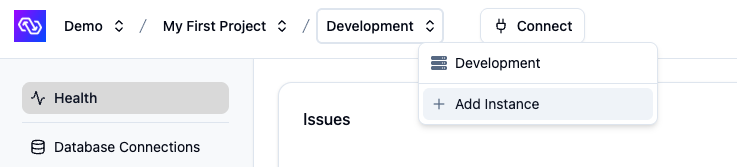
1. In the dashboard, select your project and open the instance selection dropdown. Click **Add Instance**.
 2. Give your instance a name, such as "Production".
3. \[Optional] You can change the default cloud region from US to EU, JP (Japan), AU (Australia) or BR (Brazil) if desired.
* Note: Additional cloud regions will be considered on request, especially for customers on our Enterprise plan. Please [contact us](/resources/contact-us) if you need a different region.
4. Click **Create Instance**.
### Connect PowerSync to Your Supabase
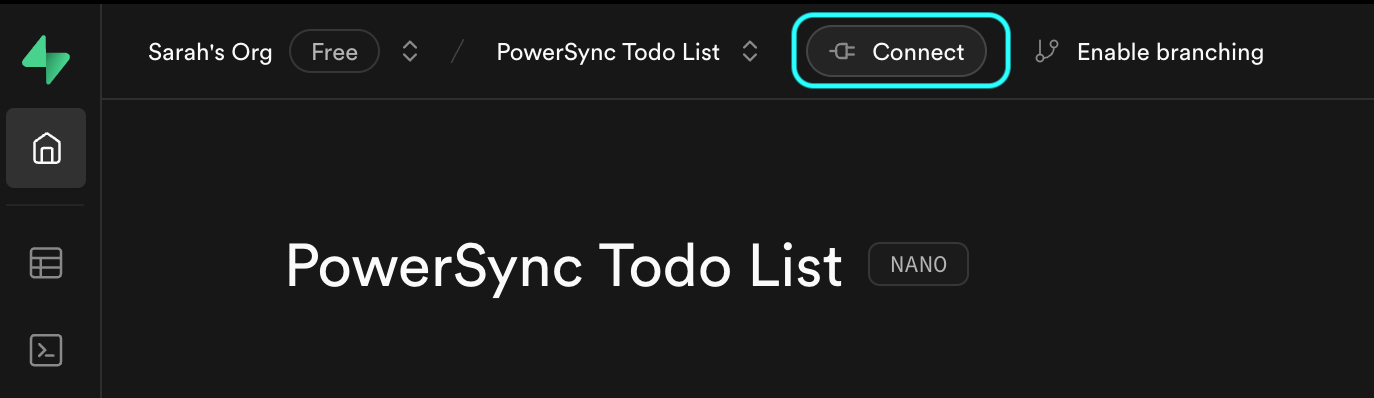
1. From your Supabase Dashboard, select **Connect** in the top navigation bar (or follow this [link](https://supabase.com/dashboard/project/_?showConnect=true)):
2. Give your instance a name, such as "Production".
3. \[Optional] You can change the default cloud region from US to EU, JP (Japan), AU (Australia) or BR (Brazil) if desired.
* Note: Additional cloud regions will be considered on request, especially for customers on our Enterprise plan. Please [contact us](/resources/contact-us) if you need a different region.
4. Click **Create Instance**.
### Connect PowerSync to Your Supabase
1. From your Supabase Dashboard, select **Connect** in the top navigation bar (or follow this [link](https://supabase.com/dashboard/project/_?showConnect=true)):
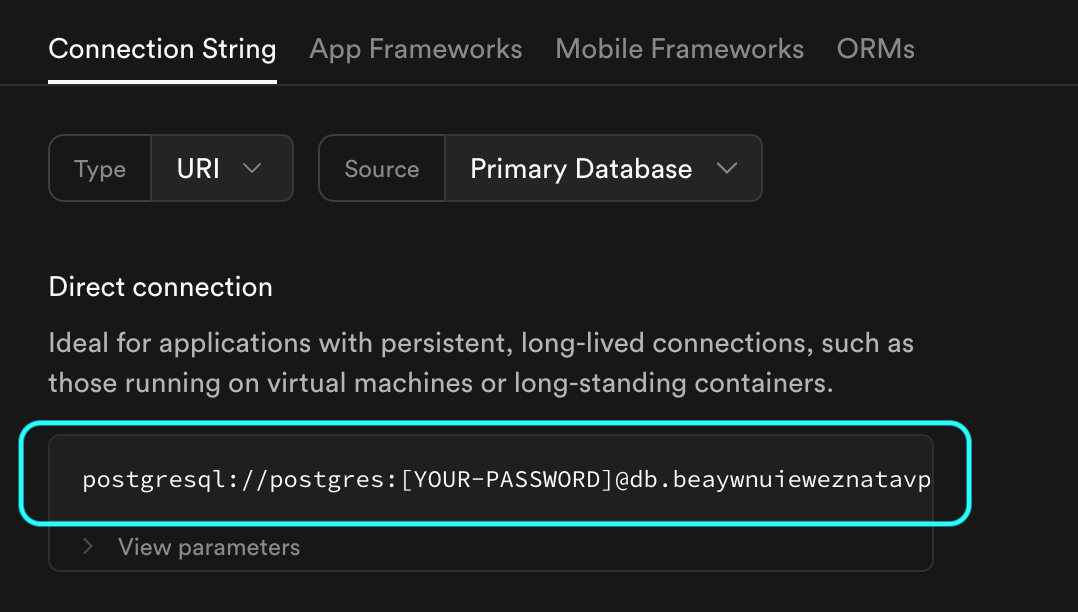
 2. In the **Direct connection** section, copy the complete connection string (including the `[YOUR-PASSWORD]` placeholder):
 3. In the [PowerSync Dashboard](https://dashboard.powersync.com/), select your project and instance and go to **Database Connections**.
4. Click **Connect to Source Database** and ensure the **Postgres** tab is selected.
5. Paste the connection string into the **URI** field. PowerSync will automatically parse this URI to populate the database connection details.
6. Update the **Username** and **Password** fields to use the `powersync_role` and password you created when configuring your Supabase for PowerSync (see [Source Database Setup](/configuration/source-db/setup#supabase)).
7. Note: PowerSync includes Supabase's CA certificate by default, so you can use `verify-full` SSL mode without additional configuration.
3. In the [PowerSync Dashboard](https://dashboard.powersync.com/), select your project and instance and go to **Database Connections**.
4. Click **Connect to Source Database** and ensure the **Postgres** tab is selected.
5. Paste the connection string into the **URI** field. PowerSync will automatically parse this URI to populate the database connection details.
6. Update the **Username** and **Password** fields to use the `powersync_role` and password you created when configuring your Supabase for PowerSync (see [Source Database Setup](/configuration/source-db/setup#supabase)).
7. Note: PowerSync includes Supabase's CA certificate by default, so you can use `verify-full` SSL mode without additional configuration.
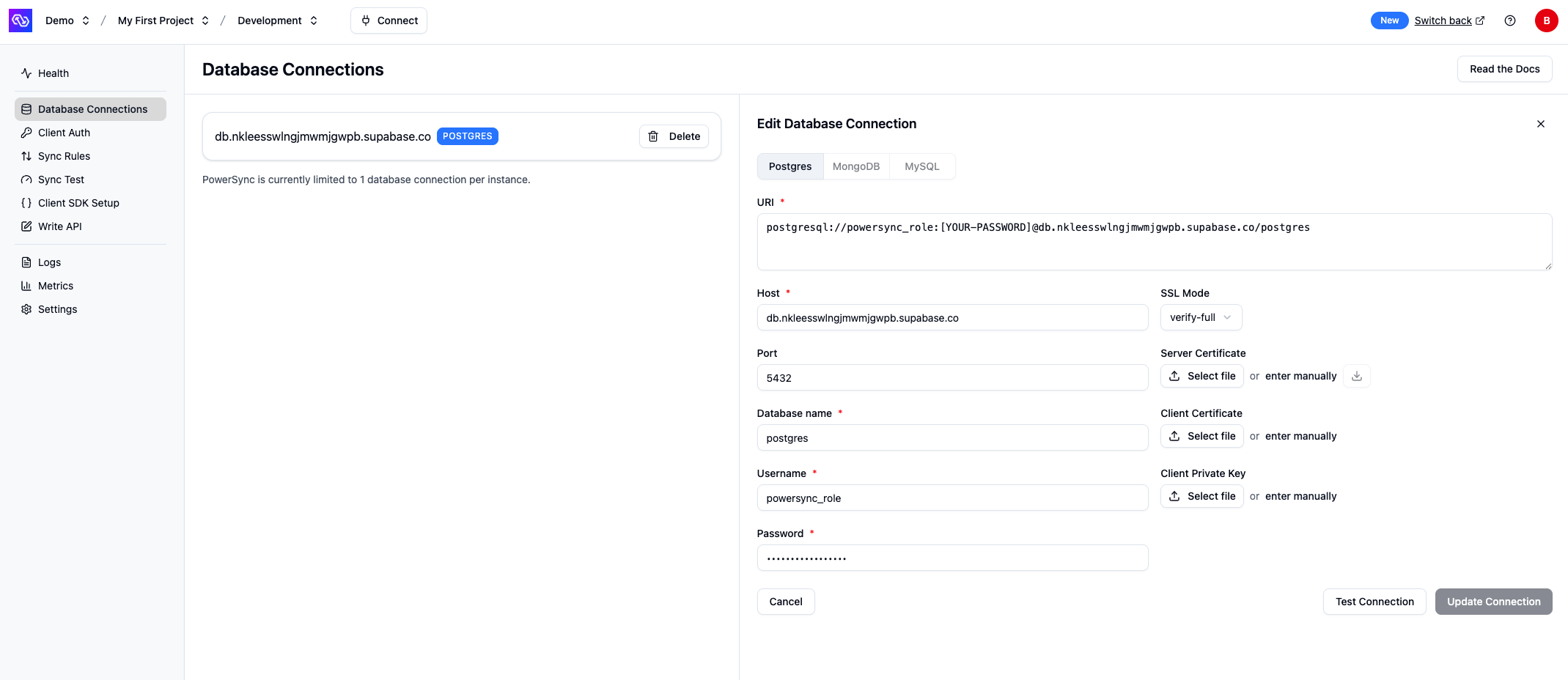 7. Verify your setup by clicking **Test Connection** and resolve any errors.
8. Click **Save Connection**.
PowerSync will now create an isolated cloud environment for your instance. This typically takes a minute or two.
### Enable Supabase Auth
After your database connection is configured, enable Supabase Auth:
1. In the PowerSync Dashboard, go to **Client Auth** for your instance.
2. Enable the **Use Supabase Auth** checkbox.
3. If your Supabase project uses the legacy JWT signing keys, copy your JWT Secret from your Supabase project's settings ([JWT Keys](https://supabase.com/dashboard/project/_/settings/jwt)) and paste the secret into the **Supabase JWT Secret (optional) Legacy** field in the PowerSync Dashboard. If you're using Supabase's new [JWT signing keys](https://supabase.com/blog/jwt-signing-keys), you can leave this field empty (PowerSync will auto-configure the JWKS endpoint for your project).
4. Click **Save and Deploy** to apply the changes.
### Configure Sync Rules
[Sync Rules](/sync/rules/overview) allow developers to control which data gets synced to which user devices using a SQL-like syntax in a YAML file. For the demo app, we're going to specify that each user can only see their own lists.
1. In the [PowerSync Dashboard](https://dashboard.powersync.com/), select your project and instance and go to the **Sync Rules** view.
2. Edit the Sync Rules in the editor and replace the contents with the below:
```yaml theme={null}
# This will sync the entire table to all users - we will refine this later
bucket_definitions:
global:
data:
- SELECT * FROM lists
```
3. Click **"Validate"** and ensure there are no errors. This validates your Sync Rules against your Postgres database.
4. Click **"Deploy"** to deploy your Sync Rules.
5. Confirm in the dialog and wait a couple of minutes for the deployment to complete.
* For additional information on PowerSync's Sync Rules, refer to the [Sync Rules](/sync/rules/overview) documentation.
* If you're wondering how Sync Rules relate to Supabase Postgres [RLS](https://supabase.com/docs/guides/auth/row-level-security), see [this subsection](/integrations/supabase/rls-and-sync-streams).
## Initialize Your FlutterFlow Project
1. Create a new Blank project in FlutterFlow.
2. Under **"App Settings" -> "Integrations"**, enable "Supabase".
1. Enter your Supabase "API URL" and public "Anon Key". You can find these under **"Project Settings" -> "API Keys" -> `anon` `public`** in your Supabase dashboard.
2. Click "Get Schema".
3. Add the [PowerSync Library](https://marketplace.flutterflow.io/item/dm1cuOwYzDv6yQL2QOFb) to your FlutterFlow account.
4. Under **"App Settings" -> "Project Dependencies" -> "FlutterFlow Libraries"** click "Add Library".
1. Select the "PowerSync" library.
2. Add your schema:
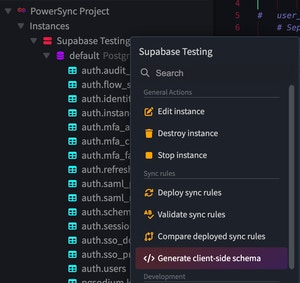
1. In the [PowerSync Dashboard](https://dashboard.powersync.com/), select your project and instance and click the **Connect** button in the top bar to generate the client-side schema based on your Sync Rules. Select "FlutterFlow" as the language.
7. Verify your setup by clicking **Test Connection** and resolve any errors.
8. Click **Save Connection**.
PowerSync will now create an isolated cloud environment for your instance. This typically takes a minute or two.
### Enable Supabase Auth
After your database connection is configured, enable Supabase Auth:
1. In the PowerSync Dashboard, go to **Client Auth** for your instance.
2. Enable the **Use Supabase Auth** checkbox.
3. If your Supabase project uses the legacy JWT signing keys, copy your JWT Secret from your Supabase project's settings ([JWT Keys](https://supabase.com/dashboard/project/_/settings/jwt)) and paste the secret into the **Supabase JWT Secret (optional) Legacy** field in the PowerSync Dashboard. If you're using Supabase's new [JWT signing keys](https://supabase.com/blog/jwt-signing-keys), you can leave this field empty (PowerSync will auto-configure the JWKS endpoint for your project).
4. Click **Save and Deploy** to apply the changes.
### Configure Sync Rules
[Sync Rules](/sync/rules/overview) allow developers to control which data gets synced to which user devices using a SQL-like syntax in a YAML file. For the demo app, we're going to specify that each user can only see their own lists.
1. In the [PowerSync Dashboard](https://dashboard.powersync.com/), select your project and instance and go to the **Sync Rules** view.
2. Edit the Sync Rules in the editor and replace the contents with the below:
```yaml theme={null}
# This will sync the entire table to all users - we will refine this later
bucket_definitions:
global:
data:
- SELECT * FROM lists
```
3. Click **"Validate"** and ensure there are no errors. This validates your Sync Rules against your Postgres database.
4. Click **"Deploy"** to deploy your Sync Rules.
5. Confirm in the dialog and wait a couple of minutes for the deployment to complete.
* For additional information on PowerSync's Sync Rules, refer to the [Sync Rules](/sync/rules/overview) documentation.
* If you're wondering how Sync Rules relate to Supabase Postgres [RLS](https://supabase.com/docs/guides/auth/row-level-security), see [this subsection](/integrations/supabase/rls-and-sync-streams).
## Initialize Your FlutterFlow Project
1. Create a new Blank project in FlutterFlow.
2. Under **"App Settings" -> "Integrations"**, enable "Supabase".
1. Enter your Supabase "API URL" and public "Anon Key". You can find these under **"Project Settings" -> "API Keys" -> `anon` `public`** in your Supabase dashboard.
2. Click "Get Schema".
3. Add the [PowerSync Library](https://marketplace.flutterflow.io/item/dm1cuOwYzDv6yQL2QOFb) to your FlutterFlow account.
4. Under **"App Settings" -> "Project Dependencies" -> "FlutterFlow Libraries"** click "Add Library".
1. Select the "PowerSync" library.
2. Add your schema:
1. In the [PowerSync Dashboard](https://dashboard.powersync.com/), select your project and instance and click the **Connect** button in the top bar to generate the client-side schema based on your Sync Rules. Select "FlutterFlow" as the language.
 2. Copy and paste the generated schema into the "PowerSyncSchema" field.
3. Copy and paste your PowerSync instance URL into the "PowerSyncUrl" field.
2. Copy and paste the generated schema into the "PowerSyncSchema" field.
3. Copy and paste your PowerSync instance URL into the "PowerSyncUrl" field.
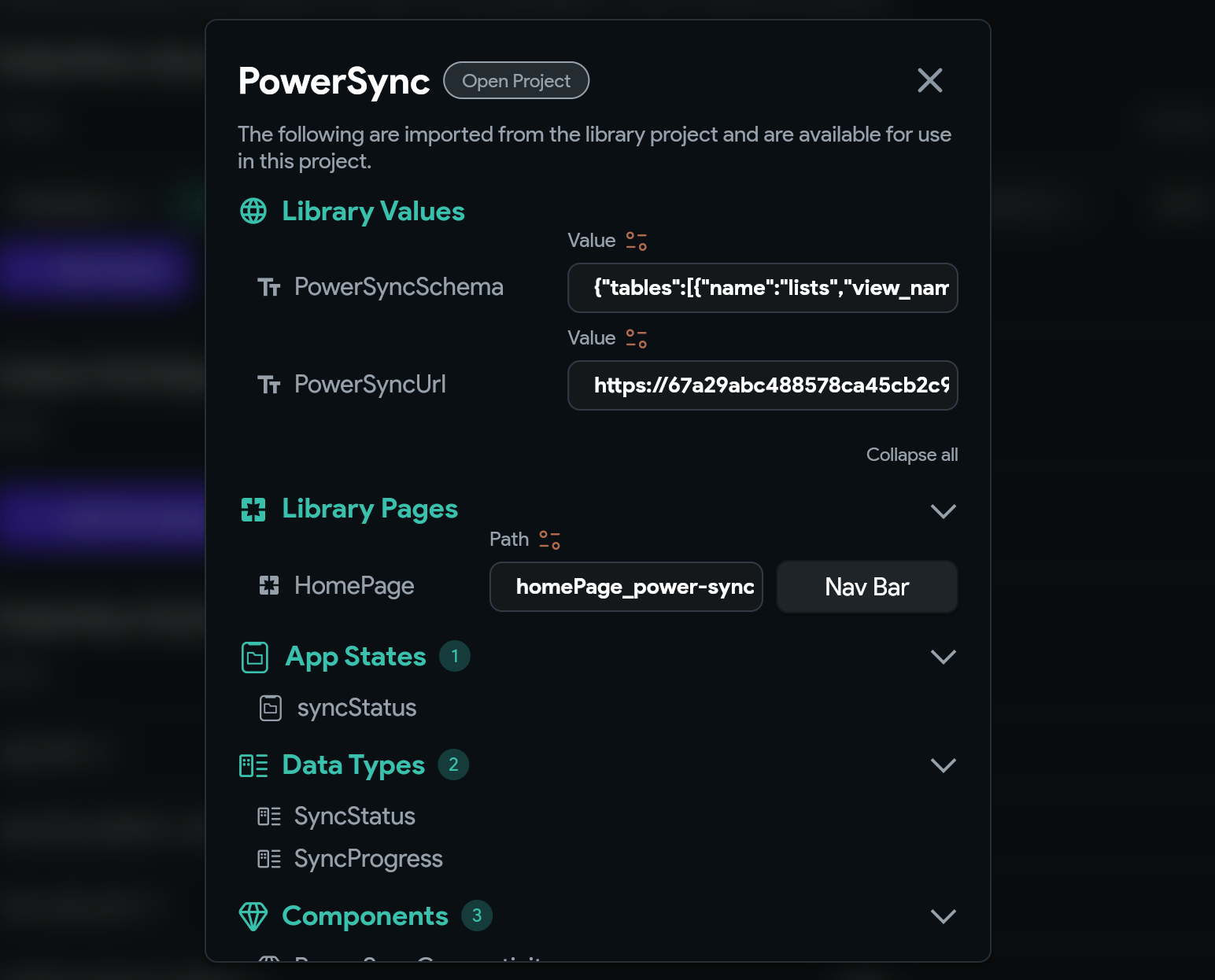 4. Note: The default path for the "HomePage" field under "Library Pages" can be left as is and ignored. FlutterFlow does not currently provide a way to remove it.
5. Close the library config.
5. Under **"Custom Pub Dependencies"**, add a dependency on `powersync_core:1.3.0`:
4. Note: The default path for the "HomePage" field under "Library Pages" can be left as is and ignored. FlutterFlow does not currently provide a way to remove it.
5. Close the library config.
5. Under **"Custom Pub Dependencies"**, add a dependency on `powersync_core:1.3.0`:
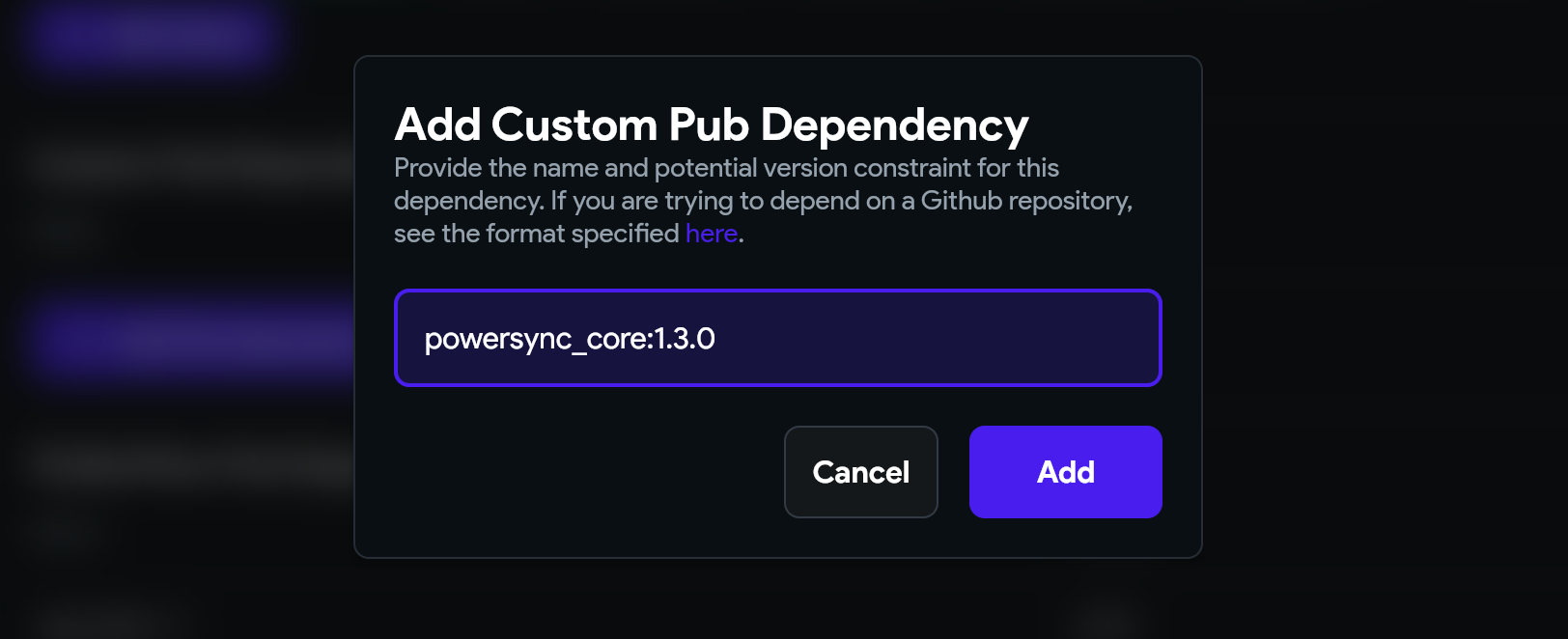 This version of `powersync_core` is required for running FlutterFlow on Web.
## Build A Sign-In Screen
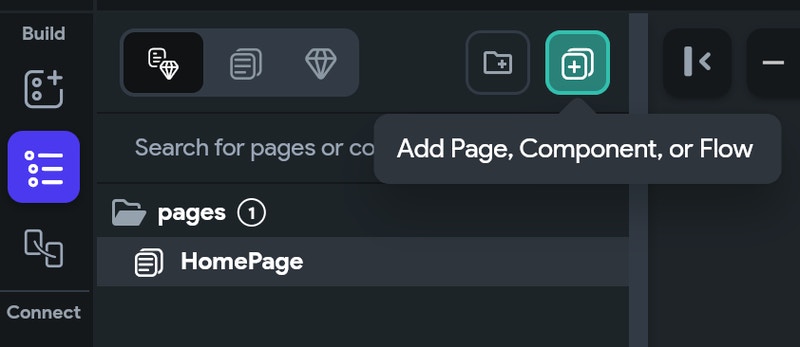
1. Under the **"Page Selector"**, click **"Add Page, Component, or Flow"**.
This version of `powersync_core` is required for running FlutterFlow on Web.
## Build A Sign-In Screen
1. Under the **"Page Selector"**, click **"Add Page, Component, or Flow"**.
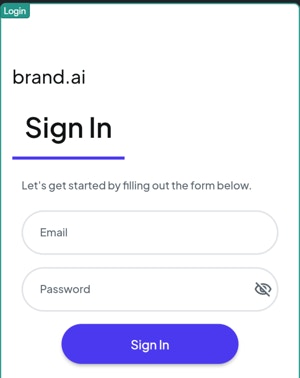
 2. Select the "Auth 1" template and name the page `Login`.
3. Delete the *Sign Up*, *Forgot Password* and *Social Login* buttons — we will only be supporting Sign In for this demo app.
2. Select the "Auth 1" template and name the page `Login`.
3. Delete the *Sign Up*, *Forgot Password* and *Social Login* buttons — we will only be supporting Sign In for this demo app.
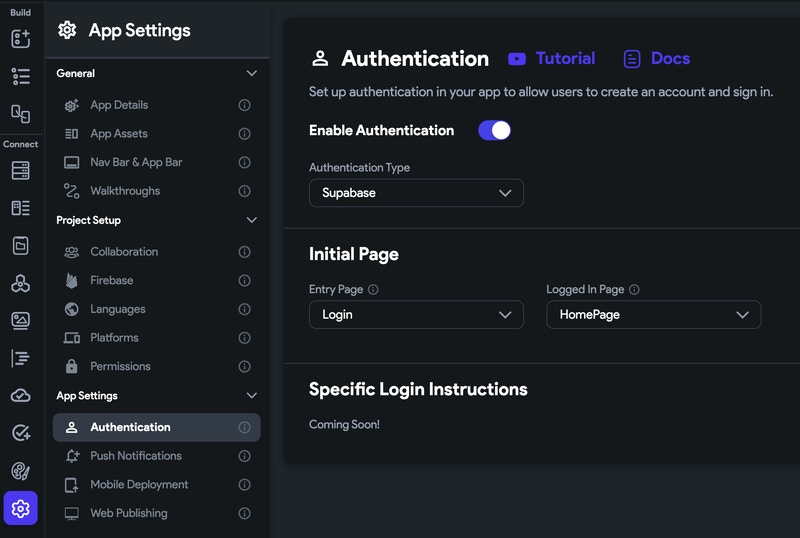
 4. Under **"App Settings" -> "App Settings" -> "Authentication"**:
1. Enable Authentication.
2. Set "Authentication Type" to "Supabase".
3. Set "Entry Page" to the `Login` page you just created.
4. Set "Logged In Page" to "HomePage".
4. Under **"App Settings" -> "App Settings" -> "Authentication"**:
1. Enable Authentication.
2. Set "Authentication Type" to "Supabase".
3. Set "Entry Page" to the `Login` page you just created.
4. Set "Logged In Page" to "HomePage".
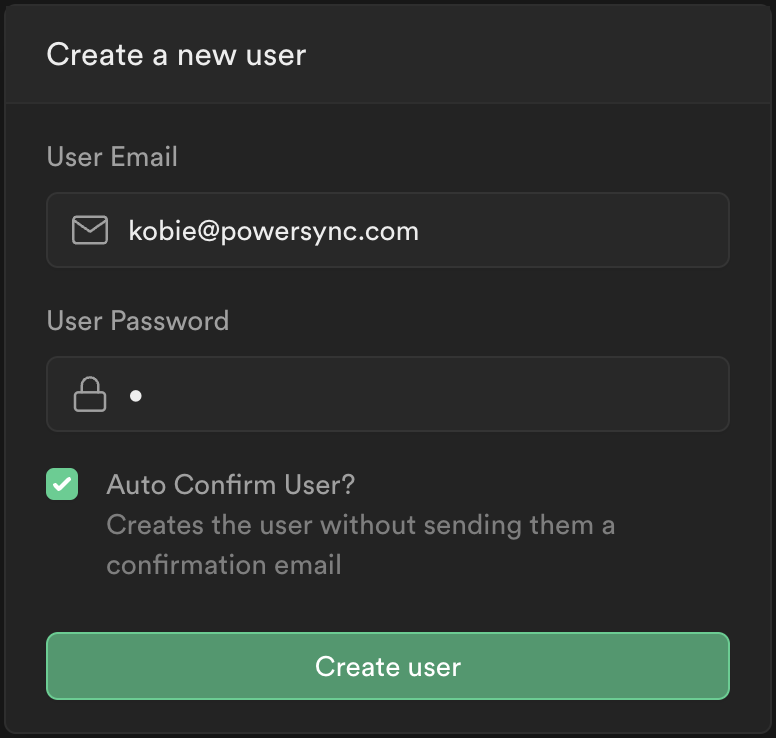
 5. In your Supabase Dashboard, under **"Authentication"**, click on **"Add User" -> "Create new user"** and create a user for yourself to test with:
 6. Test your app with test mode:
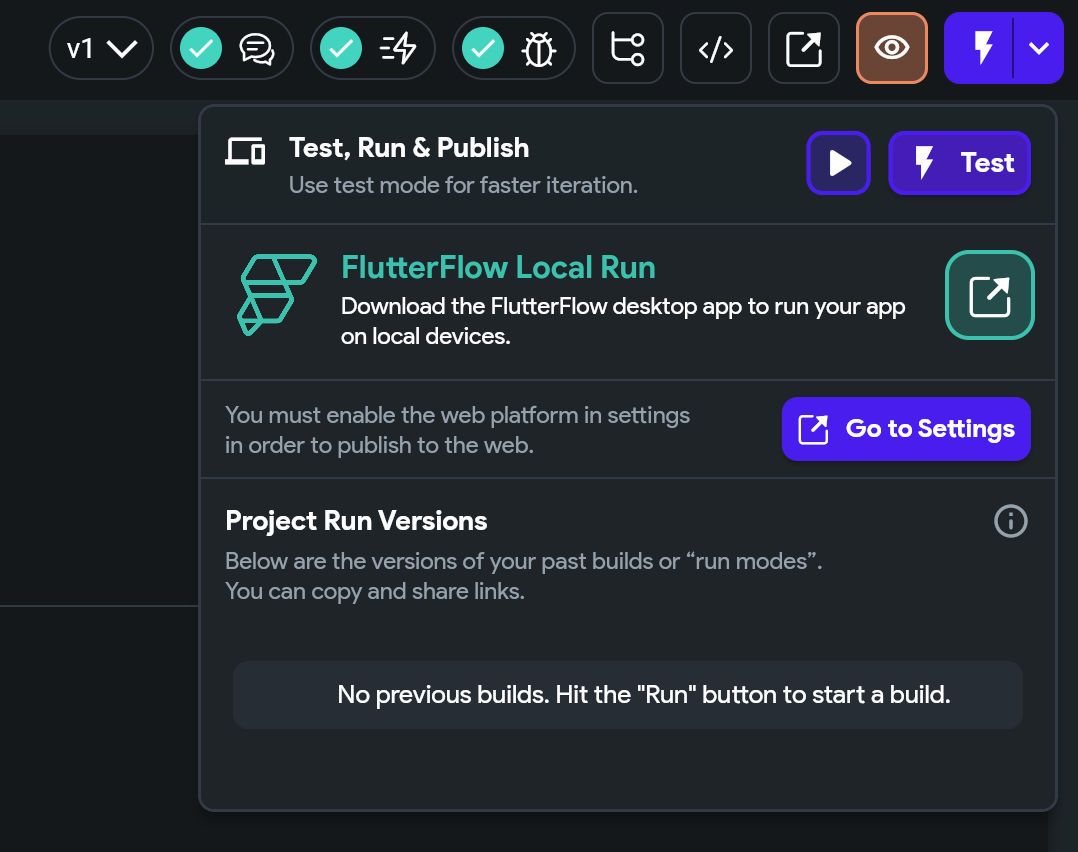 **Checkpoint:** You should now be able to log into the app using the Supabase user account you just created. After logging in you should see a blank screen.
 ## Read Data
We will now create our first UI and bind it to the data in the local SQLite database on the device.
There are three ways to read data from the SQLite database using PowerSync's FlutterFlow library:
1. Auto-updating queries for Layout Elements with Dynamic Children e.g. the ListView Element
* This uses the library's `PowerSyncQuery` component.
2. Auto-updating queries for basic Layout Elements e.g. Text Elements.
* This uses the library's `PowerSyncStateUpdater` component.
3. Once-off reads for static data.
* This uses the library's `PowerSyncQueryOnce` custom action.
### Prepare Supabase Tables for Reads
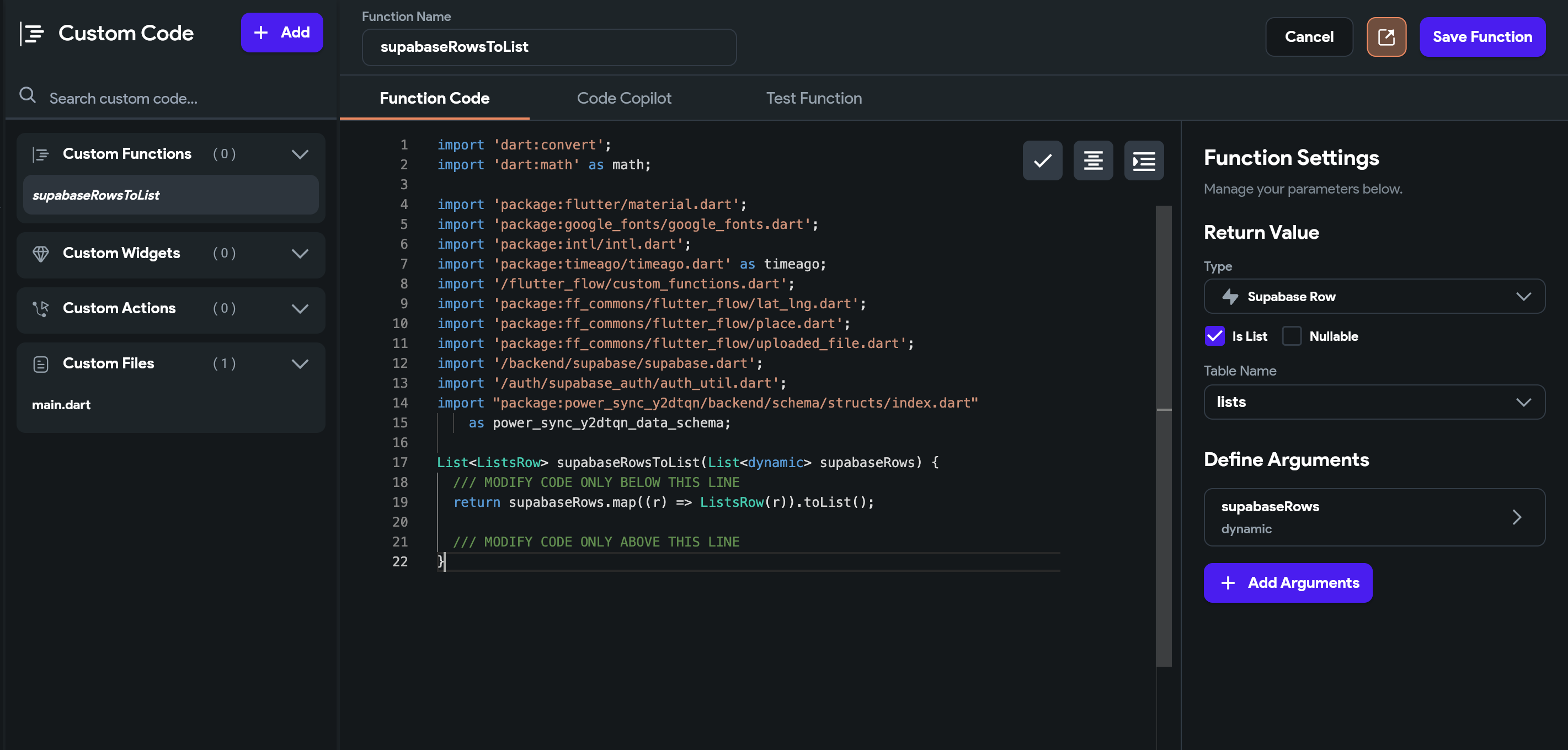
For reading data in FlutterFlow, you need a Custom Function per Supabase table to map Supabase rows to data that can be used by the library. This is because FlutterFlow Libraries do not support Supabase classes.
1. Navigate to **"Custom Code"** and add a Custom Function.
2. Name the function `supabaseRowsToList` (if your Supabase table name is "Customers", you would name this `supabaseRowsToCustomers`).
3. Under **Function Settings** on the right, set the "Return Value" to `Supabase Row`
1. Check "Is List".
2. Uncheck "Nullable".
3. Under "Table Name", select `lists`.
4. Also under Function Settings, click "Add Arguments".
1. Set its "Name" to `supabaseRows`
2. Set its "Type" to "JSON".
3. Check "Is List".
4. Uncheck "Nullable".
5. In the Function Code, paste the following code:
```dart theme={null}
/// MODIFY CODE ONLY BELOW THIS LINE
return supabaseRows.map((r) => ListsRow(r)).toList();
```
6. Click "Save Function".
## Read Data
We will now create our first UI and bind it to the data in the local SQLite database on the device.
There are three ways to read data from the SQLite database using PowerSync's FlutterFlow library:
1. Auto-updating queries for Layout Elements with Dynamic Children e.g. the ListView Element
* This uses the library's `PowerSyncQuery` component.
2. Auto-updating queries for basic Layout Elements e.g. Text Elements.
* This uses the library's `PowerSyncStateUpdater` component.
3. Once-off reads for static data.
* This uses the library's `PowerSyncQueryOnce` custom action.
### Prepare Supabase Tables for Reads
For reading data in FlutterFlow, you need a Custom Function per Supabase table to map Supabase rows to data that can be used by the library. This is because FlutterFlow Libraries do not support Supabase classes.
1. Navigate to **"Custom Code"** and add a Custom Function.
2. Name the function `supabaseRowsToList` (if your Supabase table name is "Customers", you would name this `supabaseRowsToCustomers`).
3. Under **Function Settings** on the right, set the "Return Value" to `Supabase Row`
1. Check "Is List".
2. Uncheck "Nullable".
3. Under "Table Name", select `lists`.
4. Also under Function Settings, click "Add Arguments".
1. Set its "Name" to `supabaseRows`
2. Set its "Type" to "JSON".
3. Check "Is List".
4. Uncheck "Nullable".
5. In the Function Code, paste the following code:
```dart theme={null}
/// MODIFY CODE ONLY BELOW THIS LINE
return supabaseRows.map((r) => ListsRow(r)).toList();
```
6. Click "Save Function".
 ### 1. Auto-Updating Queries for Layout Elements with Dynamic Children
#### Create a Component to Display List Items
1. Under the **"Page Selector"**, click **"Add Page, Component, or Flow"**.
2. Select the **"New Component"** tab.
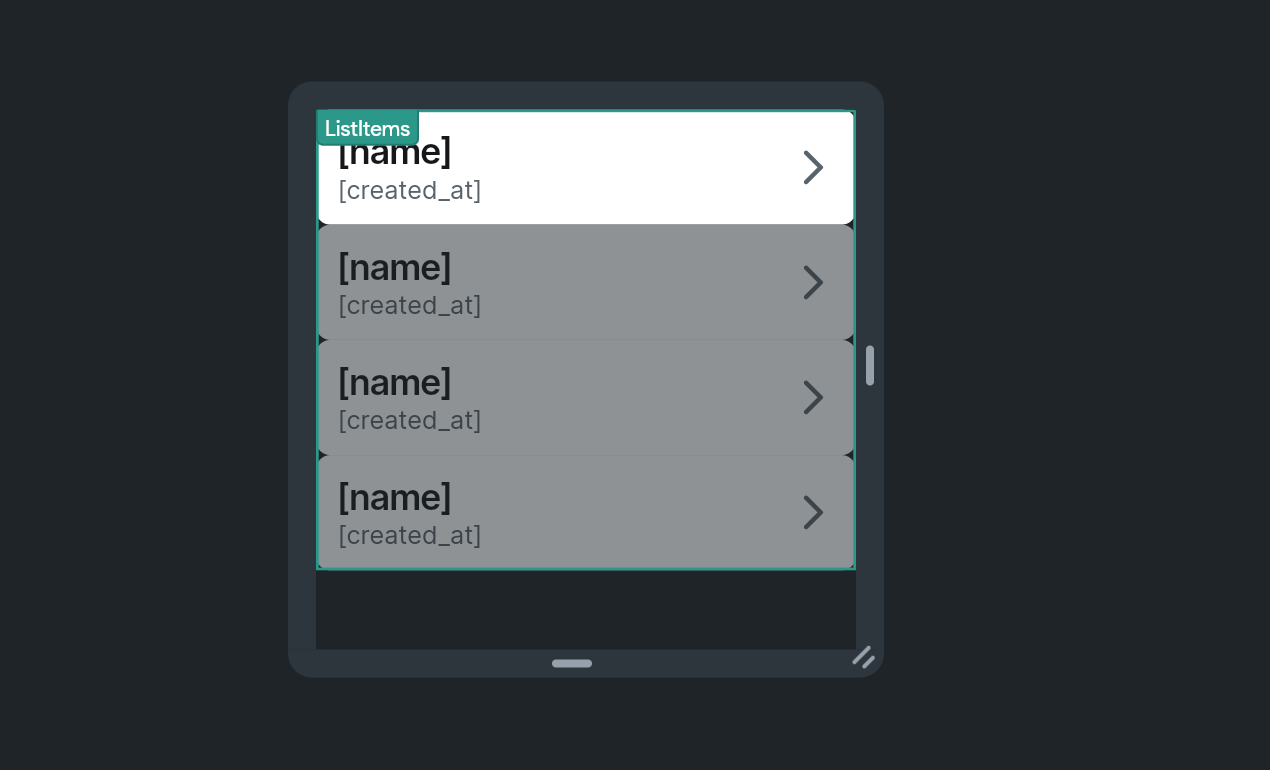
3. Select "Create Blank" and call the component `ListItems`.
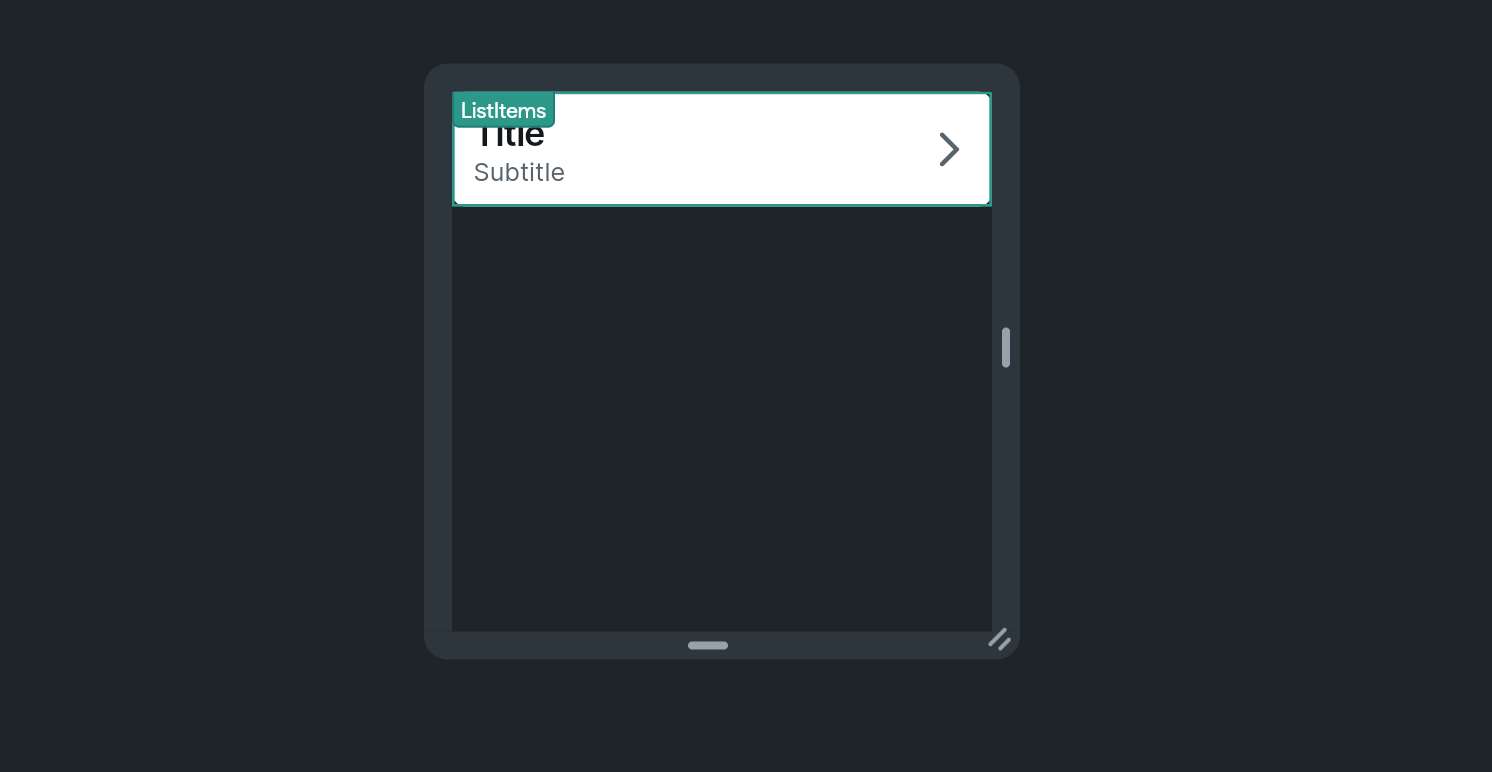
4. Under the **"Widget Palette"**, drag a "ListView" widget into the `ListItems` component.
5. Still under the **"Widget Palette"**, drag a "ListTile" into the `ListView` widget.
### 1. Auto-Updating Queries for Layout Elements with Dynamic Children
#### Create a Component to Display List Items
1. Under the **"Page Selector"**, click **"Add Page, Component, or Flow"**.
2. Select the **"New Component"** tab.
3. Select "Create Blank" and call the component `ListItems`.
4. Under the **"Widget Palette"**, drag a "ListView" widget into the `ListItems` component.
5. Still under the **"Widget Palette"**, drag a "ListTile" into the `ListView` widget.
 6. Under the **"Widget Tree"**, select the `ListItems` component.
1. At the top right under "Component Parameters" click "Add Parameters".
2. Click "Add Parameter".
3. Set its "Name" to `lists`.
4. Set its "Type" to `Supabase Row`.
5. Check "Is List".
6. Under "Table Name", select `lists`.
7. Click "Confirm".
7. Still under the **"Widget Tree"**, select the "ListView" widget.
1. Select the **"Generate Dynamic Children"** panel on the right.
2. Set the "Variable Name" to `listItem`.
3. Set the "Value" to the component parameter created in the previous step (`lists`).
4. Click "Confirm".
5. Click "Save".
6. Click "Ok" when being prompted about the widget generating its children dynamically.
6. Under the **"Widget Tree"**, select the `ListItems` component.
1. At the top right under "Component Parameters" click "Add Parameters".
2. Click "Add Parameter".
3. Set its "Name" to `lists`.
4. Set its "Type" to `Supabase Row`.
5. Check "Is List".
6. Under "Table Name", select `lists`.
7. Click "Confirm".
7. Still under the **"Widget Tree"**, select the "ListView" widget.
1. Select the **"Generate Dynamic Children"** panel on the right.
2. Set the "Variable Name" to `listItem`.
3. Set the "Value" to the component parameter created in the previous step (`lists`).
4. Click "Confirm".
5. Click "Save".
6. Click "Ok" when being prompted about the widget generating its children dynamically.
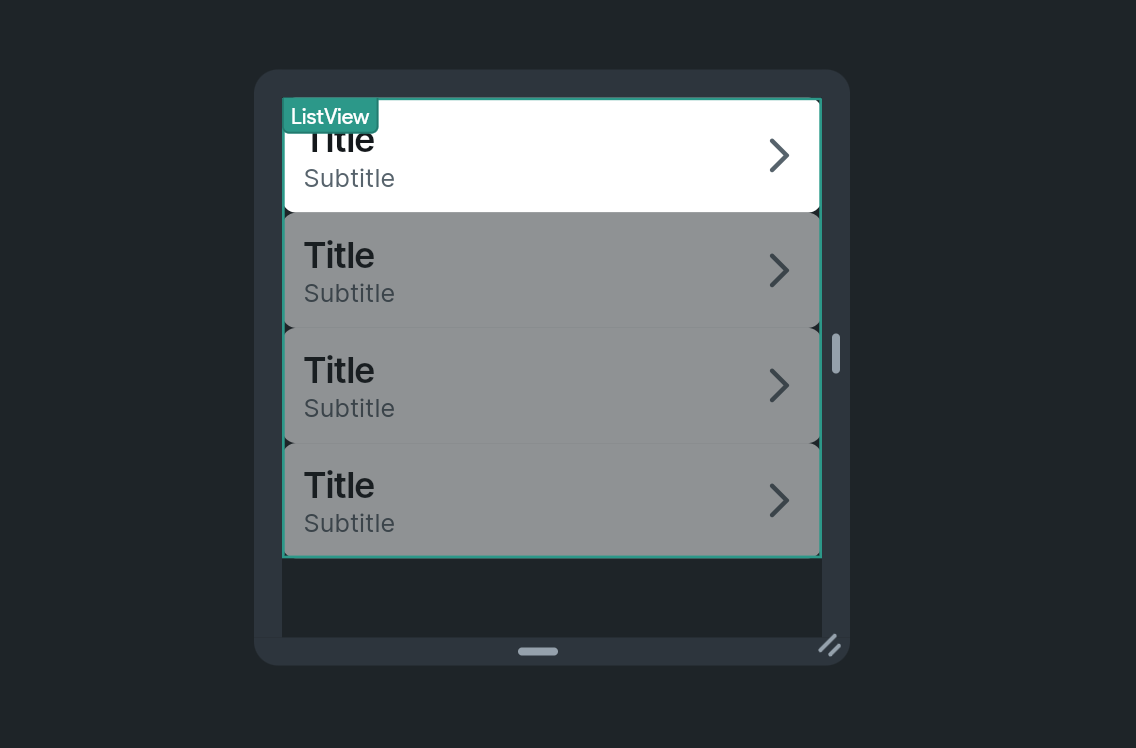 8. Still under the **"Widget Tree"**, select the `ListTile` widget.
1. In the **"Properties"** panel on the right, under "Title", click on the settings icon next to "Text".
2. Set as "listItem Item".
3. Under "Available Options", select "Get Row Field".
4. Under "Supabase Row Fields", select "name".
5. Click "Confirm".
8. Still under the **"Widget Tree"**, select the `ListTile` widget.
1. In the **"Properties"** panel on the right, under "Title", click on the settings icon next to "Text".
2. Set as "listItem Item".
3. Under "Available Options", select "Get Row Field".
4. Under "Supabase Row Fields", select "name".
5. Click "Confirm".
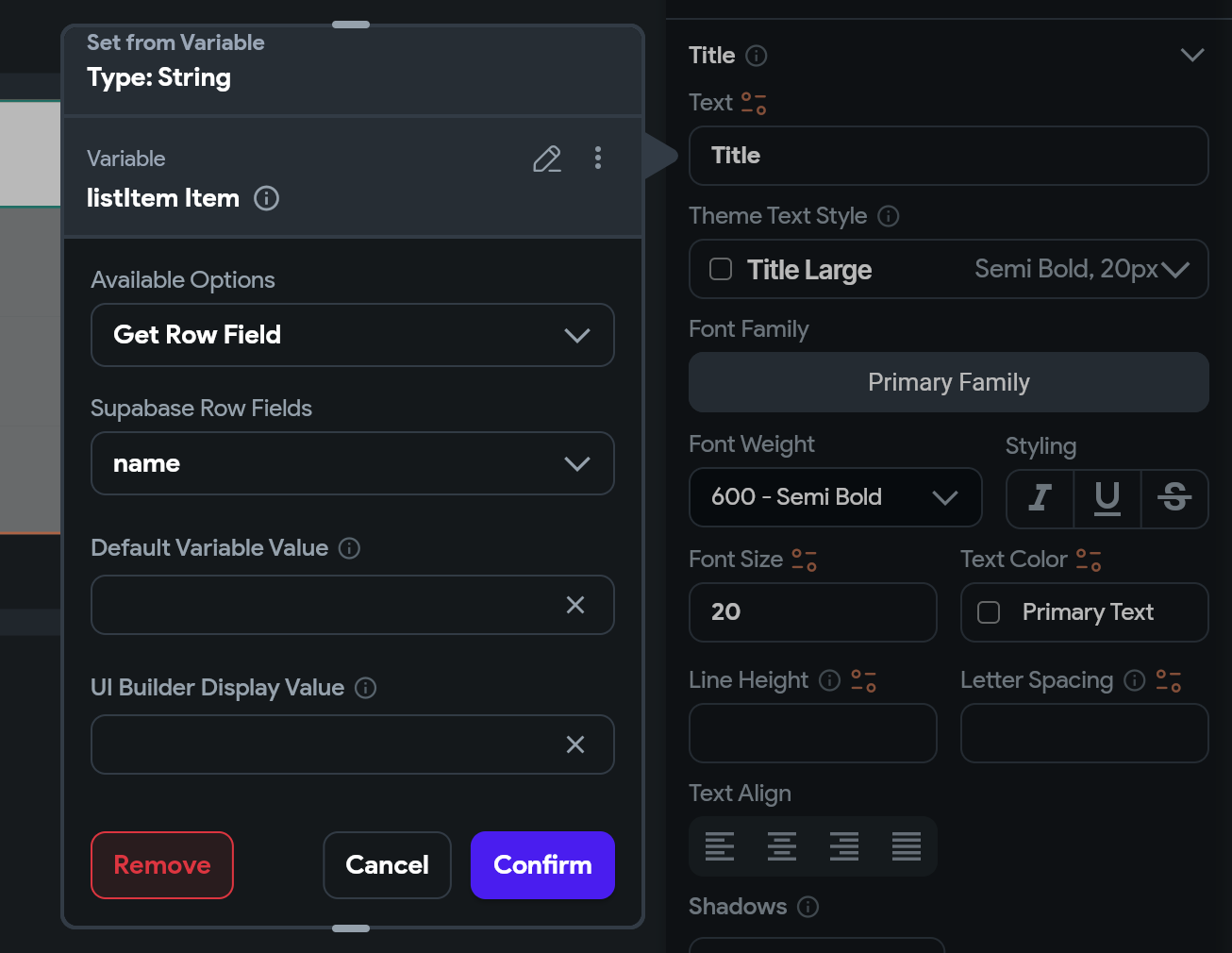 9. Repeat Step 8 above for the "Subtitle", setting it to "created\_at".
 #### Display the List Component and Populate it with Data
1. Under the **"Page Selector"**, select your `HomePage`.
2. Under the **"Widget Palette"**, select the "Components and custom widgets imported from library projects" panel.
#### Display the List Component and Populate it with Data
1. Under the **"Page Selector"**, select your `HomePage`.
2. Under the **"Widget Palette"**, select the "Components and custom widgets imported from library projects" panel.
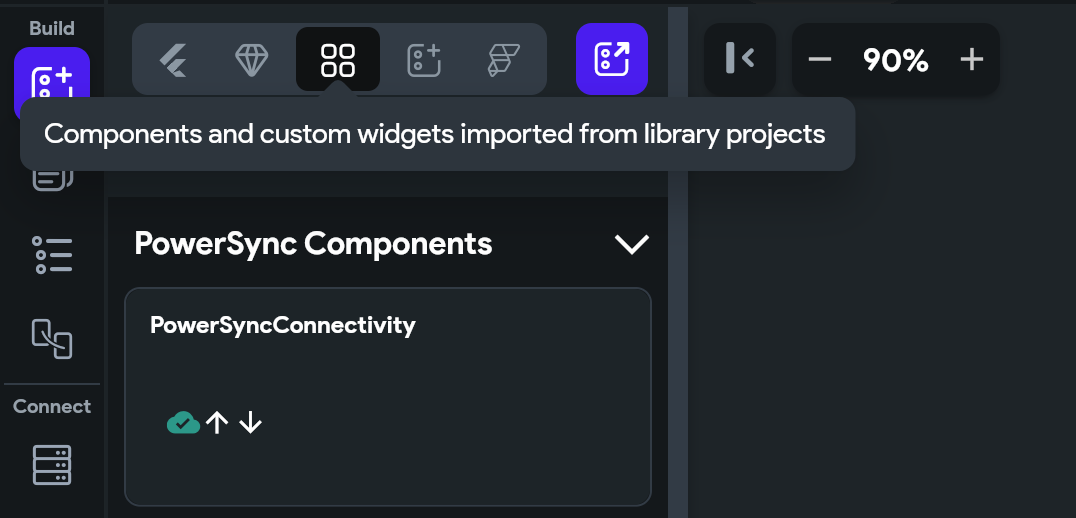 3. Drag the `PowerSyncQuery` library component into your page.
4. In the Properties panel on the right, under **"Component Parameters" -> "child"**:
3. Drag the `PowerSyncQuery` library component into your page.
4. In the Properties panel on the right, under **"Component Parameters" -> "child"**:
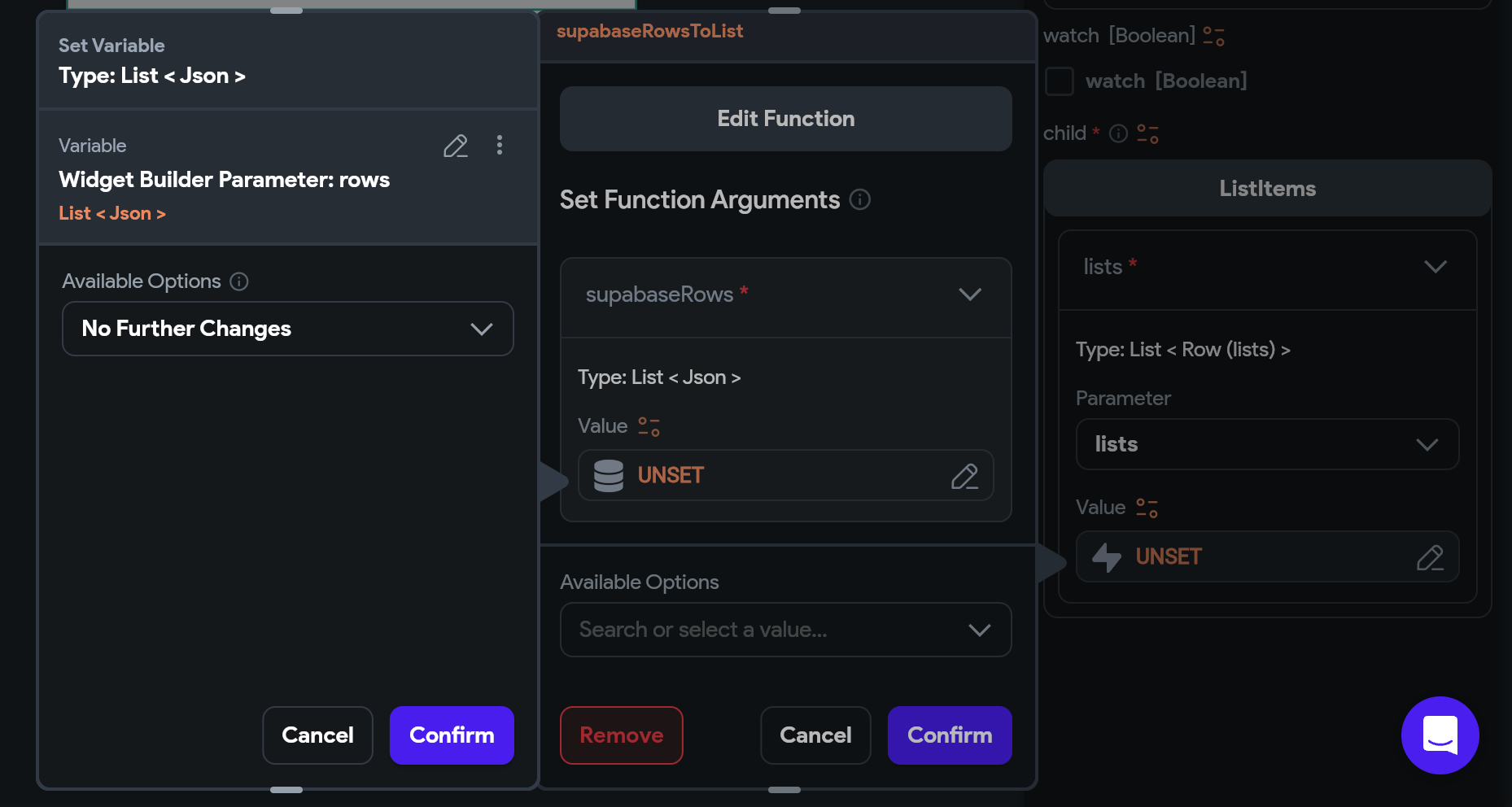 1. Click on "Unknown".
2. Select `ListItems` we previously created.
3. Click on `lists`.
4. Set the "Value" to "Custom Functions" -> `supabaseRowsToList` we created previously.
5. Under the `supabaseRows` argument, set the "Value" to "Widget Builder Parameters" -> `rows`.
6. Click "Confirm".
7. Click "Confirm".
5. Still under "Component Parameters" add the SQL query to fetch all list items from the SQLite database:
1. Paste the following into the "sql \[String]" field:
`select * from lists order by created_at;`
2. For this query there are no parameters - this will be covered further down in the guide.
6. Still under "Component Parameters", check "watch \[Boolean]". This ensures that the query auto-updates.
#### Test Your App
1. Check that there are no project issues or errors.
2. Reload your app or start another test session.
3. Notice that your homepage is still blank. This is because the `lists` table is empty in Supabase. Create a test row in the table by clicking on "Insert" -> "Insert Row" in your Supabase Table Editor.
1. Leave `id` and `created_at` blank.
2. Enter a name such as "Test from Supabase".
3. Click "Select Record" for `owner_id` and select your test user.
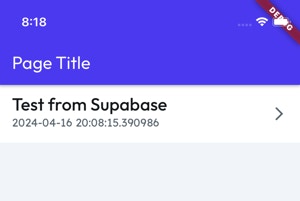
**Checkpoint:** You should now see your single test row magically appear in your app:
1. Click on "Unknown".
2. Select `ListItems` we previously created.
3. Click on `lists`.
4. Set the "Value" to "Custom Functions" -> `supabaseRowsToList` we created previously.
5. Under the `supabaseRows` argument, set the "Value" to "Widget Builder Parameters" -> `rows`.
6. Click "Confirm".
7. Click "Confirm".
5. Still under "Component Parameters" add the SQL query to fetch all list items from the SQLite database:
1. Paste the following into the "sql \[String]" field:
`select * from lists order by created_at;`
2. For this query there are no parameters - this will be covered further down in the guide.
6. Still under "Component Parameters", check "watch \[Boolean]". This ensures that the query auto-updates.
#### Test Your App
1. Check that there are no project issues or errors.
2. Reload your app or start another test session.
3. Notice that your homepage is still blank. This is because the `lists` table is empty in Supabase. Create a test row in the table by clicking on "Insert" -> "Insert Row" in your Supabase Table Editor.
1. Leave `id` and `created_at` blank.
2. Enter a name such as "Test from Supabase".
3. Click "Select Record" for `owner_id` and select your test user.
**Checkpoint:** You should now see your single test row magically appear in your app:
 ### 2. Auto-Updating Queries for Basic Layout Elements
In this section, we will be making the `ListView` component clickable and navigate the user to a page which will eventually display the list's To-Do items. This page will show the selected list's name in the title bar ("AppBar"). This uses Page State and the `PowerSyncStateUpdater` library component.
#### Create a Page Parameter
This parameter will store the selected list's ID.
1. Under the **"Page Selector"**, click **"Add Page, Component, or Flow"**.
2. Create a blank page and name it `Todos`.
3. Under the **"Widget Tree"**, select your `Todos` page.
4. At the top right of the **"Properties"** panel on the right, click on the plus icon for Page Parameters.
5. Click "Add Parameter".
6. Set the "Parameter Name" to `id`.
7. Set the "Type" to "String".
8. Click "Confirm".
#### Create a Local Page State Variable
This variable will store the selected list row.
1. Still in the **"Widget Tree"** with the `Todos` page selected:
2. Select the **"State Management Panel"** on the right.
### 2. Auto-Updating Queries for Basic Layout Elements
In this section, we will be making the `ListView` component clickable and navigate the user to a page which will eventually display the list's To-Do items. This page will show the selected list's name in the title bar ("AppBar"). This uses Page State and the `PowerSyncStateUpdater` library component.
#### Create a Page Parameter
This parameter will store the selected list's ID.
1. Under the **"Page Selector"**, click **"Add Page, Component, or Flow"**.
2. Create a blank page and name it `Todos`.
3. Under the **"Widget Tree"**, select your `Todos` page.
4. At the top right of the **"Properties"** panel on the right, click on the plus icon for Page Parameters.
5. Click "Add Parameter".
6. Set the "Parameter Name" to `id`.
7. Set the "Type" to "String".
8. Click "Confirm".
#### Create a Local Page State Variable
This variable will store the selected list row.
1. Still in the **"Widget Tree"** with the `Todos` page selected:
2. Select the **"State Management Panel"** on the right.
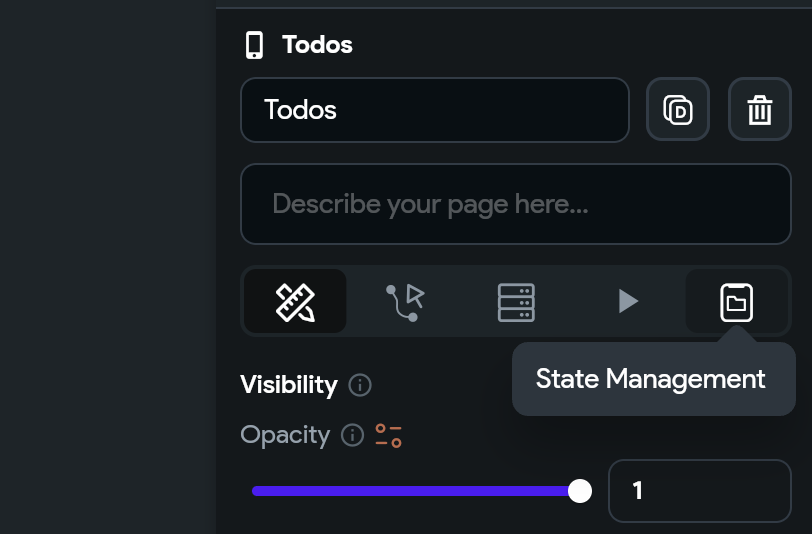 3. Click on "Add Field".
4. Set "Field Name" to `list`.
5. Set the "Type" to "Supabase Row".
6. Under "Table Name", select `lists`.
7. Click "Confirm".
#### Bind the Page Title to the Page State
1. Under the **"Widget Palette"**, select the "Components and custom widgets imported from library projects" panel.
2. Drag the `PowerSyncStateUpdater` library component into your page.
3. Under the **"Widget Tree"**, select the `PowerSyncStateUpdater` component.
4. In the **"Properties"** panel on the right, under "Component Parameters":
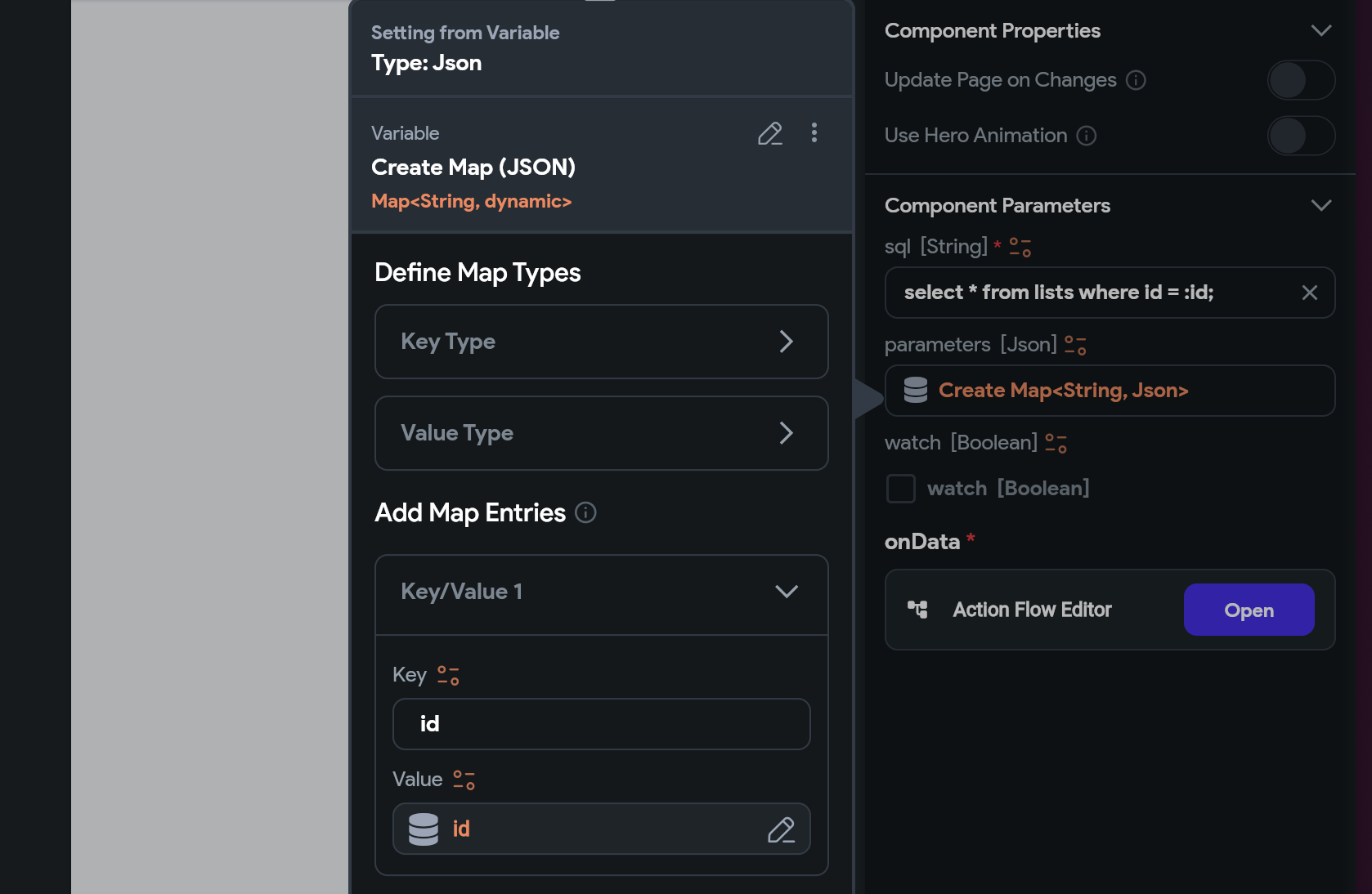
1. Add the SQL query to fetch the selected list from the SQLite database. Paste the following into the "sql \[String]" field:
`select * from lists where id = :id;`
2. Click on "parameters \[Json]" select "Create Map (JSON)" as the variable.
1. Under "Add Map Entries", click "Add Key Value Pair".
2. Set the "Key" to `id`.
3. Set the "Value" to the page parameter created previously called `id`.
4. Check "watch \[Boolean]". This ensures that the query auto-updates.
5. Click "Confirm".
3. Click on "Add Field".
4. Set "Field Name" to `list`.
5. Set the "Type" to "Supabase Row".
6. Under "Table Name", select `lists`.
7. Click "Confirm".
#### Bind the Page Title to the Page State
1. Under the **"Widget Palette"**, select the "Components and custom widgets imported from library projects" panel.
2. Drag the `PowerSyncStateUpdater` library component into your page.
3. Under the **"Widget Tree"**, select the `PowerSyncStateUpdater` component.
4. In the **"Properties"** panel on the right, under "Component Parameters":
1. Add the SQL query to fetch the selected list from the SQLite database. Paste the following into the "sql \[String]" field:
`select * from lists where id = :id;`
2. Click on "parameters \[Json]" select "Create Map (JSON)" as the variable.
1. Under "Add Map Entries", click "Add Key Value Pair".
2. Set the "Key" to `id`.
3. Set the "Value" to the page parameter created previously called `id`.
4. Check "watch \[Boolean]". This ensures that the query auto-updates.
5. Click "Confirm".
 5. Still under "Component Parameters", configure the `onData` action:
1. Open the "Action Flow Editor".
2. Select the "Callback" trigger type.
3. Click "Add Action".
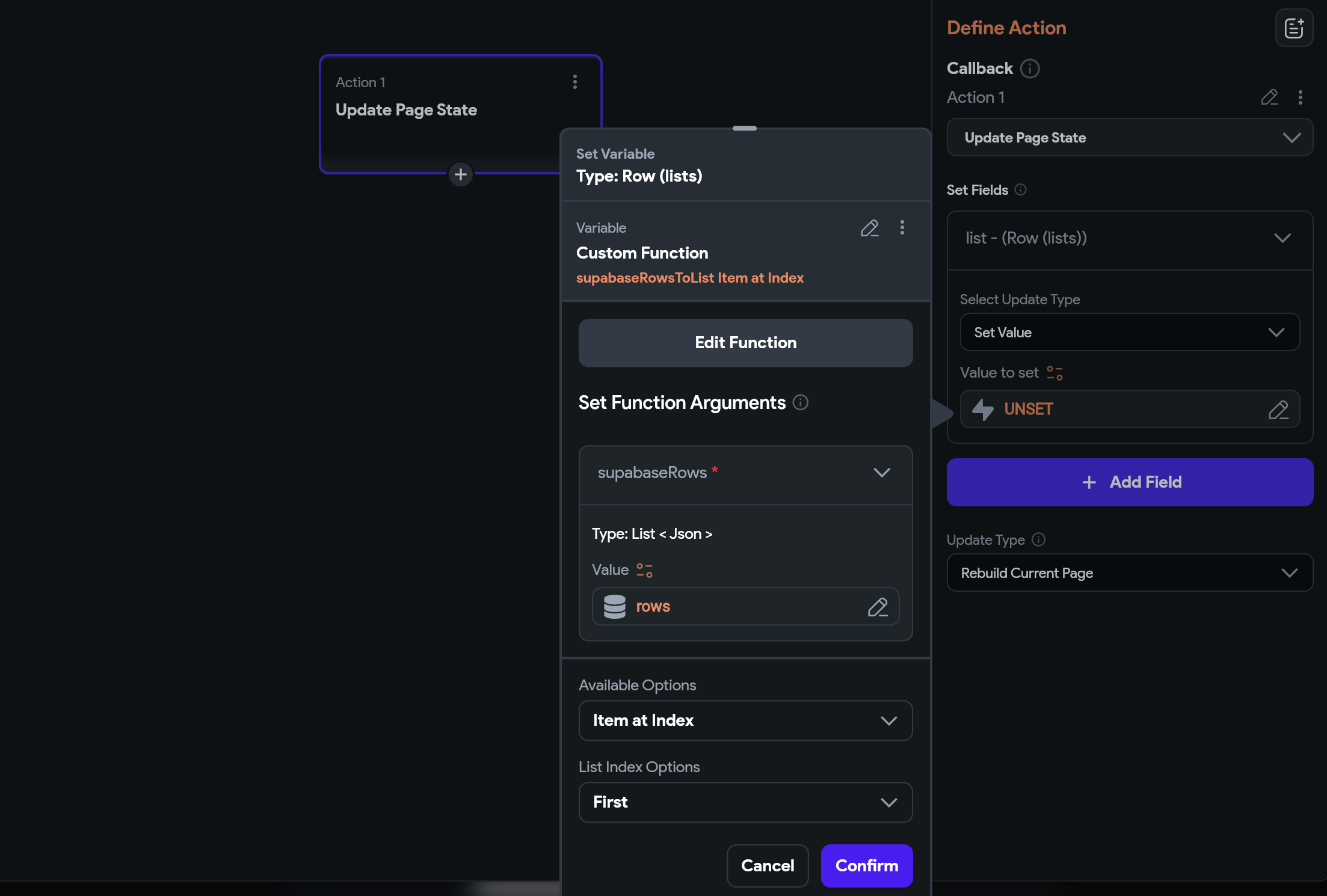
4. Search for "update page" and select "Update Page State".
5. Click "Add Field".
6. Select your `list` page state variable.
7. Set "Select Update Type" to "Set Value".
8. Set "Value to set" to "Custom Functions" -> `supabaseRowsToList`.
9. Set the "Value" to "Callback Parameters" -> `rows`
10. Click "Confirm".
11. Under "Available Options", select "Item at Index".
12. Set "List Index Options" to "First"
13. Click "Confirm".
5. Still under "Component Parameters", configure the `onData` action:
1. Open the "Action Flow Editor".
2. Select the "Callback" trigger type.
3. Click "Add Action".
4. Search for "update page" and select "Update Page State".
5. Click "Add Field".
6. Select your `list` page state variable.
7. Set "Select Update Type" to "Set Value".
8. Set "Value to set" to "Custom Functions" -> `supabaseRowsToList`.
9. Set the "Value" to "Callback Parameters" -> `rows`
10. Click "Confirm".
11. Under "Available Options", select "Item at Index".
12. Set "List Index Options" to "First"
13. Click "Confirm".
 14. Close the Action Flow Editor.
6. Still under the **"Widget Tree"**, select the "AppBar" -> "Text" widget.
1. In the **"Properties"** panel on the right, click on settings icon next to "Text".
2. Click on "Page State" -> "List".
3. Set "Supabase Row Fields" to "name".
4. (Optional) Set the "Default Variable Value" to `List Name`.
5. Click "Confirm".
#### Make the `ListView` Component Clickable
1. Under the **"Page Selector"**, select your `ListItems` component.
2. Under the **"Widget Tree"**, select the `ListTile` widget.
3. In the **"Actions"** panel on the right, click "Add Action". "On Tap" should be selected by default.
4. In the "Navigation" subsection, select "Navigate To".
5. Select the "Todos" page.
6. Under "Parameters" click "Pass".
7. "id" should be auto-selected, click on it.
8. Click on the settings icon next to "Value"
9. Set it to "listItem Item".
10. Under "Available Options" select "Get Row Field"
11. Under "Supabase Row Fields" select "id".
12. Click "Confirm".
13. (Optional) Enable the back button to navigate back:
1. Under the **"Page Selector"**, select your `Todos` page.
2. Under the **"Widget Tree"**, select the "AppBar" component.
3. In the **"Properties"** panel on the right, enable "Show Default Button".
#### Test Your App
Instant Reload your app or start another test session.
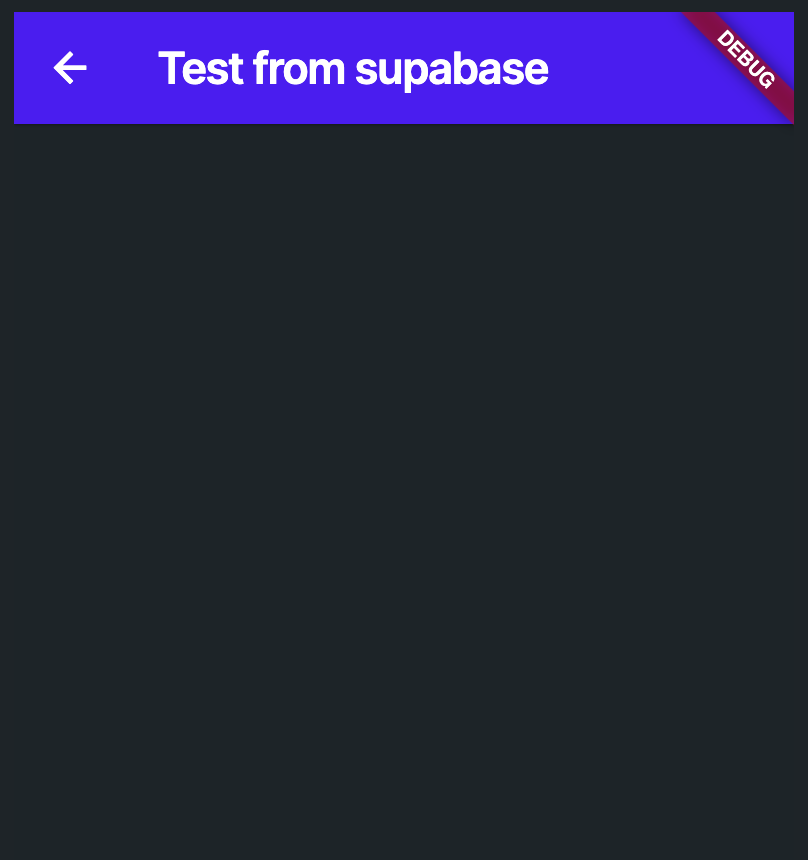
**Checkpoint:** You should now be able to click on a list item and it should navigate you to a new page showing the name of the list in the title bar:
14. Close the Action Flow Editor.
6. Still under the **"Widget Tree"**, select the "AppBar" -> "Text" widget.
1. In the **"Properties"** panel on the right, click on settings icon next to "Text".
2. Click on "Page State" -> "List".
3. Set "Supabase Row Fields" to "name".
4. (Optional) Set the "Default Variable Value" to `List Name`.
5. Click "Confirm".
#### Make the `ListView` Component Clickable
1. Under the **"Page Selector"**, select your `ListItems` component.
2. Under the **"Widget Tree"**, select the `ListTile` widget.
3. In the **"Actions"** panel on the right, click "Add Action". "On Tap" should be selected by default.
4. In the "Navigation" subsection, select "Navigate To".
5. Select the "Todos" page.
6. Under "Parameters" click "Pass".
7. "id" should be auto-selected, click on it.
8. Click on the settings icon next to "Value"
9. Set it to "listItem Item".
10. Under "Available Options" select "Get Row Field"
11. Under "Supabase Row Fields" select "id".
12. Click "Confirm".
13. (Optional) Enable the back button to navigate back:
1. Under the **"Page Selector"**, select your `Todos` page.
2. Under the **"Widget Tree"**, select the "AppBar" component.
3. In the **"Properties"** panel on the right, enable "Show Default Button".
#### Test Your App
Instant Reload your app or start another test session.
**Checkpoint:** You should now be able to click on a list item and it should navigate you to a new page showing the name of the list in the title bar:
 ### 3. Once-Off Reads for Static Data
This section is a work in progress. Please reach out on [our Discord](https://discord.gg/powersync) if you have any questions.
## Create Data
You will now update the app so that we can capture new list entries.
1. Under the **"Page Selector"**, select your `HomePage` page.
2. Under the **"Widget Palette"**, search for "float" and drag the "FAB" widget onto your page.
3. In the **"Actions"** panel on the right, click "Add Action".
1. Under "Custom Action" -> "PowerSync", select `powersyncWrite`.
2. Under the "Set Action Arguments" -> "sql" section, add the SQL query to create a new list item. For the purpose of this guide we are hardcoding the list's name, normally you would build UI for this.
1. Paste the following into the "Value" field:
`INSERT INTO lists(id, created_at, name, owner_id) VALUES(uuid(), datetime(), 'new item', :userId);`
3. Under the "parameters" section, set the `userId` parameter we're using the above query:
1. Click on "UNSET".
2. Select "Create Map (JSON)" as the variable.
3. Under "Add Map Entries", click "Add Key Value Pair".
4. Set the "Key" to `userId`.
5. Set the "Value" to "Authenticated User" -> "User ID".
6. Click "Confirm".
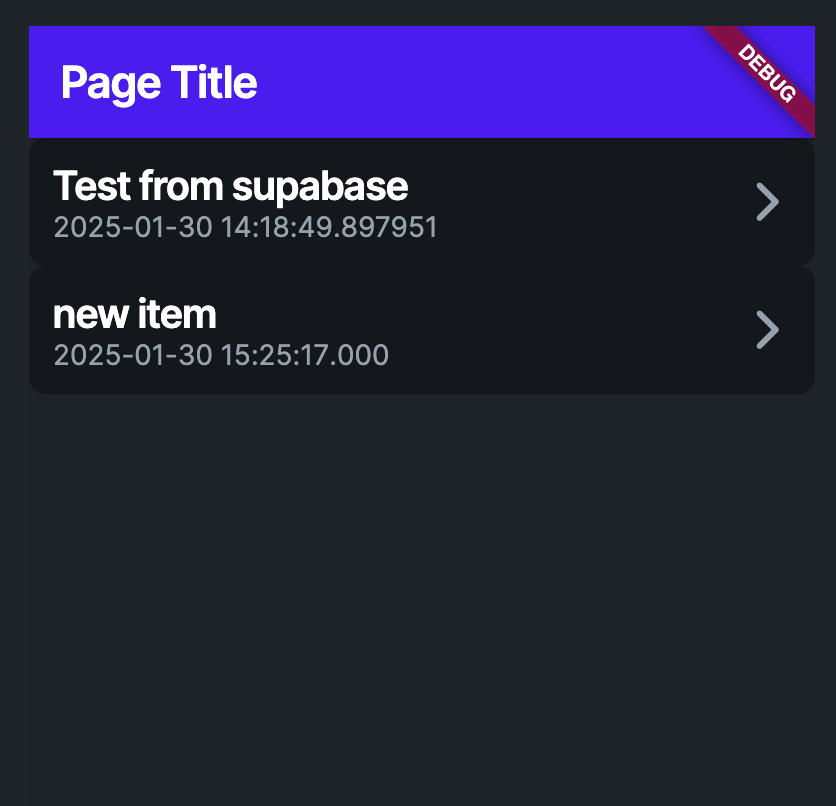
**Checkpoint:** Reload your app and click on the + floating action button. A new list item should appear, which also automatically syncs to Supabase:
### 3. Once-Off Reads for Static Data
This section is a work in progress. Please reach out on [our Discord](https://discord.gg/powersync) if you have any questions.
## Create Data
You will now update the app so that we can capture new list entries.
1. Under the **"Page Selector"**, select your `HomePage` page.
2. Under the **"Widget Palette"**, search for "float" and drag the "FAB" widget onto your page.
3. In the **"Actions"** panel on the right, click "Add Action".
1. Under "Custom Action" -> "PowerSync", select `powersyncWrite`.
2. Under the "Set Action Arguments" -> "sql" section, add the SQL query to create a new list item. For the purpose of this guide we are hardcoding the list's name, normally you would build UI for this.
1. Paste the following into the "Value" field:
`INSERT INTO lists(id, created_at, name, owner_id) VALUES(uuid(), datetime(), 'new item', :userId);`
3. Under the "parameters" section, set the `userId` parameter we're using the above query:
1. Click on "UNSET".
2. Select "Create Map (JSON)" as the variable.
3. Under "Add Map Entries", click "Add Key Value Pair".
4. Set the "Key" to `userId`.
5. Set the "Value" to "Authenticated User" -> "User ID".
6. Click "Confirm".
**Checkpoint:** Reload your app and click on the + floating action button. A new list item should appear, which also automatically syncs to Supabase:
 ## Update Data
Updating data is possible today using the `powersyncWrite` helper of the Library, and a guide will be published soon. In the mean time, use the section below about [Deleting Data](#delete-data) as a reference. Please reach out on [our Discord](https://discord.gg/powersync) if you have any questions.
## Delete Data
In this section we will add the ability to swipe on a `ListTile` to delete it.
1. Under the **"Page Selector"**, select your `ListItems` component.
2. Under the **"Widget Tree"**, select the `ListTile` widget.
3. In the **"Properties"** panel on the right, enable "Slidable".
4. Click "Open Slidable".
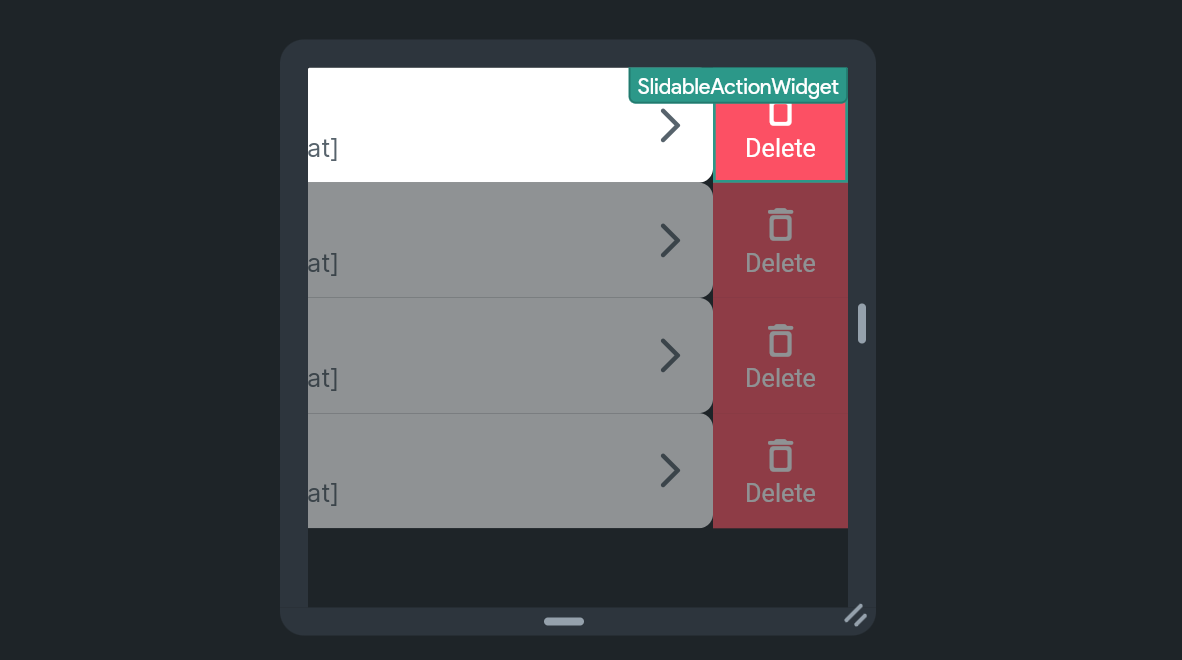
5. Select the "SlidableActionWidget".
## Update Data
Updating data is possible today using the `powersyncWrite` helper of the Library, and a guide will be published soon. In the mean time, use the section below about [Deleting Data](#delete-data) as a reference. Please reach out on [our Discord](https://discord.gg/powersync) if you have any questions.
## Delete Data
In this section we will add the ability to swipe on a `ListTile` to delete it.
1. Under the **"Page Selector"**, select your `ListItems` component.
2. Under the **"Widget Tree"**, select the `ListTile` widget.
3. In the **"Properties"** panel on the right, enable "Slidable".
4. Click "Open Slidable".
5. Select the "SlidableActionWidget".
 6. In the **"Actions"** panel on the right, click "Add Action".
1. Under "Custom Action" -> "PowerSync", select `powersyncWrite`.
2. Under the "Set Action Arguments" -> "sql" section, add the SQL query to delete the list item.
1. Paste the following into the "Value" field:
`delete from lists where id = :id;`
3. Under the "parameters" section, set the `id` parameter we're using the above query:
1. Click on "UNSET".
2. Select "Create Map (JSON)" as the variable.
3. Under "Add Map Entries", click "Add Key Value Pair".
4. Set the "Key" to `id`.
5. Set the "Value" to "listItem Item".
6. Under "Available Options" select "Get Row Field".
7. Under "Supabase Row Fields" select "id".
8. Click "Confirm".
9. Click "Confirm".
**Checkpoint:** Reload your app and swipe on a list item. Delete it, and note how it is deleted from the list as well as from Supabase.
## Sign Out
1. Navigate to **"Custom Code"** and create a new Custom Action called `signOut` without Arguments or Return Values and paste the below code:
In the below code, `power_sync_b0w5r9` is the project ID of the PowerSync library. Update it if it changes.
```dart theme={null}
// Automatic FlutterFlow imports
import '/backend/supabase/supabase.dart';
import "package:power_sync_b0w5r9/backend/schema/structs/index.dart"
as power_sync_b0w5r9_data_schema;
import 'package:ff_theme/flutter_flow/flutter_flow_theme.dart';
import '/flutter_flow/flutter_flow_util.dart';
import '/custom_code/actions/index.dart'; // Imports other custom actions
import '/flutter_flow/custom_functions.dart'; // Imports custom functions
import 'package:flutter/material.dart';
// Begin custom action code
// DO NOT REMOVE OR MODIFY THE CODE ABOVE!
import 'package:power_sync_b0w5r9/custom_code/actions/initialize_power_sync.dart'
as ps;
Future signOut() async {
final database = await ps.getOrInitializeDatabase();
//await database.disconnectAndClear(); // this will completely delete all the local data, use with caution as there may be items still in the upload queue
await database
.disconnect(); //this will simply disconnect from the PowerSync Service and preserve all local data
}
// Set your action name, define your arguments and return parameter,
// and then add the boilerplate code using the green button on the right!
```
2. Click "Save Action".
3. Under the **"Page Selector"**, select your `HomePage` page.
4. Under the **"Widget Palette"**, drag a "Button" onto the right of your "AppBar".
6. In the **"Actions"** panel on the right, click "Add Action".
1. Under "Custom Action" -> "PowerSync", select `powersyncWrite`.
2. Under the "Set Action Arguments" -> "sql" section, add the SQL query to delete the list item.
1. Paste the following into the "Value" field:
`delete from lists where id = :id;`
3. Under the "parameters" section, set the `id` parameter we're using the above query:
1. Click on "UNSET".
2. Select "Create Map (JSON)" as the variable.
3. Under "Add Map Entries", click "Add Key Value Pair".
4. Set the "Key" to `id`.
5. Set the "Value" to "listItem Item".
6. Under "Available Options" select "Get Row Field".
7. Under "Supabase Row Fields" select "id".
8. Click "Confirm".
9. Click "Confirm".
**Checkpoint:** Reload your app and swipe on a list item. Delete it, and note how it is deleted from the list as well as from Supabase.
## Sign Out
1. Navigate to **"Custom Code"** and create a new Custom Action called `signOut` without Arguments or Return Values and paste the below code:
In the below code, `power_sync_b0w5r9` is the project ID of the PowerSync library. Update it if it changes.
```dart theme={null}
// Automatic FlutterFlow imports
import '/backend/supabase/supabase.dart';
import "package:power_sync_b0w5r9/backend/schema/structs/index.dart"
as power_sync_b0w5r9_data_schema;
import 'package:ff_theme/flutter_flow/flutter_flow_theme.dart';
import '/flutter_flow/flutter_flow_util.dart';
import '/custom_code/actions/index.dart'; // Imports other custom actions
import '/flutter_flow/custom_functions.dart'; // Imports custom functions
import 'package:flutter/material.dart';
// Begin custom action code
// DO NOT REMOVE OR MODIFY THE CODE ABOVE!
import 'package:power_sync_b0w5r9/custom_code/actions/initialize_power_sync.dart'
as ps;
Future signOut() async {
final database = await ps.getOrInitializeDatabase();
//await database.disconnectAndClear(); // this will completely delete all the local data, use with caution as there may be items still in the upload queue
await database
.disconnect(); //this will simply disconnect from the PowerSync Service and preserve all local data
}
// Set your action name, define your arguments and return parameter,
// and then add the boilerplate code using the green button on the right!
```
2. Click "Save Action".
3. Under the **"Page Selector"**, select your `HomePage` page.
4. Under the **"Widget Palette"**, drag a "Button" onto the right of your "AppBar".
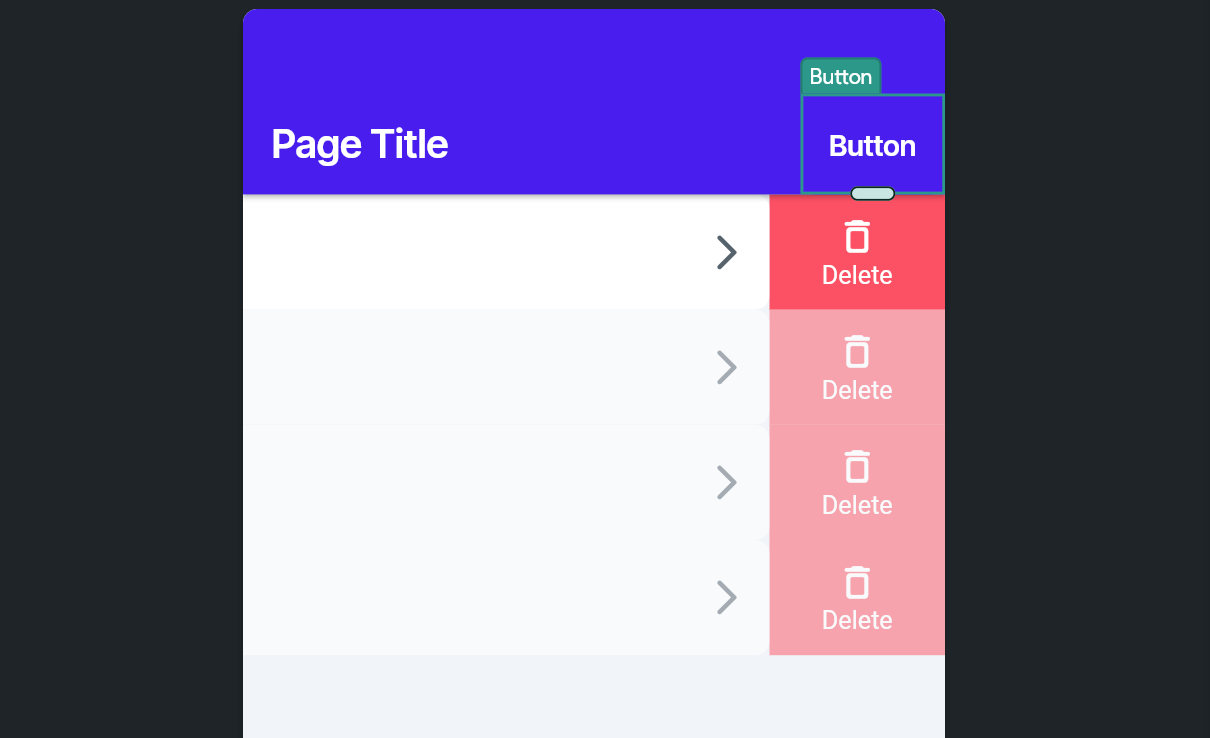 5. In the **"Properties"** panel on the right, rename the "Button Text" to `Sign Out`.
6. Switch to the **"Actions"** panel and open the **"Action Flow Editor"**.
7. Select "On Tap" as the action trigger.
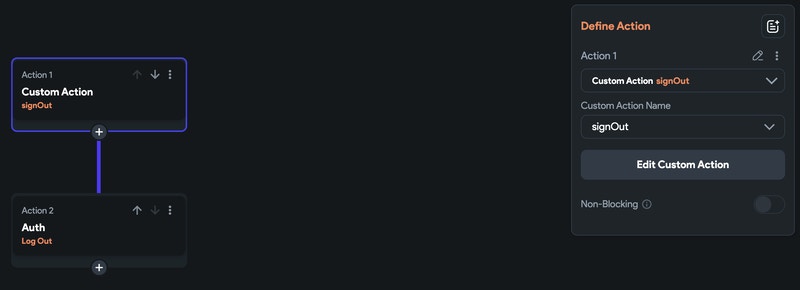
8. Click "Add Action" and add a call to the `signOut` Custom Action.
9. Chain another Action and call to "Supabase Authentication" -> "Log Out":
5. In the **"Properties"** panel on the right, rename the "Button Text" to `Sign Out`.
6. Switch to the **"Actions"** panel and open the **"Action Flow Editor"**.
7. Select "On Tap" as the action trigger.
8. Click "Add Action" and add a call to the `signOut` Custom Action.
9. Chain another Action and call to "Supabase Authentication" -> "Log Out":
 10. Click "Close".
**Checkpoint:** You should now be able to reload your app and sign out and in again.
## (Optional) Display Connectivity and Sync Status
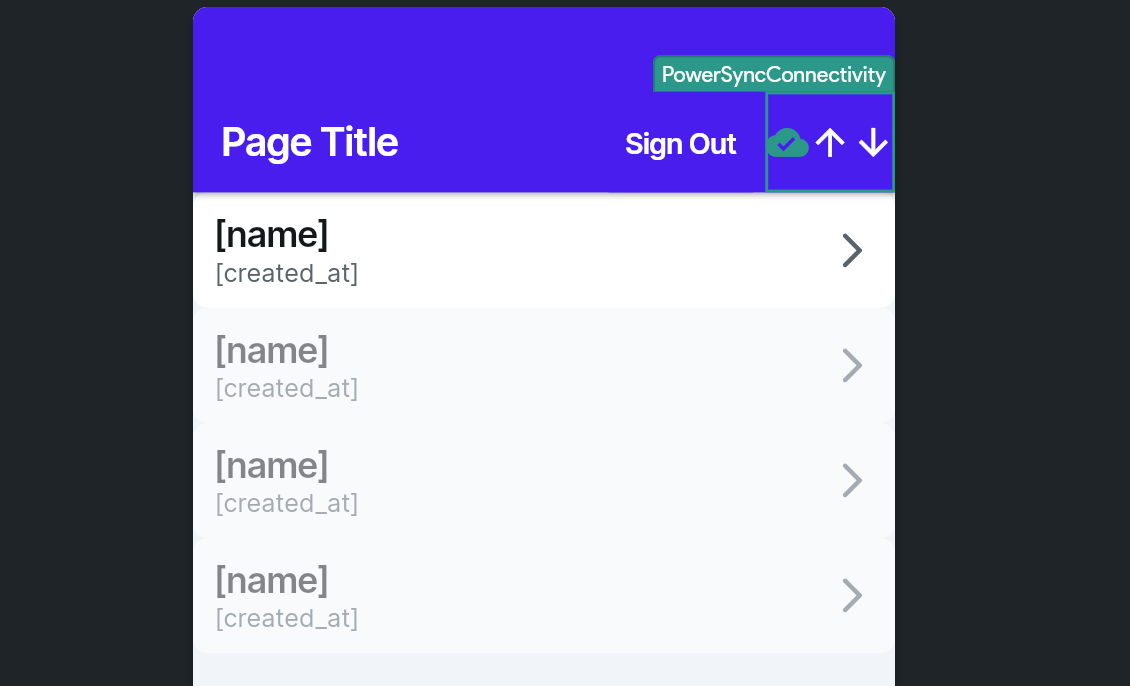
The PowerSync library provides a built-in component that displays real-time connectivity and sync status. Since the sync state is available globally as part of your app state, you can easily monitor the database status throughout your application. To add this status indicator:
1. Under the **Widget Palette**, select the "Components and custom widgets imported from library projects" panel.
2. Drag the `PowerSyncConnectivity` component into your home page's "AppBar".
10. Click "Close".
**Checkpoint:** You should now be able to reload your app and sign out and in again.
## (Optional) Display Connectivity and Sync Status
The PowerSync library provides a built-in component that displays real-time connectivity and sync status. Since the sync state is available globally as part of your app state, you can easily monitor the database status throughout your application. To add this status indicator:
1. Under the **Widget Palette**, select the "Components and custom widgets imported from library projects" panel.
2. Drag the `PowerSyncConnectivity` component into your home page's "AppBar".
 ## Secure Your App
PowerSync's [Sync Rules](/sync/rules/overview) and Supabase's support for [Row Level Security (RLS)](https://supabase.com/docs/guides/auth/row-level-security) can be used in conjunction. Here are some high level similarities and differences:
* RLS should be used as the authoritative set of security rules applied to your users' CRUD operations that reach Postgres.
* Sync Rules are only applied for data that is to be downloaded to clients — they do not apply to uploaded data.
* Sync Rules can typically be considered to be complementary to RLS, and will generally mirror your RLS setup.
### Enable RLS in Supabase
Run the below in your Supabase console to ensure that only list owners can perform actions on the lists table where `owner_id` matches their user id:
```sql theme={null}
alter table public.lists
enable row level security;
create policy "owned lists" on public.lists for ALL using (
auth.uid() = owner_id
)
```
### Update Sync Rules
Currently all lists are synced to all users, regardless of who the owner of the list is. You will now update this so that only a user's lists are synced to their device:
1. In the [PowerSync Dashboard](https://dashboard.powersync.com/), select your project and instance and go to the **Sync Rules** view.
2. Edit the Sync Rules in the editor and replace the contents with the below:
```yaml theme={null}
bucket_definitions:
user_lists:
parameters: select request.user_id() as user_id
data:
- select * from lists where owner_id = bucket.user_id
```
3. Click **"Validate"**.
4. Click **"Deploy"** to deploy your Sync Rules.
5. Wait for the deploy to complete.
**Checkpoint:** Your app should continue running seamlessly as before.
## Arrays, JSON and Other Types
For column values, PowerSync supports three basic types: Integers, doubles, and strings. These types have been chosen because
they're natively supported by SQLite while also being easy to transport as JSON.
Of course, you may want to store other values in your Postgres database as well. When syncing a value that doesn't
fit into the three fundamental types, PowerSync will [encode it as a JSON string](/client-sdks/advanced/custom-types-arrays-and-json#custom-types).
To use those values in your app, you'll need to apply a mapping so that you display the correct values and use the
correct representation when uploading data.
As an example, let's consider an added `tags` column on the `lists` table used in this guide. These tags will be
encoded as a string array in Postgres:
```SQL theme={null}
CREATE TABLE public.lists (
# ... existing columns,
tags text[] DEFAULT '{"default", "tags"}'
);
```
Like all array values, PowerSync will transport this as a JSON string. For instance, a row with the default tags would
be represented as this string: `["default", "tags"]`.
FlutterFlow does not support extracting a list from that string, so the [custom functions](#read-data) responsible
for mapping SQLite rows to FlutterFlow classes needs to be aware of the transformation and reverse it:
```dart theme={null}
/// MODIFY CODE ONLY BELOW THIS LINE
return supabaseRows.map((r) {
return ListsRow({
...r,
'tags': jsonDecode(r['tags'] as String),
});
}).toList();
```
This transforms the `'["default", "tags"]'` value as it appears into `["default", "tags"]`, the list value expected
for this row.
A similar approach is necessary when making local writes. The local database should be consistent with the
data synced with PowerSync. So all [local writes](#create-data) should write array and JSON values as strings by
encoding them as JSON.
Finally, the PowerSync mapping also needs to be reverted when uploading rows to Postgres. For a
`text[]` column for instance, the local string value would not be accepted by Supabase.
For this reason, the upload behavior for columns with advanced types needs to be customized.
**New feature:** This option has been added in version `0.0.7` of the PowerSync FlutterFlow library.
Please make sure you're using that version or later.
To customize the uploading behavior, create a new custom action (e.g. `applyPowerSyncOptions`). After the
default imports, put this snippet:
```dart theme={null}
import 'package:power_sync_b0w5r9/custom_code/actions/initialize_power_sync.dart';
Future applyPowerSyncOptions() async {
// Add your function code here!
powerSyncOptions.transformData = (table, data) {
switch (table) {
case 'lists':
data['tags'] = jsonDecode(data['tags'] as String);
}
};
}
```
Also, add this function to your `main.dart` as a final action.
When setting `powersyncOptions.transformData`, a callback is invoked every time a created or updated row
is uploaded to Supabase.
This allows you to customize how individual values are represented for Postgres. In this case, the `tags`
column of the `lists` table is decoded as JSON so that it's uploaded as a proper array while being stored
as a list locally.
## Custom Backend Connectors
To enable an easy setup, the PowerSync FlutterFlow library integrates with Supabase by default. This means
that as long as you use Supabase for authentication in your app, PowerSync will automatically connect as
soon as users log in, and can automatically upload local writes to a Supabase database.
For apps that don't use Supabase, you can disable this default behavior and instead rely on your own
backend connectors.
For this, create your own custom action (e.g. `applyPowerSyncOptions`). It's important that this action runs
before anything else in your app uses PowerSync, so add this action to your `main.dart` as a final action.
```dart theme={null}
import 'package:power_sync_b0w5r9/custom_code/actions/initialize_power_sync.dart';
import 'package:powersync/powersync.dart' as ps;
Future applyPowerSyncOptions() async {
// Disable the default Supabase integration
powerSyncOptions.useSupabaseConnector = false;
final db = await getOrInitializeDatabase();
// TODO: Write your own connector and call connect/disconnect when a user logs
// in.
db.connect(connector: _MyCustomConnector());
}
final class _MyCustomConnector extends ps.PowerSyncBackendConnector {
@override
Future fetchCredentials() {
// TODO: implement fetchCredentials
throw UnimplementedError();
}
@override
Future uploadData(ps.PowerSyncDatabase database) {
// TODO: implement uploadData
throw UnimplementedError();
}
}
```
For more information on writing backend connectors, see [integrating with your backend](/client-sdks/reference/flutter#3-integrate-with-your-backend).
## Known Issues, Limitations and Gotchas
Below is a list of known issues and limitations.
1. Deploying to the Apple App Store currently requires some workarounds due to limitations in FlutterFlow:
1. Download the code from FlutterFlow.
2. Open the `Podfile` located in the `ios/` directory.
3. The following option in the `Podfile` needs to be updated from `use_frameworks! :linkage => :static` to `use_frameworks!` (remove everything after the exclamation sign).
4. After removing that option, clean the build folder and build the project again.
5. You should now be able to submit to the App Store.
2. Exporting the code from FlutterFlow using the "Download Code" action in FlutterFlow requires the same workaround listed above.
3. The PowerSync FlutterFlow Library does not currently support [encryption at rest](/client-sdks/advanced/data-encryption).
4. Other common issues and troubleshooting techniques are documented here: [Troubleshooting](/debugging/troubleshooting).
## Secure Your App
PowerSync's [Sync Rules](/sync/rules/overview) and Supabase's support for [Row Level Security (RLS)](https://supabase.com/docs/guides/auth/row-level-security) can be used in conjunction. Here are some high level similarities and differences:
* RLS should be used as the authoritative set of security rules applied to your users' CRUD operations that reach Postgres.
* Sync Rules are only applied for data that is to be downloaded to clients — they do not apply to uploaded data.
* Sync Rules can typically be considered to be complementary to RLS, and will generally mirror your RLS setup.
### Enable RLS in Supabase
Run the below in your Supabase console to ensure that only list owners can perform actions on the lists table where `owner_id` matches their user id:
```sql theme={null}
alter table public.lists
enable row level security;
create policy "owned lists" on public.lists for ALL using (
auth.uid() = owner_id
)
```
### Update Sync Rules
Currently all lists are synced to all users, regardless of who the owner of the list is. You will now update this so that only a user's lists are synced to their device:
1. In the [PowerSync Dashboard](https://dashboard.powersync.com/), select your project and instance and go to the **Sync Rules** view.
2. Edit the Sync Rules in the editor and replace the contents with the below:
```yaml theme={null}
bucket_definitions:
user_lists:
parameters: select request.user_id() as user_id
data:
- select * from lists where owner_id = bucket.user_id
```
3. Click **"Validate"**.
4. Click **"Deploy"** to deploy your Sync Rules.
5. Wait for the deploy to complete.
**Checkpoint:** Your app should continue running seamlessly as before.
## Arrays, JSON and Other Types
For column values, PowerSync supports three basic types: Integers, doubles, and strings. These types have been chosen because
they're natively supported by SQLite while also being easy to transport as JSON.
Of course, you may want to store other values in your Postgres database as well. When syncing a value that doesn't
fit into the three fundamental types, PowerSync will [encode it as a JSON string](/client-sdks/advanced/custom-types-arrays-and-json#custom-types).
To use those values in your app, you'll need to apply a mapping so that you display the correct values and use the
correct representation when uploading data.
As an example, let's consider an added `tags` column on the `lists` table used in this guide. These tags will be
encoded as a string array in Postgres:
```SQL theme={null}
CREATE TABLE public.lists (
# ... existing columns,
tags text[] DEFAULT '{"default", "tags"}'
);
```
Like all array values, PowerSync will transport this as a JSON string. For instance, a row with the default tags would
be represented as this string: `["default", "tags"]`.
FlutterFlow does not support extracting a list from that string, so the [custom functions](#read-data) responsible
for mapping SQLite rows to FlutterFlow classes needs to be aware of the transformation and reverse it:
```dart theme={null}
/// MODIFY CODE ONLY BELOW THIS LINE
return supabaseRows.map((r) {
return ListsRow({
...r,
'tags': jsonDecode(r['tags'] as String),
});
}).toList();
```
This transforms the `'["default", "tags"]'` value as it appears into `["default", "tags"]`, the list value expected
for this row.
A similar approach is necessary when making local writes. The local database should be consistent with the
data synced with PowerSync. So all [local writes](#create-data) should write array and JSON values as strings by
encoding them as JSON.
Finally, the PowerSync mapping also needs to be reverted when uploading rows to Postgres. For a
`text[]` column for instance, the local string value would not be accepted by Supabase.
For this reason, the upload behavior for columns with advanced types needs to be customized.
**New feature:** This option has been added in version `0.0.7` of the PowerSync FlutterFlow library.
Please make sure you're using that version or later.
To customize the uploading behavior, create a new custom action (e.g. `applyPowerSyncOptions`). After the
default imports, put this snippet:
```dart theme={null}
import 'package:power_sync_b0w5r9/custom_code/actions/initialize_power_sync.dart';
Future applyPowerSyncOptions() async {
// Add your function code here!
powerSyncOptions.transformData = (table, data) {
switch (table) {
case 'lists':
data['tags'] = jsonDecode(data['tags'] as String);
}
};
}
```
Also, add this function to your `main.dart` as a final action.
When setting `powersyncOptions.transformData`, a callback is invoked every time a created or updated row
is uploaded to Supabase.
This allows you to customize how individual values are represented for Postgres. In this case, the `tags`
column of the `lists` table is decoded as JSON so that it's uploaded as a proper array while being stored
as a list locally.
## Custom Backend Connectors
To enable an easy setup, the PowerSync FlutterFlow library integrates with Supabase by default. This means
that as long as you use Supabase for authentication in your app, PowerSync will automatically connect as
soon as users log in, and can automatically upload local writes to a Supabase database.
For apps that don't use Supabase, you can disable this default behavior and instead rely on your own
backend connectors.
For this, create your own custom action (e.g. `applyPowerSyncOptions`). It's important that this action runs
before anything else in your app uses PowerSync, so add this action to your `main.dart` as a final action.
```dart theme={null}
import 'package:power_sync_b0w5r9/custom_code/actions/initialize_power_sync.dart';
import 'package:powersync/powersync.dart' as ps;
Future applyPowerSyncOptions() async {
// Disable the default Supabase integration
powerSyncOptions.useSupabaseConnector = false;
final db = await getOrInitializeDatabase();
// TODO: Write your own connector and call connect/disconnect when a user logs
// in.
db.connect(connector: _MyCustomConnector());
}
final class _MyCustomConnector extends ps.PowerSyncBackendConnector {
@override
Future fetchCredentials() {
// TODO: implement fetchCredentials
throw UnimplementedError();
}
@override
Future uploadData(ps.PowerSyncDatabase database) {
// TODO: implement uploadData
throw UnimplementedError();
}
}
```
For more information on writing backend connectors, see [integrating with your backend](/client-sdks/reference/flutter#3-integrate-with-your-backend).
## Known Issues, Limitations and Gotchas
Below is a list of known issues and limitations.
1. Deploying to the Apple App Store currently requires some workarounds due to limitations in FlutterFlow:
1. Download the code from FlutterFlow.
2. Open the `Podfile` located in the `ios/` directory.
3. The following option in the `Podfile` needs to be updated from `use_frameworks! :linkage => :static` to `use_frameworks!` (remove everything after the exclamation sign).
4. After removing that option, clean the build folder and build the project again.
5. You should now be able to submit to the App Store.
2. Exporting the code from FlutterFlow using the "Download Code" action in FlutterFlow requires the same workaround listed above.
3. The PowerSync FlutterFlow Library does not currently support [encryption at rest](/client-sdks/advanced/data-encryption).
4. Other common issues and troubleshooting techniques are documented here: [Troubleshooting](/debugging/troubleshooting).