> ## Documentation Index
> Fetch the complete documentation index at: https://docs.powersync.com/llms.txt
> Use this file to discover all available pages before exploring further.
# Source Database Setup
> Prepare your Postgres, MongoDB, MySQL, SQL Server or Convex database for PowerSync replication.
Jump to: [Postgres](#postgres) | [MongoDB](#mongodb) | [MySQL](#mysql) | [SQL Server](#sql-server) | [Convex](#convex)
## Postgres
**Version compatibility**: PowerSync requires Postgres version 11 or greater.
Configuring your Postgres database for PowerSync generally involves three tasks:
1. Ensure logical replication is enabled
2. Create a PowerSync database user
3. Create `powersync` logical replication publication
We have documented steps for some specific hosting providers:
### 1. Ensure logical replication is enabled
No action required: Supabase has logical replication enabled by default.
### 2. Create a PowerSync database user
```sql theme={null}
-- Create a role/user with replication privileges for PowerSync
CREATE ROLE powersync_role WITH REPLICATION BYPASSRLS LOGIN PASSWORD 'myhighlyrandompassword';
-- Set up permissions for the newly created role
-- Read-only (SELECT) access is required
GRANT SELECT ON ALL TABLES IN SCHEMA public TO powersync_role;
-- Optionally, grant SELECT on all future tables (to cater for schema additions)
ALTER DEFAULT PRIVILEGES IN SCHEMA public GRANT SELECT ON TABLES TO powersync_role;
```
To restrict read access to specific tables, explicitly list allowed tables for both the `SELECT` privilege, and for the publication mentioned in the next step (as well as for any other publications that may exist).
### 3. Create `powersync` publication
```sql theme={null}
-- Create a publication to replicate tables. The publication must be named "powersync"
CREATE PUBLICATION powersync FOR ALL TABLES;
```
Note that the PowerSync Service has to read all updates present in the publication, regardless of whether the table is referenced in your Sync Streams / Sync Rules definitions. This can cause large spikes in memory usage or introduce replication delays, so if you're dealing with large data volumes, you'll want to specify a comma-separated subset of tables to replicate instead of `FOR ALL TABLES`.
The snippet above replicates all tables and is the simplest way to get started in a dev environment.
Also see our [Supabase integration guide](/integrations/supabase).
### Prerequisites
The instance must be publicly accessible using an IPv4 address.
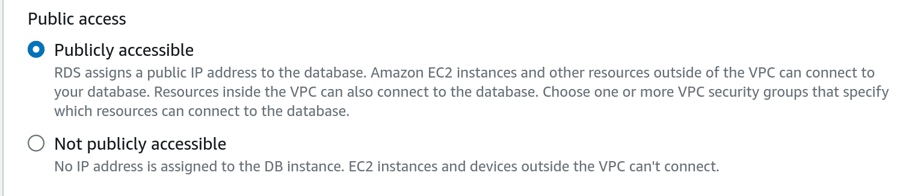 Access may be restricted to specific IPs if required — see [IP Filtering](/configuration/source-db/security-and-ip-filtering).
### 1. Ensure logical replication is enabled
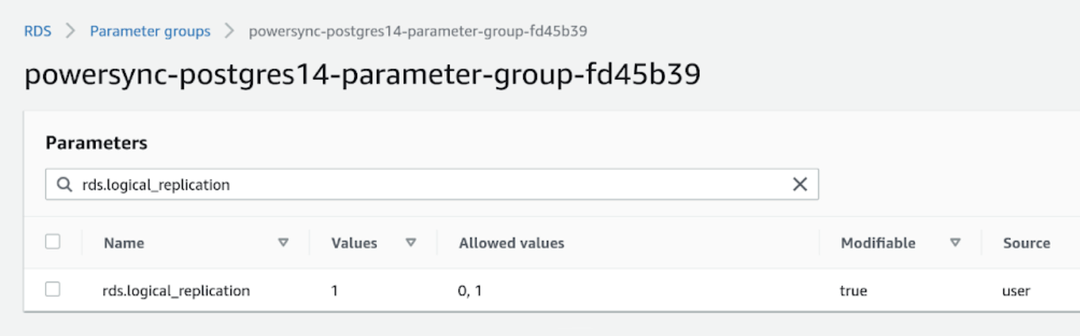
Set the `rds.logical_replication` parameter to `1` in the parameter group for the instance:
Access may be restricted to specific IPs if required — see [IP Filtering](/configuration/source-db/security-and-ip-filtering).
### 1. Ensure logical replication is enabled
Set the `rds.logical_replication` parameter to `1` in the parameter group for the instance:
 ### 2. Create a PowerSync database user
Create a PowerSync user on Postgres:
```sql theme={null}
-- SQL to create powersync user
CREATE ROLE powersync_role WITH BYPASSRLS LOGIN PASSWORD 'myhighlyrandompassword';
-- Allow the role to perform replication tasks
GRANT rds_replication TO powersync_role;
-- Set up permissions for the newly created role
-- Read-only (SELECT) access is required
GRANT SELECT ON ALL TABLES IN SCHEMA public TO powersync_role;
-- Optionally, grant SELECT on all future tables (to cater for schema additions)
ALTER DEFAULT PRIVILEGES IN SCHEMA public GRANT SELECT ON TABLES TO powersync_role;
```
To restrict read access to specific tables, explicitly list allowed tables for both the `SELECT` privilege, and for the publication (as well as for any other publications that may exist).
### 3. Create `powersync` publication
```sql theme={null}
-- Create a publication to replicate tables. The publication must be named "powersync"
CREATE PUBLICATION powersync FOR ALL TABLES;
```
Note that the PowerSync Service has to read all updates present in the publication, regardless of whether the table is referenced in your Sync Streams / Sync Rules definitions. This can cause large spikes in memory usage or introduce replication delays, so if you're dealing with large data volumes, you'll want to specify a comma-separated subset of tables to replicate instead of `FOR ALL TABLES`.
The snippet above replicates all tables and is the simplest way to get started in a dev environment.
PowerSync supports both **Azure Database for PostgreSQL** and **Azure Database for PostgreSQL Flexible Server**.
### Prerequisites
The database must be accessible on the public internet. Once you have created your database, navigate to **Settings** → **Networking** and enable **Public access.**
### 1. Ensure logical replication is enabled
Follow the steps as noted in [this Microsoft article](https://learn.microsoft.com/en-us/azure/postgresql/flexible-server/concepts-logical#prerequisites-for-logical-replication-and-logical-decoding) to allow logical replication.
### 2. Create a PowerSync database user
```sql theme={null}
-- Create a role/user with replication privileges for PowerSync
CREATE ROLE powersync_role WITH REPLICATION BYPASSRLS LOGIN PASSWORD 'myhighlyrandompassword';
-- Set up permissions for the newly created role
-- Read-only (SELECT) access is required
GRANT SELECT ON ALL TABLES IN SCHEMA public TO powersync_role;
-- Optionally, grant SELECT on all future tables (to cater for schema additions)
ALTER DEFAULT PRIVILEGES IN SCHEMA public GRANT SELECT ON TABLES TO powersync_role;
```
To restrict read access to specific tables, explicitly list allowed tables for both the `SELECT` privilege, and for the publication mentioned in the next step (as well as for any other publications that may exist).
### 3. Create `powersync` publication
```sql theme={null}
-- Create a publication to replicate tables. The publication must be named "powersync"
CREATE PUBLICATION powersync FOR ALL TABLES;
```
Note that the PowerSync Service has to read all updates present in the publication, regardless of whether the table is referenced in your Sync Streams / Sync Rules definitions. This can cause large spikes in memory usage or introduce replication delays, so if you're dealing with large data volumes, you'll want to specify a comma-separated subset of tables to replicate instead of `FOR ALL TABLES`.
The snippet above replicates all tables and is the simplest way to get started in a dev environment.
### 1. Ensure logical replication is enabled
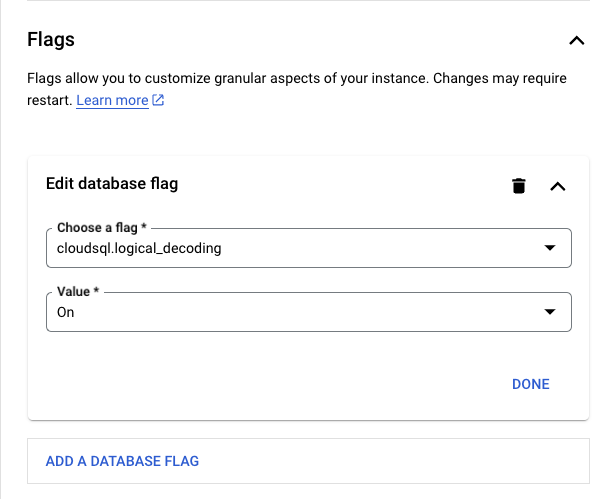
In Google Cloud SQL Postgres, enabling the logical replication is done using flags:
### 2. Create a PowerSync database user
Create a PowerSync user on Postgres:
```sql theme={null}
-- SQL to create powersync user
CREATE ROLE powersync_role WITH BYPASSRLS LOGIN PASSWORD 'myhighlyrandompassword';
-- Allow the role to perform replication tasks
GRANT rds_replication TO powersync_role;
-- Set up permissions for the newly created role
-- Read-only (SELECT) access is required
GRANT SELECT ON ALL TABLES IN SCHEMA public TO powersync_role;
-- Optionally, grant SELECT on all future tables (to cater for schema additions)
ALTER DEFAULT PRIVILEGES IN SCHEMA public GRANT SELECT ON TABLES TO powersync_role;
```
To restrict read access to specific tables, explicitly list allowed tables for both the `SELECT` privilege, and for the publication (as well as for any other publications that may exist).
### 3. Create `powersync` publication
```sql theme={null}
-- Create a publication to replicate tables. The publication must be named "powersync"
CREATE PUBLICATION powersync FOR ALL TABLES;
```
Note that the PowerSync Service has to read all updates present in the publication, regardless of whether the table is referenced in your Sync Streams / Sync Rules definitions. This can cause large spikes in memory usage or introduce replication delays, so if you're dealing with large data volumes, you'll want to specify a comma-separated subset of tables to replicate instead of `FOR ALL TABLES`.
The snippet above replicates all tables and is the simplest way to get started in a dev environment.
PowerSync supports both **Azure Database for PostgreSQL** and **Azure Database for PostgreSQL Flexible Server**.
### Prerequisites
The database must be accessible on the public internet. Once you have created your database, navigate to **Settings** → **Networking** and enable **Public access.**
### 1. Ensure logical replication is enabled
Follow the steps as noted in [this Microsoft article](https://learn.microsoft.com/en-us/azure/postgresql/flexible-server/concepts-logical#prerequisites-for-logical-replication-and-logical-decoding) to allow logical replication.
### 2. Create a PowerSync database user
```sql theme={null}
-- Create a role/user with replication privileges for PowerSync
CREATE ROLE powersync_role WITH REPLICATION BYPASSRLS LOGIN PASSWORD 'myhighlyrandompassword';
-- Set up permissions for the newly created role
-- Read-only (SELECT) access is required
GRANT SELECT ON ALL TABLES IN SCHEMA public TO powersync_role;
-- Optionally, grant SELECT on all future tables (to cater for schema additions)
ALTER DEFAULT PRIVILEGES IN SCHEMA public GRANT SELECT ON TABLES TO powersync_role;
```
To restrict read access to specific tables, explicitly list allowed tables for both the `SELECT` privilege, and for the publication mentioned in the next step (as well as for any other publications that may exist).
### 3. Create `powersync` publication
```sql theme={null}
-- Create a publication to replicate tables. The publication must be named "powersync"
CREATE PUBLICATION powersync FOR ALL TABLES;
```
Note that the PowerSync Service has to read all updates present in the publication, regardless of whether the table is referenced in your Sync Streams / Sync Rules definitions. This can cause large spikes in memory usage or introduce replication delays, so if you're dealing with large data volumes, you'll want to specify a comma-separated subset of tables to replicate instead of `FOR ALL TABLES`.
The snippet above replicates all tables and is the simplest way to get started in a dev environment.
### 1. Ensure logical replication is enabled
In Google Cloud SQL Postgres, enabling the logical replication is done using flags:
 ### 2. Create a PowerSync database user
```sql theme={null}
-- Create a role/user with replication privileges for PowerSync
CREATE ROLE powersync_role WITH REPLICATION BYPASSRLS LOGIN PASSWORD 'myhighlyrandompassword';
-- Set up permissions for the newly created role
-- Read-only (SELECT) access is required
GRANT SELECT ON ALL TABLES IN SCHEMA public TO powersync_role;
-- Optionally, grant SELECT on all future tables (to cater for schema additions)
ALTER DEFAULT PRIVILEGES IN SCHEMA public GRANT SELECT ON TABLES TO powersync_role;
```
To restrict read access to specific tables, explicitly list allowed tables for both the `SELECT` privilege, and for the publication mentioned in the next step (as well as for any other publications that may exist).
### 3. Create `powersync` publication
```sql theme={null}
-- Create a publication to replicate tables. The publication must be named "powersync"
CREATE PUBLICATION powersync FOR ALL TABLES;
```
Note that the PowerSync Service has to read all updates present in the publication, regardless of whether the table is referenced in your Sync Streams / Sync Rules definitions. This can cause large spikes in memory usage or introduce replication delays, so if you're dealing with large data volumes, you'll want to specify a comma-separated subset of tables to replicate instead of `FOR ALL TABLES`.
The snippet above replicates all tables and is the simplest way to get started in a dev environment.
### 1. Ensure logical replication is enabled
To [ensure logical replication is enabled](https://neon.tech/docs/guides/logical-replication-postgres#prepare-your-source-neon-database):
1. Select your project in the Neon Console.
2. On the Neon Dashboard, select **Settings**.
3. Select **Logical Replication**.
4. Click **Enable** to ensure logical replication is enabled.
### 2. Create a PowerSync database user
```sql theme={null}
-- Create a role/user with replication privileges for PowerSync
CREATE ROLE powersync_role WITH REPLICATION BYPASSRLS LOGIN PASSWORD 'myhighlyrandompassword';
-- Set up permissions for the newly created role
-- Read-only (SELECT) access is required
GRANT SELECT ON ALL TABLES IN SCHEMA public TO powersync_role;
-- Optionally, grant SELECT on all future tables (to cater for schema additions)
ALTER DEFAULT PRIVILEGES IN SCHEMA public GRANT SELECT ON TABLES TO powersync_role;
```
To restrict read access to specific tables, explicitly list allowed tables for both the `SELECT` privilege, and for the publication mentioned in the next step (as well as for any other publications that may exist).
### 3. Create `powersync` publication
```sql theme={null}
-- Create a publication to replicate tables. The publication must be named "powersync"
CREATE PUBLICATION powersync FOR ALL TABLES;
```
Note that the PowerSync Service has to read all updates present in the publication, regardless of whether the table is referenced in your Sync Streams / Sync Rules definitions. This can cause large spikes in memory usage or introduce replication delays, so if you're dealing with large data volumes, you'll want to specify a comma-separated subset of tables to replicate instead of `FOR ALL TABLES`.
The snippet above replicates all tables and is the simplest way to get started in a dev environment.
Also see our [Neon integration guide](/integrations/neon).
Fly Postgres is a [Fly](https://fly.io/) app with [flyctl](https://fly.io/docs/flyctl/) sugar on top to help you bootstrap and manage a database cluster for your apps.
### 1. Ensure logical replication is enabled
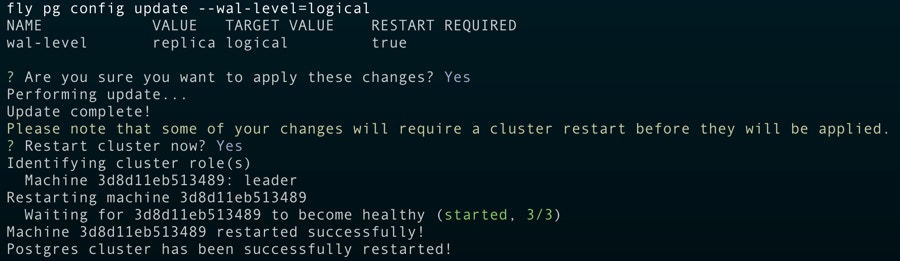
Once you've deployed your Fly Postgres cluster, you can use the following command to ensure logical replication is enabled:
```bash theme={null}
fly pg config update --wal-level=logical
```
### 2. Create a PowerSync database user
```sql theme={null}
-- Create a role/user with replication privileges for PowerSync
CREATE ROLE powersync_role WITH REPLICATION BYPASSRLS LOGIN PASSWORD 'myhighlyrandompassword';
-- Set up permissions for the newly created role
-- Read-only (SELECT) access is required
GRANT SELECT ON ALL TABLES IN SCHEMA public TO powersync_role;
-- Optionally, grant SELECT on all future tables (to cater for schema additions)
ALTER DEFAULT PRIVILEGES IN SCHEMA public GRANT SELECT ON TABLES TO powersync_role;
```
To restrict read access to specific tables, explicitly list allowed tables for both the `SELECT` privilege, and for the publication mentioned in the next step (as well as for any other publications that may exist).
### 3. Create `powersync` publication
```sql theme={null}
-- Create a publication to replicate tables. The publication must be named "powersync"
CREATE PUBLICATION powersync FOR ALL TABLES;
```
Note that the PowerSync Service has to read all updates present in the publication, regardless of whether the table is referenced in your Sync Streams / Sync Rules definitions. This can cause large spikes in memory usage or introduce replication delays, so if you're dealing with large data volumes, you'll want to specify a comma-separated subset of tables to replicate instead of `FOR ALL TABLES`.
The snippet above replicates all tables and is the simplest way to get started in a dev environment.
### 1. Ensure logical replication is enabled
To [ensure logical replication is enabled](https://neon.tech/docs/guides/logical-replication-postgres#prepare-your-source-neon-database):
1. Select your project in the Neon Console.
2. On the Neon Dashboard, select **Settings**.
3. Select **Logical Replication**.
4. Click **Enable** to ensure logical replication is enabled.
### 2. Create a PowerSync database user
```sql theme={null}
-- Create a role/user with replication privileges for PowerSync
CREATE ROLE powersync_role WITH REPLICATION BYPASSRLS LOGIN PASSWORD 'myhighlyrandompassword';
-- Set up permissions for the newly created role
-- Read-only (SELECT) access is required
GRANT SELECT ON ALL TABLES IN SCHEMA public TO powersync_role;
-- Optionally, grant SELECT on all future tables (to cater for schema additions)
ALTER DEFAULT PRIVILEGES IN SCHEMA public GRANT SELECT ON TABLES TO powersync_role;
```
To restrict read access to specific tables, explicitly list allowed tables for both the `SELECT` privilege, and for the publication mentioned in the next step (as well as for any other publications that may exist).
### 3. Create `powersync` publication
```sql theme={null}
-- Create a publication to replicate tables. The publication must be named "powersync"
CREATE PUBLICATION powersync FOR ALL TABLES;
```
Note that the PowerSync Service has to read all updates present in the publication, regardless of whether the table is referenced in your Sync Streams / Sync Rules definitions. This can cause large spikes in memory usage or introduce replication delays, so if you're dealing with large data volumes, you'll want to specify a comma-separated subset of tables to replicate instead of `FOR ALL TABLES`.
The snippet above replicates all tables and is the simplest way to get started in a dev environment.
Also see our [Neon integration guide](/integrations/neon).
Fly Postgres is a [Fly](https://fly.io/) app with [flyctl](https://fly.io/docs/flyctl/) sugar on top to help you bootstrap and manage a database cluster for your apps.
### 1. Ensure logical replication is enabled
Once you've deployed your Fly Postgres cluster, you can use the following command to ensure logical replication is enabled:
```bash theme={null}
fly pg config update --wal-level=logical
```
 ### 2. Create a PowerSync database user
```sql theme={null}
-- Create a role/user with replication privileges for PowerSync
CREATE ROLE powersync_role WITH REPLICATION BYPASSRLS LOGIN PASSWORD 'myhighlyrandompassword';
-- Set up permissions for the newly created role
-- Read-only (SELECT) access is required
GRANT SELECT ON ALL TABLES IN SCHEMA public TO powersync_role;
-- Optionally, grant SELECT on all future tables (to cater for schema additions)
ALTER DEFAULT PRIVILEGES IN SCHEMA public GRANT SELECT ON TABLES TO powersync_role;
```
To restrict read access to specific tables, explicitly list allowed tables for both the `SELECT` privilege, and for the publication mentioned in the next step (as well as for any other publications that may exist).
### 3. Create `powersync` publication
```sql theme={null}
-- Create a publication to replicate tables. The publication must be named "powersync"
CREATE PUBLICATION powersync FOR ALL TABLES;
```
Note that the PowerSync Service has to read all updates present in the publication, regardless of whether the table is referenced in your Sync Streams / Sync Rules definitions. This can cause large spikes in memory usage or introduce replication delays, so if you're dealing with large data volumes, you'll want to specify a comma-separated subset of tables to replicate instead of `FOR ALL TABLES`.
The snippet above replicates all tables and is the simplest way to get started in a dev environment.
### 1. Ensure logical replication is enabled
No action required: PlanetScale has logical replication (`wal_level = logical`) enabled by default.
### 2. Create a PowerSync database user
```sql theme={null}
-- Create a role/user with replication privileges for PowerSync
CREATE ROLE powersync_role WITH REPLICATION BYPASSRLS LOGIN PASSWORD 'myhighlyrandompassword';
-- Set up permissions for the newly created role
-- Read-only (SELECT) access is required
GRANT SELECT ON ALL TABLES IN SCHEMA public TO powersync_role;
-- Optionally, grant SELECT on all future tables (to cater for schema additions)
ALTER DEFAULT PRIVILEGES IN SCHEMA public GRANT SELECT ON TABLES TO powersync_role;
```
To restrict read access to specific tables, explicitly list allowed tables for both the `SELECT` privilege, and for the publication mentioned in the next step (as well as for any other publications that may exist).
### 3. Create `powersync` publication
```sql theme={null}
-- Create a publication to replicate tables.
-- PlanetScale does not support ON ALL TABLES so
-- Specify each table you want to sync
-- The publication must be named "powersync"
CREATE PUBLICATION powersync
FOR TABLE public.lists, public.todos;
```
Logical replication can be enabled for [Render Postgres](https://render.com/docs/postgresql) but you need to contact their support team. Here are some prerequisites before contacting them:
* The disk size must be at least 10 GB.
* You must be on a Professional workspace or higher.
The Render support team will ask you the following:
* Database user for replication (you can use the default or create a new user yourself)
* Schema(s)
* Publication name (only if you want them to set `FOR ALL TABLES`; otherwise, you'll be able to create publications per table yourself later)
If you want to create the publication `FOR ALL TABLES`, you must let their support team know that you want the publication name to be `powersync`.
Additional notes they'll share with you:
> We will reserve approximately 1/8 of your storage for `wal_keep_size`. This will not be available for your normal operations and will always be reserved no matter what.
> We will also schedule maintenance for the database to pick up the changes. It will be initially scheduled for 14 days out with a deadline of 30 days out. Once the maintenance is added, you can reschedule to any time between immediately and the deadline. If you do nothing, it will run automatically at the initially scheduled time of 14 days out.
### 1. Ensure logical replication is enabled
```sql theme={null}
ALTER SYSTEM SET wal_level = logical;
ALTER SYSTEM SET max_replication_slots = 10;
ALTER SYSTEM SET max_wal_senders = 10;
```
### 2. Create a PowerSync database user
```sql theme={null}
-- Create a role/user with replication privileges for PowerSync
CREATE ROLE powersync_role WITH REPLICATION BYPASSRLS LOGIN PASSWORD 'myhighlyrandompassword';
-- Set up permissions for the newly created role
-- Read-only (SELECT) access is required
GRANT SELECT ON ALL TABLES IN SCHEMA public TO powersync_role;
-- Optionally, grant SELECT on all future tables (to cater for schema additions)
ALTER DEFAULT PRIVILEGES IN SCHEMA public GRANT SELECT ON TABLES TO powersync_role;
```
To restrict read access to specific tables, explicitly list allowed tables for both the `SELECT` privilege, and for the publication mentioned in the next step (as well as for any other publications that may exist).
### 3. Create `powersync` publication
```sql theme={null}
-- Create a publication to replicate tables. The publication must be named "powersync"
CREATE PUBLICATION powersync FOR ALL TABLES;
```
Note that the PowerSync Service has to read all updates present in the publication, regardless of whether the table is referenced in your Sync Streams / Sync Rules definitions. This can cause large spikes in memory usage or introduce replication delays, so if you're dealing with large data volumes, you'll want to specify a comma-separated subset of tables to replicate instead of `FOR ALL TABLES`.
The snippet above replicates all tables and is the simplest way to get started in a dev environment.
See [Xata's documentation](https://xata.io/docs/tutorials/streaming-replication) for more information on setting up logical replication with Xata.
For other providers and self-hosted databases:
Need help? Simply contact us on [Discord](https://discord.gg/powersync) and we'll help you get set up.
### 1. Ensure logical replication is enabled
PowerSync reads the Postgres WAL using logical replication in order to create [buckets](/architecture/powersync-service#bucket-system) in accordance with your [Sync Streams](/sync/streams/overview) (or legacy [Sync Rules](/sync/rules/overview)).
If you are managing Postgres yourself, set `wal_level = logical` in your config file:
{" "}
### 2. Create a PowerSync database user
```sql theme={null}
-- Create a role/user with replication privileges for PowerSync
CREATE ROLE powersync_role WITH REPLICATION BYPASSRLS LOGIN PASSWORD 'myhighlyrandompassword';
-- Set up permissions for the newly created role
-- Read-only (SELECT) access is required
GRANT SELECT ON ALL TABLES IN SCHEMA public TO powersync_role;
-- Optionally, grant SELECT on all future tables (to cater for schema additions)
ALTER DEFAULT PRIVILEGES IN SCHEMA public GRANT SELECT ON TABLES TO powersync_role;
```
To restrict read access to specific tables, explicitly list allowed tables for both the `SELECT` privilege, and for the publication mentioned in the next step (as well as for any other publications that may exist).
### 3. Create `powersync` publication
```sql theme={null}
-- Create a publication to replicate tables. The publication must be named "powersync"
CREATE PUBLICATION powersync FOR ALL TABLES;
```
Note that the PowerSync Service has to read all updates present in the publication, regardless of whether the table is referenced in your Sync Streams / Sync Rules definitions. This can cause large spikes in memory usage or introduce replication delays, so if you're dealing with large data volumes, you'll want to specify a comma-separated subset of tables to replicate instead of `FOR ALL TABLES`.
The snippet above replicates all tables and is the simplest way to get started in a dev environment.
### 1. Ensure logical replication is enabled
No action required: PlanetScale has logical replication (`wal_level = logical`) enabled by default.
### 2. Create a PowerSync database user
```sql theme={null}
-- Create a role/user with replication privileges for PowerSync
CREATE ROLE powersync_role WITH REPLICATION BYPASSRLS LOGIN PASSWORD 'myhighlyrandompassword';
-- Set up permissions for the newly created role
-- Read-only (SELECT) access is required
GRANT SELECT ON ALL TABLES IN SCHEMA public TO powersync_role;
-- Optionally, grant SELECT on all future tables (to cater for schema additions)
ALTER DEFAULT PRIVILEGES IN SCHEMA public GRANT SELECT ON TABLES TO powersync_role;
```
To restrict read access to specific tables, explicitly list allowed tables for both the `SELECT` privilege, and for the publication mentioned in the next step (as well as for any other publications that may exist).
### 3. Create `powersync` publication
```sql theme={null}
-- Create a publication to replicate tables.
-- PlanetScale does not support ON ALL TABLES so
-- Specify each table you want to sync
-- The publication must be named "powersync"
CREATE PUBLICATION powersync
FOR TABLE public.lists, public.todos;
```
Logical replication can be enabled for [Render Postgres](https://render.com/docs/postgresql) but you need to contact their support team. Here are some prerequisites before contacting them:
* The disk size must be at least 10 GB.
* You must be on a Professional workspace or higher.
The Render support team will ask you the following:
* Database user for replication (you can use the default or create a new user yourself)
* Schema(s)
* Publication name (only if you want them to set `FOR ALL TABLES`; otherwise, you'll be able to create publications per table yourself later)
If you want to create the publication `FOR ALL TABLES`, you must let their support team know that you want the publication name to be `powersync`.
Additional notes they'll share with you:
> We will reserve approximately 1/8 of your storage for `wal_keep_size`. This will not be available for your normal operations and will always be reserved no matter what.
> We will also schedule maintenance for the database to pick up the changes. It will be initially scheduled for 14 days out with a deadline of 30 days out. Once the maintenance is added, you can reschedule to any time between immediately and the deadline. If you do nothing, it will run automatically at the initially scheduled time of 14 days out.
### 1. Ensure logical replication is enabled
```sql theme={null}
ALTER SYSTEM SET wal_level = logical;
ALTER SYSTEM SET max_replication_slots = 10;
ALTER SYSTEM SET max_wal_senders = 10;
```
### 2. Create a PowerSync database user
```sql theme={null}
-- Create a role/user with replication privileges for PowerSync
CREATE ROLE powersync_role WITH REPLICATION BYPASSRLS LOGIN PASSWORD 'myhighlyrandompassword';
-- Set up permissions for the newly created role
-- Read-only (SELECT) access is required
GRANT SELECT ON ALL TABLES IN SCHEMA public TO powersync_role;
-- Optionally, grant SELECT on all future tables (to cater for schema additions)
ALTER DEFAULT PRIVILEGES IN SCHEMA public GRANT SELECT ON TABLES TO powersync_role;
```
To restrict read access to specific tables, explicitly list allowed tables for both the `SELECT` privilege, and for the publication mentioned in the next step (as well as for any other publications that may exist).
### 3. Create `powersync` publication
```sql theme={null}
-- Create a publication to replicate tables. The publication must be named "powersync"
CREATE PUBLICATION powersync FOR ALL TABLES;
```
Note that the PowerSync Service has to read all updates present in the publication, regardless of whether the table is referenced in your Sync Streams / Sync Rules definitions. This can cause large spikes in memory usage or introduce replication delays, so if you're dealing with large data volumes, you'll want to specify a comma-separated subset of tables to replicate instead of `FOR ALL TABLES`.
The snippet above replicates all tables and is the simplest way to get started in a dev environment.
See [Xata's documentation](https://xata.io/docs/tutorials/streaming-replication) for more information on setting up logical replication with Xata.
For other providers and self-hosted databases:
Need help? Simply contact us on [Discord](https://discord.gg/powersync) and we'll help you get set up.
### 1. Ensure logical replication is enabled
PowerSync reads the Postgres WAL using logical replication in order to create [buckets](/architecture/powersync-service#bucket-system) in accordance with your [Sync Streams](/sync/streams/overview) (or legacy [Sync Rules](/sync/rules/overview)).
If you are managing Postgres yourself, set `wal_level = logical` in your config file:
{" "}
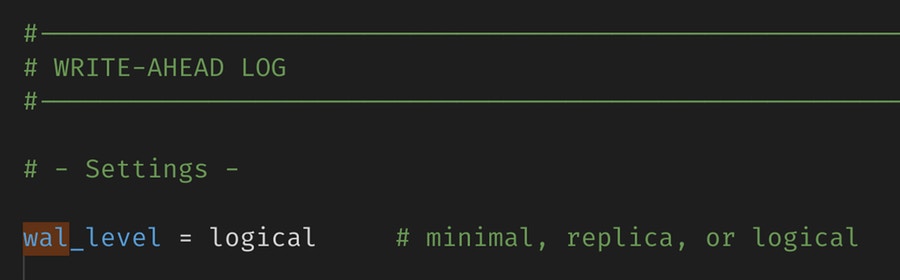 Alternatively, you can use the below SQL commands to check and ensure logical replication
is enabled:
```sql theme={null}
-- Check the replication type
SHOW wal_level;
-- Ensure logical replication is enabled
ALTER SYSTEM SET wal_level = logical;
```
Note that Postgres must be restarted after changing this config.
If you're using a managed Postgres service, there may be a setting for this in the relevant section of the service's admin console.
### 2. Create a PowerSync database user
{" "}
```sql theme={null}
-- Create a role/user with replication privileges for PowerSync
CREATE ROLE powersync_role WITH REPLICATION BYPASSRLS LOGIN PASSWORD 'myhighlyrandompassword';
-- Set up permissions for the newly created role
-- Read-only (SELECT) access is required
GRANT SELECT ON ALL TABLES IN SCHEMA public TO powersync_role;
-- Optionally, grant SELECT on all future tables (to cater for schema additions)
ALTER DEFAULT PRIVILEGES IN SCHEMA public GRANT SELECT ON TABLES TO powersync_role;
```
To restrict read access to specific tables, explicitly list allowed tables for both the `SELECT` privilege, and for the publication mentioned in the next step (as well as for any other publications that may exist).
### 3. Create `powersync` publication
```sql theme={null}
-- Create a publication to replicate tables. The publication must be named "powersync"
CREATE PUBLICATION powersync FOR ALL TABLES;
```
Note that the PowerSync Service has to read all updates present in the publication, regardless of whether the table is referenced in your Sync Streams / Sync Rules definitions. This can cause large spikes in memory usage or introduce replication delays, so if you're dealing with large data volumes, you'll want to specify a comma-separated subset of tables to replicate instead of `FOR ALL TABLES`.
The snippet above replicates all tables and is the simplest way to get started in a dev environment.
### Unsupported Hosted Postgres Providers
Due to the logical replication requirement, not all Postgres hosting providers are supported. Notably, some "serverless Postgres" providers do not support logical replication, and are therefore not supported by PowerSync yet.
### See Also
* [Postgres Maintenance: Logical Replication Slots](/configuration/source-db/postgres-maintenance)
## MongoDB
**Version compatibility**: PowerSync requires MongoDB version 6.0 or greater.
For more information on migrating from MongoDB Atlas Device Sync to PowerSync, see our [migration guide](/migration-guides/atlas-device-sync).
### Permissions Required: MongoDB Atlas
For MongoDB Atlas databases, the minimum permissions when using built-in roles are:
```
readWrite@._powersync_checkpoints
read@
```
To allow PowerSync to automatically enable [`changeStreamPreAndPostImages`](#post-images) on replicated collections (i.e. the [**Post Images**](#post-images) setting for the MongoDB connection on your PowerSync instance is set to **Auto-Configure**, which is the default for new PowerSync instances), additionally add the `dbAdmin` permission:
```
readWrite@._powersync_checkpoints
read@
dbAdmin@
```
If you are replicating from multiple databases in the cluster, you need read permissions on the entire cluster, in addition to the above:
```
readAnyDatabase@admin
```
### Privileges Required: Self-Hosted / Custom Roles
For self-hosted MongoDB, or for creating custom roles on MongoDB Atlas, PowerSync requires the following privileges/granted actions:
* `listCollections`: This privilege must be granted on the database being replicated.
* `find`: This privilege must be granted either at the database level or on specific collections.
* `changeStream`: This privilege must be granted at the database level (not on individual collections). In MongoDB Atlas, set `collection: ""` or check `Apply to any collection` in MongoDB Atlas if you want to apply this privilege on any collection.
* If replicating from multiple databases, this must apply to the entire cluster. Specify `db: ""` or check `Apply to any database` in MongoDB Atlas.
* For the `_powersync_checkpoints` collection add the following privileges: `createCollection`, `dropCollection`, `find`, `changeStream`, `insert`, `update`, and `remove`
* To allow PowerSync to automatically enable [`changeStreamPreAndPostImages`](#post-images) on replicated collections (i.e. the [**Post Images**](#post-images) setting for the MongoDB connection on your PowerSync instance is set to **Auto-Configure**, which is the default for new PowerSync instances), additionally add the `collMod` permission on the database and all collections being replicated.
### Post Images
To replicate data from MongoDB to PowerSync in a consistent manner, PowerSync uses Change Streams with [post-images](https://www.mongodb.com/docs/v6.0/reference/command/collMod/#change-streams-with-document-pre--and-post-images) to get the complete document after each change.
This requires the `changeStreamPreAndPostImages` option to be enabled on replicated collections.
PowerSync supports three configuration options for post-images:
1. **Off**: (`post_images: off`): Uses `fullDocument: 'updateLookup'` for backwards compatibility. This was the default for older instances. However, this may lead to consistency issues, so we strongly recommend enabling post-images instead.
2. **Auto-Configure**: (`post_images: auto_configure`) The **default** for new instances: Automatically enables the `changeStreamPreAndPostImages` option on collections as needed. Requires the permissions/privileges mentioned above. If a collection is removed from [Sync Streams](/sync/streams/overview) (or legacy [Sync Rules](/sync/rules/overview)), you need to manually disable `changeStreamPreAndPostImages` on that collection.
3. **Read-only**: (`post_images: read_only`): Uses `fullDocument: 'required'` and requires `changeStreamPreAndPostImages: { enabled: true }` to be set on every collection referenced in your Sync Streams/Sync Rules. Replication will error if this is not configured. This option is ideal when permissions are restricted.
To manually configure collections for `read_only` mode, run this command on each collection:
```js theme={null}
db.runCommand( {
collMod: ,
changeStreamPreAndPostImages: { enabled: }
} )
```
You can view which collections have the option enabled using:
```js theme={null}
db.getCollectionInfos().filter(
(c) => c.options?.changeStreamPreAndPostImages?.enabled
);
```
Post-images can be configured for PowerSync instances as follows:
Configure the **Post Images** setting in the database connection configuration in the
[PowerSync Dashboard](https://dashboard.powersync.com/). Select your project
and instance and go to **Database Connections** to edit the connection settings.
Configure `post_images` in the `service.yaml` file.
### MongoDB Atlas Private Endpoints Using AWS PrivateLink
If you need to use private endpoints with MongoDB Atlas, see [Private Endpoints](/configuration/source-db/private-endpoints) (AWS only).
## MySQL
MySQL support is currently in a [Beta release](/resources/feature-status).
**Version compatibility**: PowerSync requires MySQL version 5.7 or greater.
PowerSync reads from the MySQL [binary log](https://dev.mysql.com/doc/refman/8.4/en/binary-log.html) (binlog) to replicate changes. We use a modified version of the [Zongji MySQL](https://github.com/powersync-ja/powersync-mysql-zongji) binlog listener to achieve this.
### Binlog Configuration
To ensure that PowerSync can read the binary log, you need to configure your MySQL server to enable binary logging and configure it with the following server command options:
* [`server_id`](https://dev.mysql.com/doc/refman/8.4/en/replication-options.html#sysvar_server_id): Uniquely identifies the MySQL server instance in the replication topology. Default value is **`1`**.
* [`log_bin`](https://dev.mysql.com/doc/refman/8.4/en/replication-options-binary-log.html#sysvar_log_bin): **`ON`**. Enables binary logging. Default is **`ON`** for MySQL 8.0 and later, but **`OFF`** for MySQL 5.7.
* [`enforce_gtid_consistency`](https://dev.mysql.com/doc/refman/8.4/en/replication-options-gtids.html#sysvar_enforce_gtid_consistency): **`ON`**. Enforces GTID consistency. Default is **`OFF`**.
* [`gtid_mode`](https://dev.mysql.com/doc/refman/8.4/en/replication-options-gtids.html#sysvar_gtid_mode): **`ON`**. Enables GTID based logging. Default is **`OFF`**.
* [`binlog_format`](https://dev.mysql.com/doc/refman/8.4/en/replication-options-binary-log.html#sysvar_binlog_format): **`ROW`**. Sets the binary log format to row-based replication. This is required for PowerSync to correctly replicate changes. Default is **`ROW`**.
* [`binlog_row_image`](https://dev.mysql.com/doc/refman/8.4/en/replication-options-binary-log.html#sysvar_binlog_row_image): **`FULL`**. Captures the complete row data for each change. This is required for PowerSync to correctly replicate changes. Default is **`FULL`**. The `MINIMAL`/`NOBLOB` options will be supported in a future release.
These can be specified in a MySQL [option file](https://dev.mysql.com/doc/refman/8.4/en/option-files.html):
```
server_id=
log_bin=ON
enforce_gtid_consistency=ON
gtid_mode=ON
binlog_format=ROW
binlog_row_image=FULL
```
### Database User Configuration
PowerSync also requires a MySQL user with **`REPLICATION`** and **`SELECT`** privileges on the source databases. These can be added by running the following SQL commands:
```sql theme={null}
-- Create a user with necessary privileges
CREATE USER 'repl_user'@'%' IDENTIFIED BY '';
-- Grant replication client privilege
GRANT REPLICATION SLAVE, REPLICATION CLIENT ON *.* TO 'repl_user'@'%';
-- Grant select access to the specific database
GRANT SELECT ON .* TO 'repl_user'@'%';
-- Apply changes
FLUSH PRIVILEGES;
```
It is possible to constrain the MySQL user further and limit access to specific tables. Care should be taken to ensure that all the tables in your Sync Streams/Sync Rules are included in the grants.
```sql theme={null}
-- Grant select to the users and the invoices tables in the source database
GRANT SELECT ON .users TO 'repl_user'@'%';
GRANT SELECT ON .invoices TO 'repl_user'@'%';
-- Apply changes
FLUSH PRIVILEGES;
```
### Additional Configuration (Optional)
#### Binlog
The binlog can be configured to limit logging to specific databases. By default, events for tables in all the databases on the MySQL server will be logged.
* [`binlog-do-db`](https://dev.mysql.com/doc/refman/8.4/en/replication-options-binary-log.html#option_mysqld_binlog-do-db): Only updates for tables in the specified database will be logged.
* [`binlog-ignore-db`](https://dev.mysql.com/doc/refman/8.4/en/replication-options-binary-log.html#option_mysqld_binlog-ignore-db): No updates for tables in the specified database will be logged.
Examples:
```
# Only row events for tables in the user_db and invoices_db databases will appear in the binlog.
binlog-do-db=user_db
binlog-do-db=invoices_db
```
```
# Row events for tables in the user_db will be ignored. Events for any other database will be logged.
binlog-ignore-db=user_db
```
## SQL Server
SQL Server support is currently in a [Beta release](/resources/feature-status).
**Version compatibility**:
* PowerSync requires SQL Server 2019+ or Azure SQL
Database.
* SQL Server support was introduced in version 1.18.1 of the PowerSync Service.
PowerSync can replicate data from a change data capture (CDC) enabled SQL Server. The CDC process builds up change tables based on changes to tracked tables, by scanning the SQL Server transaction log on a fixed interval.
PowerSync then polls these change tables using built-in stored procedures and applies the changes to the PowerSync [bucket storage](/architecture/powersync-service#bucket-system).
For more information about CDC, see:
* [Change Data Capture (SQL Server)](https://learn.microsoft.com/en-us/sql/relational-databases/track-changes/about-change-data-capture-sql-server)
* [Change Data Capture (Azure SQL Database)](https://learn.microsoft.com/en-us/azure/azure-sql/database/change-data-capture-overview?view=azuresql)
### Supported Editions/Versions
| Database | Edition | Version | Min Service Tier |
| ---------------- | ------------------------------------------- | ------- | --------------------------------------------------------------------------------------------------------------------------------------------------------------------------------------------------------------------------------------------------------------------------------- |
| SQL Server 2019+ | Standard, Enterprise, Developer, Evaluation | 15.0+ | N/A |
| Azure SQL\* | Database, Managed instance | N/A | Any service tier on vCore purchasing model. S3 tier and up on DTU purchasing model. See: [Azure SQL Database compute requirements](https://learn.microsoft.com/en-us/azure/azure-sql/database/change-data-capture-overview?view=azuresql#azure-sql-database-compute-requirements) |
\* Azure SQL Database is always running on the latest version of the SQL Server DB Engine
### Limitations / Known Issues
* Spatial data types are returned as JSON objects as supplied by the Tedious `node-mssql` client. See the notes [here](https://github.com/tediousjs/node-mssql?tab=readme-ov-file#geography-and-geometry).
* There is an inherent latency in replicating data from SQL Server to PowerSync. See [Latency](#latency) for more details.
### Database Setup Requirements
#### 1. Enable CDC on the Database
Change Data Capture (CDC) needs to be enabled on the database:
```sql theme={null}
-- Enable CDC on the database if not already enabled
USE ; -- Only for SQL Server. To switch databases on Azure SQL, you have to connect to the specific database.
IF (SELECT is_cdc_enabled FROM sys.databases WHERE name = '') = 0
BEGIN
EXEC sys.sp_cdc_enable_db;
END
```
#### 2. Create the PowerSync Database User
Create a database user for PowerSync with the following permissions:
**Required permissions:**
* Read/Write permissions on the `_powersync_checkpoints` table
* Read permissions on the replicated tables
* `cdc_reader` role (grants access to CDC changetables and functions)
* `SELECT` permission on the CDC schema (grants access to CDC metadata tables)
* `VIEW DATABASE PERFORMANCE STATE` (SQL Server and Azure SQL)
* `VIEW SERVER PERFORMANCE STATE` (SQL Server only)
Create the login for the user first. This is done on the server / master database level:
```sql theme={null}
-- Create a SQL login for the powersync_user if missing. Note SQL Logins are created at the server level.
USE [master]; -- Use only works on SQL Server. For Azure SQL you have to connect to the master database to run these commands.
IF NOT EXISTS (SELECT 1 FROM sys.server_principals WHERE name = 'powersync_user')
BEGIN
CREATE LOGIN [powersync_user] WITH PASSWORD = 'YOUR_DB_USER_PASSWORD', CHECK_POLICY = ON;
END
```
Create the database user next. This is done on the specific database level:
```sql theme={null}
-- Create the powersync_user database user if missing. Note DB users are created at the database level.
USE []; -- Use only works on SQL Server. For Azure SQL you have to connect to the specific database to run these commands.
IF NOT EXISTS (SELECT 1 FROM sys.database_principals WHERE name = 'powersync_user')
BEGIN
CREATE USER [powersync_user] FOR LOGIN [powersync_user];
END
```
Grant the necessary permissions for the user:
```sql theme={null}
-- Grant SELECT on the specific replicated tables
GRANT SELECT ON dbo. TO [powersync_user];
-- Grant access to CDC tables and functions using the cdc_reader role
IF IS_ROLEMEMBER('cdc_reader', 'powersync_user') = 0
BEGIN
ALTER ROLE cdc_reader ADD MEMBER powersync_user;
END
-- Grant select on the CDC schema
GRANT SELECT ON SCHEMA::cdc TO [powersync_user];
-- Grant the necessary permissions to the user to access the performance state views
-- Note: For Azure SQL, only VIEW DATABASE PERFORMANCE STATE is required. Granted at the database level.
-- PowerSync uses this to access the sys.dm_db_log_stats DMV and the sys.dm_db_partition_stats DMV
GRANT VIEW DATABASE PERFORMANCE STATE TO [powersync_user];
-- VIEW SERVER PERFORMANCE STATE is only necessary on SQL Server (not Azure SQL). Granted at the server/master database level.
-- PowerSync requires this permission to access the sys.dm_db_log_stats DMV on SQL Server.
USE [master];
BEGIN
GRANT VIEW SERVER PERFORMANCE STATE TO [powersync_user];
END
```
For Azure SQL Database, the `VIEW SERVER PERFORMANCE STATE` permission is not
available and not required. Only `VIEW DATABASE PERFORMANCE STATE` is needed.
#### 3. Create the PowerSync Checkpoints Table
PowerSync requires a `_powersync_checkpoints` table to generate regular checkpoints. CDC must be enabled for this table:
```sql theme={null}
-- Create the PowerSync checkpoints table in your schema
IF OBJECT_ID('dbo._powersync_checkpoints', 'U') IS NULL
BEGIN
CREATE TABLE dbo._powersync_checkpoints (
id INT IDENTITY PRIMARY KEY,
last_updated DATETIME NOT NULL DEFAULT GETUTCDATE()
);
END
-- Enable CDC for the powersync checkpoints table if not already enabled
-- Note: the cdc_reader role created the first time CDC is enabled on a table
IF NOT EXISTS (SELECT 1 FROM cdc.change_tables WHERE source_object_id = OBJECT_ID(N'dbo._powersync_checkpoints'))
BEGIN
EXEC sys.sp_cdc_enable_table
@source_schema = N'dbo',
@source_name = N'_powersync_checkpoints',
@role_name = N'cdc_reader',
@supports_net_changes = 0;
END
```
Grant read/write access to the table for the `powersync_user`:
```sql theme={null}
GRANT SELECT, INSERT, UPDATE ON dbo._powersync_checkpoints TO [powersync_user];
```
#### 4. Enable CDC on Tables
CDC must be enabled for all tables that need to be replicated:
```sql theme={null}
-- Enable CDC for specific tables in your schema if not already enabled
IF NOT EXISTS (SELECT 1 FROM cdc.change_tables WHERE source_object_id = OBJECT_ID(N'dbo.'))
BEGIN
EXEC sys.sp_cdc_enable_table
@source_schema = N'dbo',
@source_name = N'',
@role_name = N'cdc_reader',
@supports_net_changes = 0;
END
```
Repeat this for each table you want to replicate. Note that PowerSync does not currently use the net changes functionality so `@supports_net_changes` can be set to `0`.
### CDC Management
Management and performance tuning of CDC is left to the developer and is primarily done by modifying the change capture jobs. See [Change Data Capture Jobs (SQL Server)](https://learn.microsoft.com/en-us/sql/relational-databases/track-changes/administer-and-monitor-change-data-capture-sql-server?view=sql-server-ver17) for more details.
Capture Job settings of interest to PowerSync:
* **Polling Interval:** The frequency at which the capture job reads changes from the transaction log. Default is every 5 seconds. Can be set to 0 so that there is zero downtime between scans, but this will impact database performance.
* **Max Trans:** The maximum number of transactions that are processed per scan. Default is 500.
* **Max Scans:** The maximum number of scans that are performed per capture job scan cycle. Default is 10.
Cleanup Job settings of interest to PowerSync:
* **Retention:** The retention period before data is expired from the CDC tables. Default is 3 days. If your PowerSync instance is offline for longer than this period, data will need to be fully re-synced. Specified in minutes.
Recommended Capture Job settings:
| Parameter | Recommended Value |
| ----------------- | ----------------- |
| `maxtrans` | 5000 |
| `maxscans` | 10 |
| `pollinginterval` | 1 second |
For Azure SQL Database, the CDC capture and cleanup jobs are managed automatically. Manual configuration is greatly limited.
See [Azure CDC Customization Limitations](https://learn.microsoft.com/en-us/azure/azure-sql/database/change-data-capture-overview?view=azuresql#cdc-customization).
The main limitation is that the capture job polling interval cannot be modified and is fixed at 20 seconds. It is, however, still possible to [manually trigger](https://learn.microsoft.com/en-us/azure/azure-sql/database/change-data-capture-overview?view=azuresql#manual-cdc-control) the capture job on demand.
#### Latency
Due to the fundamental differences in how CDC works compared to logical replication (Postgres) or binlog reading (MySQL), there is an inherent latency in replicating data from SQL Server to PowerSync. The latency is determined by two factors:
1. **Transaction Log Scan Interval**: The frequency at which the CDC capture job scans the transaction log for changes. The default value of 5 seconds can be changed by modifying the capture job settings on SQL Server. The recommended value is 1 second, but this can also be set to 0 based on the database load. For Azure SQL Database, the default value is 20 seconds and cannot be changed. See [Azure CDC Customization Limitations](https://learn.microsoft.com/en-us/azure/azure-sql/database/change-data-capture-overview?view=azuresql#cdc-customization) for more details.
2. **Polling Interval**: The frequency at which PowerSync polls the CDC change tables for changes. The default value is once every 1000ms. This can be changed by setting the `pollingIntervalMs` parameter in the PowerSync configuration.
### Memory Management
During each polling cycle, PowerSync will read a limited number of transactions from the CDC change tables. The default value of 10 transactions can be changed by setting the `pollingBatchSize` parameter in the PowerSync configuration.
Increasing this will increase throughput at the cost of increased memory usage. If the volume of transactions being replicated is high, and memory is available, it is recommended to increase this value.
Connection configuration parameters for the PowerSync SQL Server Adapter like `pollingIntervalMs` and `pollingBatchSize` can currently only be set when [self-hosting](/intro/setup-guide#self-hosted-2) PowerSync.
See [SQL Server Additional Configuration](/configuration/source-db/sql-server-additional-configuration#additional-configuration-options)
for more details.
We are planning to expose these settings for SQL Server source database connections in the PowerSync Dashboard for PowerSync Cloud instances.
## Convex
The Convex replicator is currently released as an [experimental feature](/resources/feature-status). APIs and
behavior may change, and the developer experience isn't yet on par with our other backend database connectors.
We also can't yet guarantee continued support or long-term stability. This release is intended for early testing
and to invite feedback. Your feedback will directly influence whether, and how, this integration evolves.
PowerSync reads Convex data using the Convex Streaming Export API. Initial replication pins a single Convex snapshot cursor and snapshots each selected table at that cursor. Streaming replication then reads the global `document_deltas` stream and filters rows according to your Sync Streams.
Convex does not support user-defined database schemas or namespaces in the same way as SQL databases. You do not need to qualify Convex table names in Sync Streams. If you do choose to qualify them, use the default `convex` schema.
### Connection Requirements
PowerSync can replicate from Convex Cloud or self-hosted Convex deployments. It requires:
* A Convex deployment URL.
* A Convex deploy key. In the Convex Dashboard, go to **Settings** → **General** and generate a deploy key for the deployment PowerSync should replicate. Create the key with **Custom permissions** and include `deployment:data:view`; the **Deploy only** option does not work for PowerSync replication.
* The `powersync_checkpoints` table and `createCheckpoint` mutation described below.
Use a deploy key for the correct environment, grant only the permissions PowerSync needs, store it as a secret, and
rotate it if it is exposed.
### Checkpoint Table
PowerSync uses a small Convex table to generate write checkpoint markers. Convex table names cannot start with `_`, so the table is named `powersync_checkpoints`.
Add the table to your Convex schema:
```typescript convex/schema.ts theme={null}
import { defineSchema, defineTable } from 'convex/server';
import { v } from 'convex/values';
export default defineSchema({
// ... your other tables
powersync_checkpoints: defineTable({
last_updated: v.float64()
})
});
```
### Checkpoint Mutation
Deploy a Convex mutation named `powersync_checkpoints:createCheckpoint`. PowerSync calls this mutation after recording a write checkpoint so the Convex delta stream advances even when the app is otherwise idle.
```typescript convex/powersync_checkpoints.ts theme={null}
import { mutation } from './_generated/server';
export const createCheckpoint = mutation({
args: {},
handler: async (ctx) => {
const existing = await ctx.db.query('powersync_checkpoints').first();
if (existing) {
await ctx.db.patch(existing._id, { last_updated: Date.now() });
} else {
await ctx.db.insert('powersync_checkpoints', { last_updated: Date.now() });
}
}
});
```
PowerSync excludes `powersync_checkpoints` from replicated source tables. The table exists only to advance the replication cursor for write checkpoint acknowledgements.
### Latency
PowerSync polls the Convex `document_deltas` endpoint for changes. This means there is an inherent latency between a write being committed in Convex and that change being replicated into PowerSync.
The polling interval defaults to once every 1000ms. When self-hosting PowerSync, you can configure this with the `polling_interval_ms` connection parameter.
Convex API requests time out after 60000ms by default. When self-hosting PowerSync, you can configure this with the optional `request_timeout_ms` connection parameter:
```yaml service.yaml theme={null}
replication:
connections:
- type: convex
deployment_url: https://.convex.cloud
deploy_key:
polling_interval_ms: 1000
request_timeout_ms: 60000
```
Lowering `polling_interval_ms` can reduce replication latency, but it increases the number of requests made to Convex and the work performed by the PowerSync Service. For more on monitoring and reducing replication lag, see [Replication Lag](/maintenance-ops/replication-lag).
### Client ID Mapping
Convex generates its own document IDs and exposes them as `_id`. PowerSync clients need a stable local ID before a write is uploaded, so plan your Convex schema around a client-generated UUID rather than the Convex `_id`.
Clients cannot create Convex IDs before inserting documents into Convex. Use a client-generated UUID column as the
synced `id` and keep `_id` as the Convex server-generated document ID. This is similar to the pattern described in
[Sequential ID Mapping](/client-sdks/advanced/sequential-id-mapping).
The client creates a UUID in its local `id` column before the write is uploaded. Your Convex mutation should store that value in a separate `uuid` field on the Convex document. PowerSync then syncs `uuid AS id` back to the client, so the client keeps the same stable local ID while Convex keeps its own server-generated `_id`.
For a complete [Sync Streams](/sync/streams/overview) configuration that applies this mapping, see [Convex with ID Mapping](/sync/streams/examples#convex-with-id-mapping). For how Convex data types map to SQLite columns, see [Convex Type Mapping](/sync/types#convex-type-mapping).
### Client Writes
Apply queued client-side writes to Convex by calling Convex mutations from your backend connector. See [Writing Client Changes](/handling-writes/writing-client-changes#convex) for the upload path and authentication details.
### Demo App
For a working JavaScript example, see the [PowerSync Convex To-Do List Demo](https://github.com/powersync-community/powersync-convex-todolist-demo).
## Next Step
Next, connect PowerSync to your database:
Alternatively, you can use the below SQL commands to check and ensure logical replication
is enabled:
```sql theme={null}
-- Check the replication type
SHOW wal_level;
-- Ensure logical replication is enabled
ALTER SYSTEM SET wal_level = logical;
```
Note that Postgres must be restarted after changing this config.
If you're using a managed Postgres service, there may be a setting for this in the relevant section of the service's admin console.
### 2. Create a PowerSync database user
{" "}
```sql theme={null}
-- Create a role/user with replication privileges for PowerSync
CREATE ROLE powersync_role WITH REPLICATION BYPASSRLS LOGIN PASSWORD 'myhighlyrandompassword';
-- Set up permissions for the newly created role
-- Read-only (SELECT) access is required
GRANT SELECT ON ALL TABLES IN SCHEMA public TO powersync_role;
-- Optionally, grant SELECT on all future tables (to cater for schema additions)
ALTER DEFAULT PRIVILEGES IN SCHEMA public GRANT SELECT ON TABLES TO powersync_role;
```
To restrict read access to specific tables, explicitly list allowed tables for both the `SELECT` privilege, and for the publication mentioned in the next step (as well as for any other publications that may exist).
### 3. Create `powersync` publication
```sql theme={null}
-- Create a publication to replicate tables. The publication must be named "powersync"
CREATE PUBLICATION powersync FOR ALL TABLES;
```
Note that the PowerSync Service has to read all updates present in the publication, regardless of whether the table is referenced in your Sync Streams / Sync Rules definitions. This can cause large spikes in memory usage or introduce replication delays, so if you're dealing with large data volumes, you'll want to specify a comma-separated subset of tables to replicate instead of `FOR ALL TABLES`.
The snippet above replicates all tables and is the simplest way to get started in a dev environment.
### Unsupported Hosted Postgres Providers
Due to the logical replication requirement, not all Postgres hosting providers are supported. Notably, some "serverless Postgres" providers do not support logical replication, and are therefore not supported by PowerSync yet.
### See Also
* [Postgres Maintenance: Logical Replication Slots](/configuration/source-db/postgres-maintenance)
## MongoDB
**Version compatibility**: PowerSync requires MongoDB version 6.0 or greater.
For more information on migrating from MongoDB Atlas Device Sync to PowerSync, see our [migration guide](/migration-guides/atlas-device-sync).
### Permissions Required: MongoDB Atlas
For MongoDB Atlas databases, the minimum permissions when using built-in roles are:
```
readWrite@._powersync_checkpoints
read@
```
To allow PowerSync to automatically enable [`changeStreamPreAndPostImages`](#post-images) on replicated collections (i.e. the [**Post Images**](#post-images) setting for the MongoDB connection on your PowerSync instance is set to **Auto-Configure**, which is the default for new PowerSync instances), additionally add the `dbAdmin` permission:
```
readWrite@._powersync_checkpoints
read@
dbAdmin@
```
If you are replicating from multiple databases in the cluster, you need read permissions on the entire cluster, in addition to the above:
```
readAnyDatabase@admin
```
### Privileges Required: Self-Hosted / Custom Roles
For self-hosted MongoDB, or for creating custom roles on MongoDB Atlas, PowerSync requires the following privileges/granted actions:
* `listCollections`: This privilege must be granted on the database being replicated.
* `find`: This privilege must be granted either at the database level or on specific collections.
* `changeStream`: This privilege must be granted at the database level (not on individual collections). In MongoDB Atlas, set `collection: ""` or check `Apply to any collection` in MongoDB Atlas if you want to apply this privilege on any collection.
* If replicating from multiple databases, this must apply to the entire cluster. Specify `db: ""` or check `Apply to any database` in MongoDB Atlas.
* For the `_powersync_checkpoints` collection add the following privileges: `createCollection`, `dropCollection`, `find`, `changeStream`, `insert`, `update`, and `remove`
* To allow PowerSync to automatically enable [`changeStreamPreAndPostImages`](#post-images) on replicated collections (i.e. the [**Post Images**](#post-images) setting for the MongoDB connection on your PowerSync instance is set to **Auto-Configure**, which is the default for new PowerSync instances), additionally add the `collMod` permission on the database and all collections being replicated.
### Post Images
To replicate data from MongoDB to PowerSync in a consistent manner, PowerSync uses Change Streams with [post-images](https://www.mongodb.com/docs/v6.0/reference/command/collMod/#change-streams-with-document-pre--and-post-images) to get the complete document after each change.
This requires the `changeStreamPreAndPostImages` option to be enabled on replicated collections.
PowerSync supports three configuration options for post-images:
1. **Off**: (`post_images: off`): Uses `fullDocument: 'updateLookup'` for backwards compatibility. This was the default for older instances. However, this may lead to consistency issues, so we strongly recommend enabling post-images instead.
2. **Auto-Configure**: (`post_images: auto_configure`) The **default** for new instances: Automatically enables the `changeStreamPreAndPostImages` option on collections as needed. Requires the permissions/privileges mentioned above. If a collection is removed from [Sync Streams](/sync/streams/overview) (or legacy [Sync Rules](/sync/rules/overview)), you need to manually disable `changeStreamPreAndPostImages` on that collection.
3. **Read-only**: (`post_images: read_only`): Uses `fullDocument: 'required'` and requires `changeStreamPreAndPostImages: { enabled: true }` to be set on every collection referenced in your Sync Streams/Sync Rules. Replication will error if this is not configured. This option is ideal when permissions are restricted.
To manually configure collections for `read_only` mode, run this command on each collection:
```js theme={null}
db.runCommand( {
collMod: ,
changeStreamPreAndPostImages: { enabled: }
} )
```
You can view which collections have the option enabled using:
```js theme={null}
db.getCollectionInfos().filter(
(c) => c.options?.changeStreamPreAndPostImages?.enabled
);
```
Post-images can be configured for PowerSync instances as follows:
Configure the **Post Images** setting in the database connection configuration in the
[PowerSync Dashboard](https://dashboard.powersync.com/). Select your project
and instance and go to **Database Connections** to edit the connection settings.
Configure `post_images` in the `service.yaml` file.
### MongoDB Atlas Private Endpoints Using AWS PrivateLink
If you need to use private endpoints with MongoDB Atlas, see [Private Endpoints](/configuration/source-db/private-endpoints) (AWS only).
## MySQL
MySQL support is currently in a [Beta release](/resources/feature-status).
**Version compatibility**: PowerSync requires MySQL version 5.7 or greater.
PowerSync reads from the MySQL [binary log](https://dev.mysql.com/doc/refman/8.4/en/binary-log.html) (binlog) to replicate changes. We use a modified version of the [Zongji MySQL](https://github.com/powersync-ja/powersync-mysql-zongji) binlog listener to achieve this.
### Binlog Configuration
To ensure that PowerSync can read the binary log, you need to configure your MySQL server to enable binary logging and configure it with the following server command options:
* [`server_id`](https://dev.mysql.com/doc/refman/8.4/en/replication-options.html#sysvar_server_id): Uniquely identifies the MySQL server instance in the replication topology. Default value is **`1`**.
* [`log_bin`](https://dev.mysql.com/doc/refman/8.4/en/replication-options-binary-log.html#sysvar_log_bin): **`ON`**. Enables binary logging. Default is **`ON`** for MySQL 8.0 and later, but **`OFF`** for MySQL 5.7.
* [`enforce_gtid_consistency`](https://dev.mysql.com/doc/refman/8.4/en/replication-options-gtids.html#sysvar_enforce_gtid_consistency): **`ON`**. Enforces GTID consistency. Default is **`OFF`**.
* [`gtid_mode`](https://dev.mysql.com/doc/refman/8.4/en/replication-options-gtids.html#sysvar_gtid_mode): **`ON`**. Enables GTID based logging. Default is **`OFF`**.
* [`binlog_format`](https://dev.mysql.com/doc/refman/8.4/en/replication-options-binary-log.html#sysvar_binlog_format): **`ROW`**. Sets the binary log format to row-based replication. This is required for PowerSync to correctly replicate changes. Default is **`ROW`**.
* [`binlog_row_image`](https://dev.mysql.com/doc/refman/8.4/en/replication-options-binary-log.html#sysvar_binlog_row_image): **`FULL`**. Captures the complete row data for each change. This is required for PowerSync to correctly replicate changes. Default is **`FULL`**. The `MINIMAL`/`NOBLOB` options will be supported in a future release.
These can be specified in a MySQL [option file](https://dev.mysql.com/doc/refman/8.4/en/option-files.html):
```
server_id=
log_bin=ON
enforce_gtid_consistency=ON
gtid_mode=ON
binlog_format=ROW
binlog_row_image=FULL
```
### Database User Configuration
PowerSync also requires a MySQL user with **`REPLICATION`** and **`SELECT`** privileges on the source databases. These can be added by running the following SQL commands:
```sql theme={null}
-- Create a user with necessary privileges
CREATE USER 'repl_user'@'%' IDENTIFIED BY '';
-- Grant replication client privilege
GRANT REPLICATION SLAVE, REPLICATION CLIENT ON *.* TO 'repl_user'@'%';
-- Grant select access to the specific database
GRANT SELECT ON .* TO 'repl_user'@'%';
-- Apply changes
FLUSH PRIVILEGES;
```
It is possible to constrain the MySQL user further and limit access to specific tables. Care should be taken to ensure that all the tables in your Sync Streams/Sync Rules are included in the grants.
```sql theme={null}
-- Grant select to the users and the invoices tables in the source database
GRANT SELECT ON .users TO 'repl_user'@'%';
GRANT SELECT ON .invoices TO 'repl_user'@'%';
-- Apply changes
FLUSH PRIVILEGES;
```
### Additional Configuration (Optional)
#### Binlog
The binlog can be configured to limit logging to specific databases. By default, events for tables in all the databases on the MySQL server will be logged.
* [`binlog-do-db`](https://dev.mysql.com/doc/refman/8.4/en/replication-options-binary-log.html#option_mysqld_binlog-do-db): Only updates for tables in the specified database will be logged.
* [`binlog-ignore-db`](https://dev.mysql.com/doc/refman/8.4/en/replication-options-binary-log.html#option_mysqld_binlog-ignore-db): No updates for tables in the specified database will be logged.
Examples:
```
# Only row events for tables in the user_db and invoices_db databases will appear in the binlog.
binlog-do-db=user_db
binlog-do-db=invoices_db
```
```
# Row events for tables in the user_db will be ignored. Events for any other database will be logged.
binlog-ignore-db=user_db
```
## SQL Server
SQL Server support is currently in a [Beta release](/resources/feature-status).
**Version compatibility**:
* PowerSync requires SQL Server 2019+ or Azure SQL
Database.
* SQL Server support was introduced in version 1.18.1 of the PowerSync Service.
PowerSync can replicate data from a change data capture (CDC) enabled SQL Server. The CDC process builds up change tables based on changes to tracked tables, by scanning the SQL Server transaction log on a fixed interval.
PowerSync then polls these change tables using built-in stored procedures and applies the changes to the PowerSync [bucket storage](/architecture/powersync-service#bucket-system).
For more information about CDC, see:
* [Change Data Capture (SQL Server)](https://learn.microsoft.com/en-us/sql/relational-databases/track-changes/about-change-data-capture-sql-server)
* [Change Data Capture (Azure SQL Database)](https://learn.microsoft.com/en-us/azure/azure-sql/database/change-data-capture-overview?view=azuresql)
### Supported Editions/Versions
| Database | Edition | Version | Min Service Tier |
| ---------------- | ------------------------------------------- | ------- | --------------------------------------------------------------------------------------------------------------------------------------------------------------------------------------------------------------------------------------------------------------------------------- |
| SQL Server 2019+ | Standard, Enterprise, Developer, Evaluation | 15.0+ | N/A |
| Azure SQL\* | Database, Managed instance | N/A | Any service tier on vCore purchasing model. S3 tier and up on DTU purchasing model. See: [Azure SQL Database compute requirements](https://learn.microsoft.com/en-us/azure/azure-sql/database/change-data-capture-overview?view=azuresql#azure-sql-database-compute-requirements) |
\* Azure SQL Database is always running on the latest version of the SQL Server DB Engine
### Limitations / Known Issues
* Spatial data types are returned as JSON objects as supplied by the Tedious `node-mssql` client. See the notes [here](https://github.com/tediousjs/node-mssql?tab=readme-ov-file#geography-and-geometry).
* There is an inherent latency in replicating data from SQL Server to PowerSync. See [Latency](#latency) for more details.
### Database Setup Requirements
#### 1. Enable CDC on the Database
Change Data Capture (CDC) needs to be enabled on the database:
```sql theme={null}
-- Enable CDC on the database if not already enabled
USE ; -- Only for SQL Server. To switch databases on Azure SQL, you have to connect to the specific database.
IF (SELECT is_cdc_enabled FROM sys.databases WHERE name = '') = 0
BEGIN
EXEC sys.sp_cdc_enable_db;
END
```
#### 2. Create the PowerSync Database User
Create a database user for PowerSync with the following permissions:
**Required permissions:**
* Read/Write permissions on the `_powersync_checkpoints` table
* Read permissions on the replicated tables
* `cdc_reader` role (grants access to CDC changetables and functions)
* `SELECT` permission on the CDC schema (grants access to CDC metadata tables)
* `VIEW DATABASE PERFORMANCE STATE` (SQL Server and Azure SQL)
* `VIEW SERVER PERFORMANCE STATE` (SQL Server only)
Create the login for the user first. This is done on the server / master database level:
```sql theme={null}
-- Create a SQL login for the powersync_user if missing. Note SQL Logins are created at the server level.
USE [master]; -- Use only works on SQL Server. For Azure SQL you have to connect to the master database to run these commands.
IF NOT EXISTS (SELECT 1 FROM sys.server_principals WHERE name = 'powersync_user')
BEGIN
CREATE LOGIN [powersync_user] WITH PASSWORD = 'YOUR_DB_USER_PASSWORD', CHECK_POLICY = ON;
END
```
Create the database user next. This is done on the specific database level:
```sql theme={null}
-- Create the powersync_user database user if missing. Note DB users are created at the database level.
USE []; -- Use only works on SQL Server. For Azure SQL you have to connect to the specific database to run these commands.
IF NOT EXISTS (SELECT 1 FROM sys.database_principals WHERE name = 'powersync_user')
BEGIN
CREATE USER [powersync_user] FOR LOGIN [powersync_user];
END
```
Grant the necessary permissions for the user:
```sql theme={null}
-- Grant SELECT on the specific replicated tables
GRANT SELECT ON dbo. TO [powersync_user];
-- Grant access to CDC tables and functions using the cdc_reader role
IF IS_ROLEMEMBER('cdc_reader', 'powersync_user') = 0
BEGIN
ALTER ROLE cdc_reader ADD MEMBER powersync_user;
END
-- Grant select on the CDC schema
GRANT SELECT ON SCHEMA::cdc TO [powersync_user];
-- Grant the necessary permissions to the user to access the performance state views
-- Note: For Azure SQL, only VIEW DATABASE PERFORMANCE STATE is required. Granted at the database level.
-- PowerSync uses this to access the sys.dm_db_log_stats DMV and the sys.dm_db_partition_stats DMV
GRANT VIEW DATABASE PERFORMANCE STATE TO [powersync_user];
-- VIEW SERVER PERFORMANCE STATE is only necessary on SQL Server (not Azure SQL). Granted at the server/master database level.
-- PowerSync requires this permission to access the sys.dm_db_log_stats DMV on SQL Server.
USE [master];
BEGIN
GRANT VIEW SERVER PERFORMANCE STATE TO [powersync_user];
END
```
For Azure SQL Database, the `VIEW SERVER PERFORMANCE STATE` permission is not
available and not required. Only `VIEW DATABASE PERFORMANCE STATE` is needed.
#### 3. Create the PowerSync Checkpoints Table
PowerSync requires a `_powersync_checkpoints` table to generate regular checkpoints. CDC must be enabled for this table:
```sql theme={null}
-- Create the PowerSync checkpoints table in your schema
IF OBJECT_ID('dbo._powersync_checkpoints', 'U') IS NULL
BEGIN
CREATE TABLE dbo._powersync_checkpoints (
id INT IDENTITY PRIMARY KEY,
last_updated DATETIME NOT NULL DEFAULT GETUTCDATE()
);
END
-- Enable CDC for the powersync checkpoints table if not already enabled
-- Note: the cdc_reader role created the first time CDC is enabled on a table
IF NOT EXISTS (SELECT 1 FROM cdc.change_tables WHERE source_object_id = OBJECT_ID(N'dbo._powersync_checkpoints'))
BEGIN
EXEC sys.sp_cdc_enable_table
@source_schema = N'dbo',
@source_name = N'_powersync_checkpoints',
@role_name = N'cdc_reader',
@supports_net_changes = 0;
END
```
Grant read/write access to the table for the `powersync_user`:
```sql theme={null}
GRANT SELECT, INSERT, UPDATE ON dbo._powersync_checkpoints TO [powersync_user];
```
#### 4. Enable CDC on Tables
CDC must be enabled for all tables that need to be replicated:
```sql theme={null}
-- Enable CDC for specific tables in your schema if not already enabled
IF NOT EXISTS (SELECT 1 FROM cdc.change_tables WHERE source_object_id = OBJECT_ID(N'dbo.'))
BEGIN
EXEC sys.sp_cdc_enable_table
@source_schema = N'dbo',
@source_name = N'',
@role_name = N'cdc_reader',
@supports_net_changes = 0;
END
```
Repeat this for each table you want to replicate. Note that PowerSync does not currently use the net changes functionality so `@supports_net_changes` can be set to `0`.
### CDC Management
Management and performance tuning of CDC is left to the developer and is primarily done by modifying the change capture jobs. See [Change Data Capture Jobs (SQL Server)](https://learn.microsoft.com/en-us/sql/relational-databases/track-changes/administer-and-monitor-change-data-capture-sql-server?view=sql-server-ver17) for more details.
Capture Job settings of interest to PowerSync:
* **Polling Interval:** The frequency at which the capture job reads changes from the transaction log. Default is every 5 seconds. Can be set to 0 so that there is zero downtime between scans, but this will impact database performance.
* **Max Trans:** The maximum number of transactions that are processed per scan. Default is 500.
* **Max Scans:** The maximum number of scans that are performed per capture job scan cycle. Default is 10.
Cleanup Job settings of interest to PowerSync:
* **Retention:** The retention period before data is expired from the CDC tables. Default is 3 days. If your PowerSync instance is offline for longer than this period, data will need to be fully re-synced. Specified in minutes.
Recommended Capture Job settings:
| Parameter | Recommended Value |
| ----------------- | ----------------- |
| `maxtrans` | 5000 |
| `maxscans` | 10 |
| `pollinginterval` | 1 second |
For Azure SQL Database, the CDC capture and cleanup jobs are managed automatically. Manual configuration is greatly limited.
See [Azure CDC Customization Limitations](https://learn.microsoft.com/en-us/azure/azure-sql/database/change-data-capture-overview?view=azuresql#cdc-customization).
The main limitation is that the capture job polling interval cannot be modified and is fixed at 20 seconds. It is, however, still possible to [manually trigger](https://learn.microsoft.com/en-us/azure/azure-sql/database/change-data-capture-overview?view=azuresql#manual-cdc-control) the capture job on demand.
#### Latency
Due to the fundamental differences in how CDC works compared to logical replication (Postgres) or binlog reading (MySQL), there is an inherent latency in replicating data from SQL Server to PowerSync. The latency is determined by two factors:
1. **Transaction Log Scan Interval**: The frequency at which the CDC capture job scans the transaction log for changes. The default value of 5 seconds can be changed by modifying the capture job settings on SQL Server. The recommended value is 1 second, but this can also be set to 0 based on the database load. For Azure SQL Database, the default value is 20 seconds and cannot be changed. See [Azure CDC Customization Limitations](https://learn.microsoft.com/en-us/azure/azure-sql/database/change-data-capture-overview?view=azuresql#cdc-customization) for more details.
2. **Polling Interval**: The frequency at which PowerSync polls the CDC change tables for changes. The default value is once every 1000ms. This can be changed by setting the `pollingIntervalMs` parameter in the PowerSync configuration.
### Memory Management
During each polling cycle, PowerSync will read a limited number of transactions from the CDC change tables. The default value of 10 transactions can be changed by setting the `pollingBatchSize` parameter in the PowerSync configuration.
Increasing this will increase throughput at the cost of increased memory usage. If the volume of transactions being replicated is high, and memory is available, it is recommended to increase this value.
Connection configuration parameters for the PowerSync SQL Server Adapter like `pollingIntervalMs` and `pollingBatchSize` can currently only be set when [self-hosting](/intro/setup-guide#self-hosted-2) PowerSync.
See [SQL Server Additional Configuration](/configuration/source-db/sql-server-additional-configuration#additional-configuration-options)
for more details.
We are planning to expose these settings for SQL Server source database connections in the PowerSync Dashboard for PowerSync Cloud instances.
## Convex
The Convex replicator is currently released as an [experimental feature](/resources/feature-status). APIs and
behavior may change, and the developer experience isn't yet on par with our other backend database connectors.
We also can't yet guarantee continued support or long-term stability. This release is intended for early testing
and to invite feedback. Your feedback will directly influence whether, and how, this integration evolves.
PowerSync reads Convex data using the Convex Streaming Export API. Initial replication pins a single Convex snapshot cursor and snapshots each selected table at that cursor. Streaming replication then reads the global `document_deltas` stream and filters rows according to your Sync Streams.
Convex does not support user-defined database schemas or namespaces in the same way as SQL databases. You do not need to qualify Convex table names in Sync Streams. If you do choose to qualify them, use the default `convex` schema.
### Connection Requirements
PowerSync can replicate from Convex Cloud or self-hosted Convex deployments. It requires:
* A Convex deployment URL.
* A Convex deploy key. In the Convex Dashboard, go to **Settings** → **General** and generate a deploy key for the deployment PowerSync should replicate. Create the key with **Custom permissions** and include `deployment:data:view`; the **Deploy only** option does not work for PowerSync replication.
* The `powersync_checkpoints` table and `createCheckpoint` mutation described below.
Use a deploy key for the correct environment, grant only the permissions PowerSync needs, store it as a secret, and
rotate it if it is exposed.
### Checkpoint Table
PowerSync uses a small Convex table to generate write checkpoint markers. Convex table names cannot start with `_`, so the table is named `powersync_checkpoints`.
Add the table to your Convex schema:
```typescript convex/schema.ts theme={null}
import { defineSchema, defineTable } from 'convex/server';
import { v } from 'convex/values';
export default defineSchema({
// ... your other tables
powersync_checkpoints: defineTable({
last_updated: v.float64()
})
});
```
### Checkpoint Mutation
Deploy a Convex mutation named `powersync_checkpoints:createCheckpoint`. PowerSync calls this mutation after recording a write checkpoint so the Convex delta stream advances even when the app is otherwise idle.
```typescript convex/powersync_checkpoints.ts theme={null}
import { mutation } from './_generated/server';
export const createCheckpoint = mutation({
args: {},
handler: async (ctx) => {
const existing = await ctx.db.query('powersync_checkpoints').first();
if (existing) {
await ctx.db.patch(existing._id, { last_updated: Date.now() });
} else {
await ctx.db.insert('powersync_checkpoints', { last_updated: Date.now() });
}
}
});
```
PowerSync excludes `powersync_checkpoints` from replicated source tables. The table exists only to advance the replication cursor for write checkpoint acknowledgements.
### Latency
PowerSync polls the Convex `document_deltas` endpoint for changes. This means there is an inherent latency between a write being committed in Convex and that change being replicated into PowerSync.
The polling interval defaults to once every 1000ms. When self-hosting PowerSync, you can configure this with the `polling_interval_ms` connection parameter.
Convex API requests time out after 60000ms by default. When self-hosting PowerSync, you can configure this with the optional `request_timeout_ms` connection parameter:
```yaml service.yaml theme={null}
replication:
connections:
- type: convex
deployment_url: https://.convex.cloud
deploy_key:
polling_interval_ms: 1000
request_timeout_ms: 60000
```
Lowering `polling_interval_ms` can reduce replication latency, but it increases the number of requests made to Convex and the work performed by the PowerSync Service. For more on monitoring and reducing replication lag, see [Replication Lag](/maintenance-ops/replication-lag).
### Client ID Mapping
Convex generates its own document IDs and exposes them as `_id`. PowerSync clients need a stable local ID before a write is uploaded, so plan your Convex schema around a client-generated UUID rather than the Convex `_id`.
Clients cannot create Convex IDs before inserting documents into Convex. Use a client-generated UUID column as the
synced `id` and keep `_id` as the Convex server-generated document ID. This is similar to the pattern described in
[Sequential ID Mapping](/client-sdks/advanced/sequential-id-mapping).
The client creates a UUID in its local `id` column before the write is uploaded. Your Convex mutation should store that value in a separate `uuid` field on the Convex document. PowerSync then syncs `uuid AS id` back to the client, so the client keeps the same stable local ID while Convex keeps its own server-generated `_id`.
For a complete [Sync Streams](/sync/streams/overview) configuration that applies this mapping, see [Convex with ID Mapping](/sync/streams/examples#convex-with-id-mapping). For how Convex data types map to SQLite columns, see [Convex Type Mapping](/sync/types#convex-type-mapping).
### Client Writes
Apply queued client-side writes to Convex by calling Convex mutations from your backend connector. See [Writing Client Changes](/handling-writes/writing-client-changes#convex) for the upload path and authentication details.
### Demo App
For a working JavaScript example, see the [PowerSync Convex To-Do List Demo](https://github.com/powersync-community/powersync-convex-todolist-demo).
## Next Step
Next, connect PowerSync to your database: