`ps_data__`
|
This contains the data for each "table", in JSON format. Since JSON is being used, this table's schema does not change when columns are added, removed or changed in the Sync Streams (or legacy Sync Rules) and client-side schema.
|
`ps_data_local__`
|
Same as the previous point, but for [local-only](/client-sdks/advanced/local-only-usage) tables.
|
`` (`VIEW`)
|
These are views on the above `ps_data` tables, with each defined column in the client-side schema extracted from the JSON. For example, a `description` text column would be `CAST(data ->> '$.description' as TEXT)`.
|
|
`ps_untyped`
|
Any synced table that is not defined in the client-side schema is placed here. If the table is added to the schema at a later point, the data is then migrated to `ps_data__`.
|
`ps_oplog`
|
This is the operation history data as received from the [PowerSync Service](/architecture/powersync-service), grouped per bucket.
|
|
`ps_crud`
|
The client-side upload queue (see [Writing Data](#writing-data-via-sqlite-database-and-upload-queue) below)
|
|
`ps_buckets`
|
A small amount of metadata for each bucket.
|
|
`ps_migrations`
|
Table keeping track of Client SDK schema migrations.
|
Most rows will be present in at least two tables — the `ps_data__` table, and in `ps_oplog`.
The copy of the row in `ps_oplog` may be newer than the one in `ps_data__`. This is because of the checkpoint system in PowerSync that gives the system its consistency properties. When a full [checkpoint](/architecture/consistency) has been downloaded, data is copied over from `ps_oplog` to the individual `ps_data__` tables.
It is possible for different [buckets](/architecture/powersync-service#bucket-system) to include overlapping data (for example, if multiple buckets contain data from the same table). If rows with the same table and ID have been synced via multiple buckets, it may be present multiple times in `ps_oplog`, but only one will be preserved in the `ps_data__` table (the one with the highest `op_id`).
**Raw Tables Instead of JSON-Backed SQLite Views**: If you run into limitations with the above JSON-based SQLite view system, check out the [Raw Tables feature](/client-sdks/advanced/raw-tables) which allows you to define and manage raw SQLite tables to work around some of the limitations of PowerSync's default JSON-backed SQLite views system.
## Writing Data (via SQLite Database and Upload Queue)
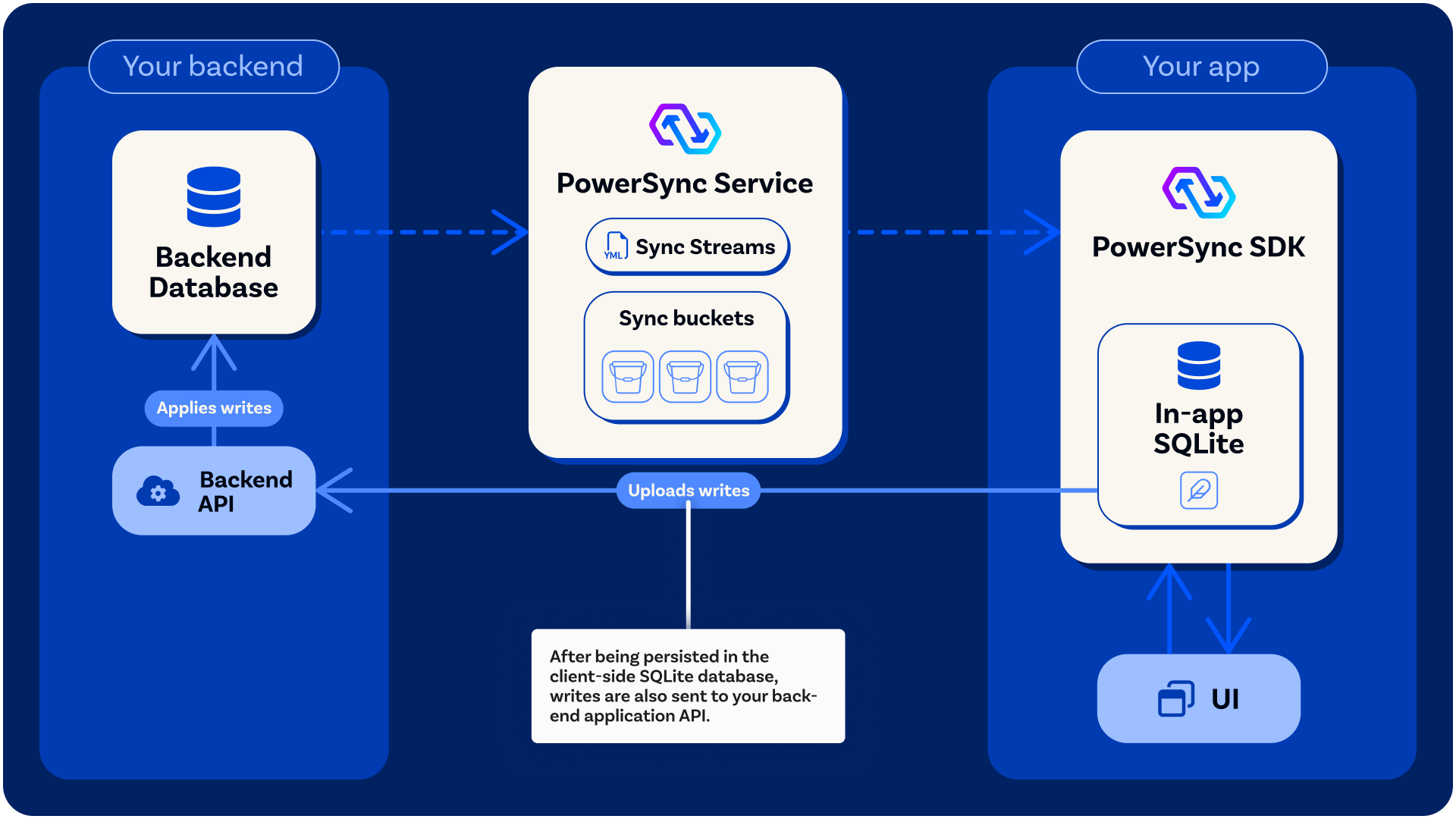
Any mutations on the SQLite database, namely updates, deletes and inserts, are immediately reflected in the SQLite database, and also automatically placed into an **upload queue** by the Client SDK.
The upload queue is a blocking [FIFO](https://en.wikipedia.org/wiki/FIFO_%28computing_and_electronics%29) queue.
The upload queue is automatically managed by the PowerSync Client SDK.
The Client SDK processes the upload queue by invoking an `uploadData()` function [that you define](/configuration/app-backend/client-side-integration) when you integrate the Client SDK. Your `uploadData()` function implementation should call your [backend application API](/configuration/app-backend/setup) to persist the mutations to the backend source database.
The reason why we designed PowerSync this way is that it allows you to apply your own backend business logic, validations and authorization to any mutations going to your source database.
The PowerSync Client SDK automatically takes care of network failures and retries. If processing mutations in the upload queue fails (e.g. because the user is offline), it is automatically retried. For a detailed breakdown of when `uploadData()` is called, including throttling, retry behavior, and error handling, see [When `uploadData()` is Called](/configuration/app-backend/client-side-integration#when-uploaddata-is-called).
| | | |
 ## Reading Data (SQLite)
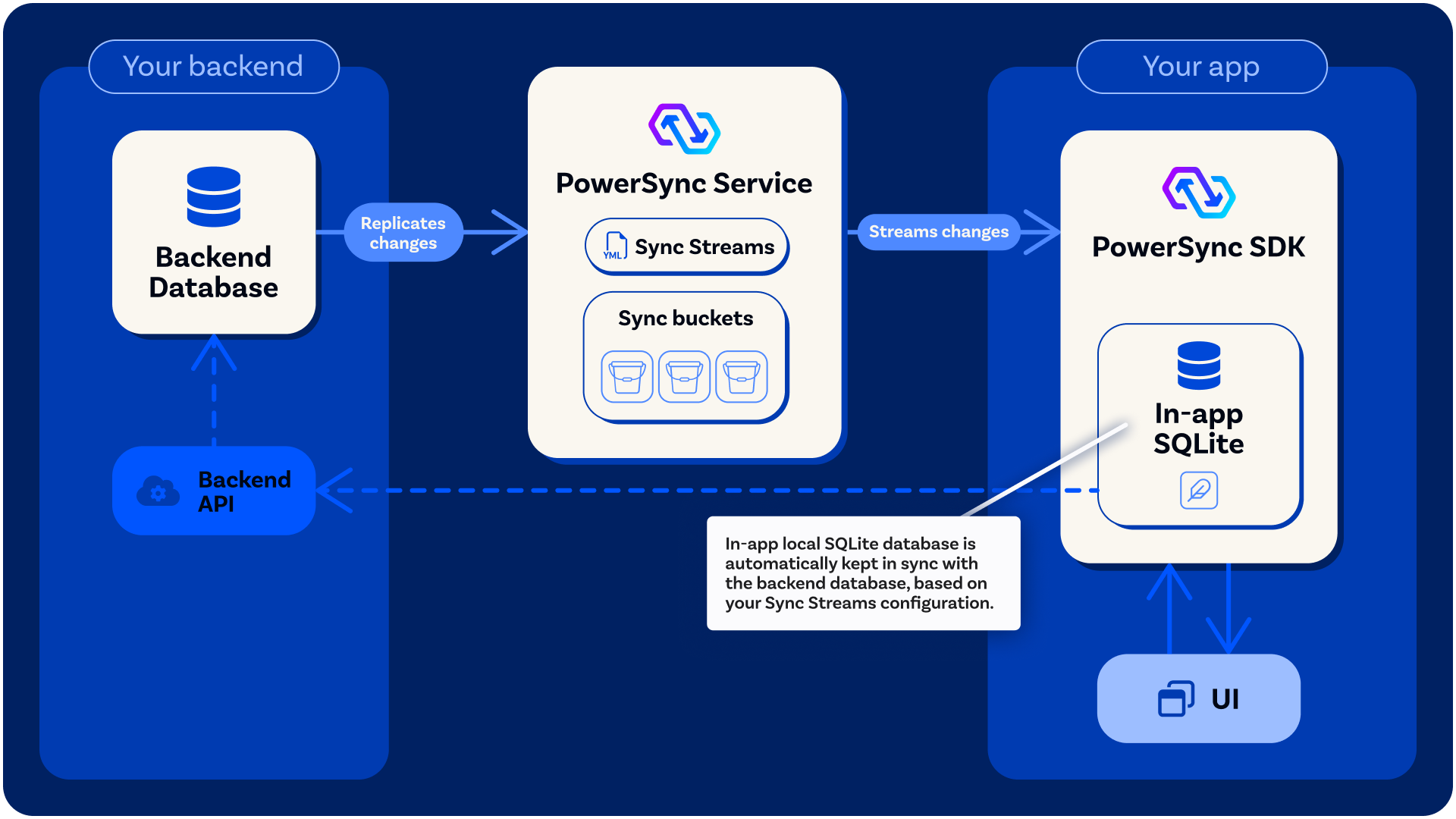
App clients always read data from the client-side [SQLite](https://sqlite.org/) database, regardless of whether the user is online or offline.
When the user is online and the app is connected to the PowerSync Service, changes on the source database reflect in real-time in the SQLite database.
[Live Queries / Watch Queries](/client-sdks/watch-queries) allows the app UI to have real-time reactivity too.
## Client-Side Schema and SQLite Database Structure
When you implement the PowerSync Client SDK in your application, you need to define a [client-side schema](/intro/setup-guide#define-your-client-side-schema) with tables, columns and indexes that correspond to your [Sync Streams](/sync/streams/overview) (or legacy [Sync Rules](/sync/rules/overview)). You provide this schema when the PowerSync-managed SQLite database is [instantiated](/intro/setup-guide#instantiate-the-powersync-database).
The tables defined in your client-side schema are usable in SQL queries as if they were actual SQLite tables, while in reality they are created as *SQLite views* based on the schemaless JSON data being synced (see [PowerSync Protocol](/architecture/powersync-protocol)).
The PowerSync Client SDK automatically maintains the following tables in the SQLite database:
## Reading Data (SQLite)
App clients always read data from the client-side [SQLite](https://sqlite.org/) database, regardless of whether the user is online or offline.
When the user is online and the app is connected to the PowerSync Service, changes on the source database reflect in real-time in the SQLite database.
[Live Queries / Watch Queries](/client-sdks/watch-queries) allows the app UI to have real-time reactivity too.
## Client-Side Schema and SQLite Database Structure
When you implement the PowerSync Client SDK in your application, you need to define a [client-side schema](/intro/setup-guide#define-your-client-side-schema) with tables, columns and indexes that correspond to your [Sync Streams](/sync/streams/overview) (or legacy [Sync Rules](/sync/rules/overview)). You provide this schema when the PowerSync-managed SQLite database is [instantiated](/intro/setup-guide#instantiate-the-powersync-database).
The tables defined in your client-side schema are usable in SQL queries as if they were actual SQLite tables, while in reality they are created as *SQLite views* based on the schemaless JSON data being synced (see [PowerSync Protocol](/architecture/powersync-protocol)).
The PowerSync Client SDK automatically maintains the following tables in the SQLite database: